
Indledning
The Everest EV-MK10 is a compact 2.4GHz wireless mini keyboard with an integrated touchpad, designed for versatile use across various devices. It features a 3-color adjustable backlight, making it suitable for use in different lighting conditions. This manual provides detailed instructions for the proper setup, operation, and maintenance of your device.
Pakkens indhold
Kontroller venligst, at alle varer er til stede i din pakke:
- Everest EV-MK10 Mini Keyboard
- USB Wireless Receiver (typically stored in the battery compartment)
- USB opladningskabel
- Brugervejledning (dette dokument)
Produkt overview
The Everest EV-MK10 combines a full QWERTY keyboard layout with a multi-touch touchpad. It includes dedicated media control keys and a rechargeable internal battery.
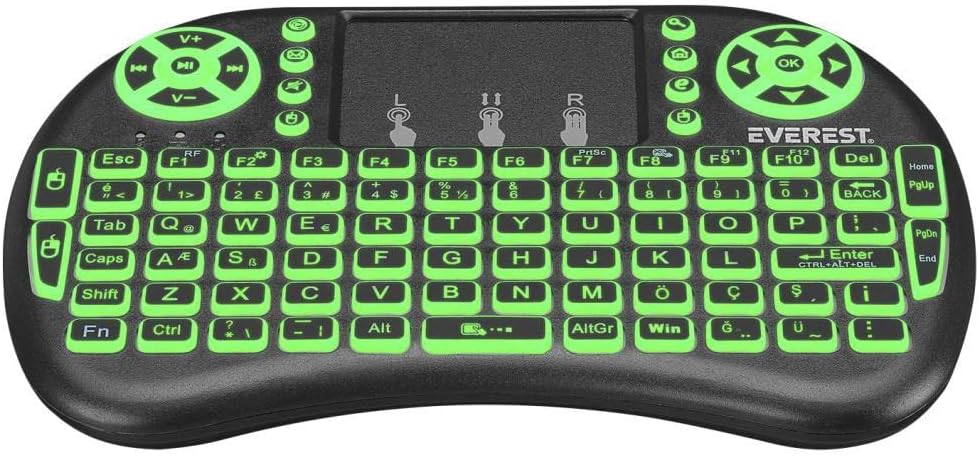
The keyboard features a standard QWERTY layout, a large touchpad for navigation, and dedicated buttons for volume control and media playback. The backlight can be adjusted to three different colors.
Opsætning
1. Opladning af tastaturet
Before first use, fully charge the keyboard. Connect the supplied USB charging cable to the keyboard's charging port and the other end to a USB power source (e.g., computer USB port, USB wall adapter). The charging indicator light will illuminate during charging and turn off when fully charged.
2. Locating the USB Receiver
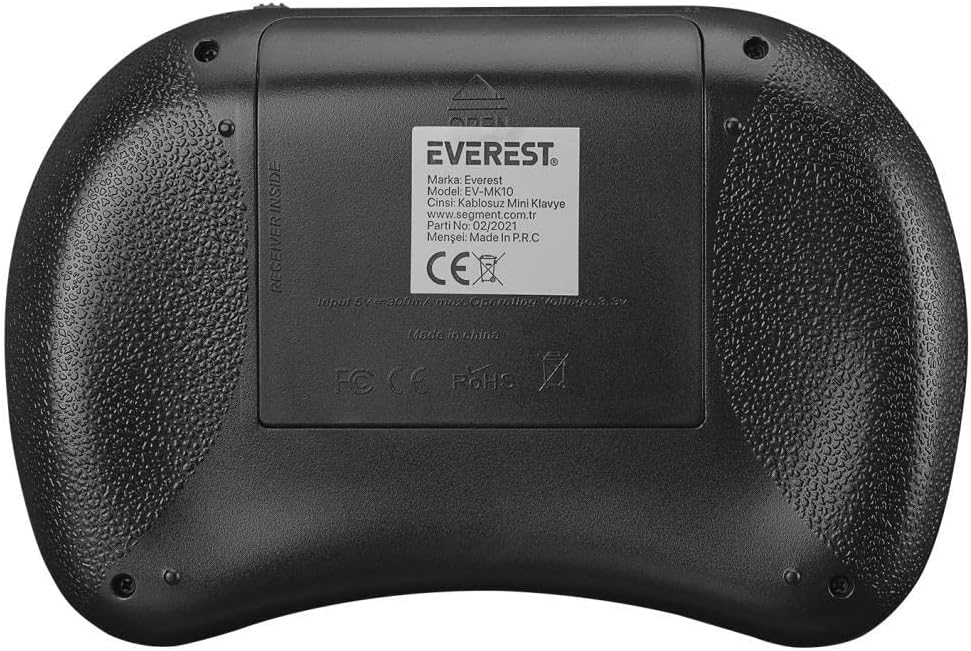
The 2.4GHz USB wireless receiver is typically stored in the battery compartment on the back of the keyboard for safe keeping.
3. Tilslutning af modtageren
- Open the battery compartment cover on the back of the keyboard.
- Carefully remove the USB wireless receiver.
- Luk batterirummets dæksel.
- Plug the USB receiver into an available USB port on your device (Smart TV, PC, Android TV Box, etc.).
4. Tænd for tastaturet
Locate the power switch on the side or back of the keyboard and slide it to the "ON" position. The keyboard should automatically connect to your device via the USB receiver. No additional pairing is typically required for 2.4GHz devices.
Betjeningsvejledning
1. Grundlæggende tastaturfunktioner
The keyboard functions like a standard QWERTY keyboard. Simply type as you would on a regular computer keyboard.
2. Brug af touchpad
- Tryk med en enkelt finger: Fungerer som et venstreklik.
- To-finger tryk: Fungerer som et højreklik.
- To-finger rulning: Drag two fingers up or down on the touchpad to scroll.
- Museknapper: Dedicated left and right mouse buttons are also available above the touchpad for precise control.
3. Baggrundslysstyring
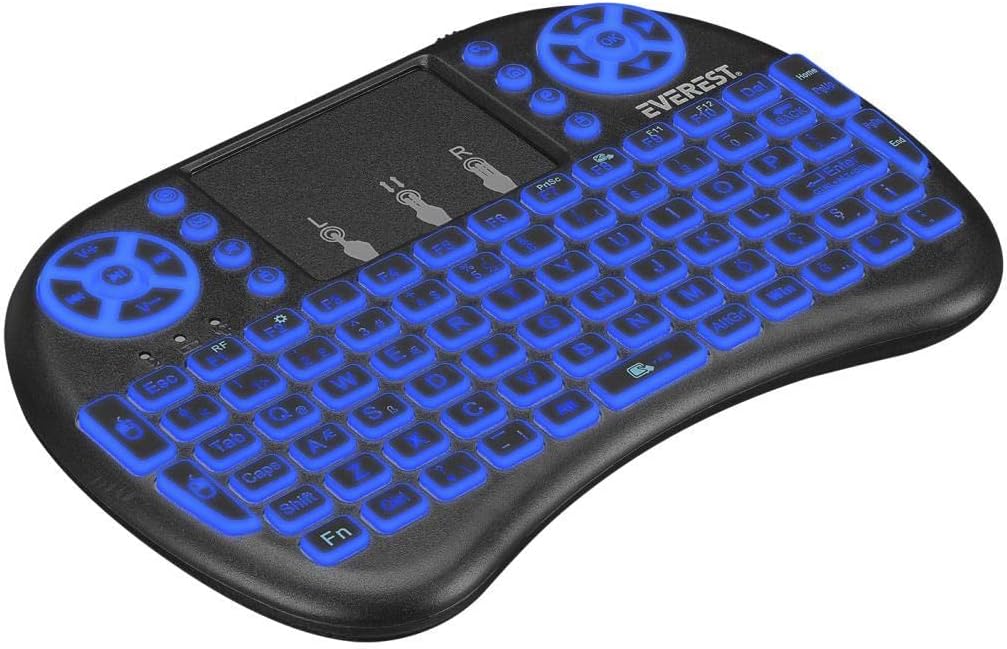
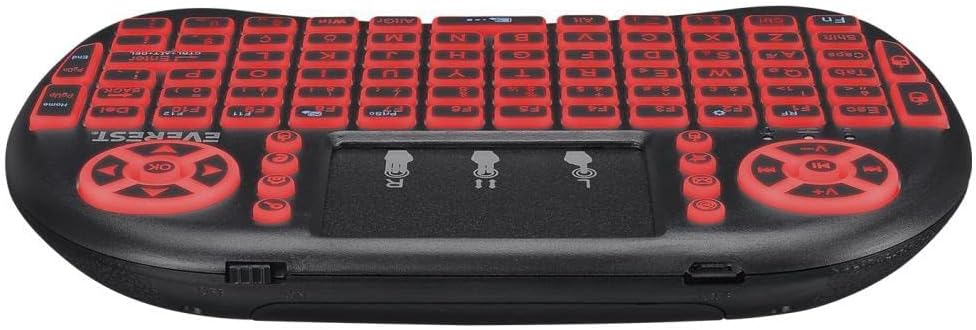
The EV-MK10 features a 3-color backlight. To change the backlight color or turn it on/off, press the Fn nøglen samtidig med F2 key (or the key indicated with a light bulb icon). Repeated presses will cycle through the available colors (green, blue, red) and turn the backlight off.
4. Medie- og funktionstaster
The keyboard includes dedicated media control keys (e.g., volume up/down, play/pause) and function keys (F1-F12). Some function keys may require pressing the Fn key simultaneously to activate their secondary functions, indicated by icons on the keys.
5. Kompatibilitet
The Everest EV-MK10 is compatible with a wide range of operating systems and devices, including:
- Windows
- Linux
- Mac OS
- Android TV
- Smart TV
- Smartphones (with OTG support and appropriate adapter)
- PS3
- XBOX
Opretholdelse
1. Rensning
To clean the keyboard, power it off and disconnect any cables. Use a soft, dry cloth to wipe the surface. For stubborn dirt, a slightly damp en klud med mild sæbe kan bruges, og sørg for, at der ikke kommer væske ind i enheden. Undgå slibende rengøringsmidler eller opløsningsmidler.
2. Batteripleje
The keyboard contains a rechargeable battery. To prolong battery life:
- Undgå at aflade batteriet helt ofte.
- Oplad tastaturet regelmæssigt, selvom det ikke er i konstant brug.
- Udsæt ikke enheden for ekstreme temperaturer.
3. Opbevaring
When storing the keyboard for extended periods, ensure it is powered off. Store it in a cool, dry place away from direct sunlight and extreme temperatures. If storing for several months, charge the battery to about 50% capacity every few months to prevent deep discharge.
Fejlfinding
| Problem | Mulig årsag | Løsning |
|---|---|---|
| Tastaturet reagerer ikke | Low battery; USB receiver not connected; Keyboard not powered on; Device compatibility issue. | Charge the keyboard; Ensure USB receiver is securely plugged in; Turn on the keyboard; Verify device compatibility. |
| Touchpad fungerer ikke | Software issue on host device; Touchpad disabled (unlikely for this model). | Restart the host device; Ensure no other input devices are interfering. |
| Backlight not working/changing | Low battery; Incorrect key combination. | Charge the keyboard; Press Fn + F2 (or light bulb icon key) repeatedly. |
| Connection issues/lag | Interferens; Afstand fra modtager; Lavt batteri. | Move closer to the receiver; Ensure no large metal objects are between keyboard and receiver; Charge the keyboard; Try a different USB port. |
| Tastaturet oplader ikke | Faulty cable; Faulty USB port; Internal battery issue. | Try a different USB cable; Try a different USB power source/port; If issue persists, contact support. |
Specifikationer
- Mærke: Everest
- Model: EV-MK10
- Forbindelse: 2.4GHz Wireless
- Baggrundsbelysning: 3 Colors (Green, Blue, Red)
- Strømkilde: Rechargeable Internal Battery
- Operativsystemer: Android, Linux, Windows, Mac OS
- Pakkedimensioner: Cirka 14 x 9 x 5 cm
- Varens vægt: Cirka 200 g
- Første tilgængelige dato: 16. februar 2022
Garanti og support
For garantioplysninger og teknisk support henvises til den dokumentation, der blev leveret ved køb, eller kontakt din forhandler. Gem din købsbevis i tilfælde af garantikrav.