
Indledning
The HyperGear HyperStream 1080P Webcam provides high-definition video and clear audio for various applications, including online meetings, classes, and streaming. This manual provides instructions for setup, operation, maintenance, and troubleshooting to ensure optimal performance of your webcam.
Pakkens indhold
Kontroller venligst, at alle varer er til stede i din pakke:
- HyperGear HyperStream 1080P Webcam
- USB kabel
- Indbygget mikrofon
Produkt overview
The HyperGear HyperStream 1080P Webcam is designed for ease of use and high-quality performance. Key features include:
- Crystal-Clear 1080P HD Resolution: Delivers sharp and vibrant visuals.
- Built-in Noise Reduction Microphone: Captures clear audio by reducing background sounds.
- Plug & Play USB-forbindelse: Requires no additional software or drivers for quick setup.
- Wide-Angle 110° Lens: Indfanger et bredt felt af view, suitable for group interactions.
- Auto-White Balance: Automatically adjusts to various lighting conditions for optimal image quality.
- Justerbar klipsbeslag: Securely attaches to monitors or laptops, and can also be positioned as a standalone unit.
Opsætningsinstruktioner
Follow these steps to set up your HyperGear HyperStream 1080P Webcam:
- Pak den ud Webcam: Fjern forsigtigt webcam and its USB cable from the packaging.

Image: The HyperGear HyperStream 1080P Webcam is designed for instant plug-and-play setup without requiring additional drivers. Simply connect the USB cable to your computer.
- Monter Webcam:
- På en skærm/bærbar computer: Open the adjustable clip and place it securely on top of your monitor or laptop screen. Adjust the angle to ensure the webKameraet er stabilt og vender mod dig.
- På et skrivebord: Fold klipsen for at danne et stabilt stativ og placer webkameraet på en plan overflade, f.eks. dit skrivebord.

Billede: Den webcam features an adjustable mount that allows it to be clamped onto any screen or display, or positioned as a standalone unit on your desk. It offers 180-degree rotation for flexible positioning.
- Opret forbindelse til din enhed: Sæt USB-kablet i stikkontakten webcam into an available USB port on your computer (PC, Mac) or Xbox console. The webcam is plug-and-play, so no additional drivers are typically required.
- Bekræft forbindelsen: Your operating system should automatically detect the webcam. You can verify its connection in your device settings or within your preferred video conferencing/streaming application.
Betjeningsvejledning
Once connected, the HyperGear HyperStream 1080P WebKameraet er klar til brug med forskellige applikationer.
Systemkompatibilitet
De webcam is compatible with multiple operating systems and platforms:
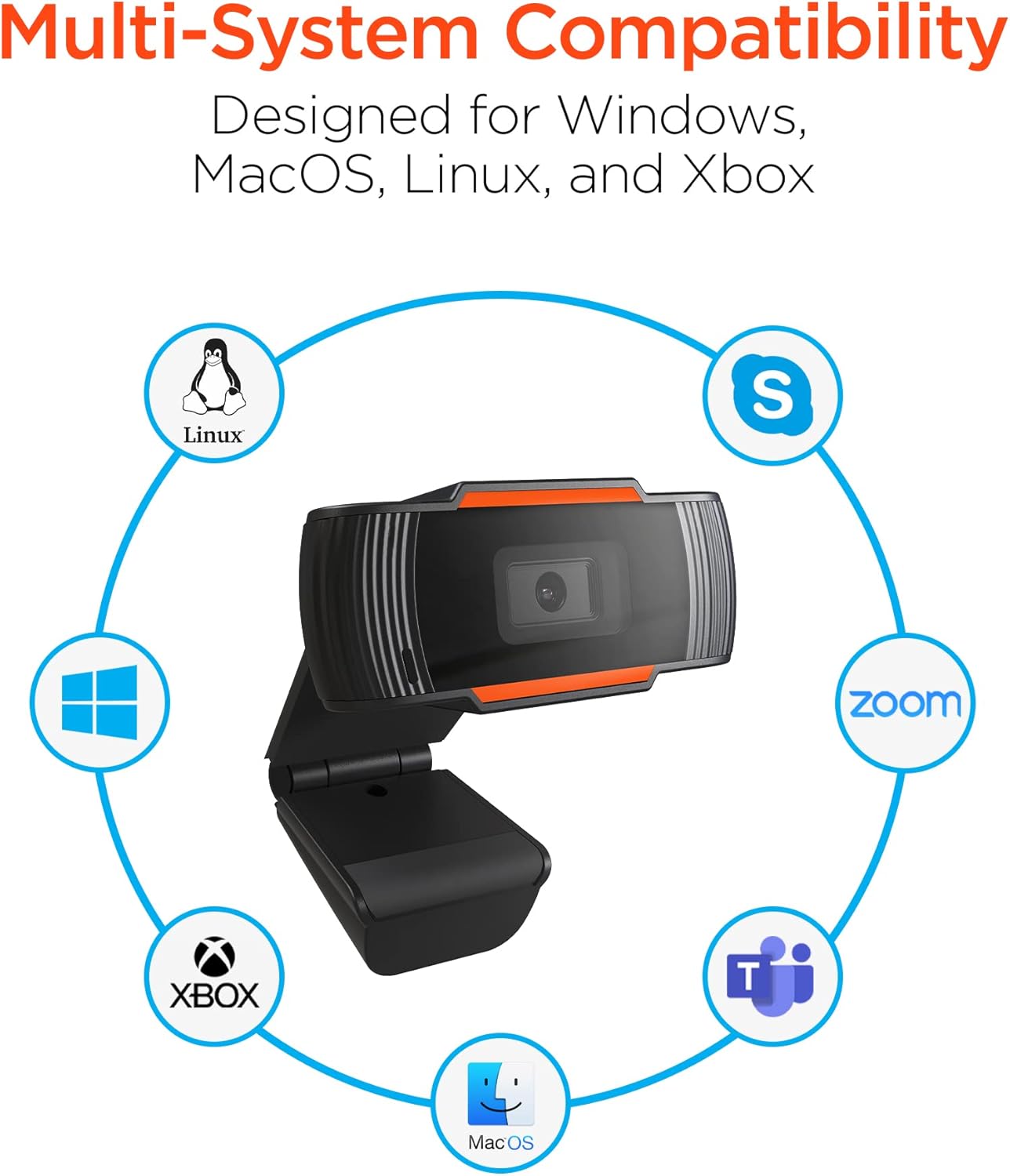
Image: The HyperGear HyperStream 1080P Webcam offers multi-system compatibility, designed for use with Windows, MacOS, Linux, and Xbox, as well as popular communication platforms like Skype, Zoom, and Microsoft Teams.
- Windows
- macOS
- Linux
- Xbox
- Compatible with popular video conferencing software (e.g., Skype, Zoom, Microsoft Teams).
Ved hjælp af Webcam
- Vælg Webcam: In your video conferencing or streaming application, navigate to the video and audio settings. Select "HyperGear HyperStream 1080P Webcam" som din videoinputenhed og dens integrerede mikrofon som din lydinputenhed.
- Adjust Position and Angle: Sørg for webcam is positioned to capture your desired view. The 110° wide-angle lens is ideal for capturing multiple participants or a broader background.

Image: The 110° ultra wide-angle lens ensures that your entire team and presentations fit within the frame, making it suitable for group meetings and collaborative environments.
- Benefit from Auto-White Balance and Fixed Focus: De webcam automatically adjusts for optimal lighting and maintains a sharp focus on subjects within its field of view, eliminating the need for manual adjustments.

Billede: Den webcam features fixed focus and auto-white balance (AWB) to automatically adjust to various lighting conditions (like daylight or fluorescent), ensuring clear and sharp visuals without manual intervention.
- Utilize Noise Reduction Microphone: The built-in microphone actively reduces ambient noise, ensuring your voice is clear and easily understood during calls.

Image: The integrated noise reduction microphone minimizes unwanted background noise and distortions, ensuring clear audio during your video calls and streams.
Opretholdelse
For at sikre din levetid og optimale ydeevne webkamera, følg disse vedligeholdelsesretningslinjer:
- Rensning: Gently wipe the lens with a soft, lint-free cloth. Avoid using harsh chemicals or abrasive materials that could scratch the lens or damage the casing.
- Opbevaring: Når den ikke er i brug, skal du opbevare den webOpbevar kameraet på et rent, tørt sted væk fra ekstreme temperaturer og direkte sollys.
- Håndtering: Undgå at tabe webcam or subjecting it to strong impacts, which could damage internal components.
Fejlfinding
If you encounter issues with your HyperGear HyperStream 1080P Webkamera, prøv følgende fejlfindingstrin:
- WebKamera ikke fundet:
- Sørg for, at USB-kablet er korrekt tilsluttet i begge webcam and your computer's USB port.
- Prøv at tilslutte webcam til en anden USB -port.
- Genstart din computer.
- Check your operating system's device manager (Windows) or System Information (macOS) to see if the webkameraet er angivet.
- Ingen videoudgang:
- Bekræft, at webcam er valgt som videoinputenhed i din applikations indstillinger.
- Sørg for, at ingen andre applikationer bruger det i øjeblikket webcam, da nogle systemer kun tillader én applikation at få adgang til det ad gangen.
- Kontroller, om der er fysiske forhindringer, der dækker linsen.
- Ingen lydindgang (mikrofon):
- Bekræft, at webcam's microphone is selected as the audio input device in your application's settings and your system's sound settings.
- Check that the microphone is not muted in your application or system settings.
- Ensure your system's privacy settings allow applications to access the microphone.
- Dårlig videokvalitet:
- Ensure you have adequate lighting in your environment. While the webcam has auto-white balance, sufficient ambient light is crucial for best results.
- Rengør webcam lens if it appears smudged or dirty.
- Check your internet connection speed if streaming or video conferencing, as a slow connection can affect video quality.
Specifikationer
| Feature | Detalje |
|---|---|
| Mærke | HyperGear |
| Modelnavn | HyperStream Portable 1080P |
| Videooptagelsesopløsning | 1080p |
| Forbindelsesteknologi | USB |
| Farve | sort |
| Speciel funktion | Justerbar |
| Videokamera type | Webcam |
| Operativsystem | Windows, macOS |
| Linsetype | Vidvinkel |
| Fokus Type | Fast fokus |
| Billedformatforhold | 16:9 |
| Eksponeringskontroltype | Automatisk |
| Effektiv videoopløsning | 1920 pixel |
| Kompatible enheder | Personlig computer |
| Indbyggede medier | Mikrofon, USB-kabel |
| Varens vægt | 4.72 ounce |
| UPC | 633755155390 |
| ASIN | B09S51KSC4 |
Garanti og support
For warranty information and customer support, please refer to the documentation included with your purchase or visit the official HyperGear webwebsted.
Du kan også besøge HyperGear Store on Amazon for yderligere produktinformation og supportressourcer.


