
Inateck KB01101
Inateck KB01101 Bluetooth-tastatur med touchpad brugermanual
Model: KB01101
Indledning
The Inateck KB01101 is an ultra-thin Bluetooth keyboard designed for seamless compatibility with Android and Windows devices, including tablets, smartphones, and PCs. This keyboard combines portability with robust functionality, making it easy to carry and use anywhere. It features a responsive touchpad and dedicated shortcut keys to enhance productivity.
Note on macOS/iOS Compatibility: While primarily designed for Android and Windows, this keyboard offers partial compatibility with iOS/iPadOS/macOS. All characters are supported. The CMD+option function can be executed, though not printed on the keys. Some quick buttons in the top row may not function, and certain key combinations might not perform desired actions. The trackpad supports basic tap and drag functions like a mouse but does not support multi-touch gestures on these operating systems. A fully compatible version for iOS/iPadOS is expected to be released soon.
Opsætning
1. Opladning af tastaturet
Before initial use, ensure the keyboard is fully charged. Connect the provided USB cable to the keyboard's charging port and to a power source (e.g., computer USB port, USB wall adapter). The charging indicator light will show the charging status.
The keyboard includes one Lithium-ion battery.
2. Bluetooth-parring
- Tænd for tastaturet ved hjælp af afbryderen.
- Tryk og hold på Fn key and the Bluetooth pairing key (often indicated by a Bluetooth icon or a specific F-key) simultaneously for a few seconds until the Bluetooth indicator light starts blinking. This indicates the keyboard is in pairing mode.
- On your device (Android tablet, smartphone, or Windows PC), go to the Bluetooth settings.
- Søg efter available Bluetooth devices. The keyboard should appear as "Inateck KB01101" or a similar name.
- Select the keyboard from the list to initiate pairing. Follow any on-screen prompts, such as entering a pairing code.
- Når parringen er gennemført, holder Bluetooth-indikatorlampen på tastaturet op med at blinke og lyser konstant eller slukker, afhængigt af modellen.
After successful Bluetooth pairing, the keyboard automatically detects your device's operating system (Android or Windows) for optimal functionality.

Image: The Inateck KB01101 keyboard is perfectly compatible with Android and Windows, featuring automatic operating system detection and full support for touch gestures and key combinations.
Betjening af tastaturet
Keyboard Layout and Special Keys
The KB01101 features a standard QWERTY layout with additional function keys and a touchpad. The top row includes shortcut keys specifically designed for Android and Windows operating systems, allowing for quick execution of common functions.

Billede: Detaljeret view of the Inateck KB01101 keyboard layout, illustrating the dedicated shortcut keys for Android and Windows operating systems.
Shortcut Key Functions (Android/Windows):
- Fn + Esc: Lock FN keys
- Fn+F1: Switch to Home page
- Fn+F2: Open search field
- Fn+F3: Adjust screen brightness down
- Fn+F4: Adjust screen brightness up
- Fn+F5: Take screenshot of current screen
- Fn+F6: Open multitasking panel
- Fn+F7: Forrige nummer
- Fn+F8: Afspil/pause
- Fn+F9: Næste nummer
- Fn+F10: Slå lyden fra
- Fn+F11: Lydstyrke ned
- Fn+F12: Lydstyrke op
- Fn + Bluetooth Icon: Start Bluetooth-parring
- Fn + Lock Icon: Låseskærm
Touchpad-bevægelser
The integrated touchpad supports various multi-touch gestures for both Android and Windows operating systems, enhancing navigation and control.

Image: Visual guide to touchpad gestures, showing specific actions for Android (click, drag and drop, right-click, scroll window) and Windows (scroll, swipe, return to home screen, open Action Center).
Android Touchpad Gestures:
- Klik: Single finger tap.
- Træk og slip: Tap and hold, then drag.
- Højreklik: Two-finger tap.
- Scroll Window: Two-finger swipe up/down.
- Zoom: Pinch with two fingers (on supported Android devices).
Note: Android itself may not support as many touch gestures as Windows.
Windows Touchpad Gestures:
- Rul: Two-finger swipe up/down.
- Stryg: Two-finger swipe left/right.
- Vend tilbage til startskærmen: Three-finger swipe down.
- Åbn handlingscenter: Four-finger tap.
Note: Four-finger gestures are only compatible with Windows 10/11.
Skriveoplevelse
The Inateck KB01101 is designed to provide a comfortable typing experience similar to a laptop. It offers excellent tactile feedback and a perfect rebound with each key press, ensuring fast and accurate input.
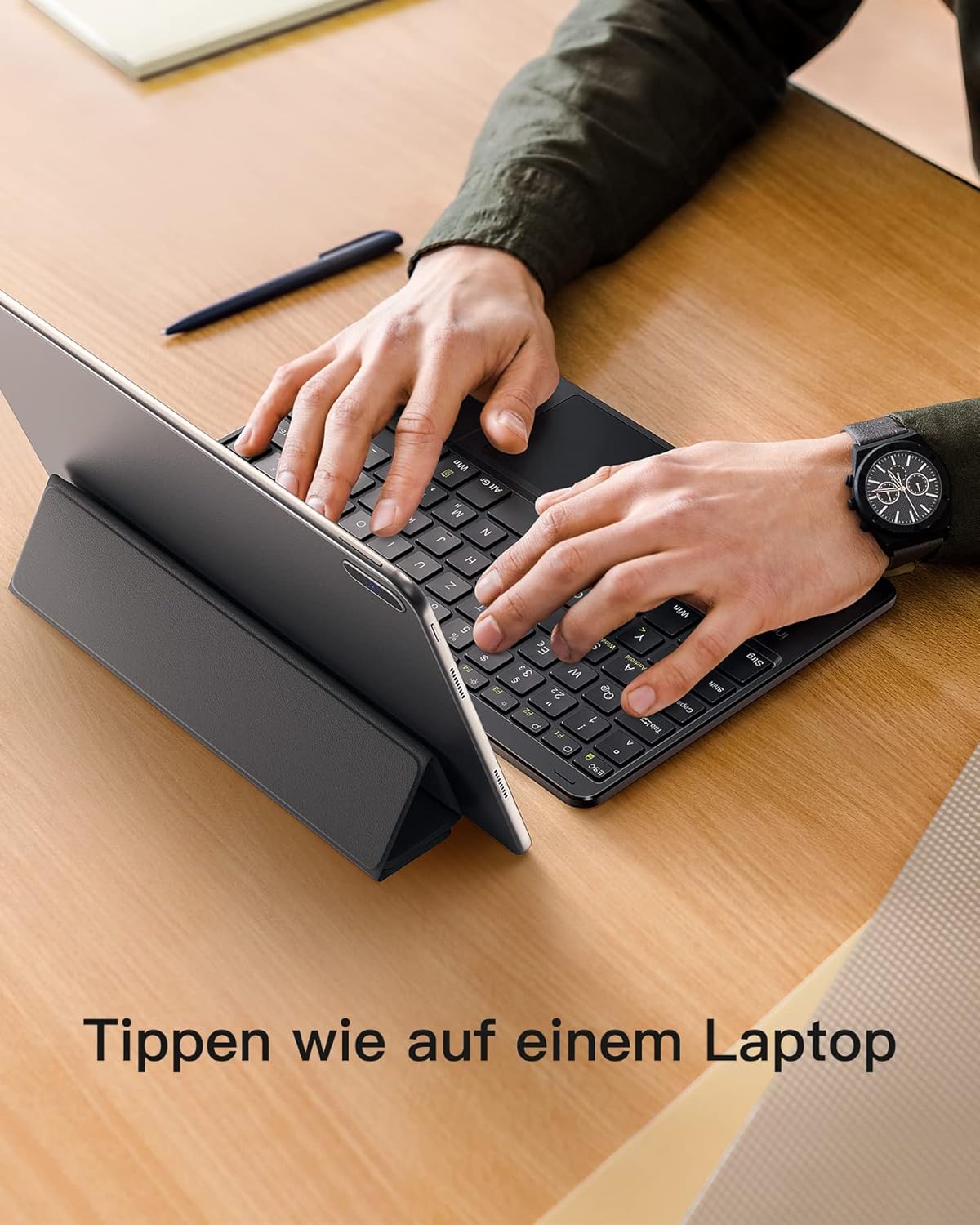
Image: A user typing on the Inateck KB01101 keyboard, which is connected to a tablet, illustrating the comfortable and efficient typing experience.
Opretholdelse
For at sikre lang levetid og optimal ydeevne for dit Inateck KB01101-tastatur skal du følge disse vedligeholdelsesretningslinjer:
- Rensning: Use a soft, dry, lint-free cloth to clean the keyboard surface and keys. For stubborn dirt, slightly dampen the cloth with water or a mild electronic cleaner. Avoid excessive moisture.
- Opbevaring: Når tastaturet ikke er i brug, skal det opbevares køligt og tørt, væk fra direkte sollys og ekstreme temperaturer.
- Batteripleje: The keyboard contains a built-in Lithium-ion battery. Avoid fully discharging the battery frequently. For long-term storage, charge the battery to about 50% to prolong its lifespan.
- Beskyttelse: The KB01101 is equipped with anti-slip pads to prevent accidental sliding. Ensure these pads are clean and intact for stable use.
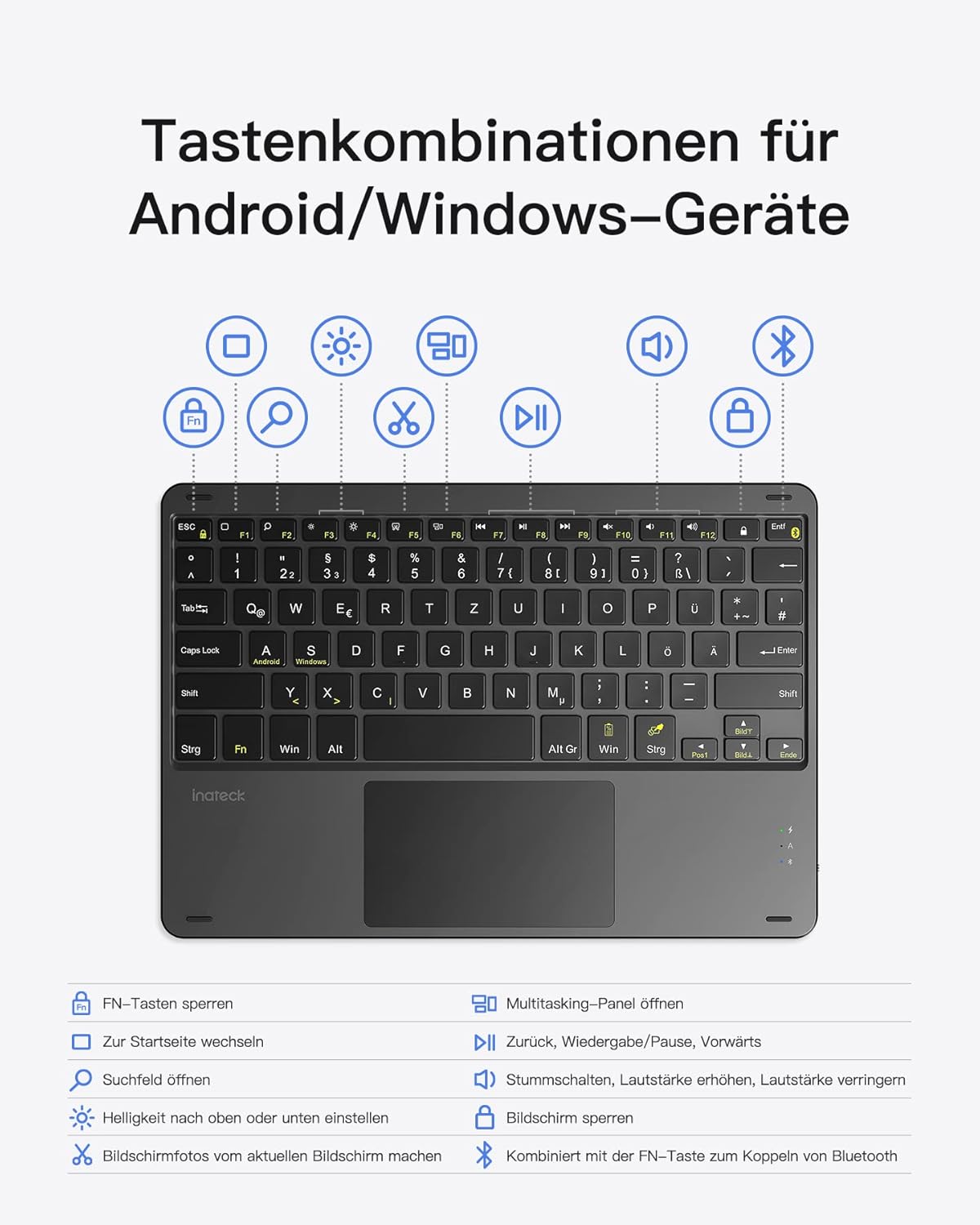
Image: Comparison highlighting the integrated anti-slip pads on the Inateck KB01101, designed to prevent movement during use, versus other keyboards lacking this feature.
Fejlfinding
If you encounter issues with your Inateck KB01101 keyboard, refer to the following common problems and solutions:
1. Incorrect Key Output or Layout Issues
If the keys are producing incorrect characters or the layout seems wrong (e.g., QWERTZ instead of QWERTY), you may need to adjust your device's keyboard settings.
- Løsning: Go to the keyboard settings on your device and select the correct language/layout (e.g., English (US) QWERTY). For a Samsung tablet, for example, navigate to Settings > General Management > Language and input > Physical keyboard, then select the appropriate layout.
- Uoverensstemmelse mellem operativsystem: The keyboard automatically detects your device's OS. If incorrect key output persists, the keyboard's detected OS might not match your device's actual OS. To manually switch the system, press fn + A for Android or Fn + S for Windows. The blue light will blink three times once the system is switched.
2. Keyboard Fails to Connect via Bluetooth
If the Bluetooth connection cannot be established or is unstable:
- Løsning: Delete any existing pairing entries for the keyboard on your device. Then, press and hold Fn+C for 5 seconds to restore factory settings on the keyboard. Repeat the pairing steps outlined in the "Bluetooth Pairing" section to reconnect your device with the keyboard.
- Tjek batteri: Sørg for, at tastaturet har tilstrækkelig batteriopladning.
- Enhedens Bluetooth: Sørg for, at Bluetooth er aktiveret på din enhed, og at den kan ses.
- Nærhed: Ensure the keyboard is within the effective range of your device (typically 10 meters).

Image: Frequently Asked Questions (FAQ) section, providing solutions for common keyboard issues such as incorrect key output due to language settings and troubleshooting steps for Bluetooth connection failures.
Specifikationer
| Modelnummer | KB01101 |
| Mærke | Inateck |
| Forbindelsesteknologi | Bluetooth |
| Kompatible enheder | Tablets, Smartphones, PCs (Android, Windows) |
| Speciel funktion | Integreret touchpad |
| Tastaturbeskrivelse | Trådløs |
| Anbefalede anvendelser | Office, Portable use |
| Farve | Sort |
| Materiale | Plast, Metal |
| Varens vægt | 327 gram |
| Antal nøgler | 84 |
| Antal knapper | 78 |
| Batteri | 1 litium-ion-batteri (inkluderet) |
| Inkluderede komponenter | USB kabel |
| ASIN | B09RV84RZZ |
Garanti og support
For warranty information, please refer to the documentation included with your purchase or visit the official Inateck webOplysninger om tilgængelighed af reservedele og garanterede softwareopdateringer er ikke tilgængelige på nuværende tidspunkt.
If you require further assistance or have questions not covered in this manual, please contact Inateck customer support through their official channels.
Ask a question about this manual
Ask about setup, troubleshooting, compatibility, parts, safety, or missing instructions. Manuals+ will review the question and use this page’s manual context to help answer it.