
Indledning
Welcome to the RedThunder K10 Gaming Keyboard and Mouse Combo user manual. This guide provides detailed instructions for setting up, operating, and maintaining your new gaming peripherals. The RedThunder K10 features an AZERTY layout keyboard with customizable RGB backlighting, anti-ghosting technology, and an ergonomic gaming mouse with up to 7200 DPI, designed to enhance your gaming and computing experience.
Pakkens indhold
Kontroller venligst, at alle varer er til stede i din pakke:
- RedThunder K10 Gaming Keyboard
- RedThunder Gaming Mouse
- Aftagelig håndledsstøtte
- Brugervejledning (dette dokument)
Opsætningsinstruktioner
Follow these steps to connect your RedThunder K10 combo to your computer:
- Tilslut tastaturet: Sæt USB-stikket på tastaturet i en ledig USB-port på din computer.
- Tilslut musen: Sæt musens USB-stik i en anden ledig USB-port på din computer.
- Install Wrist Rest: Align the detachable wrist rest with the bottom edge of the keyboard and attach it securely.
- Driver installation: The keyboard and mouse are plug-and-play devices. Your operating system (Windows, Mac OS, Linux) should automatically detect and install the necessary drivers. No additional software installation is typically required.

Image: RedThunder K10 Keyboard and Mouse showing product dimensions and compatibility with Windows, Mac OS, and Linux operating systems.
Betjeningsvejledning
Tastatur funktioner
The RedThunder K10 keyboard features a full AZERTY layout with 104 keys, including multimedia shortcuts and customizable RGB backlighting.
- Anti-ghosting: The keyboard supports 19 non-conflicting keys, ensuring accurate input during intense gaming sessions.
- Multimedie-genvejstaster: Bruge FN + F1 til F12 for quick access to media controls, volume adjustments, and other functions.
- Interchangeable Keys: De Z/Q/S/D keys can be interchanged for personalized gaming setups.
RGB-baggrundsbelysningskontrol
The keyboard offers various RGB lighting modes and customization options:
- Switch Gradient Light Mode: Trykke FN + Indsæt to cycle through different gradient lighting effects.
- Switch Monochromatic Light Mode: Trykke FN + to change between various single-color lighting modes.
- Change Custom Lighting Mode: Trykke FN +> to switch between personalized lighting modes.
- Change Streamer Mode: Trykke FN + Slet to activate or change the streamer lighting effect.
- Switch Breathing Light Mode: Trykke FN + Slut to toggle the breathing light effect.
- Juster lyshastighed: Trykke FN + +/- to increase or decrease the speed of dynamic lighting effects.
- Juster lysstyrken: Trykke FN + Page Up / Page Down to adjust the brightness level of the backlighting.
Video: Demonstration of the RedThunder K10 keyboard's RGB lighting modes and how to adjust them using FN key combinations. It also shows the detachable wrist rest.
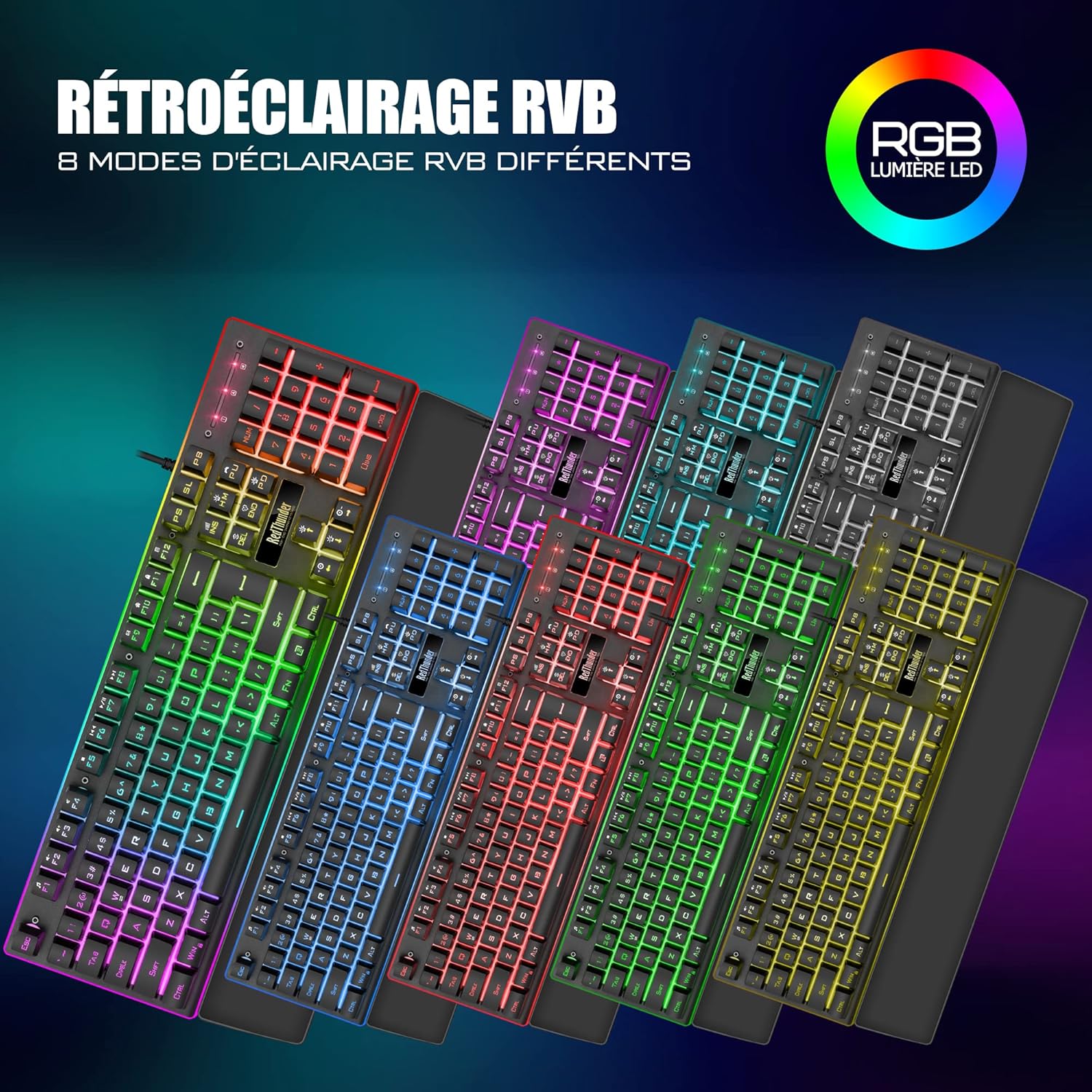
Image: The RedThunder K10 keyboard displaying 8 different RGB lighting modes, highlighting the customizable backlighting zones.
Musefunktioner
The ergonomic gaming mouse provides precise control and customizable features.
- DPI-indstillinger: The mouse offers up to 7200 DPI for high precision and responsiveness. DPI can typically be adjusted via a dedicated button on the mouse.
- Ergonomisk design: Designed to fit comfortably in your palm, reducing hand fatigue during extended use.
- RGB belysning: Musen har dynamiske RGB-lyseffekter.
- 7 Knapper: Includes standard left/right click, scroll wheel, DPI adjustment, and side buttons for forward/backward navigation or custom assignments.
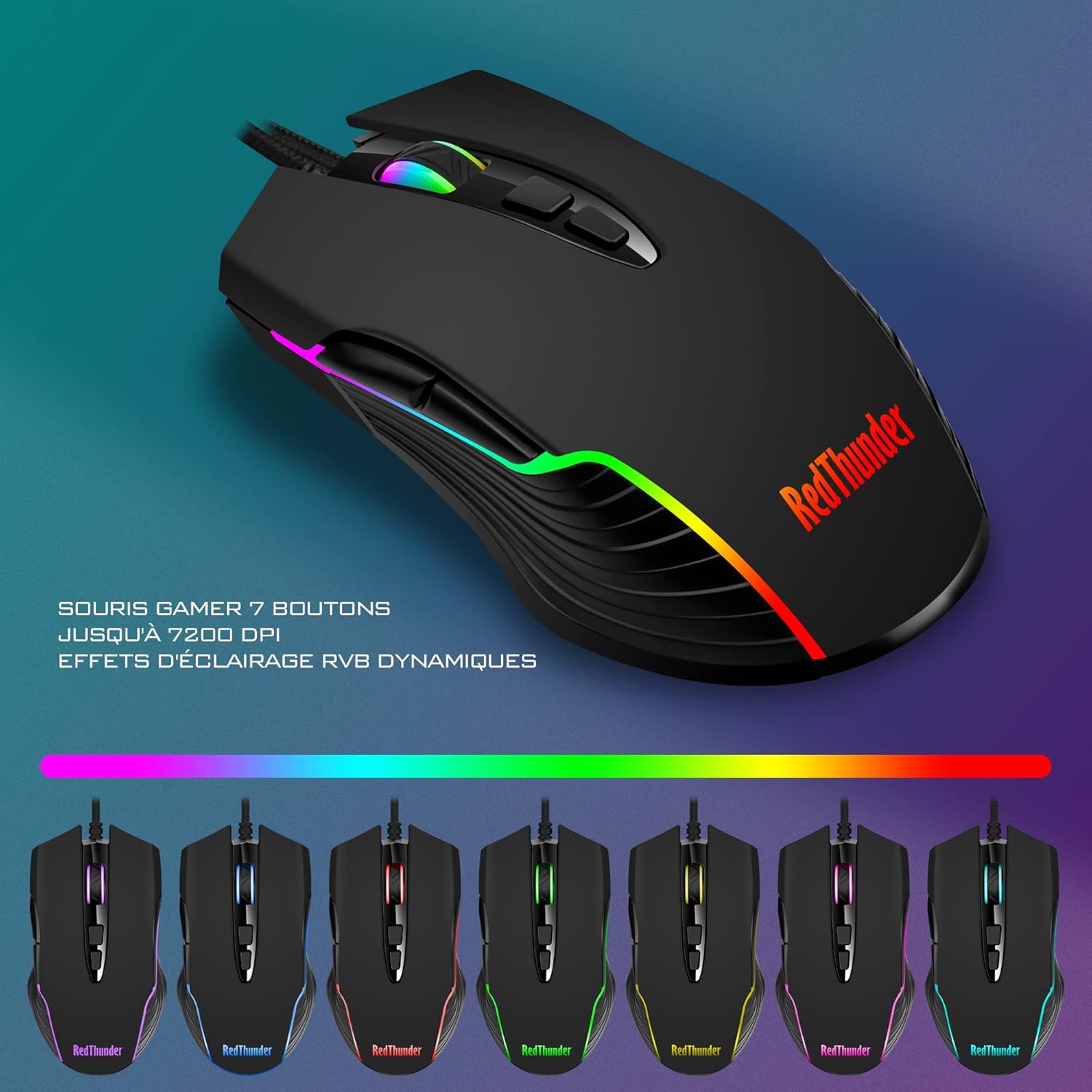
Image: The RedThunder gaming mouse, illustrating its 7-button layout, up to 7200 DPI capability, and dynamic RGB lighting effects.

Billede: Nærbillede view of the ergonomic design of the RedThunder K10 keyboard and mouse, demonstrating comfortable hand and wrist positioning for prolonged use.
Opretholdelse
Proper maintenance ensures the longevity and optimal performance of your RedThunder K10 combo.
- Rensning: Use a soft, dry cloth to wipe down the keyboard and mouse. For deeper cleaning, a slightly damp en klud med mild sæbe kan bruges, så det sikres, at der ikke kommer væske ind i enhederne.
- Fjernelse af støv: Use compressed air to remove dust and debris from between the keyboard keys and mouse sensors.
- Undgå væsker: Do not expose the devices to excessive moisture or liquids.
- Opbevaring: Store the keyboard and mouse in a cool, dry place when not in use.

Image: The detachable wrist rest, made from a soft, leather-like material, designed to provide comfort and reduce wrist strain. Anti-slip pads are visible on the underside.
Fejlfinding
If you encounter any issues with your RedThunder K10 combo, please refer to the following common solutions:
- Enhed ikke genkendt:
- Sørg for, at USB-kablerne er korrekt tilsluttet computerens USB-porte.
- Prøv at tilslutte enhederne til forskellige USB-porte.
- Genstart din computer.
- Check your computer's Device Manager (Windows) or System Information (Mac) to see if the devices are listed.
- Tastatur/mus reagerer ikke:
- Bekræft USB-forbindelsen.
- Test enhederne på en anden computer for at udelukke et computerspecifikt problem.
- RGB-belysning virker ikke/forkert:
- Sørg for, at tastaturet er korrekt tilsluttet.
- Cycle through the lighting modes using the FN key combinations as described in the "Operating Instructions" section.
- Juster lysstyrken ved hjælp af FN + Page Up / Page Down.
- Musemarkøren hopper eller er unøjagtig:
- Rengør musesensoren med en blød klud.
- Sørg for at bruge musen på en passende overflade (f.eks. en musemåtte).
- Adjust the DPI settings using the mouse's DPI button.
Specifikationer
Detailed technical specifications for the RedThunder K10 Gaming Keyboard and Mouse Combo:
| Feature | Specifikation |
|---|---|
| Mærke | Rød Torden |
| Model | K10 |
| Forbindelsesteknologi | USB (kablet) |
| Kompatible enheder | Computer (Windows, Mac OS, Linux) |
| Tastaturlayout | AZERTY (fransk) |
| Tastaturtype | Gaming, Mechanical feel |
| Tastatur baggrundsbelysning | RGB, kan tilpasses |
| Anti-Ghosting | 19 non-conflicting keys |
| Antal tastaturtaster | 104 |
| Tastaturmateriale | Metal |
| Mus DPI | Op til 7200 DPI |
| Museknapper | 7 Knapper |
| Orientering af mus | Højrehåndet |
| Farve | Sort |
| Varens vægt | 1.19 Kilograms (Keyboard and Mouse combined) |
| Strømkilde | Elektrisk ledning (USB) |
Garanti og support
RedThunder products are designed for durability and performance. For any warranty claims, technical support, or further assistance, please contact RedThunder customer service through the retailer where you purchased the product or visit the official RedThunder webwebsted. Gem din købsbevis for at validere garantien.
Returpolitik: This product typically comes with a 30-day return/replacement policy from the date of purchase. Please refer to your retailer's specific return policy for details.