
MARKLIFE P11
MARKLIFE P11 Wireless Thermal Label Maker Instruction Manual
Model: P11 | Mærke: MARKLIFE
1. Introduktion
This manual provides comprehensive instructions for the setup, operation, and maintenance of your MARKLIFE P11 Wireless Thermal Label Maker. The P11 is a compact, inkless label printer designed for various organization tasks in home, kitchen, and office environments. It utilizes thermal printing technology, eliminating the need for ink or toner.

Image 1.1: The MARKLIFE P11 Label Maker, its packaging, and included label rolls.
2. Opsætning
2.1 Udpakning og første inspektion
Fjern forsigtigt alle komponenter fra emballagen. Kontroller, at følgende dele er inkluderet:
- MARKLIFE P11 Label Maker
- Label rolls (quantity may vary based on package)
- USB ladekabel
- Instruktionsmanual (dette dokument)

Image 2.1: Contents of the MARKLIFE P11 package, including the label maker and various label rolls.
2.2 Opladning af enheden
Before first use, ensure the label maker is fully charged. Connect the provided USB charging cable to the device and a compatible USB power source. The indicator light will show charging status and turn off when fully charged.
2.3 Ilægning af etiketruller
- Åbn låget på etiketprinteren.
- Insert the label roll into the compartment, ensuring the printing side of the label faces upwards and the leading edge extends slightly out of the slot.
- Luk låget sikkert.

Image 2.2: Proper method for loading a label roll into the MARKLIFE P11, highlighting the thermal print head.
2.4 App-download og Bluetooth-forbindelse
The MARKLIFE P11 operates via a mobile application. Follow these steps to connect:
- Download the "Marklife" app from your device's app store.
- Turn on the MARKLIFE P11 label maker by pressing the power button.
- Aktiver Bluetooth på din smartphone.
- Open the Marklife app and search for available devices. Select "P11" or a similar device name to connect.

Image 2.3: The Marklife app interface and the P11 label maker, illustrating the Bluetooth connection process.

Image 2.4: The Marklife app in use, demonstrating label creation and examples of printed output, including a barcode 46745875478655.

Image 2.5: A visual guide to the three-step process for printing labels: app download, Bluetooth connection, and label editing.
3. Betjeningsvejledning
3.1 Creating and Customizing Labels
The Marklife app offers extensive customization options for your labels:
- Tekst: Enter custom text, adjust font, size, and alignment.
- Dato: Add dates in various formats.
- Grænser: Choose from a selection of decorative borders.
- Klistermærker: Incorporate various icons and graphics.
- Linjer: Tilføj linjer til adskillelse eller design.
- QR-koder: Generate and print QR codes. Exampdet: SampQR-koden
- 1D stregkoder: Create and print standard barcodes. Exampdet: 46745875478655
- Graffiti/Picture: Import images or draw directly.

Billede 3.1: Detaljeret view of the Marklife app's label editing features, including options for text, dates, borders, stickers, QR codes, and 1D barcodes.

Image 3.2: The Marklife app provides a wide array of templates, supporting multiple languages, symbols, frames, and fonts for diverse label designs.
3.2 Udskrivning af etiketter
Once your label design is complete in the Marklife app, tap the "Print label" button. The label maker will print your design using thermal technology. Ensure the label roll is correctly loaded and the device is connected via Bluetooth.
3.3 Thermal Printing Technology
The MARKLIFE P11 uses direct thermal printing, which means it applies heat to specially coated thermal paper to create text and images. This technology eliminates the need for ink cartridges or toner, reducing operational costs and maintenance.

Image 3.3: The internal thermal printing mechanism of the P11, which operates without ink or toner.
3.4 Label Durability and Applications
MARKLIFE labels are designed for durability, featuring resistance to grease and scratches. They can also be removed without leaving residue.

Image 3.4: Demonstration of label durability, showing resistance to water, grease, and scratches, and clean removal.

Image 3.5: Labels are designed to be water-proof and oil-proof, suitable for various environments.
The P11 label maker is suitable for a wide range of applications:
- Hjemmeorganisation: Labeling food containers, storage boxes, spice jars, and personal items.
- Kontororganisation: Organisering files, documents, office supplies, and asset taggik.
- Retail/Shop: Creating item tags, price labels, and barcodes.
- Personlig brug: Crafting, gift labeling, and school supplies.

Billede 3.6: Eks.amples of label usage in an office environment, including a badge with barcode 6953124066961.
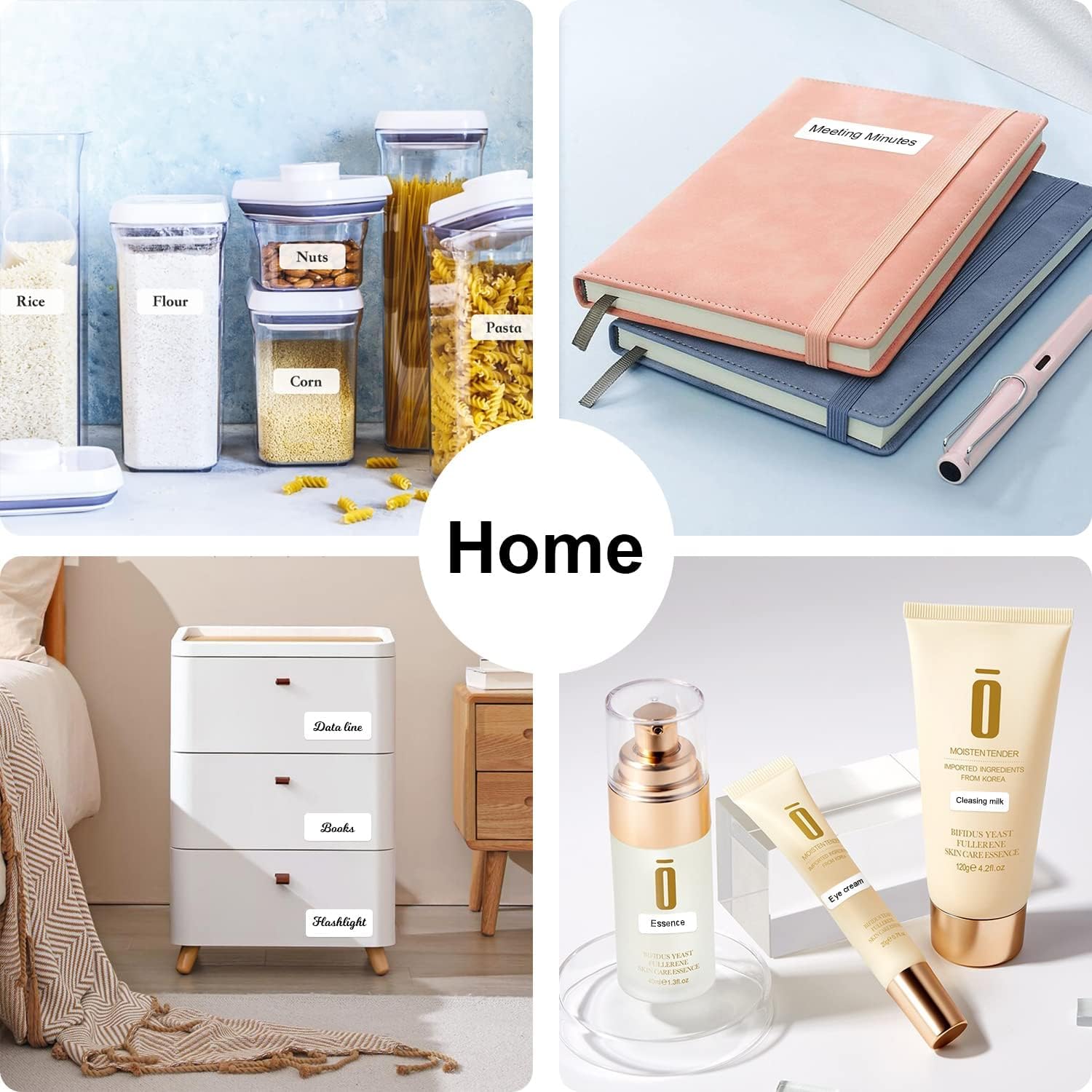
Billede 3.7: Eks.amples of label usage for home organization, such as on kitchen containers and storage drawers.

Image 3.8: Diverse applications of the P11 label maker, from kitchen organization to retail tagging and baby bottle labeling.

Image 3.9: Additional applications including school supplies, office documents, medical reminders, and craft projects.
4. Vedligeholdelse
4.1 Rengøring af printhovedet
For at sikre optimal udskriftskvalitet skal du rengøre det termiske printhoved med jævne mellemrum. Brug en blød, fnugfri klud, der let tørres af.ampened with isopropyl alcohol. Gently wipe the print head surface. Ensure the device is powered off and disconnected from any power source before cleaning.
4.2 Storing Label Rolls
Store unused label rolls in a cool, dry place away from direct sunlight and excessive heat. This helps preserve the thermal coating and prevents premature discoloration or degradation of the labels.
5. Fejlfinding
If you encounter issues with your MARKLIFE P11, refer to the following common problems and solutions:
| Problem | Mulig årsag | Løsning |
|---|---|---|
| Enheden tænder ikke | Problem med lavt batteri eller strøm. | Charge the device using the USB cable. Ensure the power button is pressed firmly. |
| Kan ikke oprette forbindelse via Bluetooth | Bluetooth is off on phone/printer, app not detecting, or interference. |
|
| Dårlig udskriftskvalitet eller blanke etiketter | Incorrect label loading, dirty print head, or incompatible labels. |
|
| Etiketter fremføres ikke korrekt | Label jam or incorrect roll placement. |
|
| Appen går ned eller fryser | Software bug, outdated app version, or device compatibility issue. |
|
6. Specifikationer
| Feature | Detalje |
|---|---|
| Mærke | MARKLIFE |
| Modelnavn | P11 |
| Udskrivningsteknologi | Termisk |
| Printerblæktype | Blækfri |
| Forbindelse | Bluetooth |
| Kompatible enheder | Smartphones |
| Kontrolmetode | App, berør |
| Printer output | Monokrom |
| Varens vægt | 8.96 ounce (ca. 254 gram) |
| Produktdimensioner | 5.5 cm D x 3.14 cm B x 1.18 cm H (ca. 14 cm x 8 cm x 3 cm) |
| Speciel funktion | Bærbar, trådløs |
| Specifikke anvendelser | Hjemmekontor |
7. Garanti og support
The MARKLIFE P11 Label Maker comes with a Fuld garanti. For specific details regarding warranty coverage, duration, and claims, please refer to the warranty card included in your product packaging or contact MARKLIFE customer support directly.
For technical assistance, troubleshooting not covered in this manual, or general inquiries, please visit the official MARKLIFE webwebstedet eller kontakt deres kundeserviceafdeling. Kontaktoplysninger kan typisk findes på produktemballagen eller mærkets officielle online tilstedeværelse.
Ask a question about this manual
Ask about setup, troubleshooting, compatibility, parts, safety, or missing instructions. Manuals+ will review the question and use this page’s manual context to help answer it.