
Microsoft 2026
Brugermanual til Microsoft Modern USB-C-hovedtelefoner
Model: 2026
Indledning
Microsoft Modern USB-C-hovedtelefonerne er designet til at give lyd i høj kvalitet til opkald, møder og generel brug, især optimeret til Microsoft Teams. De tilbyder klar lyd, en støjreducerende mikrofon og intuitive kontroller for forbedret produktivitet og kommunikation.
Pakkens indhold
- Microsoft Modern USB-C-headset
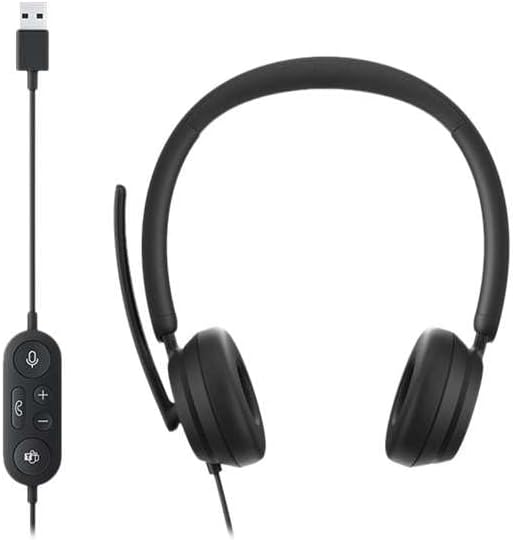
Billede: Microsoft Modern USB-C-hovedtelefonerne, der viser headsettet med det tilsluttede USB-C-kabel og den indbyggede kontrolenhed. Kontrolenheden har knapper til mute, lydstyrke op/ned, besvar/afslut opkald og en Microsoft Teams-knap.
Opsætning
Tilslutning af headsettet
- Find en ledig USB-C-port på din computer eller kompatible enhed.
- Sæt USB-C-stikket på headsettet i USB-C-porten.
- Dit operativsystem (Windows 11/10/8.1/8 eller Mac OS 11.0/10.15) burde automatisk registrere og installere de nødvendige drivere.
Mikrofonjustering
- Mikrofonarmen er fleksibel. Placer den cirka 2,5 cm fra din mund for optimal stemmeoptagelse.
- Mikrofonen har støjreduktion for at minimere baggrundsforstyrrelser under opkald.

Billede: Et nærbillede view af ørekopperne og den justerbare mikrofonbom på Microsoft Modern USB-C-hovedtelefonerne.
Betjening af headsettet
Inline kontrol
Den indbyggede styreenhed giver nem adgang til vigtige funktioner:
- Mute-knap: Tryk for at slå din mikrofon til eller fra. En indikatorlampe på kontrolenheden kan vise status for lydløs.
- Knapper til lydstyrke op / ned: Juster lydstyrken.
- Opkaldsknap: Tryk for at besvare eller afslutte et opkald.
- Microsoft Teams-knap: Start eller bring Microsoft Teams hurtigt i forgrunden.

Billede: En detaljeret view af den indbyggede kontrolenhed, der viser knapperne til mikrofonens mute, lydstyrke op/ned, opkald og Microsoft Teams.
Komfort og design
Headsettet har polstrede og lette ørekopper, der er designet til længere tids brug, hvilket sikrer komfort under lange opkald eller arbejdssessioner.

Billede: Et nærbillede af den bløde, polstrede ørekop på Microsoft Modern USB-C-hovedtelefonerne, der fremhæver dens komfortable design.
Opretholdelse
- Rensning: Brug en blød, tør klud til at rengøre headsettet. Undgå at bruge skrappe kemikalier eller slibende materialer.
- Opbevaring: Opbevar headsettet et køligt og tørt sted, når det ikke er i brug. Undgå ekstreme temperaturer.
- Kabelpleje: Bøj eller træk ikke for meget i USB-C-kablet for at undgå skader.
Fejlfinding
| Problem | Løsning |
|---|---|
| Ingen lyd fra headsettet |
|
| Mikrofon virker ikke |
|
| Headsettet genkendes ikke af computeren |
|
Specifikationer
| Mærke | Microsoft |
| Modelnavn | I6N-00009 |
| Varemodelnummer | 2026 |
| Forbindelsesteknologi | Kablet (USB-C) |
| Øreplacering | Over Ear |
| Formfaktor | On Ear |
| Materiale | Kunstlæder |
| Kontroltype | Opkaldskontrol |
| Kompatible enheder | USB-C kompatible enheder |
| Operativsystemkompatibilitet | Windows 11/10/8.1/8, Mac OS 11.0/10.15 |
| Produktdimensioner | 16 x 3.99 x 24.99 cm |
| Varens vægt | 390 g |
| Vandmodstandsniveau | Vandtæt |
Garanti og support
For garantioplysninger og teknisk support henvises til den officielle Microsoft-supportside webwebstedet eller kontakt Microsofts kundeservice. Oplysninger om specifikke garantiperioder og vilkår findes typisk i din købsdokumentation eller er tilgængelige online.
Du kan finde supportressourcer på den officielle Microsoft-supportside: support.microsoft.com