
1. Introduktion
Welcome to the instruction manual for your Hyperkin Duke Wired Controller. This officially licensed controller is designed to provide a classic gaming experience with modern compatibility for Xbox Series X|S, Xbox One, and Windows 10 PCs. This special edition features an Xbox 20th Anniversary design.

Billede 1.1: Forside view of the Hyperkin Duke Wired Controller, White 20th Anniversary Edition.
2. Pakkens indhold
Sørg for at alle varer er til stede i pakken:
- Hyperkin Duke Wired Controller (White)
- Detachable Type-C Braided Cable

Image 2.1: Hyperkin Duke Wired Controller product packaging.
3. Controllerlayout
Familiarize yourself with the controller's buttons and features:
- Venstre og højre analoge pinde: For præcis bevægelse og kamerakontrol.
- D-Pad: Retningsbestemt input.
- A, B, X, Y knapper: Standard handlingsknapper.
- Venstre og højre trigger (LT, RT): Pressure-sensitive for nuanced control.
- Venstre og højre kofangere (LB, RB): Mirror the original black and white buttons for expanded functionality.
- Xbox knap: Features an animated original Xbox startup screen.
- Del knap: For capturing screenshots and video clips (functionality may vary by platform).
- View Knap: Accesses in-game menus or system functions.
- Menu-knap: Giver adgang til spil- eller appmenuer.
- 3.5 mm headsetstik: For connecting compatible headsets.

Billede 3.1: Forside view of the controller highlighting the main controls.
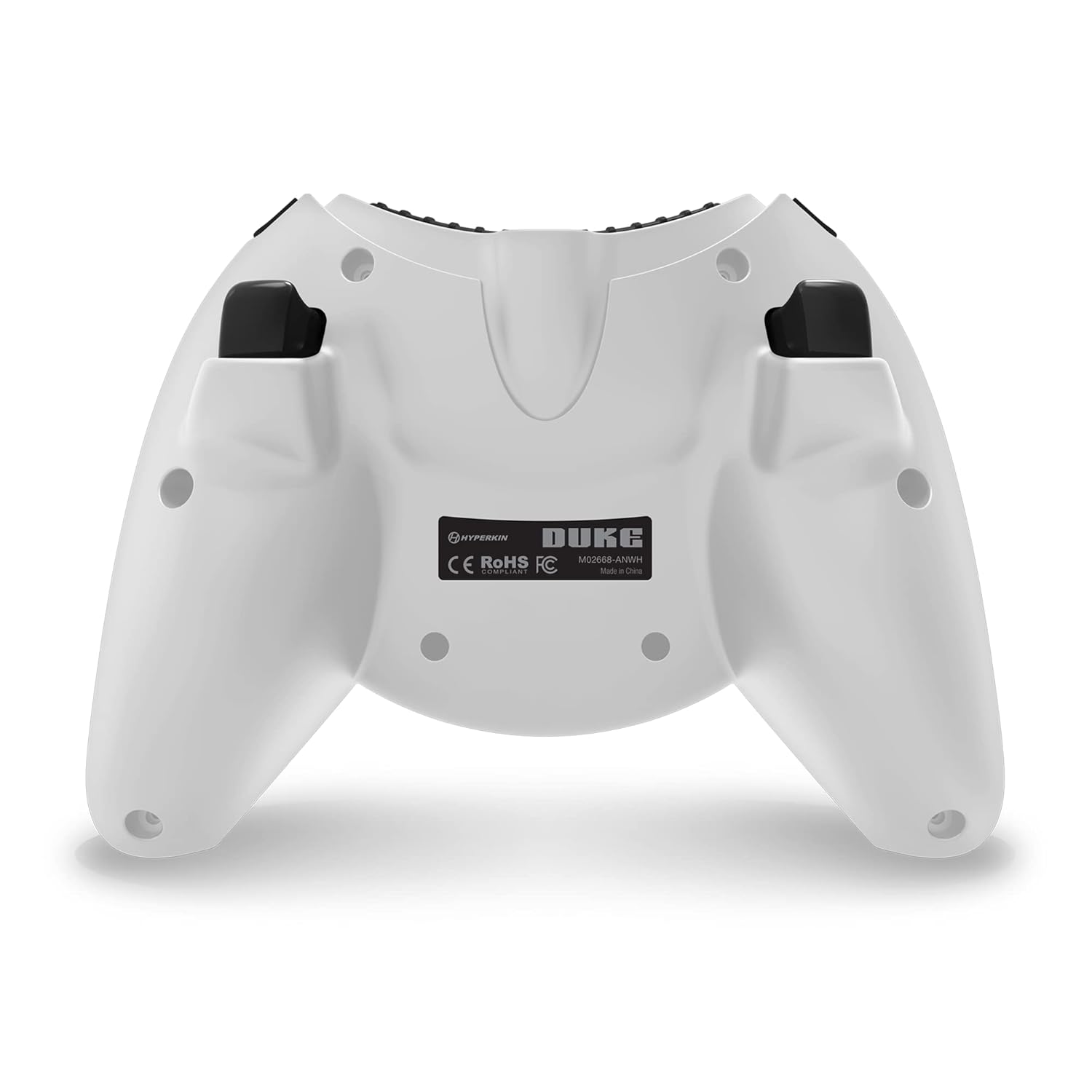
Billede 3.2: Bagside view af controlleren.

Image 3.3: Detail of the Share button and detachable Type-C cable connection.
4. Opsætning
The Hyperkin Duke Wired Controller is designed for simple plug-and-play functionality.
- Connect the detachable Type-C braided cable to the port on the top of the controller.
- Plug the USB-A end of the cable into an available USB port on your Xbox Series X|S, Xbox One console, or Windows 10 PC.
- The controller will automatically be detected and configured by your system. The Xbox button will illuminate, and the animated startup screen will play.
Video 4.1: This video demonstrates the animated Xbox button startup sequence on the Hyperkin Duke controller.
5. Betjeningsvejledning
Once connected, the controller functions similarly to standard Xbox controllers, with additional nostalgic elements.
- Spil: Use the analog sticks for movement and camera control, the D-pad for directional input, and the A, B, X, Y buttons for in-game actions.
- Precision Triggers: The analog triggers (LT, RT) offer variable input, ideal for racing games or actions requiring precise pressure.
- Bumpers (LB, RB): These buttons provide additional input options, often used for secondary actions or menu navigation.
- Xbox knap: Press the Xbox button to access the console's guide menu or the PC's Xbox Game Bar. The animated startup screen will play upon connection or when the button is pressed.
- Del knap: Utilize the Share button to quickly capture and share your gameplay moments.
- Brug af headset: Plug any compatible 3.5mm headset into the jack for in-game audio and voice chat.
- Vibrationsfeedback: The controller provides haptic feedback to enhance immersion during gameplay.
6. Vedligeholdelse og pleje
To ensure the longevity and optimal performance of your controller, follow these care guidelines:
- Rensning: Use a soft, dry cloth to wipe down the controller. Avoid using abrasive cleaners, solvents, or harsh chemicals, as these can damage the surface and internal components.
- Opbevaring: Opbevar controlleren et køligt, tørt sted væk fra direkte sollys, ekstreme temperaturer og for høj luftfugtighed.
- Kabelpleje: Handle the detachable Type-C cable with care. Avoid sharp bends, kinks, or excessive pulling, which can damage the cable or the connector ports. Always grasp the connector head when plugging or unplugging.
- Undgå dråber: Protect the controller from drops or impacts, as these can cause internal damage.
7. Fejlfinding
If you encounter issues with your Hyperkin Duke Wired Controller, refer to the following common solutions:
| Problem | Løsning |
|---|---|
| Controlleren reagerer ikke | Ensure the detachable Type-C cable is securely connected to both the controller and the console/PC. Try a different USB port on your system. Restart your console or PC. |
| Input issues (e.g., stick drift, unresponsive buttons) | For PC, try calibrating the controller through your operating system's game controller settings. Ensure no debris is obstructing buttons or sticks. If the issue persists, contact Hyperkin support. |
| Ingen vibrationsfeedback | Check in-game settings to ensure vibration is enabled. Verify that vibration settings are active in your console or PC's controller settings. |
| Ingen lyd fra headset | Ensure your 3.5mm headset is fully plugged into the controller's jack. Check your console or PC's audio settings to confirm the headset is selected as the output device. Test the headset with another device if possible. |
Video 7.1: This video demonstrates a potential issue with the left trigger on the controller. If you experience similar issues, refer to the troubleshooting table and contact support.
8. Specifikationer
- Modelnummer: M02668-ANWH
- Kompatibilitet: Xbox Series X|S, Xbox One, Windows 10 PCs
- Forbindelse: Wired (Detachable USB Type-C cable)
- Dimensioner: Cirka 6.5 x 5.25 x 3 tommer (16.5 x 13.3 x 7.6 cm)
- Vægt: Cirka 11.99 ounce (340 gram)
- Funktioner: Precision analog triggers, vibration feedback, 3.5mm headset jack, Share button, animated Xbox button, 20th Anniversary design.
9. Garanti og support
For detailed warranty information, product registration, and customer support, please visit the official Hyperkin webwebstedet eller kontakt deres kundeserviceafdeling. Gem din købsbevis til garantikrav.
Hyperkin Officiel Webwebsted: www.hyperkin.com