
1. Introduktion
The ZKTeco LX50 is a compact and efficient fingerprint time attendance device designed for small to medium-sized businesses. It utilizes advanced biometric technology to accurately record employee attendance, providing a reliable solution for workforce management. This manual will guide you through the setup, operation, and maintenance of your LX50 device.
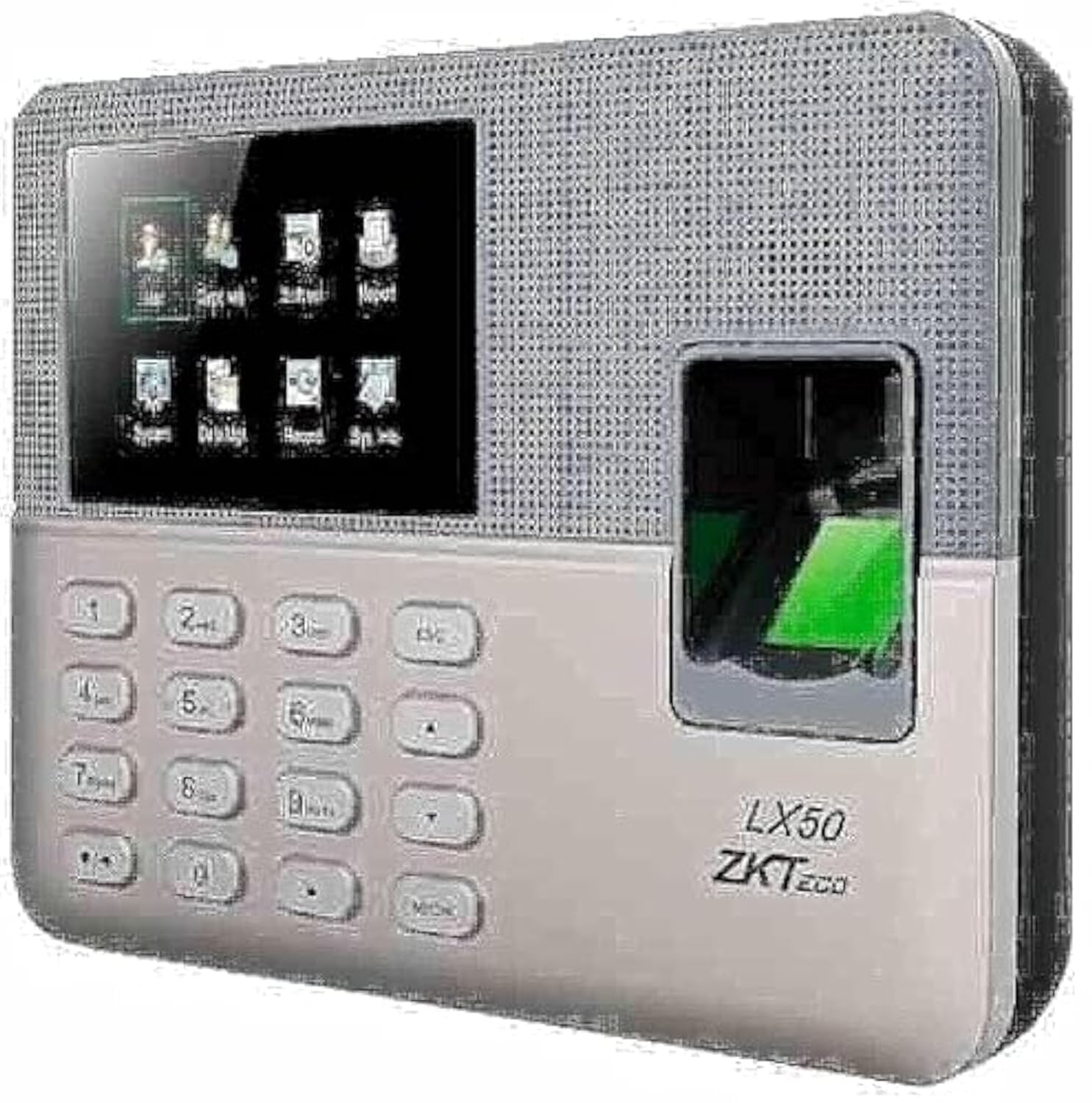
Figure 1: ZKTeco LX50 Fingerprint Time Attendance Device. This image shows the front view of the device, highlighting its compact design and fingerprint sensor.
2. Pakkens indhold
Før du begynder, skal du kontrollere pakkens indhold for at sikre, at alle dele er til stede:
- ZKTeco LX50 Device
- Strømadapter
- Monteringstilbehør (skruer, vægdyvler)
- Hurtig startvejledning
- USB kabel
3. Opsætning
3.1 Montering af enheden
- Choose a suitable location for installation, ensuring it is easily accessible for users and protected from direct sunlight or moisture.
- Use the provided mounting template (if available) to mark the drilling points on the wall.
- Bor huller og indsæt vægpropper.
- Fastgør enheden til væggen med de medfølgende skruer.
3.2 Strømtilslutning
Tilslut strømadapteren til enhedens strømindgang, og sæt den derefter i en almindelig stikkontakt. Enheden tænder automatisk.
3.3 Indledende konfiguration
Upon first power-on, the device may prompt you to set the date, time, and administrator fingerprint. Follow the on-screen instructions.
- Setting Administrator: It is crucial to register at least one administrator fingerprint for device management.
- Dato og tid: Ensure the date and time are set correctly for accurate attendance records.
4. Betjeningsvejledning
4.1 Brugerregistrering
Sådan registrerer du en ny bruger:
- Access the main menu using the administrator fingerprint or password.
- Naviger til Brugerstyring > Ny bruger.
- Enter the user's 9-digit ID. The device supports T9 input for alphanumeric characters if needed.
- Register the user's fingerprint by placing their finger on the sensor multiple times as prompted.
- Save the user information. The device has a capacity for 500 users and 500 fingerprints.
4.2 Registrering af fremmøde
Users can record their attendance by simply placing their registered finger on the fingerprint sensor. The device will confirm the successful punch with an audible and visual indicator.
- The device uses the ZKFinger VX 10.0 algorithm for fast and accurate fingerprint recognition.
- It can store up to 50,000 transaction records.
4.3 Data Download
Attendance data can be downloaded via the USB host port.
- Insert a USB flash drive into the device's USB port.
- Access the main menu using the administrator fingerprint or password.
- Naviger til Data Management > Download Attendance Data.
- Select the desired date range and confirm the download.
- The data will be saved to the USB flash drive in a compatible format (e.g., Excel).
4.4 Planlagt klokke
The LX50 features a scheduled bell function. You can configure specific times for the device to sound an alarm, useful for marking shift changes or breaks.
- Få adgang til hovedmenuen.
- Naviger til Systemindstillinger > Klokkeplan.
- Set the desired times and days for the bell to ring.
5. Vedligeholdelse
- Rensning: Regularly clean the fingerprint sensor and screen with a soft, dry cloth. Avoid using abrasive cleaners or liquids directly on the device.
- Data backup: Periodically download and back up attendance data to prevent loss.
- Softwareopdateringer: Tjek producentens webwebstedet for tilgængelige firmwareopdateringer for at sikre optimal ydeevne og sikkerhed.
- Miljøforhold: Keep the device in a dry environment, away from extreme temperatures and direct sunlight.
6. Fejlfinding
- Enheden tænder ikke:
Sørg for, at strømadapteren er korrekt tilsluttet både enheden og en fungerende stikkontakt. Bekræft, at stikkontakten fungerer.
- Fingeraftryk ikke genkendt:
Ensure the finger is clean and dry. Place the finger flat on the sensor, covering the entire surface. If issues persist, re-register the fingerprint.
- Cannot download data to USB:
Ensure the USB flash drive is formatted correctly (FAT32 is recommended) and has sufficient free space. Try a different USB flash drive. Ensure you are performing the download operation from the administrator menu.
- Device not connecting to network:
The ZKTeco LX50 model primarily uses a USB host for data communication and does not support direct network (Ethernet/Wi-Fi) connectivity for data transfer. Data must be manually pulled via a USB flash drive.
7. Specifikationer
| Feature | Detalje |
|---|---|
| Fabrikant | ZKTeco |
| Mærke | ZKTeco |
| Model | LX50 |
| Algoritme version | ZKFinger VX 10.0 |
| Brugerkapacitet | 500 |
| Fingeraftrykskapacitet | 500 |
| Transaktionskapacitet | 50,000 |
| Meddelelse | USB-vært |
| Standard funktioner | Scheduled Bell, Self-Learning Report, 9-digit User Registration, T9 Input |
| Pakkedimensioner | 30.2 x 21.7 x 7.6 cm |
| Varens vægt | 680 g |
| Farve | Flerfarvet |
| Dato først tilgængelig | 27. juli 2021 |
8. Garanti og support
The ZKTeco LX50 device comes with a standard manufacturer's warranty against defects in materials and workmanship. Please refer to the warranty card included in your package for specific terms and conditions, including the warranty period and coverage details.
For technical support, troubleshooting assistance, or warranty claims, please contact ZKTeco customer service or your local distributor. Contact information can typically be found on the manufacturer's official webwebsted eller i produktemballagen.
Vigtig: Gem din købskvittering som købsbevis af garantihensyn.