
Indledning
This manual provides comprehensive instructions for the Acer Aspire 5 laptop, equipped with an 11th Gen Intel Core i3-1115G4 processor, 8GB DDR4 RAM, and a 512GB NVMe SSD. It covers initial setup, operational guidelines, maintenance procedures, and troubleshooting common issues to ensure optimal performance and longevity of your device.
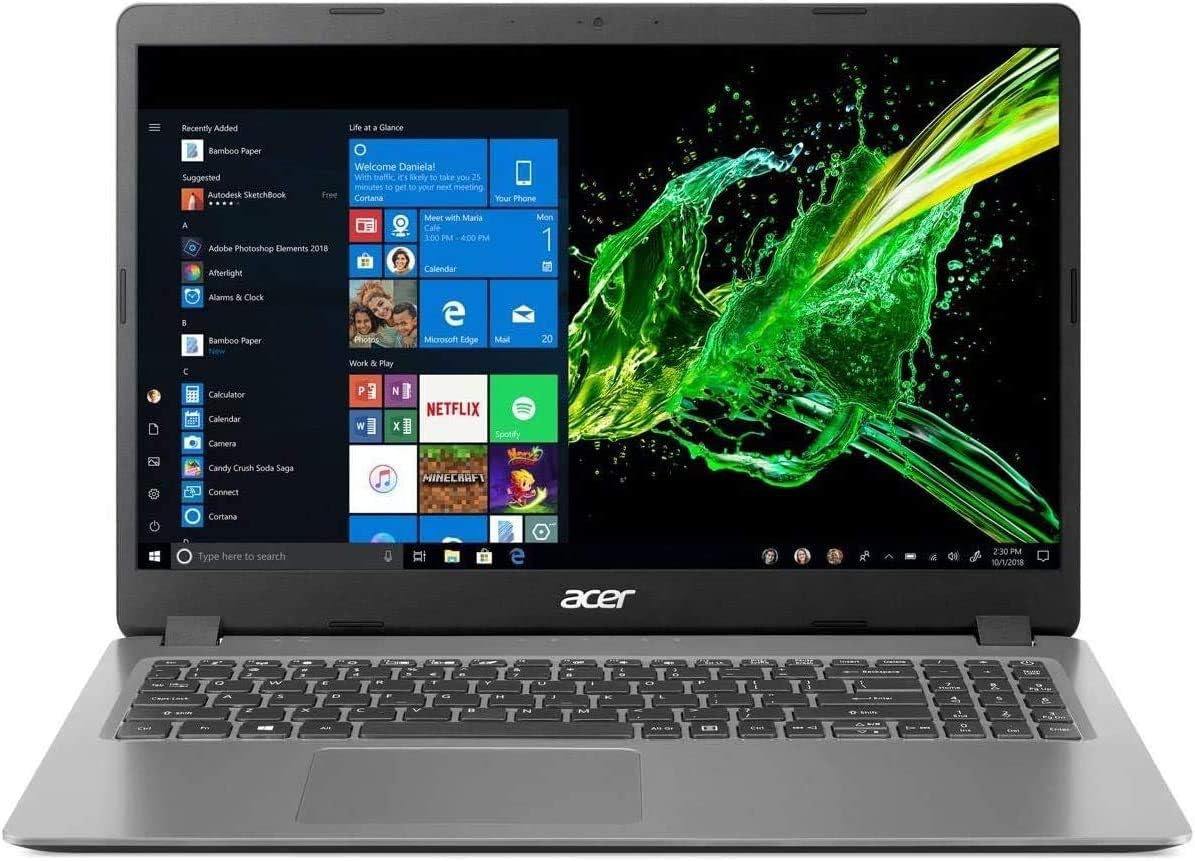
Billede: Forside view of the Acer Aspire 5 laptop with the screen powered on, showing the Windows 10 interface.
1. Opsætning
1.1 Udpakning og første inspektion
- Tag forsigtigt den bærbare computer og alt tilbehør ud af emballagen.
- Verify that all components are present: Acer Aspire 5 laptop, AC power adapter, and HDMI cable.
- Undersøg den bærbare computer for fysiske skader. Kontakt din forhandler med det samme, hvis der findes skader.
1.2 Tilslutning af strømadapteren
- Connect the AC adapter cable to the power input port on the side of the laptop.
- Sæt strømadapteren i en jordet stikkontakt.
- Batteriindikatorlampen lyser, hvilket indikerer, at den bærbare computer oplades.
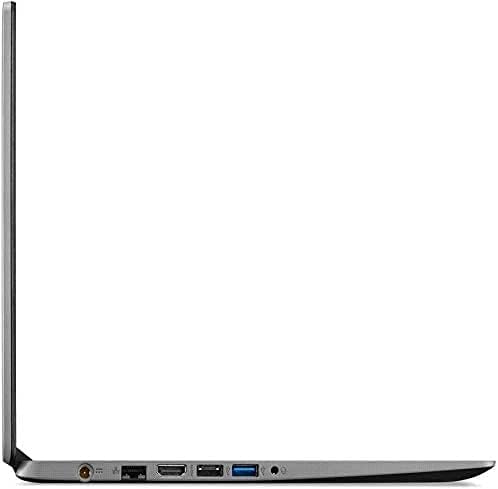
Image: Right side of the Acer Aspire 5 laptop, highlighting the power input port, USB 2.0 port, and security lock slot.
1.3 Første opstart og Windows-opsætning
- Open the laptop lid and press the power button located on the keyboard.
- Follow the on-screen instructions to complete the Windows 10 Home (S Mode) setup process. This includes selecting your region, keyboard layout, connecting to a Wi-Fi network, and creating a user account.
- Ensure you have an active internet connection for Windows activation and updates. The laptop supports Wi-Fi 6 (802.11ax) for fast wireless connectivity.
2. Betjening af din bærbare computer
2.1 Brug af tastatur og touchpad
The Acer Aspire 5 features a standard keyboard and a precision touchpad for navigation. Familiarize yourself with the function keys (F1-F12) which often have secondary actions (e.g., volume control, screen brightness) when pressed with the Fn nøgle.

Billede: Top-down view of the Acer Aspire 5 laptop's keyboard and touchpad layout.
2.2 Understanding Windows 10 Home (S Mode)
- Windows 10 Home in S Mode is a version of Windows designed for security and performance, exclusively running apps from the Microsoft Store.
- You can switch out of S Mode to standard Windows 10 Home at any time, but you cannot switch back. Refer to Microsoft's official documentation for detailed instructions on switching out of S Mode.
2.3 Tilslutning af eksterne enheder
Din bærbare computer er udstyret med forskellige porte til tilslutning af eksterne enheder:
- USB 3.2 Type-C: Til højhastighedsdataoverførsel og tilslutning af kompatible USB-C-enheder.
- USB 3.2 Gen 1 (x2): For connecting USB devices, one port supports power-off charging.
- USB 2.0: Til standard USB-enheder.
- HDMI 2.0: For connecting to external displays or projectors, supporting HDCP. An HDMI cable is included.
- Ethernet (RJ-45): Til kablede netværksforbindelser.
- Headphone/Speaker/Line-out Jack: Til lydudgang.
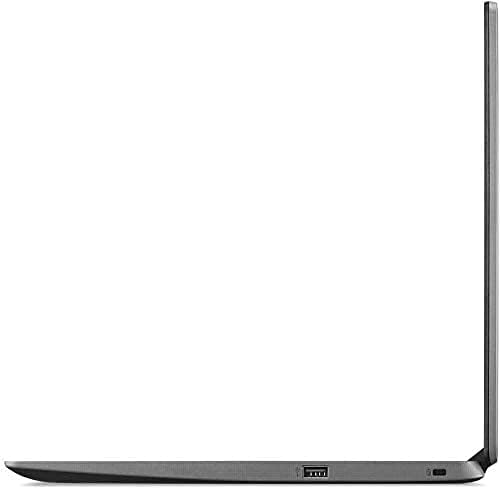
Image: Left side of the Acer Aspire 5 laptop, showing the USB Type-C, HDMI, and USB 3.2 ports.
2.4 Lydfunktioner
The laptop is designed and certified to work with Cortana, Microsoft's voice assistant. It also features Acer True Harmony for enhanced sound quality through its integrated speakers or connected headphones.
3. Vedligeholdelse
3.1 Pleje af batterier
- The laptop's battery provides up to 8.5 hours of average standby life.
- To prolong battery lifespan, avoid fully discharging the battery frequently.
- Opbevar den bærbare computer et køligt og tørt sted, når den ikke er i brug i længere perioder.
3.2 Rengøringsinstruktioner
- Use a soft, lint-free cloth to clean the screen. For stubborn smudges, dampTør kluden let med vand eller en skærmrengøringsopløsning.
- Wipe the keyboard and chassis with a soft, dry cloth. Avoid using harsh chemicals or abrasive materials.
- Periodically clean the ventilation openings to prevent dust buildup, which can affect cooling performance.
3.3 Softwareopdateringer
Søg regelmæssigt efter og installer Windows-opdateringer for at sikre, at dit system har de nyeste sikkerhedsrettelser og forbedringer af ydeevnen. Du kan få adgang til Windows Update via menuen Indstillinger.
3.4 Lagerstyring
Your laptop comes with a 512GB PCIe SSD. To maintain optimal performance, periodically review og slet unødvendige files, afinstaller ubrugte programmer, og overvej at bruge cloud-lagring til store files.
4. Fejlfinding
This section addresses common issues you might encounter with your Acer Aspire 5 laptop.
4.1 Strømproblemer
- Den bærbare computer tænder ikke: Ensure the AC adapter is securely connected to both the laptop and a working power outlet. Check if the power indicator light is on. Try pressing and holding the power button for 10-15 seconds to perform a hard reset.
- Batteri oplades ikke: Verify the AC adapter connection. If the issue persists, the adapter or battery may require service.
4.2 Displayproblemer
- Intet billede på skærmen: Connect an external monitor via the HDMI port to check if the display output is working. If the external monitor works, the laptop's internal display may have an issue.
- Dæmp skærmen: Adjust the screen brightness using the function keys (usually F3/F4 or similar icons).
4.3 Forbindelsesproblemer
- Wi-Fi opretter ikke forbindelse: Sørg for, at Wi-Fi er aktiveret i Windows-indstillingerne. Genstart din router og den bærbare computer. Tjek for opdaterede Wi-Fi-drivere.
- Bluetooth-enhed parres ikke: Ensure Bluetooth is enabled on both the laptop and the device. Place devices close to each other and try pairing again.
4.4 Generel systemmanglende respons
- If the system becomes unresponsive, press Ctrl + Alt + Delete to open Task Manager and close unresponsive applications.
- If the system remains unresponsive, perform a hard shutdown by pressing and holding the power button until the laptop turns off. Wait a few seconds, then restart.
5. Specifikationer
| Feature | Specifikation |
|---|---|
| Mærke | Acer |
| Modelnavn | Acer Aspire 5 |
| Processor | 11. generations Intel Core i3-1115G4 (op til 4.1 GHz) |
| VÆDDER | 8 GB DDR4 |
| Opbevaring | 512 GB NVMe PCIe SSD |
| Operativsystem | Windows 10 Home (S Mode) |
| Vise | 15.6" Full HD (1920 x 1080) Widescreen LED-backlit IPS Display |
| Grafik | Intel UHD-grafik (integreret) |
| Trådløs forbindelse | Wi-Fi 6 (802.11ax), Bluetooth |
| Havne | 1x USB 3.2 Type-C, 2x USB 3.2 Gen 1 (1 with Power-off Charging), 1x USB 2.0, 1x HDMI 2.0, 1x Ethernet (RJ-45), 1x Headphone/Speaker/Line-out Jack |
| Batterilevetid | Up to 8.5 Hours (Average Standby) |
| Vægt | 4.19 pund |
| Farve | Sølv |
6. Garanti og support
6.1 Garantioplysninger
This product includes a standard manufacturer's warranty. Additionally, a 1-year standard warranty is provided on upgraded RAM/SSD components. Please retain your proof of purchase for warranty claims.
6.2 Teknisk support
For teknisk assistance, download af drivere eller yderligere support, besøg venligst den officielle Acer-supportside. website. You will need your laptop's serial number, typically found on a label on the underside of the device.