
Indledning
Tak for købetasing the Ewin Foldable Bluetooth Keyboard, Model EW-ZR050BR. This wireless keyboard features a Japanese Industrial Standard (JIS) layout, allowing for both Japanese and English input. Its foldable design makes it highly portable, and it supports simultaneous connection to up to three devices across multiple operating systems. This manual provides detailed instructions for setup, operation, maintenance, and troubleshooting to ensure optimal performance.
Important Note: This product is not compatible with devices updated to Android 12. Please verify your device's operating system version before use.
Pakkens indhold
- Ewin Foldable Bluetooth Keyboard (EW-ZR050BR)
- USB opladningskabel
- Brugervejledning (dette dokument)
Opsætning
1. Tænd/sluk
The keyboard is designed for convenience. Simply unfold the keyboard to automatically power it on. Fold the keyboard to automatically power it off. No manual switch operation is required for basic power control.
2. Bluetooth-parring
- Fold tastaturet ud for at tænde det.
- Tryk og hold på Fn+C keys simultaneously for 3 seconds. The Bluetooth indicator LED will flash blue, indicating it is in pairing mode.
- Aktiver Bluetooth på din enhed (smartphone, tablet, pc), og søg efter tilgængelige enheder.
- Select "Ewin Keyboard" or a similar name from the list of found devices.
- If prompted, enter the pairing code displayed on your device using the Ewin keyboard and press Indtast.
- Once paired, the Bluetooth indicator LED will stop flashing and remain solid blue for a few seconds before turning off.
3. Connecting to Multiple Devices (Up to 3)
The keyboard supports pairing with up to three devices simultaneously. Use the following key combinations to assign and switch between devices:
- Fn + Q: Assigns/switches to Device 1
- Fn + W: Assigns/switches to Device 2
- Fn + E: Assigns/switches to Device 3
To pair a new device, select one of the Fn+Q/W/E channels, then follow the Bluetooth pairing steps (Step 2) for that channel.

Image: The Ewin keyboard demonstrating Bluetooth connectivity and the ability to connect to three devices simultaneously using Fn+Q, Fn+W, and Fn+E. It also highlights compatibility with iOS, Windows, Android, and Mac operating systems.
4. Skift af operativsystem
To optimize keyboard functionality for your specific operating system, use the following key combinations:
- fn + A: For iOS devices
- Fn + S: For Android devices
- Fn + D: For Windows devices
- Fn + F: For Mac devices
After switching, the keyboard will adjust its layout and function keys to better suit the selected OS.
Betjeningsvejledning
1. Typing and Layout
The keyboard features a JIS (Japanese Industrial Standard) layout, which includes specific keys for Japanese input such as "full-angle/half-angle" and "conversion." It also fully supports standard English input.
2. Multi-Function Keys
The keyboard is equipped with 13 types of shortcut keys that provide quick access to various functions, such as media control (play/pause, volume up/down), home screen, search, and more. These functions are typically accessed by pressing the Fn key in combination with the corresponding function key (e.g., F1-F12).
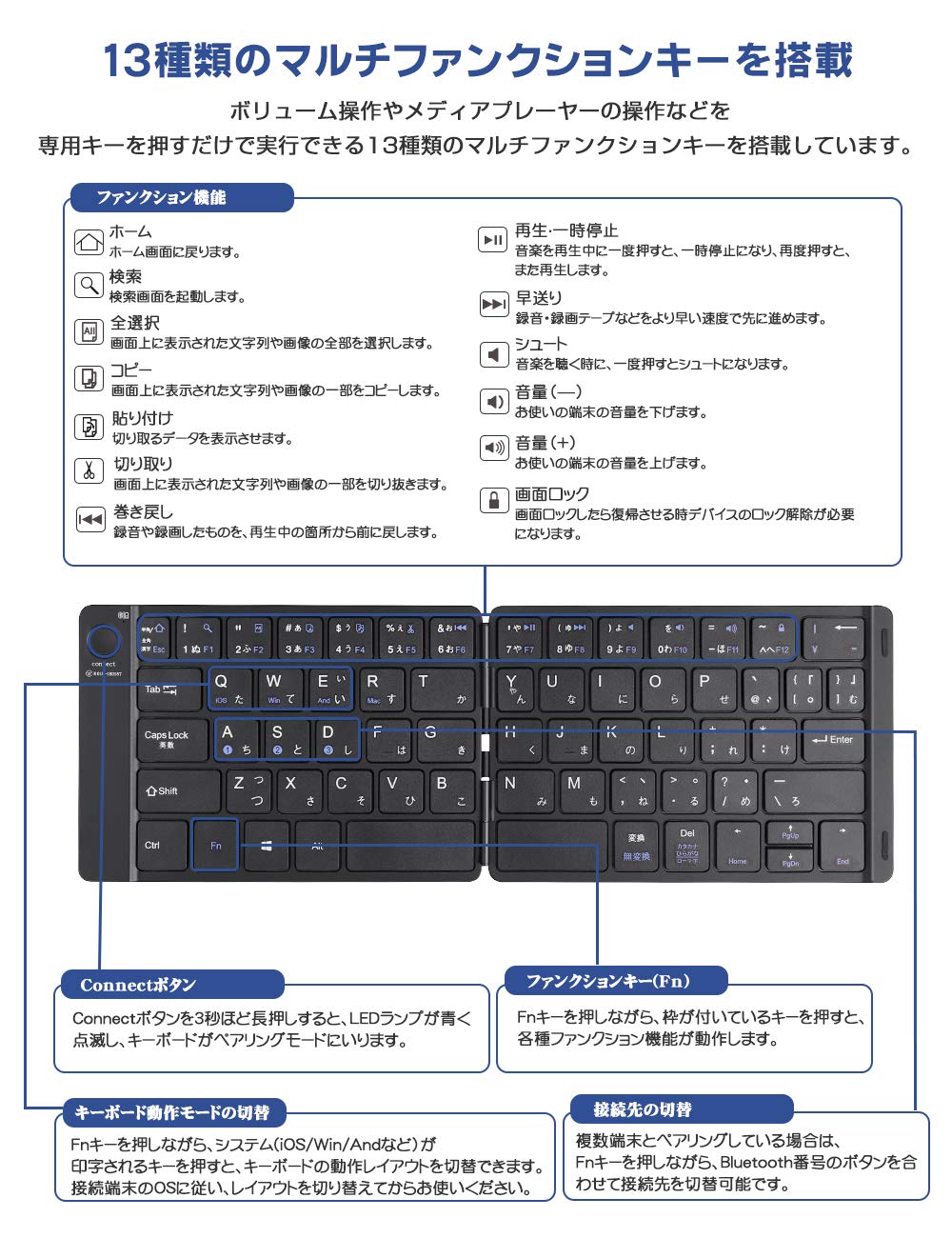
Billede: En detaljeret view of the Ewin keyboard highlighting the 13 multi-function keys and their respective shortcuts for media control, system navigation, and other common tasks. Instructions for using the 'Connect' button and 'Fn' key are also shown.
3. Pantograph Key Structure
The keyboard utilizes a pantograph key structure, providing a light and responsive typing experience. This design also contributes to quieter keystrokes, making it suitable for use in quiet environments.
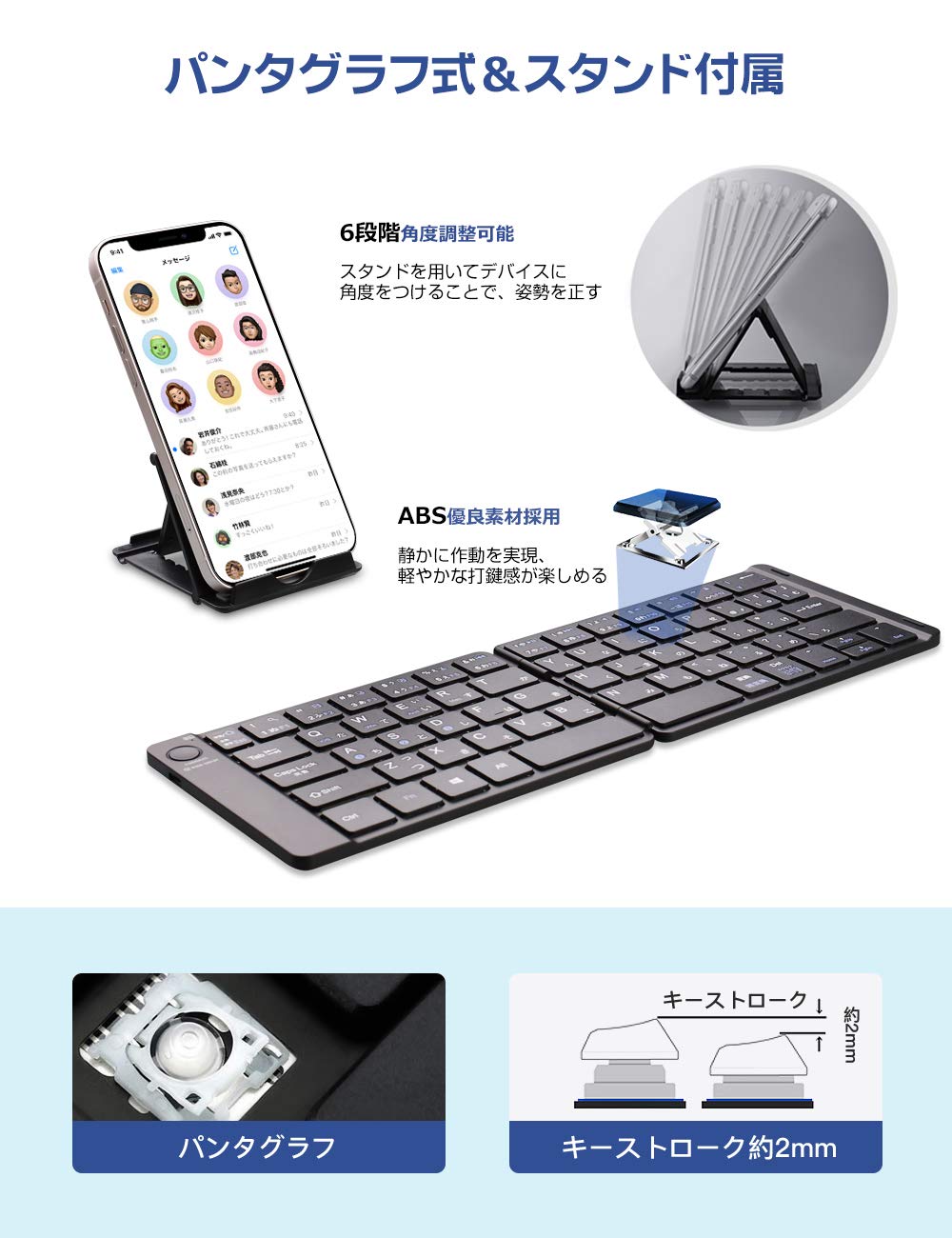
Image: The Ewin keyboard unfolded, showcasing its pantograph key mechanism and an included adjustable stand for devices. The image illustrates the thin profile and key travel distance of approximately 2mm.
Opretholdelse
1. Opladning af batteriet
The keyboard has a built-in rechargeable Lithium-Ion battery. When the battery is low, the indicator light will signal. Connect the included USB cable to the keyboard's charging port and to a USB power source (e.g., computer, USB wall adapter).
- Full charge time: Approximately 2-3 hours.
- Continuous use time: Up to 60 hours.
- Standby time: Over 90 days.
The keyboard features an auto-sleep function to conserve battery power when not in use.

Image: An illustration showing the Ewin keyboard connected via a USB cable for charging, with battery level indicators. It details the charging time (2 hours), continuous usage (60 hours), and standby time (90 days).
2. Rensning
The keyboard features an elegant leather-like cover that is waterproof and dustproof. To clean, gently wipe the surface with a soft, damp klæde. Undgå at bruge skrappe kemikalier eller slibende materialer.
Fejlfinding
- Tastatur opretter ikke forbindelse via Bluetooth:
Ensure the keyboard is charged. Press Fn+C to enter pairing mode. Make sure Bluetooth is enabled on your device and it is within range. Try forgetting the device on your host system and re-pairing. - Keys are unresponsive or input is delayed:
Check the battery level and charge the keyboard if necessary. Low battery can affect performance. Ensure the keyboard is not too far from your device. If the issue persists, try re-pairing the keyboard. - Keyboard not working with Android 12:
This product is known to be incompatible with devices running Android 12. There is no workaround for this specific issue. - Forkerte tegn eller layout:
Ensure you have selected the correct operating system mode using fn + A (iOS), Fn + S (Android), Fn + D (Windows), or Fn + F (Mac).
Specifikationer
| Feature | Detalje |
|---|---|
| Mærke | EWIN |
| Modelnummer | EW-ZR050BR |
| Forbindelsesteknologi | Bluetooth |
| Tastaturlayout | JIS (Japanese Industrial Standard) |
| Kompatible operativsystemer | iOS, Android (not Android 12), Windows, Mac |
| Kompatible enheder | Smartphones, tablets, bærbare computere, pc'er |
| Særlige funktioner | Foldable, Rechargeable, Multi-device pairing (3 devices), Multi-function keys |
| Batteritype | Lithium-ion (1 medfølger) |
| Opladningstid | 2-3 timer |
| Kontinuerlig brugstid | Op til 60 timer |
| Standby tid | Over 90 dage |
| Produktdimensioner (foldet) | 14.5 x 9.9 x 1.2 cm |
| Varens vægt | 580 g |
Garantioplysninger
This product is covered by a standard manufacturer's warranty. Please refer to the warranty card included with your purchase or contact Ewin customer support for specific details regarding warranty duration and terms. Keep your proof of purchase for warranty claims.
Kundesupport
For further assistance, technical support, or inquiries regarding your Ewin Foldable Bluetooth Keyboard, please visit the official Ewin webwebstedet eller kontakt deres kundeserviceafdeling. Kontaktoplysninger kan typisk findes på produktemballagen eller i producentens webwebsted.
