
Indledning
This manual provides detailed instructions for setting up, operating, maintaining, and troubleshooting your ASUS TUF Gaming VG247Q1A 24-inch 1080P Monitor. Please read this manual thoroughly before using the monitor to ensure proper operation and to prevent damage.

Image: ASUS TUF Gaming VG247Q1A Monitor, front view.
Opsætning
Pakkens indhold
Kontroller, at alle dele er til stede i pakken, før du fortsætter med opsætningen.
- VG247Q1A Monitor
- Strømledning
- Garantikort
- Hurtig startguide (QSG)
- HDMI kabel
- DisplayPort kabel

Image: Illustration of the items included in the monitor package, including the monitor, cables, and documentation.
Monitor samling
- Tag forsigtigt skærmen og dens komponenter ud af emballagen.
- Attach the stand base to the stand neck, then secure it to the monitor panel. Refer to the Quick Start Guide for specific instructions and diagrams.
- Placer den samlede skærm på en stabil, plan overflade.
Tilslutning af skærmen
Tilslut skærmen til din computer eller andre enheder ved hjælp af de relevante kabler.
- Strømtilslutning: Tilslut netledningen til skærmens strømindgang og derefter til en stikkontakt.
- Videoforbindelse:
- For optimal performance, use the included DisplayPort cable to connect the monitor to your graphics card's DisplayPort output.
- Alternatively, use an HDMI cable to connect to an HDMI port on your device. The monitor has two HDMI (v1.4) ports.
- Lydforbindelse: Hvis det ønskes, kan du tilslutte hovedtelefoner eller eksterne højttalere til 3.5 mm øretelefonstikket på skærmen.

Billede: Bagside view of the monitor highlighting the DisplayPort, HDMI (x2), and earphone jack connections.
The monitor also supports VESA mount (100x100mm) for alternative mounting solutions.
Betjeningsvejledning
Tænd/sluk
Tryk på tænd/sluk-knappen på skærmen for at tænde eller slukke den. Strømindikatorlampen lyser, når skærmen er aktiv.
On-Screen Display (OSD) menu
Access the OSD menu using the joystick or buttons on the back/bottom of the monitor to adjust various settings.
- Navigation: Use the joystick to navigate through menu options.
- Udvælgelse: Press the joystick or corresponding button to select an option.
- Udgang: Use the designated button or move the joystick to exit the menu.
Nøglefunktioner og indstillinger
- Opdateringshastighed (165Hz): The monitor supports a high refresh rate of 165Hz for smoother motion. Ensure your graphics card settings are configured to utilize this refresh rate.
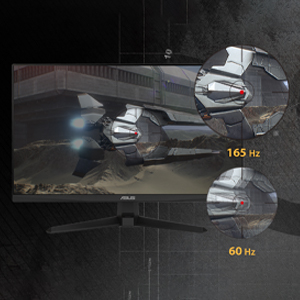
Image: Visual comparison demonstrating the smoothness of 165Hz refresh rate versus 60Hz.
- ASUS Extreme Low Motion Blur (ELMB): This technology provides a 1ms Moving Picture Response Time (MPRT) to reduce motion blur. Activate it through the OSD menu for clearer fast-paced visuals.
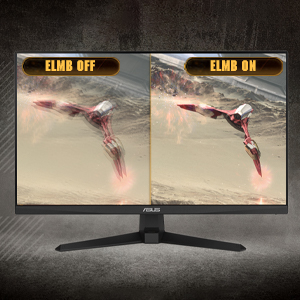
Image: Side-by-side comparison of ELMB off and ELMB on, showing reduced motion blur with ELMB active.
- AMD FreeSync™ Premium: This technology synchronizes the monitor's refresh rate with your AMD graphics card's frame rate to eliminate screen tearing and stuttering. Ensure it is enabled in both the monitor OSD and your graphics card software.
Image: Comparison of screen tearing with FreeSync Premium off versus smooth gameplay with FreeSync Premium on.
- Shadow Boost: Enhances image details in dark areas without over-exposing bright areas, providing better visibility in dimly lit game scenes.
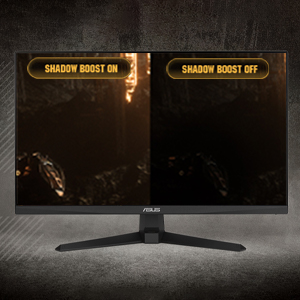
Image: Side-by-side comparison of a dark game scene with Shadow Boost off and Shadow Boost on, showing improved visibility in dark areas.
- Funktioner til øjenpleje:
- Ultra-Low Blue Light: Reduces harmful blue light emissions to protect your eyes during long viewing sessions. Adjust the blue light filter level in the OSD menu.

Image: Graphic illustrating the effect of Ultra-Low Blue Light technology on screen output.
- Flimmerfri teknologi: Eliminates screen flickering to minimize eye strain. This feature is always active.

Image: Side-by-side comparison of a screen with and without flicker-free technology, demonstrating reduced flickering.
- Ultra-Low Blue Light: Reduces harmful blue light emissions to protect your eyes during long viewing sessions. Adjust the blue light filter level in the OSD menu.
- GamePlus: Provides in-game enhancements such as crosshairs, timers, FPS counters, and display alignment tools. Access these features via the OSD menu.
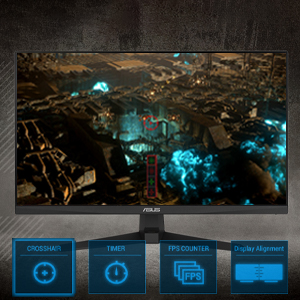
Image: Monitor screen displaying various GamePlus overlays like crosshair, timer, and FPS counter.
- GameVisuel: Offers several preset display modes optimized for different content types (e.g., Scenery, Racing, Cinema, RTS/RPG, FPS, sRGB, MOBA). Select the appropriate mode for your current activity.

Image: Side-by-side comparison of a game scene with GameVisual off and GameVisual on, showing optimized visual settings.
Opretholdelse
Korrekt vedligeholdelse sikrer din skærms levetid og optimale ydeevne.
- Rengøring af skærmen:
- Sluk for skærmen, og tag netledningen ud.
- Brug let en blød, fnugfri klud damprengøres med vand eller et ikke-slibende skærmrensemiddel.
- Wipe the screen gently. Avoid applying pressure or using harsh chemicals.
- Rengøring af Casing:
- Brug en blød, tør klud til at tørre skærmen afasing.
- Undgå at bruge slibende rengøringsmidler eller opløsningsmidler, der kan beskadige finishen.
- Opbevaring:
- If storing the monitor for an extended period, unplug all cables and pack it in its original packaging if possible.
- Opbevares på et køligt, tørt sted væk fra direkte sollys og ekstreme temperaturer.
Fejlfinding
If you encounter issues with your monitor, refer to the following common solutions.
| Problem | Mulig løsning |
|---|---|
| Intet billede på skærmen |
|
| Billedet er sløret eller forvrænget |
|
| Ingen lyd fra højttalere/hovedtelefoner |
|
| Skærmforstyrrelser eller hakken under spil |
|
Hvis problemet fortsætter efter at have prøvet disse løsninger, bedes du kontakte ASUS kundesupport.
Specifikationer
| Feature | Detalje |
|---|---|
| Mærke | ASUS |
| Modelnummer | VG247Q1A |
| Skærmstørrelse | 24 tommer |
| Opløsning | FHD 1080p (1920 x 1080 pixels) |
| Aspektforhold | 16:9 |
| Opdateringshastighed | 165 Hz |
| Svartid | 1 Milliseconds (MPRT) |
| Display Type | LCD |
| Paneltype | VA (Note: Not explicitly stated, but common for these specifications) |
| Viewi vinkel | 170 grader |
| Lysstyrke | 350 Candela pr. kvadratmeter |
| Kontrastforhold | 1000:1 |
| Skærmfinish | Blank |
| Forbindelse | 2x HDMI (v1.4), 1x DisplayPort (v1.2), 1x Earphone Jack |
| Adaptiv synkroniseringsteknologi | FreeSync Premium |
| Særlige funktioner | ASUS Extreme Low Motion Blur (ELMB), Shadow Boost, Blue Light Filter, Built-In Speakers, Flicker-Free, GamePlus, GameVisual |
| Varedimensioner (D x B x H) | 15.53" D x 21.3" B x 6.85" H |
| Varens vægt | 7.3 pund |
| VESA-montering | 100x100mm compatible (Mount not included) |
| Strømforbrug | 14.52 watt |
| Voltage | 240 volt |
Garanti og support
Your ASUS TUF Gaming VG247Q1A monitor comes with a manufacturer's warranty.
- Garantitype: 3 års producentgaranti
- Garantibeskrivelse: 3 Year Warranty with ARR (Advanced Replacement Service)
For technical support, warranty claims, or further assistance, please visit the official ASUS support website or contact their customer service. Refer to the warranty card included in your package for specific contact details and terms.