
1. Introduktion
This manual provides detailed instructions for setting up, operating, maintaining, and troubleshooting your Mercusys MR30G AC1200 Wireless Dual Band WiFi Gigabit Router. Please read this guide thoroughly to ensure proper installation and optimal performance of your device.
2. Produktet er slutview
2.1 Nøglefunktioner
- AC1200 Dual Band WiFi: Delivers combined speeds of up to 1.2 Gbps (300 Mbps on 2.4 GHz and 867 Mbps on 5 GHz) for fast, reliable connections.
- Gigabit Wired Speeds: Equipped with full gigabit ports (1 WAN, 2 LAN) for high-speed wired connections to PCs, IPTVs, and game consoles.
- MU-MIMO teknologi: Communicates with multiple devices simultaneously, improving network efficiency and speed for connected devices.
- High-Gain Antennas with Beamforming: Four external 5 dBi antennas and Beamforming technology provide targeted, stable, and extended wireless coverage.
- Kraftfuldt signal Amplivsstil: Strengthens signal transmissions and accelerates signal capture for improved range and full-signal strength throughout your home.
- Flere driftstilstande: Supports Router, Access Point, and Range Extender modes.
- WPS funktionalitet: Simplifies secure wireless connection setup.
2.2 Pakkens indhold
The Mercusys MR30G package typically includes:
- Mercusys MR30G AC1200 Wireless Dual Band WiFi Gigabit Router
- Strømadapter
- Ethernet kabel
- Hurtig installationsvejledning

Image 1: Mercusys MR30G AC1200 Wireless Dual Band WiFi Gigabit Router with its retail packaging.

Billede 2: Vinklet front view of the Mercusys MR30G router, highlighting its four external antennas.
3. Opsætningsvejledning
Follow these steps for a simple and quick setup of your Mercusys MR30G router.
3.1 Hardwareforbindelse
- Sluk: Disconnect the power from your modem (if applicable).
- Tilslut WAN-port: Connect the Ethernet cable from your modem's LAN port to the blue WAN port on your MR30G router.
- Tilslutning af LAN-porte (valgfrit): For wired devices, connect an Ethernet cable from your computer or other network devices to one of the yellow LAN ports on the MR30G router.
- Tænd: Connect the power adapter to the router and plug it into a power outlet. Wait for the router to fully boot up (the LED indicator should turn solid green).
- Tænd modemet: Reconnect power to your modem.
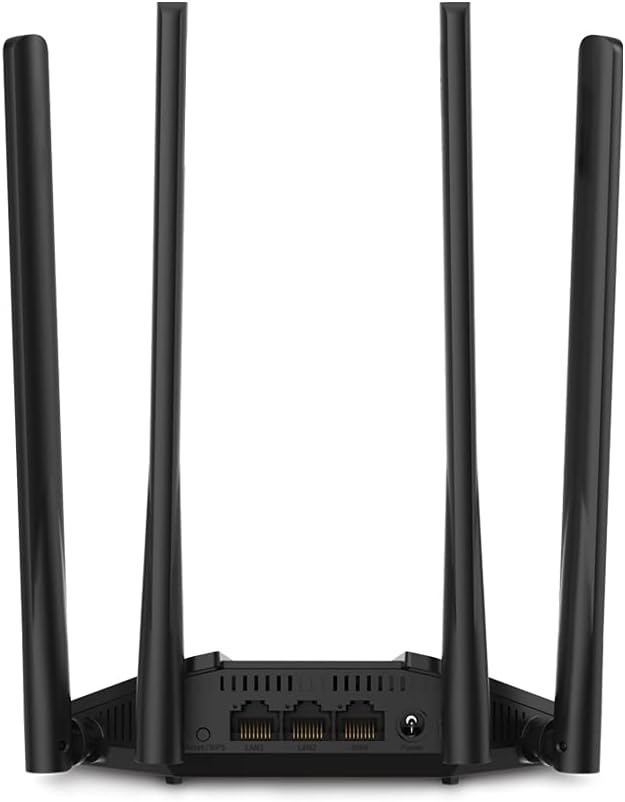
Billede 3: Bagside view of the Mercusys MR30G router, showing the WAN port (blue), LAN ports (yellow), power input, and reset button.
3.2 Indledende konfiguration
- Tilslut til router: Connect your computer or mobile device to the router's default Wi-Fi network (SSID and password are usually printed on a label on the bottom of the router) or via an Ethernet cable to a LAN port.
- Adgang Web Interface: Åbn a web browser og indtast standardadgangsadressen (f.eks.
mwlogin.netor192.168.1.1) i adresselinjen. - Opret login-adgangskode: Follow the on-screen instructions to create a strong login password for the router's management interface.
- Kør hurtig opsætning: The Quick Setup wizard will guide you through configuring your internet connection type, Wi-Fi network name (SSID), and password.
- Gem indstillinger: Apply the settings and restart the router if prompted.
4. Betjeningsvejledning
4.1 Dual Band-drift
The MR30G operates on two frequency bands:
- 2.4 GHz bånd: Provides wider coverage and better wall penetration, suitable for general internet browsing, email, and devices further from the router.
- 5 GHz bånd: Offers faster speeds and lower interference, ideal for bandwidth-intensive tasks like HD video streaming, online gaming, and large file overførsler.
You can connect your devices to either band based on your needs. The router may also offer a Smart Connect feature to automatically assign devices to the optimal band.
4.2 Avancerede funktioner
Få adgang til routerens web management interface to configure advanced settings:
- Gæstenetværk: Create a separate Wi-Fi network for guests to ensure the security of your main network.
- Adgangspunkttilstand: Convert your router into an access point to extend your existing wired network with Wi-Fi capabilities.
- IPv6 support: Utilize the latest internet protocol for enhanced network efficiency and future compatibility.
- WPS (Wi-Fi Protected Setup): Press the WPS button on the router and your WPS-enabled device to quickly establish a secure wireless connection without entering a password.
- Forældrekontrol: Manage and restrict internet access for specific devices.
- QoS (Quality of Service): Prioritize network traffic for certain applications or devices to ensure smooth performance.
5. Vedligeholdelse
Regelmæssig vedligeholdelse er med til at sikre din routers levetid og optimale ydeevne.
- Firmwareopdateringer: Periodically check the Mercusys official webwebsted for firmwareopdateringer. Opdatering af firmwaren kan forbedre ydeevnen, tilføje nye funktioner og rette sikkerhedssårbarheder.
- Regelmæssig genstart: Rebooting your router every few weeks can help clear its memory and resolve minor network issues. Simply unplug the power adapter, wait 10 seconds, and plug it back in.
- Optimal placering: Place the router in a central location, away from obstructions, large metal objects, and devices that emit electromagnetic interference (e.g., microwaves, cordless phones).
- Rensning: Hold routeren ren og fri for støv. Brug en blød, tør klud til at tørre ydersiden af. Brug ikke flydende rengøringsmidler.
- Sikkerhed: Regularly change your Wi-Fi password and router login password to strong, unique combinations.
6. Fejlfinding
If you encounter issues with your router, refer to the following common solutions.
6.1 Ingen internetadgang
- Tjek forbindelser: Sørg for, at alle Ethernet-kabler er korrekt tilsluttet til de korrekte porte (WAN til modem, LAN til enheder).
- Genstart enheder: Sluk og tænd for dit modem, derefter din router og derefter dine tilsluttede enheder.
- Check WAN LED: Verify that the WAN LED on the router is lit, indicating an active internet connection.
- Internetudbyderstatus: Kontakt din internetudbyder (ISP) for at bekræfte, at der ikke er nogen tjenester ude.tager i dit område.
- Routerindstillinger: Log ind på routeren web interface and check your internet connection settings (e.g., WAN connection type, IP address).
6.2 Langsom Wi-Fi-hastighed eller hyppige afbrydelser
- Placering af router: Move the router to a more central location, away from obstacles and interference sources.
- Kanalinterferens: I routerens web interface, try changing the Wi-Fi channel for both 2.4 GHz and 5 GHz bands to a less congested one.
- Bandvalg: For speed-critical devices, ensure they are connected to the 5 GHz band.
- Firmwareopdatering: Sørg for, at din routers firmware er opdateret.
- For mange enheder: Reduce the number of active devices or bandwidth-intensive activities on your network.
6.3 Kan ikke få adgang til routerens Web Interface
- Bekræft IP-adresse: Ensure you are using the correct access address (e.g.,
mwlogin.netor192.168.1.1). - Tjek forbindelsen: Make sure your device is connected to the router's network (either via Wi-Fi or Ethernet).
- Ryd browsercache: Ryd din web browserens cache og cookies, eller prøv en anden browser.
- Nulstil router: If all else fails, perform a factory reset by pressing and holding the reset button on the back of the router for about 5-10 seconds until the LEDs flash. Note: En fabriksnulstilling vil slette alle dine brugerdefinerede indstillinger, og du skal omkonfigurere routeren.
7. Specifikationer
| Feature | Beskrivelse |
|---|---|
| Model | MR30G |
| Mærke | MERCUSYS |
| Trådløse standarder | IEEE 802.11a/b/g/n/ac |
| Dataoverførselshastighed | AC1200 (300 Mbps på 2.4 GHz, 867 Mbps på 5 GHz) |
| Frekvens | 2.4 GHz og 5 GHz (dobbeltbånd) |
| Antenner | 4x Fixed Omni-Directional Antennas |
| Ethernet-porte | 1x Gigabit WAN-port, 2x Gigabit LAN-porte |
| Dimensioner (B x D x H) | 2.79 x 24.64 x 16.51 cm |
| Vægt | 173 g |
| Strømindgang | 220 volt |
| Særlige funktioner | MU-MIMO, Beamforming, WPS |
| Kompatible enheder | Computers, smartphones, tablets, game consoles, streaming devices, printers, security cameras, smart thermostats, smart TVs |
8. Garanti og support
For warranty information and technical support, please refer to the official Mercusys website or contact your local Mercusys support team. Keep your purchase receipt for warranty claims.
Mercusys Official Webwebsted: www.mercusys.com