
Indledning
This manual provides essential information for setting up, operating, maintaining, and troubleshooting your CyberpowerPC Gamer Xtreme Gaming PC. This system is designed for high-performance gaming and multitasking, featuring an AMD Ryzen 7 3700X processor, NVIDIA GeForce RTX 3060 graphics, 16GB DDR4 RAM, and a combination of SSD and HDD storage, running on Windows 10 Home 64-Bit.
1. Opsætning
1.1 Udpakning
Carefully remove the PC from its packaging. Ensure all accessories, including the power cable, keyboard, and mouse, are present. Retain the original packaging for future transport or service needs.

Figur 1: Forside view of the CyberpowerPC Gamer Xtreme, highlighting its design and RGB lighting.
1.2 Tilslutning af eksterne enheder
Connect your monitor, keyboard, mouse, and other peripherals to the appropriate ports on the rear and top of the PC. Ensure all connections are secure.
- Overvåge: Connect your monitor to the graphics card's HDMI or DisplayPort output.
- Tastatur og mus: Connect to any available USB ports (USB 2.0 or USB 3.0).
- Magt: Tilslut strømkablet til pc'ens strømforsyning (PSU) og derefter til en jordforbundet stikkontakt.
- Netværk: For kablet internet skal du tilslutte et Ethernet-kabel til LAN-porten. For trådløs internetforbindelse skal du sørge for, at Wi-Fi-antennen (hvis medfølger) er tilsluttet.

Figur 2: Vinklet view of the CyberpowerPC Gamer Xtreme, highlighting the front panel design and side ventilation.

Figur 3: Øverst view of the PC, illustrating the accessible front I/O ports and top ventilation.
1.3 Første opstart og Windows-opsætning
Press the power button located on the top panel of the PC. The system will boot up. Follow the on-screen instructions to complete the Windows 10 Home setup, including language selection, network connection, and user account creation.
2. Betjeningsvejledning
2.1 Tænd/sluk
- For at tænde: Tryk på tænd/sluk-knappen på toppanelet.
- For at lukke ned: Klik på Start-knappen i Windows, og vælg derefter Strøm > Luk ned.
- For at genstarte: Klik på Start-knappen, og vælg derefter Tænd/sluk > Genstart.
- At sove: Klik på Start-knappen, og vælg derefter Strøm > Slumretilstand.
2.2 Tilslutning til et netværk
Your PC supports both wired (Ethernet) and wireless (Wi-Fi) network connections.
- wired: Connect an Ethernet cable from your router/modem to the LAN port on the rear of the PC.
- Trådløs: In Windows, click the network icon in the taskbar, select your Wi-Fi network, enter the password, and click Connect.
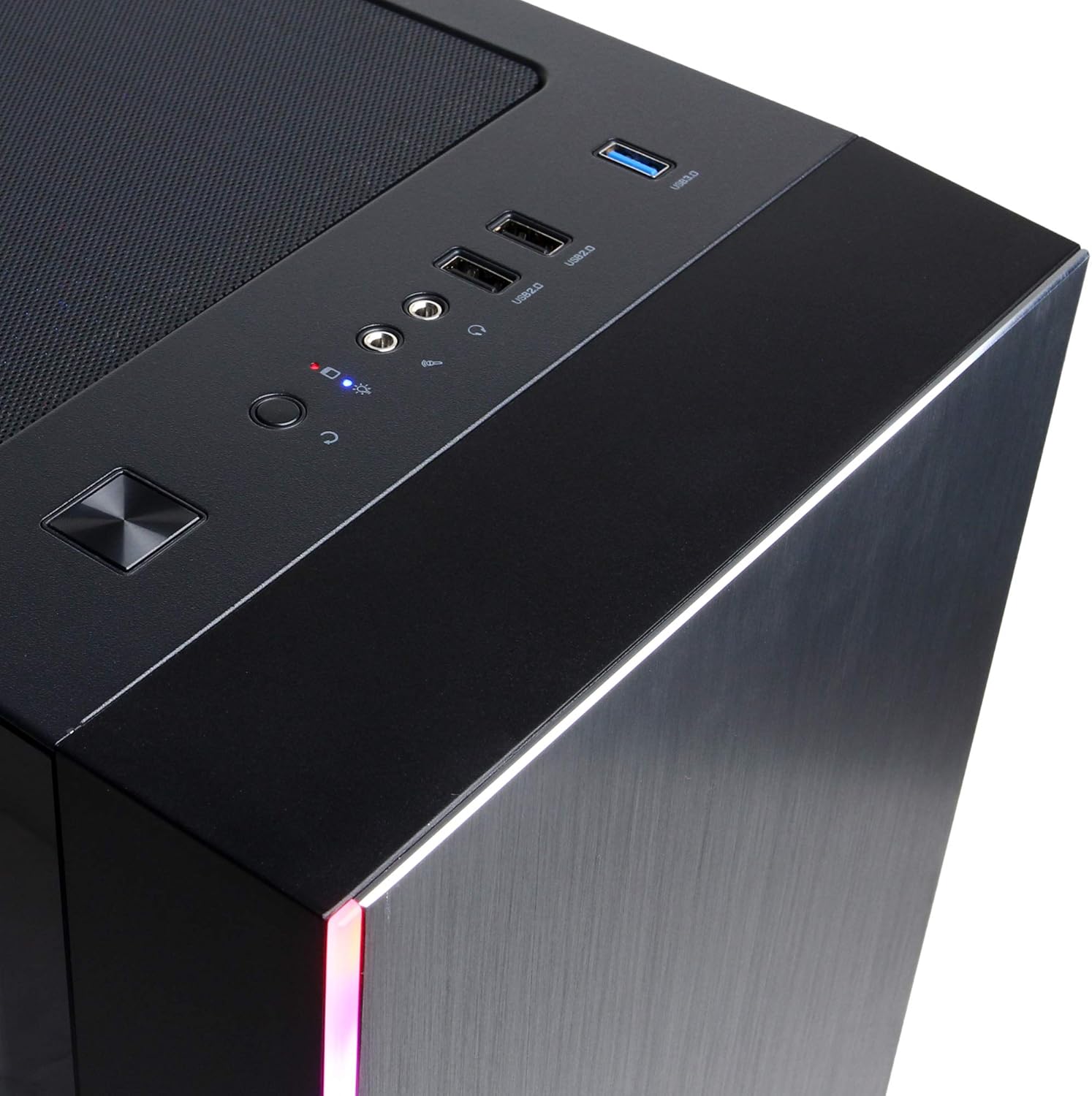
Figure 4: Detail of the top I/O panel, providing easy access to USB and audio connections.
3. Vedligeholdelse
3.1 Rengøring
Regular cleaning helps maintain optimal performance and extends the lifespan of your PC.
- Ydre: Brug en blød, damp klud til at tørre ydersiden af. Undgå skrappe kemikalier.
- Støv: Periodically use compressed air to clear dust from ventilation grilles and internal components. Ensure the PC is powered off and unplugged before cleaning.
3.2 Softwareopdateringer
Keep your operating system, drivers, and applications updated to ensure security, stability, and performance.
- Windows-opdateringer: Gå til Indstillinger > Opdatering og sikkerhed > Windows Update.
- Grafikdrivere: Download the latest drivers directly from NVIDIA's official webwebsted.
4. Fejlfinding
4.1 Ingen strøm
- Sørg for, at strømkablet er korrekt tilsluttet til både pc'en og stikkontakten.
- Kontroller, at stikkontakten fungerer ved at tilslutte en anden enhed.
- Check the power switch on the PSU (if present) is in the 'On' position.
4.2 Ingen visning
- Confirm the monitor is powered on and connected to the graphics card's output, not the motherboard's integrated graphics ports (if applicable).
- Prøv et andet skærmkabel eller en anden skærm, hvis det er muligt.
- Sørg for, at skærmens inputkilde er valgt korrekt.
4.3 Systemnedgang eller frysning
- Tjek Jobliste (Ctrl+Shift+Esc) for høj CPU-, RAM- eller diskforbrug fra bestemte programmer.
- Sørg for, at Windows og drivere er opdaterede.
- Kør en virus- og malwarescanning.
- Ensure adequate ventilation and check for excessive dust buildup.
5. Specifikationer
| Feature | Detalje |
|---|---|
| Mærke | CyberpowerPC |
| Modelnavn | Gamer Xtreme |
| Operativsystem | Windows 10 Home |
| CPU model | AMD Ryzen 7 3700X |
| CPU hastighed | 3.6 GHz (basis) |
| Grafik coprocessor | NVIDIA GeForce RTX 3060 |
| Graphics Card RAM | 12 GB GDDR6 |
| RAM-hukommelse installeret | 16 GB DDR4 |
| Opbevaring | 240 GB SSD, 1 TB HDD |
| Forbindelse | HDMI, Wi-Fi (802.11ab), USB 2.0, USB 3.0 |
| Emnedimensioner (LxBxH) | 18.6 x 17.4 x 8.9 tommer |
| Afkølingsmetode | Luft |
| UPC | 811842073769 |
6. Garantioplysninger
Your CyberpowerPC Gamer Xtreme Gaming PC is covered by a manufacturer's limited warranty. Specific terms and conditions, including warranty duration and coverage details, are typically provided with your purchase documentation or can be found on the official CyberpowerPC webwebsted. Gem venligst din købsbevis til garantikrav.
7. Support
For technical assistance, troubleshooting, or further inquiries, please visit the official CyberpowerPC support website or contact their customer service. You may need your product model number (GMA3088W) and serial number for support.
- Officiel Webwebsted: www.cyberpowerpc.com
- Supportsektion: Look for a "Support" or "Contact Us" link on their webwebsted.