
1. Introduktion
This manual provides comprehensive instructions for setting up, operating, and maintaining your Speedefy AX1800 WiFi 6 Router (Model KX450). Please read this guide thoroughly to ensure optimal performance and secure network usage.
The Speedefy AX1800 WiFi 6 Router is designed to deliver high-speed, reliable wireless connectivity for your home or small office environment. Featuring WiFi 6 technology, a powerful 1.5GHz Quad-Core CPU, and advanced security protocols, it supports multiple devices for seamless internet, gaming, and video streaming.
2. Pakkens indhold
Bekræft at alle varer er til stede i pakken:
- Speedefy AX1800 WiFi 6 Router (Model KX450)
- Ethernet kabel
- Strømadapter
- Hurtig installationsvejledning

Image: The Speedefy AX1800 WiFi 6 Router shown with its included accessories: power adapter, Ethernet cable, and quick installation guide.
3. Opsætning
3.1. Hardwareforbindelse
- Sluk modemet: Unplug the power from your existing modem.
- Tilslut Ethernet-kabel: Connect one end of the provided Ethernet cable to the WAN port (blue) on the back of the Speedefy router. Connect the other end to your modem's Ethernet port.
- Tilslut strømadapter: Plug the power adapter into the router's power input and then into a wall outlet.
- Tænd: Power on your modem first, then power on the Speedefy router. Wait for the indicator lights to stabilize.

Image: The rear panel of the Speedefy AX1800 WiFi 6 Router, highlighting the blue WAN port for internet connection and four yellow Gigabit LAN ports for wired devices.
3.2. Netværkskonfiguration
You can configure your router using either the Speedefy App or a web browser.
Method 1: Using the Speedefy App
- Download app: Download the 'Speedy WiFi' app from your mobile device's app store (available for Android and iOS).
- Start app: Open the app and follow the on-screen instructions to set up your router. This typically involves creating a TP-Link ID or logging in, then adding your new router.
- Opret forbindelse til internettet: The app will guide you through connecting your router to the internet and setting up your Wi-Fi network name (SSID) and password.
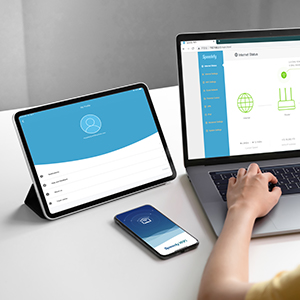
Image: Screenshots of the Speedy WiFi app interface on a smartphone and tablet, demonstrating the ease of managing router settings.
Metode 2: Brug af en Web Browser
- Tilslut enhed: Connect your computer or mobile device to the router wirelessly (using the default Wi-Fi name and password printed on the router's label) or via an Ethernet cable to one of the LAN ports.
- Adgang Web Interface: Åbn a web browser og indtast
http://tplinkwifi.netorhttp://192.168.0.1i adresselinjen. - Login: Create a new password to log in. Follow the step-by-step instructions to set up your internet connection and register for the TP-Link Cloud service.
4. Nøglefunktioner
4.1. WiFi 6 Technology (AX1800)
Experience the next generation of wireless connectivity with AX1800 dual-band WiFi 6. This technology delivers speeds up to 1.8 Gbps (1201 Mbps on 5 GHz and 574 Mbps on 2.4 GHz), ensuring smooth and stable performance for all your online activities, including internet browsing, gaming, and 4K video streaming.
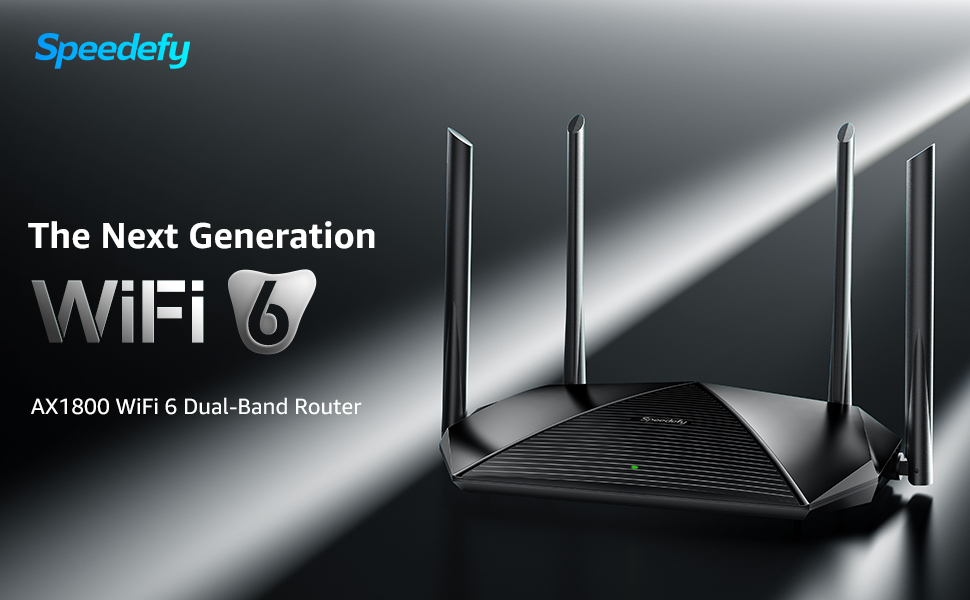
Image: The Speedefy AX1800 WiFi 6 Router showcasing its next-gen WiFi 6 speeds of 1.8 Gbps and four high-gain antennas.
4.2. Powerful 1.5GHz Quad-Core CPU
Equipped with a 1.5GHz quad-core Broadcom CPU, the router provides extraordinary processing power to handle multiple high-bandwidth tasks simultaneously without lag. This ensures a stable and responsive network experience.
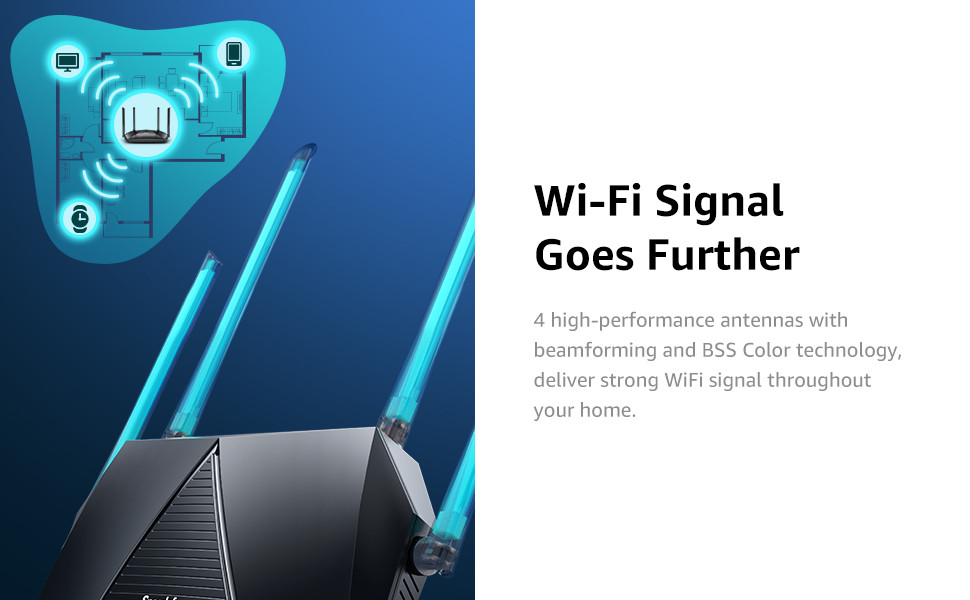
Image: An internal diagram illustrating the 1.5GHz Quad-Core Broadcom CPU and its connection to four powerful amplifiers (PA+LNA) for enhanced WiFi coverage.
4.3. MU-MIMO and OFDMA Technology
OFDMA and MU-MIMO technologies significantly reduce latency and increase network capacity. This allows the router to communicate with multiple devices simultaneously, providing a smoother experience even when up to 40 devices are connected.

Image: A visual representation of the router's wide coverage, extending up to 2500 sq ft and supporting up to 40 devices simultaneously.
4.4. Enhanced Security with WPA3 and VPN
The router supports WPA3 encryption, the latest standard for Wi-Fi security, providing stronger protection for your network. It also includes VPN support, a firewall, and Guest WiFi options to safeguard your network, connected devices, and smart home access.

Image: A collage illustrating the router's advanced security features, including WPA3 support, parental controls, and guest WiFi functionality.
4.5. Parental Control and IPv6 Support
Manage internet access for your family with parental control features, allowing you to set schedules and restrict content. The router also supports IPv6, ensuring compatibility with the latest internet protocols.

Image: A child using a smartphone, symbolizing the router's parental control features for managing internet access.
5. Betjeningsvejledning
5.1. Tilslutning af enheder
- Trådløs forbindelse: Søg efter your Wi-Fi network name (SSID) on your device and enter the password you set during setup.
- Kablet forbindelse: Connect devices like computers, gaming consoles, or smart TVs to the yellow LAN ports on the back of the router using Ethernet cables.
5.2. Managing Settings via App/Web Interface
The Speedy WiFi app and the web interface provide comprehensive control over your router's settings:
- Internetindstillinger: Configure WAN connection type, DNS settings, etc.
- Wi-Fi-indstillinger: Change SSID, password, security type, and enable/disable Wi-Fi bands.
- Gæstenetværk: Opret et separat Wi-Fi-netværk til gæster for at isolere dem fra dit primære netværk.
- Forældrekontrol: Set internet access schedules, block websites, and manage device usage.
- VPN: Configure VPN client or server settings for secure remote access or privacy.
- Systemværktøjer: Access features like system update, LED control, and reset options.
6. Vedligeholdelse
6.1. Firmwareopdateringer
Regularly check for and install firmware updates through the Speedy WiFi app or the web interface. Firmware updates provide new features, performance improvements, and security enhancements.
6.2. Genstart af routeren
If you experience network issues, a simple reboot can often resolve them. You can reboot the router via the app/web interface or by unplugging the power adapter for 10 seconds and then plugging it back in.
6.3. Fabriksindstilling
If you encounter persistent problems, you may need to perform a factory reset. Locate the reset button (usually a small pinhole) on the back of the router. With the router powered on, use a paperclip to press and hold the reset button for approximately 10 seconds until the LED lights flash. The router will then restart with factory default settings.
7. Fejlfinding
- Ingen internetadgang:
- Kontroller alle kabelforbindelser mellem modemmet og routeren.
- Ensure your modem is working correctly.
- Genstart både dit modem og din router.
- Svagt Wi-Fi-signal:
- Relocate the router to a central location, away from obstructions and interference sources.
- Juster antennerne for optimal signalretning.
- Consider adding a Wi-Fi extender if coverage is still insufficient.
- Kan ikke få adgang til routerindstillinger:
- Sørg for, at din enhed er forbundet til routerens Wi-Fi eller via Ethernet.
- Verify the IP address or domain name (
http://tplinkwifi.net) er indtastet korrekt i browseren. - Ryd din browsers cache, eller prøv en anden browser.
8. Specifikationer
| Feature | Detalje |
|---|---|
| Trådløs Standard | 802.11ac, 802.11ax, 802.11n (WiFi 6) |
| Trådløs hastighed | AX1800 (up to 1.8 Gbps) |
| Frekvensbånd | Dobbeltbånd (2.4 GHz og 5 GHz) |
| CPU | 1.5GHz Quad-Core Broadcom CPU |
| Antenner | 4 antenner med høj forstærkning |
| Ethernet-porte | 1x Gigabit WAN, 4x Gigabit LAN |
| USB-port | Ja |
| Trådløs sikkerhed | WPA3, WPA2, WPA |
| Dimensioner (LxBxH) | 12.09 x 11.73 x 2.87 tommer |
| Varens vægt | 1.78 pund |
| Operativsystemsupport | Android, iOS |
9. Garanti og support
For warranty information, technical support, or product-related assistance, please refer to the official Speedefy webwebstedet eller kontakt deres kundeservice direkte. Detaljer kan typisk findes i hurtiginstallationsvejledningen eller på produktemballagen.
Online resources, including FAQs and updated firmware, are often available on the Speedefy support page.