1. Introduktion
The MOKiN USB C Docking Station (Model MUC0219US) is a versatile 13-in-1 hub designed to expand the connectivity of your USB-C enabled laptop. This device allows for triple display output on Windows systems, high-speed data transfer, fast power charging, and reliable network connectivity, making it suitable for various computing environments.
This manual provides detailed instructions for setting up, operating, and maintaining your docking station to ensure optimal performance.
2. Produktfunktioner
- 13-i-1-tilslutning: Expands your laptop's capabilities with 2x 4K HDMI ports, 1x DisplayPort (DP), 1x Gigabit Ethernet port, 1x 3.5mm Audio port, 1x USB-C Power Delivery (PD) port, 1x SD card reader, 1x TF card reader, 3x USB 3.0 ports, and 2x USB 2.0 ports.
- Triple Display Support (Windows Only): Supports triple display configurations on Windows systems. Under Extended Mode, you can achieve four multiple displays (2x HDMI, 1x DP, and laptop screen). For Collage Mode, it supports triple display (1x HDMI, 1x HDMI+DP, and laptop screen). Note: Mac OS does not support triple display.
- Reliable Data Syncing: Features 3x USB 3.0 ports for 5Gbps high-speed data transfer and 2x USB 2.0 ports for broader compatibility.
- gigabit ethernet: Provides a stable and fast 1000Mbps Gigabit RJ45 Ethernet connection.
- SD/TF-kortlæsere: Built-in SD and TF slots allow simultaneous access to files from both standard SD and Micro SD memory cards.
- Fast Power Charging: The USB-C PD charging port supports up to 100W power input, delivering up to 87W for charging your Type-C devices or MacBook. Ensure your device supports the PD protocol.
- Lydforbindelse: Includes a 3.5mm audio port for connecting speakers or a microphone.
- Plug and Play: No additional drivers are required for most functions, ensuring ease of use.
3. Kompatibilitetskrav
To ensure full functionality of the MOKiN USB C Docking Station, your laptop's USB-C port must support data transfer, display output (Display Alt Mode), and charging (Power Delivery). Please verify your laptop's USB-C port capabilities before use.
Compatible with laptops featuring Thunderbolt 3 port or USB 3.1 Type C Gen2 port. Examples include Dell XPS13/15, Lenovo Yoga 720/910/920/930, Microsoft Surface Book 2/Surface Go/Surface Laptop 3, Dell Latitude 13 7000/Latitude 13 E7370, and many other Type-C laptops.

Figure 1: USB-C Port Compatibility Guide. Ensure your laptop's USB-C port supports Full Function (Data Transfer + Display Alt + Charging) or Thunderbolt 3 for optimal performance.
4. Opsætningsvejledning
Follow these steps to set up your MOKiN USB C Docking Station:
- Connect the Docking Station to your Laptop: Sæt det integrerede USB-C-kabel fra dockingstationen i en kompatibel USB-C-port på din bærbare computer.
- Tilslut strøm (valgfrit men anbefalet): For stable operation and charging your laptop, connect a USB-C Power Delivery charger to the PD port on the docking station.
- Tilslut eksterne skærme:
- For HDMI-skærme skal du tilslutte HDMI-kabler fra dine skærme til HDMI-portene på dockingstationen.
- For DisplayPort displays, connect a DP cable from your monitor to the DP port on the docking station.
- Tilslut ydre enheder: Plug in your USB devices (keyboard, mouse, external hard drives, etc.) into the available USB 3.0 and USB 2.0 ports.
- Tilslut netværkskabel: For a wired internet connection, plug an Ethernet cable into the RJ45 Gigabit Ethernet port.
- Tilslut lydenheder: Tilslut om ønsket hovedtelefoner eller højttalere til 3.5 mm lydstikket.
- Indsæt SD/TF-kort: If needed, insert your SD or TF memory cards into the corresponding slots.

Figur 2: Overview of the MOKiN 13-in-1 USB C Docking Station with labeled ports.


Figure 3: Power Delivery and High-Speed Data Transfer via USB 3.0 ports.


Figure 4: Gigabit Ethernet and SD/TF Card Reader functionality.
5. Betjeningsvejledning
5.1 Windows Display Configuration
For Windows operating systems, the docking station supports various display modes including Mirror Mode and Extend Mode across multiple monitors.
- Tilslut dine eksterne skærme til HDMI- og/eller DisplayPort-udgangene på dockingstationen.
- Right-click on your desktop and select "Display settings" or navigate to Indstillinger > System > Skærm.
- Under "Multiple displays", you can detect and arrange your monitors.
- Select each display (1, 2, 3, etc.) and choose your preferred display option:
- Kopier disse skærme: Shows the same content on all connected screens.
- Udvid disse skærme: Expands your desktop across all connected screens, allowing for more workspace.
- Vis kun den 2/1/3: Uses only the selected display.
- Adjust resolution and orientation (Landscape/Portrait) as needed for each display. For optimal performance, ensure refresh rates are set correctly (e.g., 60Hz for 4K displays if supported by your laptop and monitor).

Figure 5: Windows Triple Display Modes.
Video 1: PC Connection Docking Station Tutorial. This video demonstrates how to configure display settings on a Windows PC using the docking station.
5.2 Mac OS Display Configuration
Mac OS supports Mirror Mode and Extended Display Mode with the docking station. However, Mac OS does ikke support Multi-Stream Transport (MST) for triple independent displays. Therefore, all external monitors will mirror each other or extend as a single combined display.
- Tilslut dine eksterne skærme til HDMI- og/eller DisplayPort-udgangene på dockingstationen.
- Gå til Systemindstillinger > Skærme.
- You will see your built-in display and the connected external display(s).
- To extend your desktop, ensure "Extended display" is selected. To mirror your display, select "Mirror for Built-in Display".
- Adjust resolution and refresh rate as needed. Note that refresh rates for 4K displays on Mac OS might be limited to 30Hz depending on the specific Mac model and port capabilities.
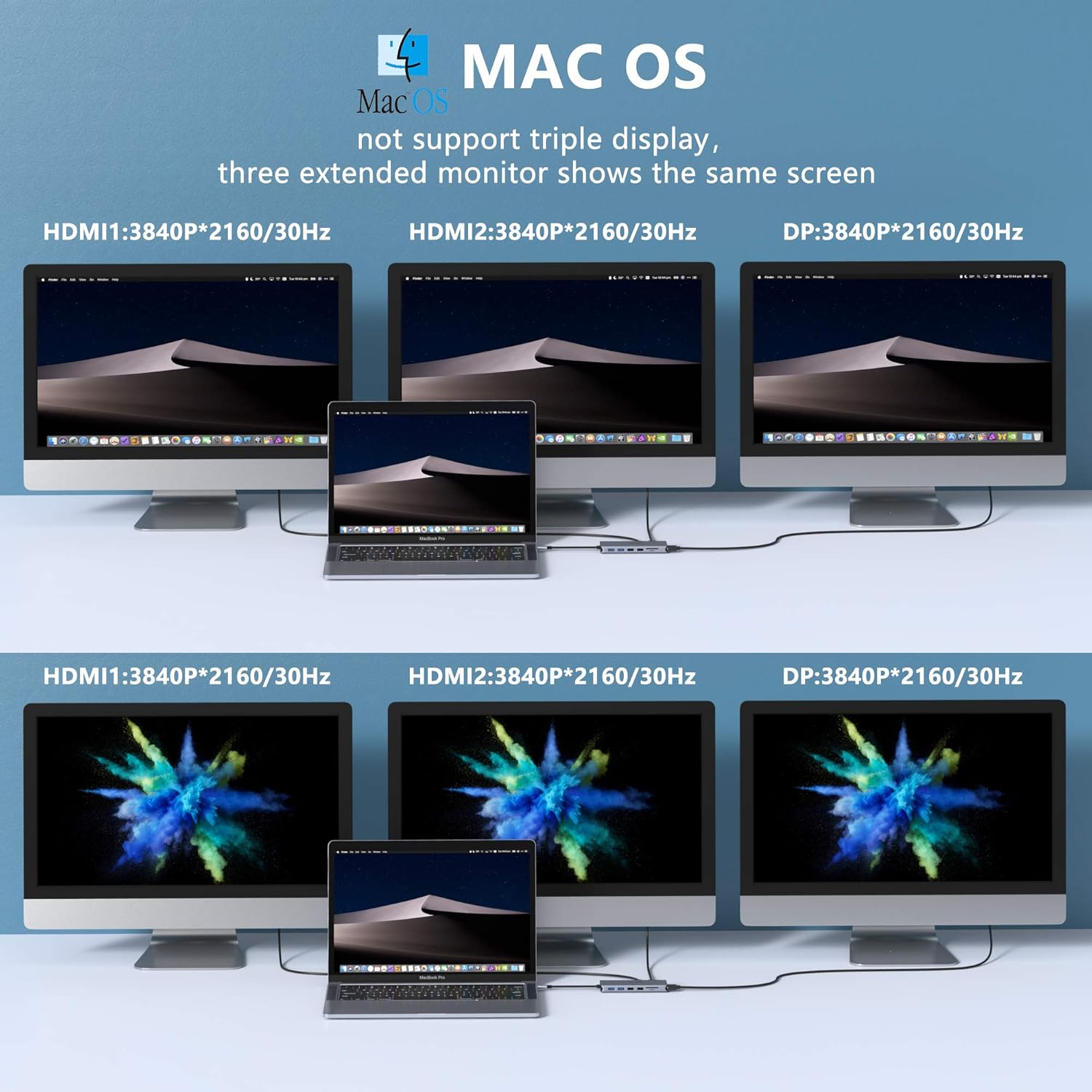
Figure 6: Mac OS Display Modes.

Figure 7: Mac OS Display Limitations with DP1.4.
6. Specifikationer
| Feature | Detalje |
|---|---|
| Modelnummer | MUC0219US |
| Produktdimensioner | 7 x 3 x 0.6 tommer |
| Varens vægt | 3.87 ounce |
| Hardware-interface | USB Type C |
| Video output | 2x HDMI (4K), 1x DisplayPort (DP) |
| USB-porte | 3x USB 3.0, 2x USB 2.0 |
| Ethernet | Gigabit RJ45 (10/100/1000Mbps) |
| Kortlæsere | SD, TF (supports simultaneous reading) |
| Audio Port | 3.5 mm lyd/mikrofon |
| Strøm levering | USB-C PD (100W input, 87W output) |
| Speciel funktion | Plug and Play |
| Fabrikant | MOKiN |
7. Fejlfinding
- Ingen skærmoutput:
- Ensure your laptop's USB-C port supports Display Alt Mode. Refer to the "Compatibility Requirements" section.
- Kontrollér alle kabelforbindelser (USB-C til bærbar computer, HDMI/DP til skærme).
- Verify display settings on your operating system (Windows/Mac OS) to ensure monitors are detected and configured for "Extend" or "Duplicate" mode.
- Prøv at genstarte din bærbare computer og tilslutte dockingstationen igen.
- Ensure external monitors are powered on and set to the correct input source.
- Intermittent Display Blackouts:
- This can sometimes occur after screen time-outs or sleep mode. Try unplugging and replugging the cables in sequence: 1. Laptop to Hub, 2. Power to Hub (if applicable), 3. HDMI/DP to Hub.
- Sørg for, at alle kabler er korrekt tilsluttet.
- Check for updated graphics drivers for your laptop.
- Ingen strømforsyning/opladning:
- Sørg for, at din bærbare computers USB-C-port understøtter strømforsyning.
- Verify that the power adapter connected to the docking station's PD port is functional and provides sufficient wattage (op til 100 W input).
- Check the USB-C cable connecting the power adapter to the docking station.
- USB-enheder genkendes ikke:
- Ensure the docking station is securely connected to your laptop.
- Try connecting the USB device directly to your laptop to confirm it's functional.
- If using a high-power USB device, ensure the docking station is connected to an external power source.
- Problemer med Ethernet-forbindelse:
- Kontroller Ethernet-kabelforbindelsen til både dockingstationen og din router/modem.
- Bekræft netværksindstillingerne på din bærbare computer.
- Ensure your internet service is active.
8. Vedligeholdelse
To ensure the longevity and optimal performance of your MOKiN USB C Docking Station, follow these maintenance guidelines:
- Rensning: Brug en blød, tør klud til at rengøre dockingstationens yderside. Undgå flydende rengøringsmidler eller slibende materialer.
- Opbevaring: Opbevar dockingstationen et køligt, tørt sted væk fra direkte sollys og ekstreme temperaturer.
- Håndtering: Avoid dropping or subjecting the device to strong impacts. Do not bend or pull the integrated USB-C cable excessively.
- Ventilation: Ensure the docking station has adequate ventilation to prevent overheating, especially during prolonged use with multiple connected devices.
9. Garanti og support
For warranty information, technical support, or further assistance with your MOKiN USB C Docking Station, please refer to the official MOKiN website or contact MOKiN customer service directly. Contact details can typically be found on the product packaging or the manufacturer's official support page.
MOKiN is committed to providing high-quality products and professional after-sales service.