
Indledning
This manual provides detailed instructions for the Ewin Bluetooth Wireless Keyboard (Model: EW-BK012). Please read this manual thoroughly before use to ensure proper operation and to maximize the product's features. This keyboard is designed for use with iOS devices, specifically iPad and iPhone.
Pakkens indhold
Bekræft, at alle nedenstående varer er inkluderet i din pakke:
- Ewin 10-inch Bluetooth Keyboard for iPad/iPhone x 1
- Type-C ladekabel x 1
- Smartphone/Tablet Stand x 1
- Japanese Instruction Manual x 1
Specifikationer
| Feature | Detalje |
|---|---|
| Modelnummer | EW-BK012 |
| Forbindelse | Bluetooth 5.1 |
| Operation Voltage | 3.3-4.2V |
| Ladestrøm | 150mA |
| Operating Current (without touchpad) | <6.5mA |
| Operating Current (with touchpad) | <15mA |
| Standby-strøm | 2.5-3.1mA |
| Sovestrøm | |
| Auto-Sleep Time | 10 minutters inaktivitet |
| Batterikapacitet | 180mAh |
| Nøgler | 80 (JIS Japanese Layout) |
| Dimensioner | 25 cm (L) x 18 cm (B) x 0.6 cm (H) |
| Vægt | 265 g |
| Kommunikationsafstand | Up to 10m (Max) |
| Kompatibilitet | iOS devices (iPad/iPhone) running iOS 13.4 or later for full touchpad functionality. |
Opsætning
1. Opladning af tastaturet
Before initial use, fully charge the keyboard. Connect the provided Type-C charging cable to the keyboard's charging port and to a USB power source. The charging indicator light will illuminate during charging and turn off when fully charged.

Image: The Ewin Bluetooth Keyboard connected to a Type-C charging cable. The image also shows battery life indicators and auto-sleep feature details.
Full charge typically takes 2-3 hours. A full charge provides approximately 35 days of continuous use (based on 2 hours/day) and 120 days of standby time.
2. Pairing with an iOS Device
- Tænd tastaturet ved at skubbe tænd/sluk-knappen til "PÅ" position. The Bluetooth indicator light will flash.
- On your iPad or iPhone, go to Indstillinger > Bluetooth.
- Sørg for, at Bluetooth er aktiveret.
- The device will search for available Bluetooth devices. Select "Bluetooth Keyboard" or a similar name from the list.
- Hvis du bliver bedt om det, skal du indtaste parringskoden, der vises på skærmen, ved hjælp af tastaturet, og trykke på Indtast.
- Once paired, the Bluetooth indicator light on the keyboard will stop flashing and remain solid for a moment, then turn off to save power. The keyboard will now be connected.

Image: The Ewin Bluetooth Keyboard connected to both an iPad and an iPhone, demonstrating its multi-pairing capability.
Note:
- For full touchpad functionality, your iOS device must be running iOS 13.4 or later.
- Some gestures may not be available on iPhone models.
Betjeningsvejledning
Keyboard Layout and Multimedia Keys
The keyboard features a JIS Japanese layout and includes multimedia keys for convenient control of your device.
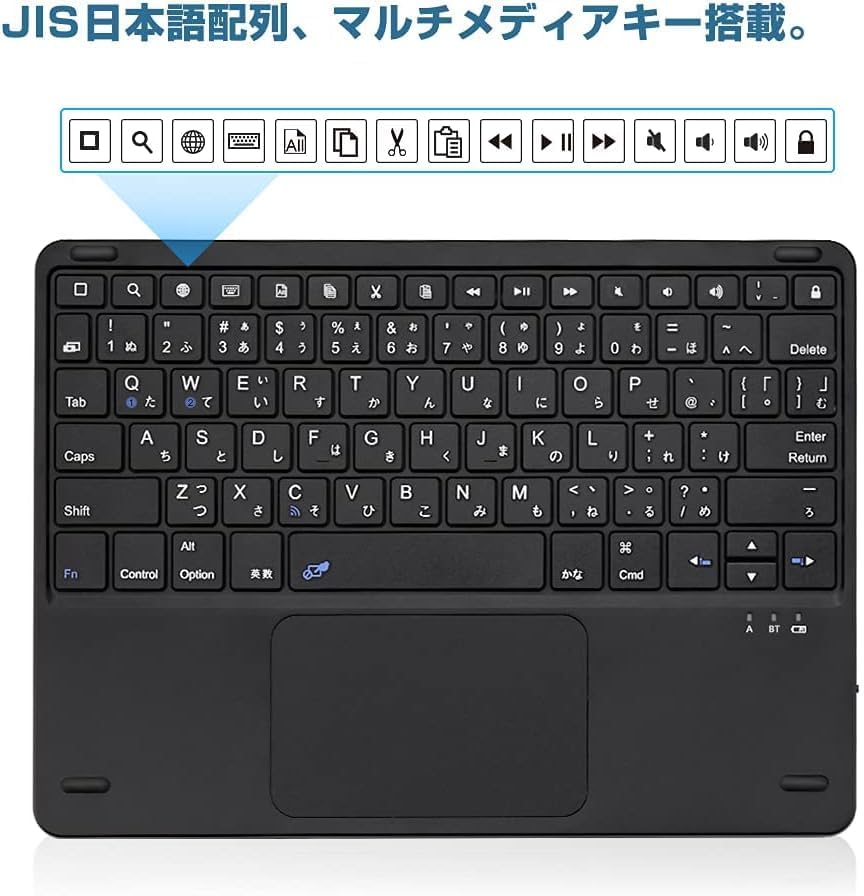
Image: Close-up of the Ewin Bluetooth Keyboard showing the JIS Japanese key layout and the row of multimedia function keys at the top.
Brug Fn key in combination with the function keys (F1-F12, etc.) to access multimedia controls such as volume adjustment, media playback, and screen lock.
Touchpad-funktionalitet
The integrated touchpad supports multi-touch gestures, allowing for intuitive navigation on your iPad. To lock or unlock the touchpad, press Fn + Mellemrum.

Image: An iPad connected to the Ewin Bluetooth Keyboard, demonstrating multi-touch gestures on the touchpad. Instructions for locking the touchpad (Fn + Space) are also shown.
Multi-Pairing Feature
This keyboard can be paired with two iOS devices simultaneously. Switch between connected devices by pressing the dedicated device switching buttons (usually labeled 1 and 2 or similar Bluetooth icons).
Image: The Ewin Bluetooth Keyboard connected to both an iPad and an iPhone, illustrating the ability to switch between two paired iOS devices with a single button press.
Auto-sleep funktion
To conserve battery life, the keyboard will automatically enter sleep mode after 10 minutes of inactivity. To wake it up, simply press any key.
Image: The Ewin Bluetooth Keyboard with an illustration indicating the auto-sleep function after 10 minutes and details on battery duration.
Opretholdelse
To ensure the longevity and optimal performance of your Ewin Bluetooth Keyboard, follow these maintenance guidelines:
- Rensning: Brug en blød, tør og fnugfri klud til at rengøre tastaturets overflade. Tør let ved genstridigt snavs.ampRengør kluden med vand eller en mild rengøringsopløsning. Undgå for meget fugt.
- Opbevaring: Opbevar tastaturet et køligt, tørt sted væk fra direkte sollys og ekstreme temperaturer.
- Undgå væsker: Do not expose the keyboard to liquids. In case of accidental spills, immediately power off the keyboard and allow it to dry completely before attempting to use it again.
- Håndteres med forsigtighed: Undgå at tabe tastaturet eller udsætte det for hårde stød, da dette kan beskadige de interne komponenter.
Fejlfinding
If you encounter issues with your Ewin Bluetooth Keyboard, refer to the following common solutions:
Keyboard Not Connecting/Pairing
- Tjek strøm: Sørg for, at tastaturet er tændt og har tilstrækkelig batteriladning. Genoplad om nødvendigt.
- Bluetooth til: Verify that Bluetooth is enabled on your iPad/iPhone.
- Reparation: Delete the keyboard from your device's Bluetooth list ("Forget This Device") and attempt to pair it again following the "Pairing with an iOS Device" instruktioner.
- Afstand: Ensure the keyboard is within the 10-meter operating range of your iOS device.
- Interferens: Flyt dig væk fra andre trådløse enheder, der kan forårsage interferens.
- iOS-version: Confirm your iOS device is running iOS 13.4 or later for full compatibility, especially for touchpad functions.
Touchpad Not Working
- Check Lock: Ensure the touchpad is not locked. Press Fn + Mellemrum to toggle the touchpad lock.
- iOS-version: Verify your iOS device is running iOS 13.4 or later. Touchpad functionality requires this version.
- Reparation: Prøv at ophæve parringen og parre tastaturet igen.
Taster reagerer ikke
- Genoplad: The battery might be low. Charge the keyboard fully.
- Reparation: Disconnect and reconnect the keyboard via Bluetooth.
- Genstart enhed: Restart your iPad/iPhone.
Keyboard Typing Incorrect Characters (JIS Layout)
- Ensure your iOS device's keyboard settings are set to "Japanese (JIS)" or the appropriate layout. Go to Indstillinger > Generel > Tastatur > Hardware tastatur and select the correct layout.
Garanti og support
For product inquiries or support, please contact Ewin customer service. Refer to the contact information provided in the included Japanese Instruction Manual or visit the official Ewin webwebsted.
Dette produkt leveres med en standard producentgaranti. Gem venligst din købsbevis til garantikrav.
Kontaktoplysninger:
- Mærke: Ewin
- Fabrikant: -Ewin
- Sælger: Desheng-JP (via Amazon.co.jp)
- Amazon Store-link: Ewin Official Store on Amazon.co.jp
