
1. Introduktion
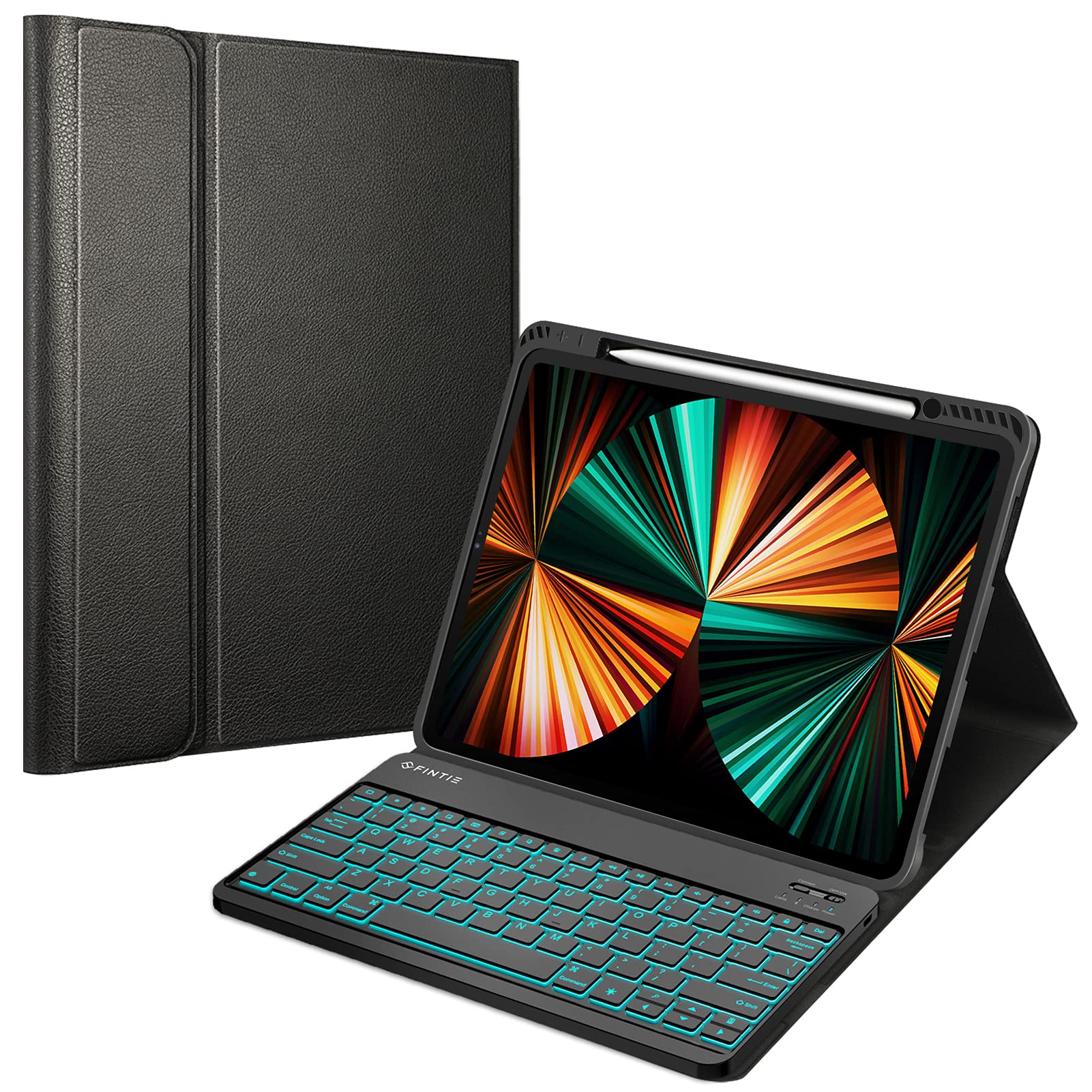
This manual provides instructions for the Fintie Keyboard Case designed for iPad Pro 12.9-inch models. The product includes a protective case and a detachable Bluetooth keyboard with a backlight feature. The case offers protection and an adjustable stand, while the keyboard facilitates a more efficient typing experience.
2. Kompatibilitet
This keyboard case is exclusively designed for the following iPad Pro 12.9-inch models:
- iPad Pro 12.9-inch 6th Generation (2022) - Model Numbers: A2378, A2379, A2461, A2462
- iPad Pro 12.9-inch 5th Generation (2021) - Model Numbers: A2378, A2379, A2461, A2462
- iPad Pro 12.9-inch 4th Generation (2020) - Model Numbers: A2229, A2069, A2232, A2233
- iPad Pro 12.9-inch 3rd Generation (2018) - Model Numbers: A1876, A2014, A1895
For at bekræfte dit iPad-modelnummer skal du tjekke bagsiden af din enhed. Dette cover er ikke kompatibelt med andre iPad-modeller.

3. Pakkens indhold
Sørg venligst for, at alle varer er til stede i pakken:
- 1 x Fintie Keyboard Case (iPad tablet not included)
- 1 x Bluetooth-tastatur
- 1 x Micro USB ladekabel
- 1 x brugermanual
4. Opsætning
4.1 Installation af iPad'en i etuiet
- Gently align your iPad Pro 12.9-inch with the TPU back shell of the case.
- Press the iPad firmly into the case, ensuring all edges are securely seated within the flexible TPU material. The soft TPU back shell is designed to protect your iPad from shocks, drops, and impacts.

4.2 Montering af tastaturet
The Bluetooth keyboard is magnetically detachable. Simply place the keyboard onto the designated area within the case. The magnets will secure it in position.

4.3 Opladning af tastaturet
Before initial use, fully charge the keyboard. Use the provided Micro USB charging cable to connect the keyboard to a USB power source (e.g., computer, USB wall adapter).
- Opladningsindikatorlampen lyser under opladning.
- The indicator light will turn off once the keyboard is fully charged.
4.4 Pairing the Bluetooth Keyboard with your iPad
- Sørg for, at tastaturet er opladet.
- Turn on the keyboard by sliding the power switch to the 'ON' position. The Bluetooth indicator light will flash.
- På din iPad skal du gå til Indstillinger > Bluetooth.
- Slå Bluetooth til. Din iPad vil søge efter tilgængelige enheder.
- Locate and select "Bluetooth Keyboard" (or a similar name) from the list of devices.
- If prompted, enter the pairing code displayed on your iPad using the keyboard, then press Indtast.
- Når den er parret, slukkes Bluetooth-indikatorlampen på tastaturet, og din iPad viser tastaturet som "Tilsluttet".
Note: The keyboard backlight function will not operate until the keyboard is successfully paired with your device.
5. Betjeningsvejledning
5.1 Using the Keyboard Backlight
The keyboard features a 7-color backlight with two adjustable brightness levels.
- To turn on the backlight: Press the Light icon key (often depicted as a light bulb or sun icon).
- For at justere lysstyrken: Tryk på Light icon key a second time for increased brightness, and a third time to turn the backlight off.
- Sådan ændrer du baggrundslysets farver: Tryk på Light icon key + Up/Down arrow keys simultaneously. There are 7 optional colors.
Note: The backlight will automatically turn off when the keyboard battery level is below 20% to conserve power.
5.2 Justering Viewi vinkler
The case features an adjustable stand that allows you to customize the viewing angle for your iPad in landscape mode. Simply fold the case cover to create a stable triangular stand.

5.3 Using the Apple Pencil Holder
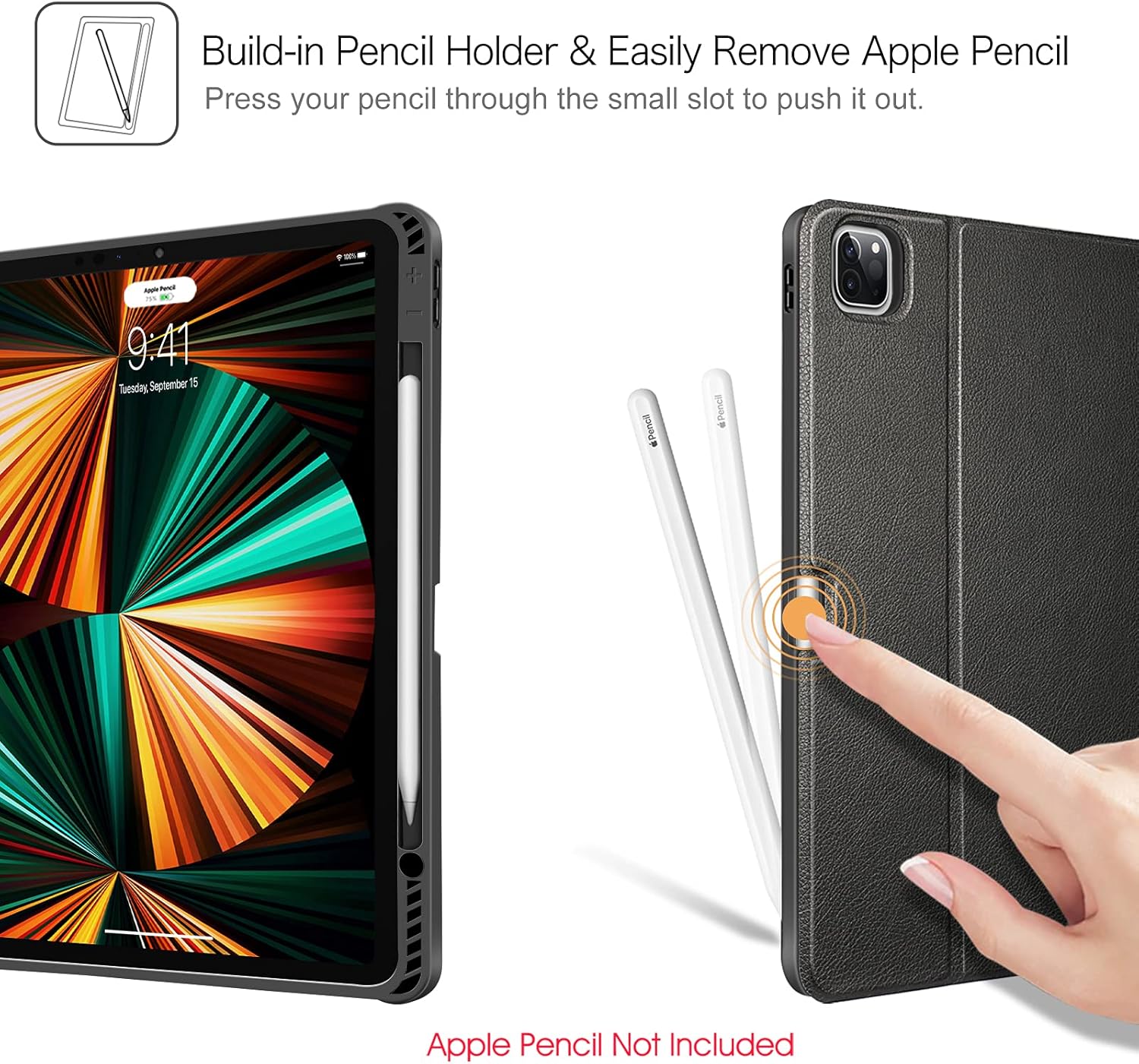
The case includes a built-in holder for your Apple Pencil. This holder allows for easy storage and supports Apple Pencil 2nd Generation magnetic and wireless charging when the case is on.
- To store: Place your Apple Pencil into the designated slot on the side of the case.
- To remove: Press your pencil through the small slot on the back of the case to push it out.
Note: Apple Pencil is not included with this product.

5.4 Automatisk dvale-/vågnefunktion
The case supports the auto sleep/wake function for your iPad when used in 'CASE ONLY' mode (without the keyboard attached or when the keyboard is not actively in use). Closing the case will put your iPad to sleep, and opening it will wake it up.
6. Vedligeholdelse
6.1 Rengøring af kabinettet
- Wipe the exterior of the PU leather case with a soft, damp klæde.
- Undgå at bruge skrappe kemikalier eller slibende rengøringsmidler, da disse kan beskadige materialet.
- For the TPU back cover, a mild soap solution can be used if necessary, followed by wiping with a clean, dry cloth.
6.2 Rengøring af tastaturet
- Use a soft, lint-free cloth to gently wipe the keys and surface of the keyboard.
- Til genstridigt snavs, let dampen the cloth with water or a small amount of isopropyl alcohol. Ensure no liquid enters the keyboard.
- Avoid spraying cleaners directly onto the keyboard.
6.3 Battery Care for the Keyboard
- To prolong battery life, avoid fully discharging the keyboard battery frequently.
- Oplad tastaturet regelmæssigt, især hvis det ikke skal bruges i en længere periode.
- Opbevar tastaturet et køligt og tørt sted.
7. Fejlfinding
7.1 Tastatur opretter ikke forbindelse/parrer ikke
- Tjek strøm: Sørg for, at tastaturet er tændt og fuldt opladet.
- Bluetooth til: Bekræft, at Bluetooth er aktiveret på din iPad.
- Reparation: If previously paired, try unpairing the keyboard from your iPad's Bluetooth settings (Forget This Device), then repeat the pairing process (Section 4.4).
- Genstart enheder: Restart both your iPad and the keyboard, then attempt pairing again.
- Afstand: Ensure the keyboard is within 10 meters (33 feet) of your iPad.
7.2 Baggrundsbelysning virker ikke
- Tjek parring: The backlight will not work until the keyboard is successfully paired with your iPad.
- Batteriniveau: If the keyboard battery is below 20%, the backlight will automatically turn off. Charge the keyboard.
- Aktiver: Tryk på Light icon key for at tænde baggrundsbelysningen.
7.3 Taster reagerer ikke
- Tjek forbindelsen: Ensure the keyboard is properly paired and connected to your iPad.
- Batteri: Charge the keyboard to ensure sufficient power.
- Genstart: Genstart både din iPad og tastaturet.
7.4 Opladningsproblemer
- Kabel: Ensure the Micro USB charging cable is securely connected to both the keyboard and the power source. Try a different cable if available.
- Strømkilde: Try a different USB power source (e.g., a different USB port on your computer or a different wall adapter).
8. Specifikationer
| Feature | Detalje |
|---|---|
| Produktdimensioner | 11.42 x 9.25 x 0.59 tommer |
| Varens vægt | 2.42 pund |
| Fabrikant | FINTIE |
| Batterier | 1 produktspecifikt batteri påkrævet (inkluderet) |
| Forbindelsesteknologi | Bluetooth |
| Tastaturbeskrivelse | Micro USB (til opladning) |
| Speciel funktion | Magnetic, Backlit, Detachable Keyboard, Pencil Holder |
| Materiale | Acrylonitrile Butadiene Styrene (ABS), Faux Leather, Silicone, Thermoplastic Polyurethane (TPU) |
| Strømkilde | USB-drevet |
9. Garanti og support
For garantioplysninger og kundesupport henvises til den dokumentation, der fulgte med dit køb, eller kontakt forhandleren/producenten direkte. Gem din købsbevis til garantikrav.