
1. Produktet er slutview
The SIIG JU-DK0L11-S1 is a versatile USB 3.0 Dual Monitor Docking Station designed to expand your laptop or desktop's connectivity and display capabilities. It supports up to two 1080p@60Hz Full HD video displays via two HDMI ports, along with multiple USB ports, Gigabit Ethernet, and a 3.5mm audio jack. This docking station is compatible with both Windows and macOS operating systems, including Mac M1/M2/M3 Pro&Max.
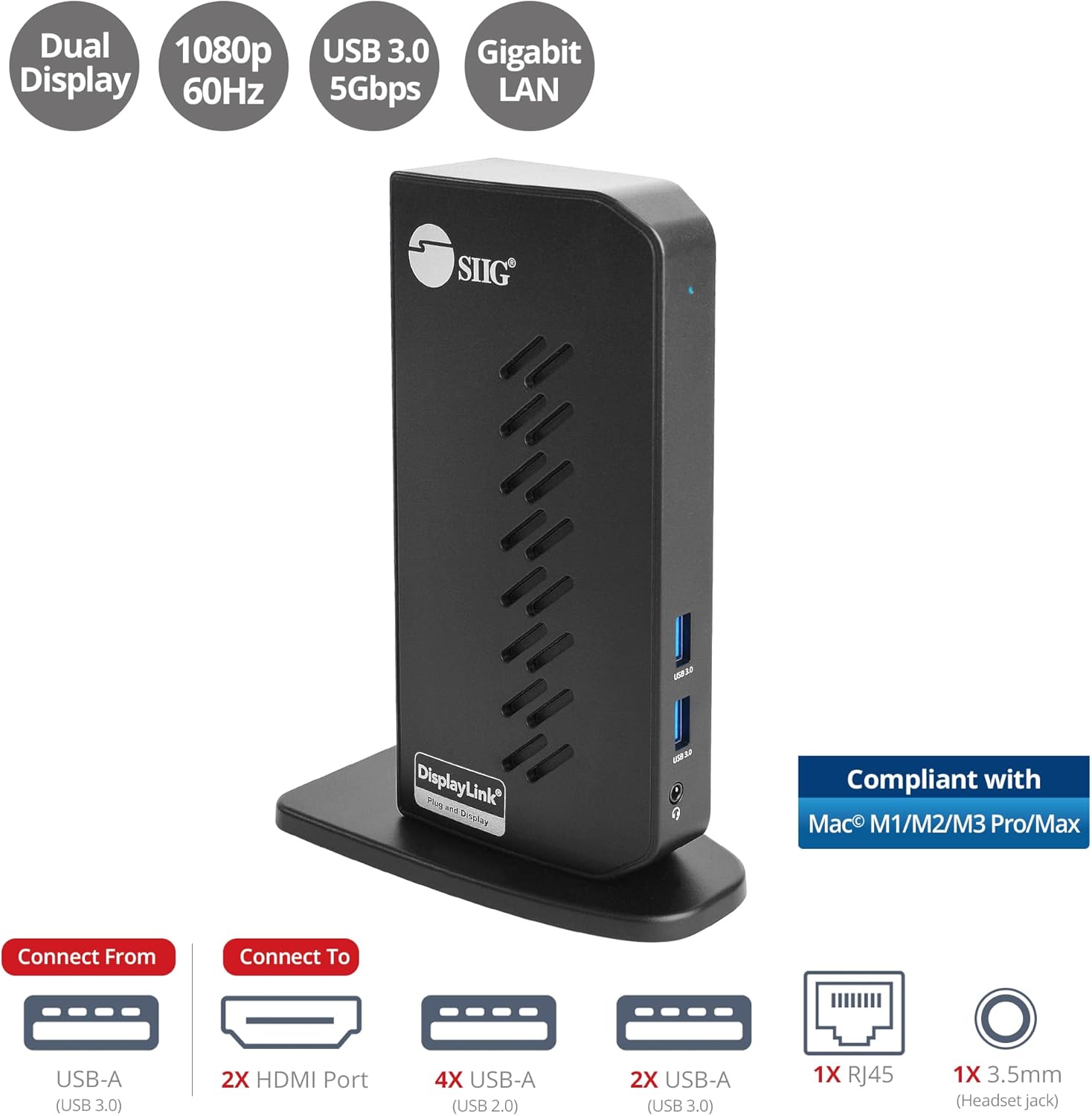
Image 1.1: The SIIG JU-DK0L11-S1 Dual Monitor Docking Station, showcasing its compact vertical design and various connectivity options.
2. Pakkens indhold
Kontroller, at alle dele er til stede i pakken, før du fortsætter installationen.
- SIIG JU-DK0L11-S1 Dual Head Full HD HDMI Video Docking Station
- Strømadapter (12V/2A)
- USB 3.0 Type-A to Type-B Cable
- Driver CD (Drivers can also be downloaded from the official SIIG webwebsted)
- Brugermanual

Image 2.1: All components included in the SIIG JU-DK0L11-S1 docking station package, including the docking station, power adapter, USB cable, driver CD, and user manual.
3. Hardwarelayout
Familiarize yourself with the ports and indicators on the docking station.
Frontpanel
- Power LED: Indikerer strømstatus.
- 2x USB 3.0-porte: For connecting high-speed USB devices (5Gbps, 4.5W/900mA).
- 3.5 mm headsetstik: For connecting headphones or stereo speakers with microphone input.
Bagpanel
- 4x USB 2.0-porte: For connecting standard USB devices (480Mbps, 5V/900mA).
- RJ45 Gigabit Ethernet-port: Til kablet netværksforbindelse (10/100/1000 Mbps).
- 2x HDMI Outputs: For connecting external displays (up to 1080p@60Hz).
- USB 3.0 Type-B Port: For connecting the docking station to your host computer.
- Power Jack: Til tilslutning af 12V/2A strømadapteren.

Billede 3.1: Detaljeret view of the front and rear panels of the docking station, highlighting all available ports and their functions.
4. Opsætningsvejledning
Følg disse trin for at konfigurere din dockingstation:
- Install DisplayLink Drivers: Before connecting the docking station, install the necessary DisplayLink drivers on your computer. You can use the included driver CD or download the latest drivers from the official DisplayLink webwebsted (www.displaylink.com/downloads) or SIIG's support page.
- Tilslut strøm: Plug the provided 12V/2A power adapter into the docking station's power jack and then into a wall outlet. The Power LED on the front panel should illuminate.
- Opret forbindelse til værtscomputer: Use the supplied USB 3.0 Type-A to Type-B cable to connect the docking station's USB 3.0 Type-B port to an available USB 3.0 Type-A port on your laptop or desktop computer.
- Tilslut skærme: Connect your external monitors to the two HDMI output ports on the rear of the docking station using HDMI cables.
- Tilslut ydre enheder: Connect your USB devices (keyboard, mouse, printer, flash drives, etc.) to the available USB 3.0 and USB 2.0 ports. Connect an Ethernet cable to the RJ45 port for a wired network connection. Plug your headset or speakers into the 3.5mm audio jack.
Video 4.1: An official video demonstrating the setup and connectivity of the SIIG JU-DK0L11-S1 Dual Head Full HD HDMI Docking Station, showing how to connect monitors and peripherals.
5. Betjeningsvejledning
Once the docking station is set up, you can configure your display settings and utilize the connected peripherals.
Visningstilstande
The docking station supports three primary display modes:
- MirrorMode: Duplicates your primary display onto the external monitors.
- Udvid tilstand: Udvider dit skrivebord på tværs af flere skærme, hvilket giver mulighed for øget arbejdsområde.
- Primær tilstand: Designates one of the connected displays as the main display.
You can configure these settings through your operating system's display settings (e.g., Windows Display Settings or macOS System Settings > Displays).

Image 5.1: A typical dual 1080p monitor setup utilizing the SIIG docking station, demonstrating an extended display configuration for enhanced productivity.
USB-forbindelse
The docking station provides two USB 3.0 ports for high-speed data transfer (e.g., external hard drives, SSDs) and four USB 2.0 ports for standard peripherals (e.g., keyboard, mouse, printer). Simply plug your devices into the corresponding ports.
Gigabit Ethernet
For a stable and fast internet connection, connect an Ethernet cable from your router or modem to the RJ45 port on the docking station. This provides a more reliable connection than Wi-Fi, supporting 10/100/1000 BASE-T wired networks.

Billede 5.2: Nærbillede view of the Gigabit RJ45 Ethernet port and USB ports, illustrating their use for network and high-speed data transmission.
Lydforbindelse
The 3.5mm headset jack allows you to connect headphones, speakers, or a microphone. Ensure your operating system's audio settings are configured to use the docking station's audio output/input.
6. Specifications (Model: JU-DK0L11-S1)
| Mærke | SIIG |
| Modelnummer | JU-DK0L11-S1 |
| Hardware-interface | 3.5mm Audio, Ethernet, HDMI, USB 1.1, USB 2.0, USB 3.0 |
| Kompatible enheder | Desktop or laptop computer with an available USB 3.0 Type-A port. Compatible with Windows® 11/10/8.1/8/7 and macOS® 11 / 10.15 to 10.10. |
| Samlet USB-porte | 6 (2x USB 3.0, 4x USB 2.0) |
| Total HDMI-porte | 2 |
| Max opløsning | 1080p@60Hz (per display) |
| Ethernet hastighed | Gigabit (10/100/1000 Mbps) |
| Input bindtage | 100 volt (AC) |
| Produktmål (L x B x H) | 5.31 cm x 2.87 cm x 7.36 cm |
| Varens vægt | 0.75 pund |

Image 6.1: Physical dimensions of the SIIG JU-DK0L11-S1 docking station, illustrating its compact and space-saving design.
7. Fejlfinding
- Ingen skærmoutput:
- Ensure the docking station is powered on and the Power LED is lit.
- Verify that the USB 3.0 cable is securely connected between the docking station and your computer.
- Check that HDMI cables are firmly connected to both the docking station and your monitors.
- Confirm that DisplayLink drivers are correctly installed and up to date.
- Prøv at genstarte din computer.
- USB-enheder genkendes ikke:
- Ensure the docking station is powered and connected to your computer.
- Prøv at tilslutte USB-enheden til en anden port på dockingstationen.
- Connect the USB device directly to your computer to rule out device issues.
- Ingen netværksforbindelse:
- Verify the Ethernet cable is securely connected to the RJ45 port on the docking station and your network source.
- Check your computer's network settings to ensure the Ethernet adapter is enabled.
- Confirm that your router/modem is functioning correctly.
- Lydproblemer:
- Ensure your headset/speakers are properly plugged into the 3.5mm jack.
- Check your computer's sound settings to select the docking station as the default audio output/input device.
8. Vedligeholdelse
To ensure the longevity and optimal performance of your SIIG docking station, follow these maintenance guidelines:
- Hold enheden ren ved at tørre den af med en blød, tør klud. Undgå at bruge flydende rengøringsmidler eller aerosoler.
- Ensure proper ventilation around the docking station to prevent overheating. The vertical design with heat dissipation features aids in this.
- Undgå at udsætte enheden for ekstreme temperaturer, fugt eller direkte sollys.
- Håndter kabler og stik forsigtigt for at forhindre skader.
9. Garanti og support
For warranty information and technical support, please refer to the documentation included with your product or visit the official SIIG website. SIIG is committed to providing reliable products and customer assistance.
For further assistance, you may contact SIIG customer support directly through their webwebstedet eller kontaktoplysningerne, der er angivet på din produktemballage.