
1. Introduktion
The Razer Seiren Mini is a compact USB condenser microphone designed for clear audio capture in various applications, including gaming, podcasting, and video production. Its unidirectional polar pattern focuses on sound directly in front of the microphone, reducing background noise for professional-grade recordings.
This manual provides essential information for setting up, operating, and maintaining your Razer Seiren Mini microphone. Please read it thoroughly before use.
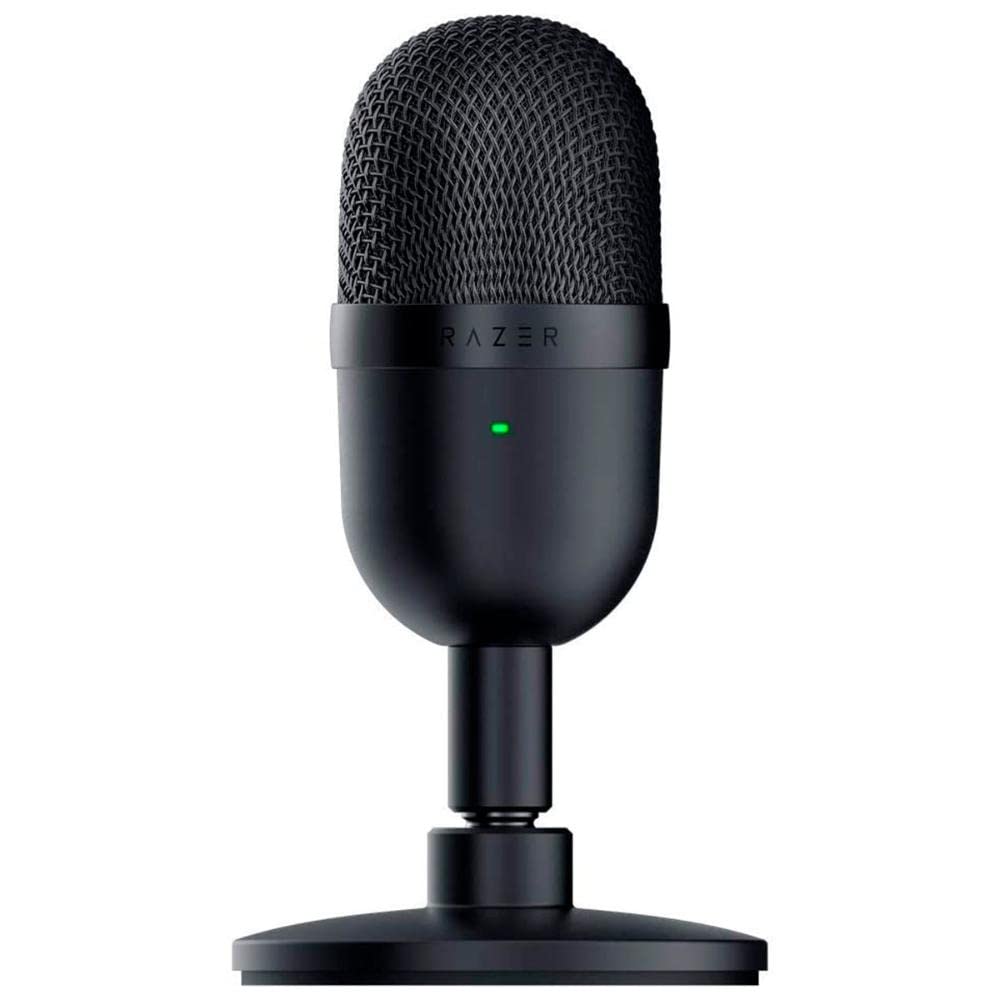
Image 1.1: The Razer Seiren Mini Microphone, showcasing dens kompakte design.
2. Sikkerhedsoplysninger
- Udsæt ikke mikrofonen for vand eller overdreven fugt.
- Undgå at tabe mikrofonen eller udsætte den for kraftige stød.
- Keep the microphone away from heat sources and direct sunlight.
- Brug kun det medfølgende USB-kabel til tilslutning.
- Forsøg ikke at skille mikrofonen ad eller ændre den. Dette vil ugyldiggøre garantien.
- Rengør kun mikrofonen med en blød, tør klud.
3. Pakkens indhold
Bekræft at alle varer er til stede i din pakke:
- Razer Seiren Mini Microphone (Model: RZ19-03450100-R3U1)
- USB-A til USB-B-kabel
- Detachable Desk Stand
- Vigtig produktinformationsguide (ikke inkluderet i denne digitale manual)
4. Opsætning
4.1 Samling af mikrofonen
- Attach the microphone to the included desk stand by screwing it onto the threaded mount.
- Ensure the microphone is securely fastened to prevent accidental tipping.
Image 4.1: Diagram showing how to attach the microphone to its desk stand.
4.2 Connecting to Your PC
- Connect the USB-B end of the provided cable to the port on the back of the Razer Seiren Mini.
- Tilslut USB-A-enden af kablet til en ledig USB-port på din pc.
- The microphone is plug-and-play and should be automatically recognized by your operating system (Windows or macOS). No additional drivers are typically required.
Image 4.2: Illustration of connecting the USB cable to the microphone and PC.
4.3 Configuring Audio Settings (Windows)
- Right-click the speaker icon in the system tray and select "Sound Settings" or "Open Sound settings".
- Under the "Input" section, select "Razer Seiren Mini" as your input device.
- Adjust the input volume (gain) to an appropriate level. Speak into the microphone and observe the input level meter to ensure it's not peaking (red).
4.4 Configuring Audio Settings (macOS)
- Go to "System Preferences" > "Sound".
- Click the "Input" tab.
- Select "Razer Seiren Mini" from the list of devices.
- Adjust the input volume (gain) using the slider.
5. Betjeningsvejledning
5.1 Placering af mikrofon
The Razer Seiren Mini features a unidirectional (supercardioid) polar pattern, meaning it is most sensitive to sound coming from directly in front of it and rejects sound from the sides and rear. For optimal audio quality:
- Position the microphone directly in front of your mouth, facing the side with the Razer logo.
- Maintain a distance of approximately 6-12 inches (15-30 cm) from your mouth. Adjust as needed to find the sweet spot for your voice.
- Ensure the microphone is not obstructed by objects that could block sound waves.
Image 5.1: Diagram illustrating optimal microphone placement for clear audio capture.
5.2 Softwareintegration
Once connected and configured in your operating system, the Razer Seiren Mini will function with any audio recording or communication software (e.g., Discord, OBS Studio, Zoom, Audacity). Select "Razer Seiren Mini" as your input device within the application's audio settings.
Adjust microphone sensitivity within your software as needed, in conjunction with the system-level input volume, to achieve the desired audio level without distortion.
6. Vedligeholdelse
6.1 Rengøring
- Ensure the microphone is disconnected from your PC before cleaning.
- Use a soft, dry, lint-free cloth to wipe the exterior of the microphone.
- Do not use harsh chemicals, solvents, or abrasive materials, as these can damage the finish or internal components.
6.2 Opbevaring
When not in use, store the microphone in a clean, dry environment, away from extreme temperatures and humidity. Keeping it in its original packaging or a protective case can help prevent dust accumulation and physical damage.
7. Fejlfinding
7.1 No Sound / Microphone Not Detected
- Tjek USB-forbindelse: Ensure the USB cable is securely connected to both the microphone and your PC. Try a different USB port.
- Bekræft systemindstillinger: Confirm that "Razer Seiren Mini" is selected as the input device in your operating system's sound settings (refer to Section 4.3/4.4).
- Applikationsindstillinger: Check the audio input settings within your recording or communication software to ensure the Razer Seiren Mini is selected.
- Genstart pc'en: Nogle gange kan en simpel genstart løse detektionsproblemer.
- Test på en anden pc: If possible, test the microphone on another computer to rule out a system-specific issue.
7.2 Distorted or Low-Quality Sound
- Juster inputvolumen: If sound is distorted, the input volume (gain) might be too high. Lower it in your system's sound settings or application settings. If sound is too low, increase the input volume.
- Mikrofonplacering: Ensure the microphone is positioned correctly (refer to Section 5.1) and not too far or too close to the sound source.
- Miljøstøj: The unidirectional pattern helps, but excessive background noise can still be picked up. Try to record in a quieter environment.
- Kabelintegritet: Inspect the USB cable for any damage. A faulty cable can cause audio issues.
8. Specifikationer
| Feature | Detalje |
|---|---|
| Mærke | Razer |
| Modelnavn | RZ19-03450100-R3U1 |
| Forbindelsesteknologi | USB |
| Connector Type | USB Type-A |
| Kompatible enheder | PC |
| Inkluderede komponenter | USB-kabel |
| Polar mønster | Ensrettet (superkardioid) |
| Mikrofon formfaktor | Mini |
| Strømkilde | Elektrisk ledning (USB-drevet) |
| Antal kanaler | 1 |
| Varens vægt | 280 gram |
| Varedimensioner (L x B x H) | 8 x 9 x 16.1 centimeter |
| Anbefalede anvendelser | Gaming, Podcasting, Video production |
9. Garanti og support
Razer products come with a limited manufacturer's warranty. Please refer to the official Razer website or the Important Product Information Guide included with your purchase for specific warranty terms and conditions.
For technical support, troubleshooting assistance, or warranty claims, please visit the official Razer Support website or contact their customer service directly. You will typically need your product model number (RZ19-03450100-R3U1) and proof of purchase.
Officiel Razer-support: support.razer.com