
MiraScreen G4
MiraScreen G4 Wireless WiFi Display Dongle Receiver
Brugermanual
Model: G4 | Mærke: Urskærm
1. Introduktion
The MiraScreen G4 Wireless WiFi Display Dongle Receiver is a versatile device designed for seamless screen mirroring. It allows you to wirelessly display the entire screen of your iOS or Android smartphone, tablet PC, or even PC onto a larger display such as an HDTV or projector. This makes it ideal for presentations, watching movies, or sharing content on a big screen.
Nøglefunktioner omfatter:
- Trådløs skærm: Supports wireless screen mirroring for iOS and Android devices.
- Eksternt WiFi-modul: Features an external WiFi module (802.11b/g/n, 2.4GHz) for strong signal and reliable transmission.
- Bred kompatibilitet: Supports multi-OS (Android, iOS) and protocols like Miracast, Airplay, and DLNA.
- Plug and Play: No driver installation required; easy to operate with a single button switch between modes.
- High Definition-output: Provides Full HD 1080P output via HD interface for clear visuals.
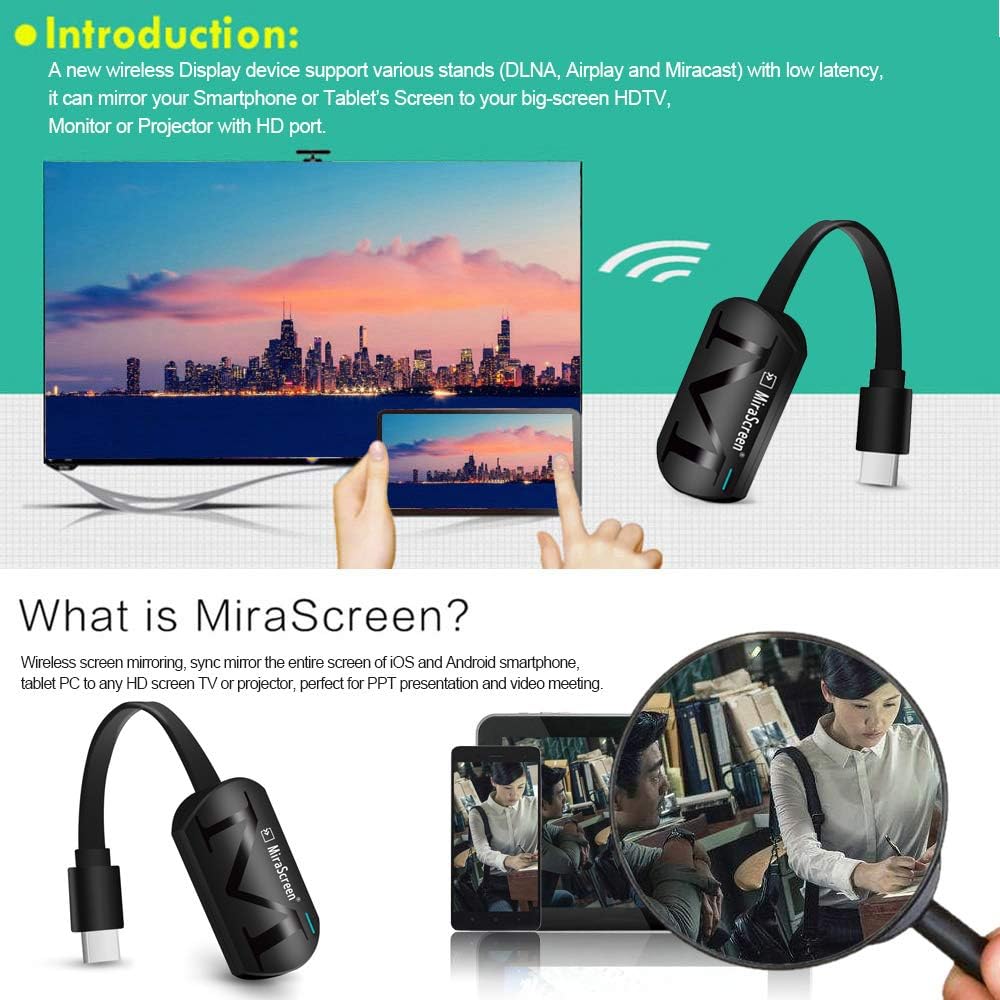
Image: MiraScreen G4 in use, demonstrating wireless display capabilities.
2. Pakkens indhold
Kontroller venligst, at alle nedenstående varer er inkluderet i din pakke:
- 1 x MiraScreen G4 WiFi Display Receiver
- 1 x 2-in-1 USB Cable & WiFi Module
- 1 x User Manual (English / Chinese)
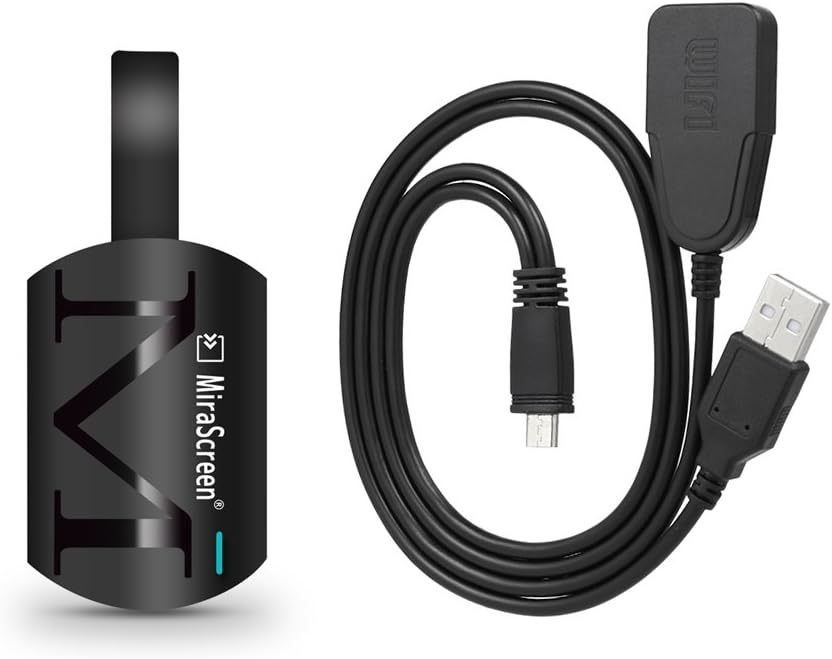
Image: Contents of the MiraScreen G4 package, showing the dongle and its cable.
3. Specifikationer
| Feature | Detalje |
|---|---|
| Modelnummer | G4 |
| OS | Linux |
| CPU | AM825X |
| CPU hastighed | 600MHZ |
| VÆDDER | DDR3 128MB |
| WiFi modul | 8188FTV |
| WiFi-frekvens | 2.4 GHz |
| Maks. Opløsning | 1920 * 1080P |
| Magt | 5V 1A |
| Understøttet File Formater | PDF, MS Word, MS Excel, MS Powerpoint, I Works |
| Understøttede videoformater | AVI, DIVX, MKV, TS, DAT, MPG, MPEG, MOV, MP4, RM, RMVB, WMV |
| Understøttede lydformater | MP1, MP2, MP3, WMA, OGG, ADPCM-WAV, PCM-WAV, AAC |
| Understøttede fotoformater | JPEG, BMP |
| Farve | Sort |
| Hovedelementstørrelse | 5.8 * 3.8 * 1.9 cm |
| Hovedelementets vægt | 25 g |
4. Opsætning
4.1 Første tilslutning
Follow these steps to connect your MiraScreen G4 to your display device:
- Tilslut donglen: Plug the MiraScreen G4 dongle into an available HD port on your HDTV or projector.
- Tilslut strøm: Connect the 2-in-1 USB cable and WiFi module to the Micro USB port on the MiraScreen G4 dongle. Plug the USB-A end of the cable into a USB port on your TV/projector for power (ensure it provides 5V 1A) or use an external USB power adapter (not included).
- Vælg input: On your TV or projector, select the corresponding HD input source to display the MiraScreen G4 interface.
- WiFi Module Placement: Ensure the external WiFi module is placed in front of your TV and there are no obstacles between it and your smart device for optimal signal.

Image: Connection diagram for the MiraScreen G4 to a display.
5. Betjeningsvejledning
5.1 Switching Between Modes (Airplay / Miracast)
The MiraScreen G4 supports both Airplay (for iOS devices) and Miracast (for Android devices). You can easily switch between these modes using the physical button on the device.
- For Airplay Mode (iOS): Ensure the device is in Airplay mode. If not, press the button on the dongle once to switch. Then, on your iOS device, enable Screen Mirroring/Airplay and select the MiraScreen device from the list.
- For Miracast Mode (Android): Ensure the device is in Miracast mode. If not, press the button on the dongle once to switch. Then, on your Android device, enable Wireless Display/Screen Cast/Smart View (names may vary by device) and select the MiraScreen device.

Image: The "One Key Switch" button on the MiraScreen G4 for mode selection.
5.2 Enhedskompatibilitet
The MiraScreen G4 is designed for broad compatibility with mobile operating systems:
- Til iOS: Understøtter iOS 8.0 og nyere.
- For Android OS: Supports Android OS 4.2 or above.
Please note that the WiFi Wireless Display is primarily compatible with smartphones and tablet PCs, and is generally not compatible with traditional desktop PCs or laptops for direct mirroring.

Image: Visual representation of MiraScreen G4 compatibility with different devices.
6. Vedligeholdelse
To ensure the longevity and optimal performance of your MiraScreen G4, please follow these maintenance guidelines:
- Rensning: Brug en blød, tør klud til at rengøre enheden. Brug ikke flydende rengøringsmidler eller aerosoler.
- Opbevaring: Opbevar enheden et køligt, tørt sted væk fra direkte sollys og ekstreme temperaturer.
- Håndtering: Handle the dongle and cables with care. Avoid bending or twisting the cables excessively.
- Miljø: Udsæt ikke enheden for vand, fugt eller høj luftfugtighed.
7. Fejlfinding
If you encounter issues with your MiraScreen G4, please refer to the following common problems and solutions:
- Ingen visning på TV/projektor:
- Ensure the MiraScreen G4 is securely plugged into the HD port.
- Verify that the TV/projector input source is set to the correct HD port.
- Check if the device is receiving adequate power (5V 1A). Try a different USB power source if available.
- Connection Issues / Lagging Display:
- Ensure the distance between your smart device and the MiraScreen G4 is within 6 meters for optimal transmission.
- Make sure there are no significant obstacles (like walls or large furniture) between the WiFi module and your smart device.
- Restart both the MiraScreen G4 (by unplugging and replugging power) and your smart device.
- Confirm your smart device supports Miracast, DLNA, or Airplay functionality.
- Cannot Mirror Certain Apps (e.g., Netflix, Amazon Video):
- Please note that the MiraScreen G4 is generally not compatible with content protected by HDCP (High-bandwidth Digital Content Protection), which includes streaming services like Netflix, Amazon Video Client, HBO Go, and Honda Motor. This is a limitation due to content rights management.
- Overophedning af enheden:
- Ensure the device has adequate ventilation and is not covered.
- Hvis overophedningen fortsætter, skal du stoppe brugen og kontakte support.
8. Garanti og support
For information regarding warranty coverage, please refer to the warranty card included with your product or contact your point of purchase. If you require technical assistance or have questions not covered in this manual, please reach out to MiraScreen customer support through their official webwebsteds- eller kontaktoplysninger, der følger med din produktemballage.
Gem venligst denne manual til fremtidig reference.
Ask a question about this manual
Ask about setup, troubleshooting, compatibility, parts, safety, or missing instructions. Manuals+ will review the question and use this page’s manual context to help answer it.