
1. Introduktion
The OWC Mercury Elite Pro is an external storage solution designed for reliable data storage and backup. This device features an 8TB 7200 RPM hard drive with USB 3.2 5Gb/s connectivity, offering compatibility with various operating systems and devices. This manual provides essential information for setting up, operating, maintaining, and troubleshooting your device.
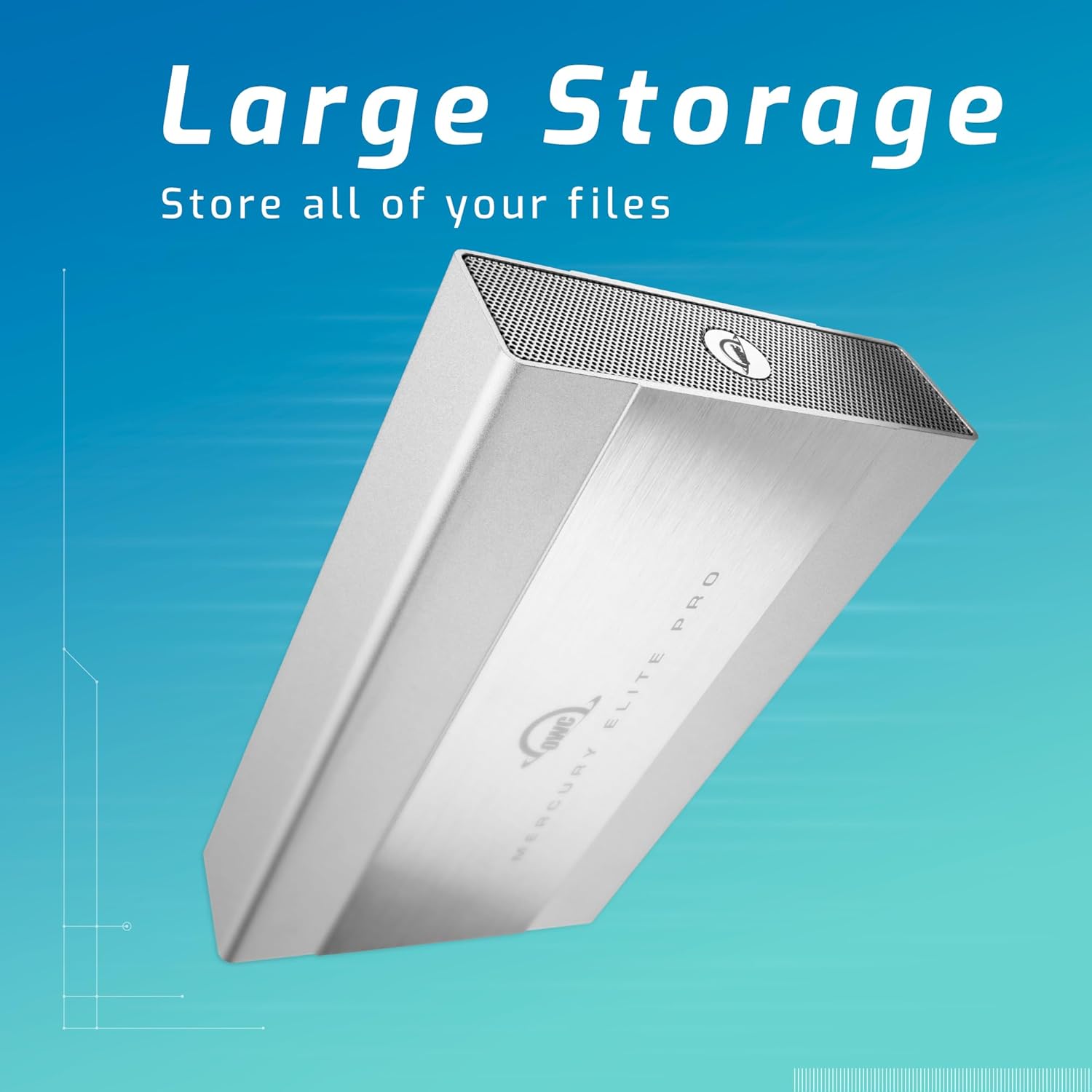
Image 1.1: The OWC Mercury Elite Pro external hard drive, highlighting its large storage capacity for all your files.
2. Hvad er der i æsken
Kontroller, at alle komponenter er til stede i emballagen:
- OWC Mercury Elite Pro 8TB External Hard Drive
- High-quality double-shielded USB Type A-B connecting cable
- Stativ til lodret orientering
- Ikke-glide gummifødder
- Strømadapter
3. Opsætningsvejledning
3.1 Fysisk forbindelse
- Connect the power adapter to the OWC Mercury Elite Pro and then to a power outlet.
- Connect one end of the included USB Type A-B cable to the USB 3.2 port on the OWC Mercury Elite Pro.
- Connect the other end of the USB Type A-B cable to an available USB port on your computer (Mac, Windows, or Linux).
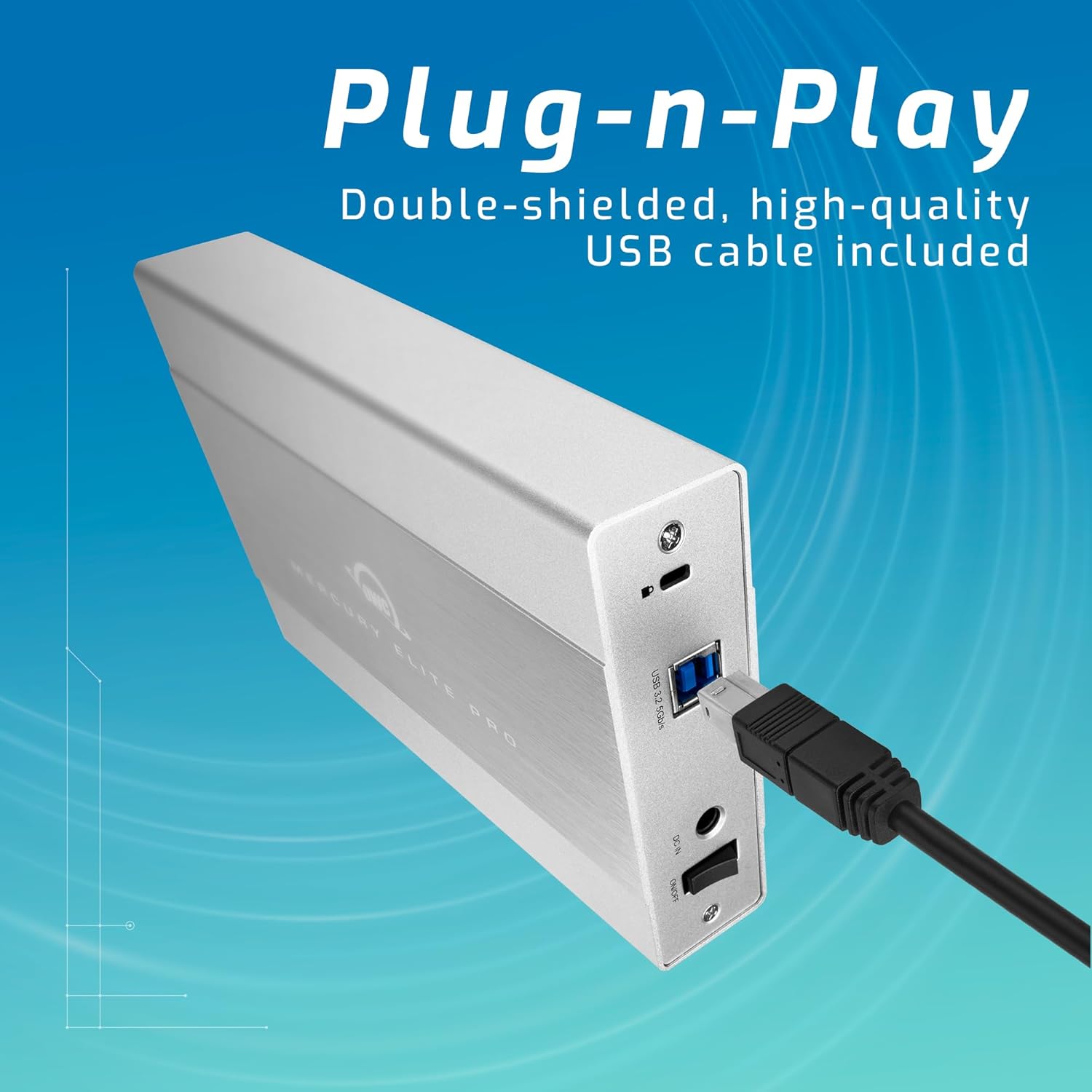
Image 3.1: The rear panel of the OWC Mercury Elite Pro, illustrating the simple plug-and-play connection of the USB cable.
3.2 Placering og orientering
The OWC Mercury Elite Pro can be used in both vertical and horizontal orientations. For vertical use, attach the provided vertical stand and ensure the non-skid rubber feet are properly positioned for stability. Ensure adequate ventilation around the device to prevent overheating.

Image 3.2: Two OWC Mercury Elite Pro units, displayed in both vertical and horizontal positions, emphasizing flexible and space-efficient placement.
3.3 Indledende formatering (hvis nødvendigt)
The drive may come pre-formatted for general compatibility. However, for optimal performance and specific operating system features (e.g., Apple Time Machine or Windows File History), you may need to reformat the drive. Consult your operating system's documentation for instructions on disk formatting. Ensure all important data is backed up before reformatting.
4. Betjeningsvejledning
4.1 Tænd/sluk
Once connected to power and your computer, the device will typically power on automatically. To safely power off the device, first eject or unmount the drive from your operating system, then disconnect the power adapter.
4.2 Dataoverførsel
After the drive is recognized by your computer, you can drag and drop files to and from the drive, or use your operating system's file management tools to copy, move, and delete data. The USB 3.2 5Gb/s interface provides fast data transfer speeds.
4.3 Backup Solutions
The OWC Mercury Elite Pro is compatible with popular backup software:
- Apple Time Machine: For macOS users, the drive can be designated as a Time Machine backup disk. Follow the on-screen prompts when connecting the drive or configure it through System Settings/Preferences.
- Windows File Historie: For Windows users, the drive can be used with File History for automatic backups. Access File History settings through the Control Panel or Settings app.
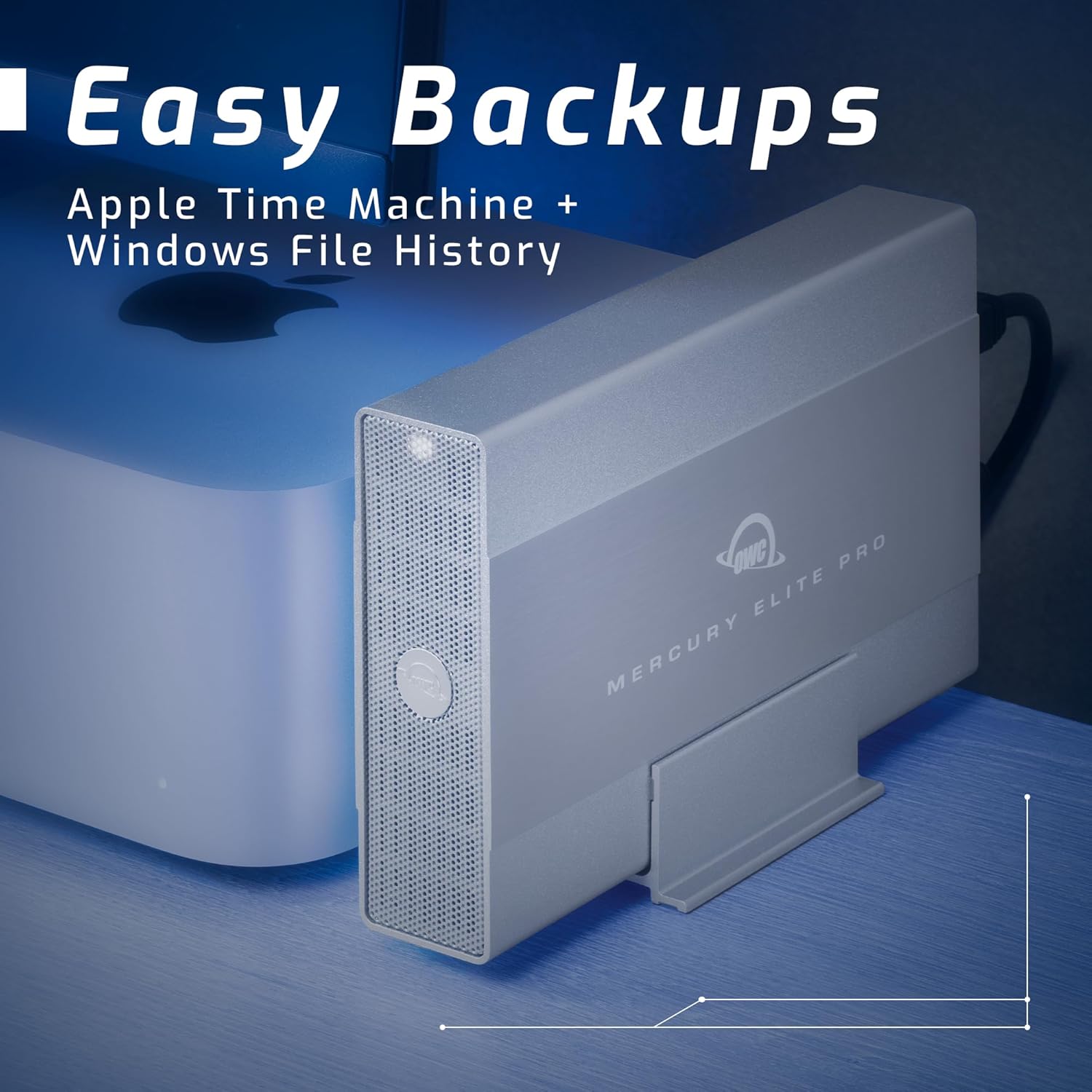
Image 4.1: The OWC Mercury Elite Pro positioned next to a computer, demonstrating its readiness for easy backups using Apple Time Machine and Windows File Historie.
4.4 Enhedskompatibilitet
This storage solution is designed for broad compatibility:
- Mac-computere
- Windows pc'er
- Linux-systemer
- PlayStation 4 (PS4) konsoller
- Xbox-konsoller
- Smart TV
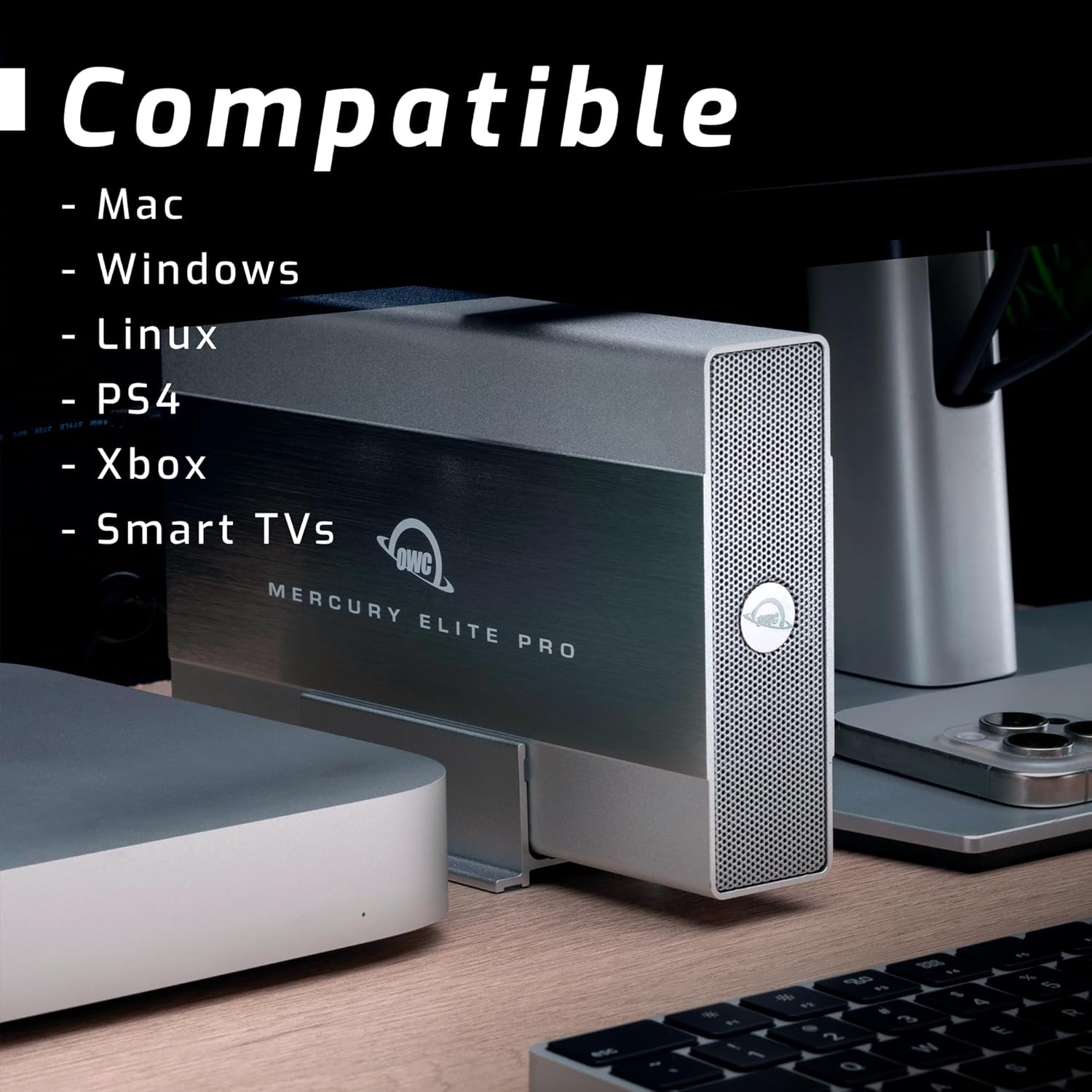
Image 4.2: The OWC Mercury Elite Pro shown in a setup with multiple devices, emphasizing its compatibility with Mac, Windows, Linux, PS4, Xbox, and Smart TVs.
5. Vedligeholdelse
Proper maintenance ensures the longevity and performance of your OWC Mercury Elite Pro:
- Rensning: Brug en blød, tør klud til at rengøre enhedens yderside. Undgå flydende rengøringsmidler eller slibende materialer.
- Ventilation: Ensure the device is placed in an area with good airflow to prevent heat buildup. Do not block ventilation openings.
- Fysisk beskyttelse: While the unit features built-in shock isolation, avoid dropping or subjecting the drive to excessive physical shock.
- Regelmæssige sikkerhedskopier: Periodically back up critical data from the Mercury Elite Pro to another storage device to protect against data loss.
- Sikker udkastning: Always safely eject or unmount the drive from your operating system before disconnecting it or powering it off.
6. Fejlfinding
If you encounter issues with your OWC Mercury Elite Pro, consider the following:
6.1 Drev ikke genkendt
- Tjek forbindelser: Ensure the power adapter is securely connected to both the drive and a working power outlet. Verify the USB cable is firmly connected to both the drive and your computer.
- Try Different Ports/Cables: Test with a different USB port on your computer and, if available, a different USB cable.
- Power Cycle: Disconnect the power and USB cables, wait 10 seconds, then reconnect them.
- Tjek Diskhåndtering (Windows) / Diskværktøj (Mac): Open your operating system's disk management tool to see if the drive is detected but uninitialized or unformatted.
6.2 Langsom ydeevne
- USB-porthastighed: Ensure the drive is connected to a USB 3.0/3.1/3.2 port on your computer for optimal speeds. Connecting to a USB 2.0 port will result in slower performance.
- Kabelkvalitet: Use the high-quality double-shielded USB cable provided.
- Drevaktivitet: High background activity on the drive or computer can affect performance.
6.3 Drevet laver usædvanlige lyde
While some operational noise is normal for mechanical hard drives, excessive clicking, grinding, or loud whirring may indicate a potential issue. Back up your data immediately and contact OWC support.
7. Specifikationer
| Feature | Detalje |
|---|---|
| Digital lagerkapacitet | 8 TB |
| Harddisk interface | Seriel ATA |
| Forbindelsesteknologi | USB (USB 3.2 5Gb/s) |
| Mærke | OWC |
| Speciel funktion | Shock Isolation |
| Harddisk formfaktor | 3.5 tommer |
| Harddisk beskrivelse | Mekanisk harddisk |
| Kompatible enheder | Mac, Windows, Linux, PS4, Xbox, Smart TVs |
| Installationstype | Ekstern harddisk |
| Farve | Multicolor (typically silver/grey enclosure) |
| Harddiskens rotationshastighed | 7200 RPM |
| Dataoverførselshastighed | Op til 252 megabyte pr. sekund |
| Modelnummer | OWCME3NH7T08 |
| UPC | 810586034692 |
8. Garanti og support
8.1 Garantioplysninger
The OWC Mercury Elite Pro comes with an up to 3-Year Limited Warranty, which includes 1 Year Level 1 data recovery services. Please retain your proof of purchase for warranty claims.
8.2 Kundesupport
For technical assistance, troubleshooting, or warranty inquiries, OWC provides lifetime US-based live support. You can find contact information and additional resources on the official OWC webwebsted: