
keenetic KN-1910-01EN
KEENETIC Skipper (KN-1910-01EN) AC1300 Dual-Band Wi-Fi Gigabit Router User Manual
1. Introduktion
Welcome to the user manual for your KEENETIC Skipper (KN-1910-01EN) AC1300 Dual-Band Wi-Fi Gigabit Router. This manual provides comprehensive instructions for setting up, operating, maintaining, and troubleshooting your device. The Keenetic Skipper is designed to deliver stable and high-speed internet connectivity, advanced network management features, and robust security for your home or small business network.
2. Sikkerhedsoplysninger
Please read these safety instructions carefully before using the device to prevent damage and ensure proper operation.
- Udsæt ikke enheden for vand, fugt eller høj luftfugtighed.
- Undgå at placere enheden i nærheden af varmekilder såsom radiatorer, varmeapparater, komfurer eller andre varmeproducerende apparater.
- Brug kun den strømadapter, der fulgte med enheden.
- Sørg for ordentlig ventilation; bloker ikke ventilationsåbninger.
- Forsøg ikke selv at adskille eller reparere enheden. Overlad al service til kvalificeret servicepersonale.
- Hold enheden væk fra stærke elektromagnetiske felter.
3. Pakkens indhold
Bekræft at alle varer er til stede i din pakke:
- KEENETIC Skipper (KN-1910-01EN) AC1300 Dual-Band Wi-Fi Gigabit Router
- Strømadapter
- Ethernet kabel
- Hurtig startvejledning
4. Produktet er slutview
The Keenetic Skipper router features a compact design with external antennas for optimal Wi-Fi coverage. It includes multiple ports for wired connections and USB ports for expanded functionality.
4.1 Frontpanel
Frontpanelet har LED-indikatorer, der giver statusinformation om routerens drift.
- Power LED: Indikerer strømstatus.
- Internet LED: Angiver status for internetforbindelse.
- Wi-Fi-LED'er: Indicate 2.4 GHz and 5 GHz Wi-Fi activity.

Billede: Forside view of the KEENETIC Skipper router, showing the top panel with LED indicators and the Keenetic logo.
4.2 Bagpanel
The rear panel houses all the essential ports for network connectivity.
- WAN-port (blå): Forbinder til dit modem eller din internetudbyders udstyr.
- LAN-porte (gul, 1-4): Connect to your wired devices such as computers, gaming consoles, or smart TVs.
- USB-porte (2): For connecting USB storage devices or USB printers.
- Strømport: Tilsluttes strømadapteren.
- Nulstil knap: Bruges til at gendanne fabriksindstillingerne.

Billede: Bagside view of the KEENETIC Skipper router, displaying the WAN port, four LAN ports, and the power input.
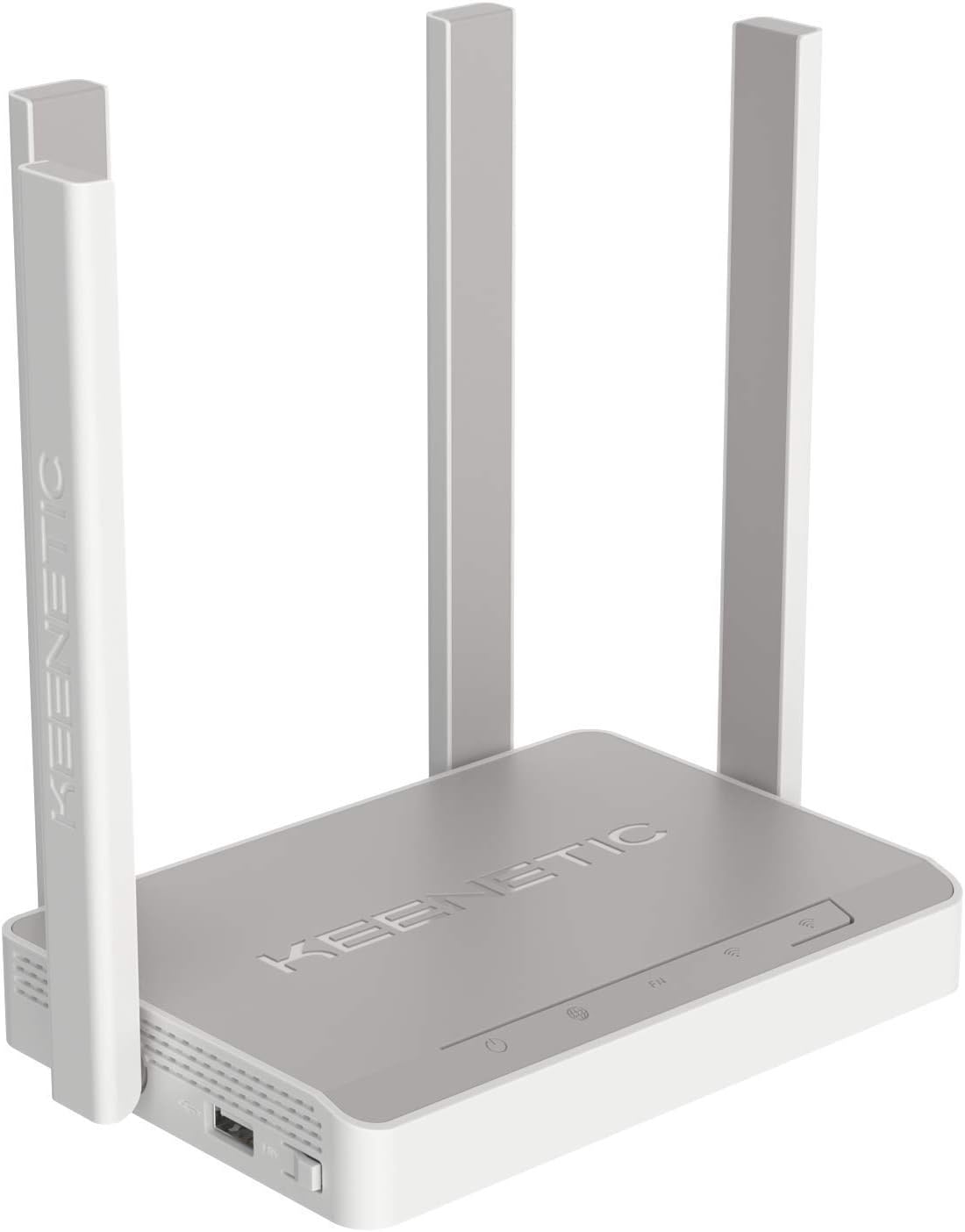
Billede: Side view of the KEENETIC Skipper router, highlighting the two USB ports available for connecting external devices.

Image: The KEENETIC Skipper router discreetly mounted on a wall next to decorative items, demonstrating its compact size and flexible placement options.
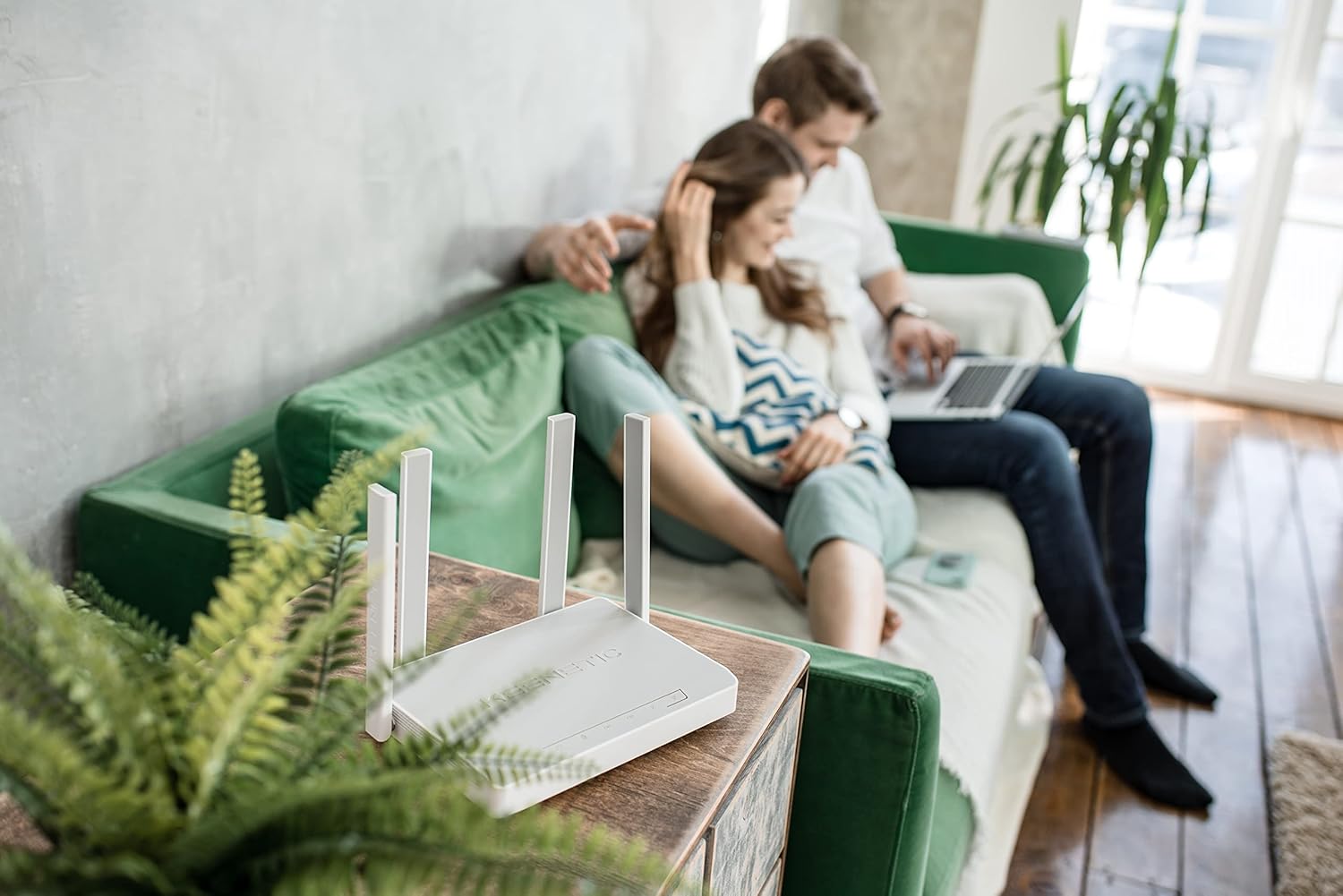
Image: The KEENETIC Skipper router placed on a wooden table in a living room, blending into the home environment while providing network connectivity.

Image: A collection of various Keenetic router models, including the Skipper, showcasing the brand's range of networking devices.
5. Opsætning
Follow these steps to set up your Keenetic Skipper router and establish an internet connection.
5.1 Hardwareforbindelse
- Sluk: Afbryd strømmen til dit modem (hvis relevant) og routeren.
- Tilslut WAN-port: Connect one end of the Ethernet cable to the WAN (blue) port on your Keenetic router and the other end to your modem's Ethernet port or the wall jack provided by your ISP.
- Tilslut enheder (valgfrit): Connect your computer or other wired devices to the LAN (yellow) ports using Ethernet cables.
- Tilslut strøm: Tilslut strømadapteren til routerens strømport, og sæt den i en stikkontakt.
- Tænd: Power on your modem first (if applicable), wait for it to fully boot up, then power on your Keenetic router.
5.2 Indledende konfiguration
You can configure your router using the Keenetic web interface or the Keenetic mobile app.
Ved hjælp af Web Interface:
- Ensure your computer is connected to the router (via Wi-Fi or Ethernet).
- Åbn a web browser og indtast
my.keenetic.netor192.168.1.1i adresselinjen. - Follow the on-screen instructions of the KeeneticOS setup wizard to configure your internet connection, Wi-Fi network name (SSID), and password.
Using the Keenetic Mobile App:
- Download the Keenetic app from your device's app store.
- Open the app and follow the instructions to discover and set up your new router.
6. Betjening
Your Keenetic Skipper router offers a range of features to enhance your network experience.
6.1 Wi-Fi Network Management
The router supports dual-band Wi-Fi (2.4 GHz and 5 GHz) for optimal performance. You can manage your Wi-Fi settings, including network names (SSIDs), passwords, and security protocols, through the web interface eller mobilapp.
Creating Guest Networks:
Set up separate guest Wi-Fi networks to provide internet access to visitors without compromising your main network's security.
6.2 USB-funktioner
The two USB ports on your router enable various functionalities:
- USB-lager: Connect a USB hard drive or flash drive to create network-attached storage (NAS) for file sharing within your network or via personal cloud services.
- USB Printer Server: Connect a USB printer to make it accessible to all devices on your network.
- 3G/4G USB Modem Support: Use a compatible USB modem for backup internet connectivity or as a primary connection.
6.3 Forældrekontrol
Utilize the built-in parental control features to manage internet access for specific devices or users. You can set schedules, block websites, and filter content to ensure a safe online environment.
6.4 Mesh Wi-Fi System
The Keenetic Skipper can be integrated into a Mesh Wi-Fi system with other compatible Keenetic routers. This allows you to expand your Wi-Fi coverage and create a seamless network throughout your home or office.
7. Vedligeholdelse
Regelmæssig vedligeholdelse sikrer optimal ydeevne og levetid for din router.
7.1 firmwareopdateringer
KeeneticOS regularly receives updates that improve performance, add new features, and enhance security. It is recommended to keep your router's firmware up to date. You can check for and install updates via the web interface or the Keenetic app.
7.2 Nulstilling af enheden
If you encounter persistent issues, you may need to reset the router to its factory default settings. Locate the reset button on the rear panel, press and hold it for approximately 10 seconds until the LEDs flash, then release. Note that resetting will erase all your custom configurations.
7.3 Rengøring
Gently wipe the router's exterior with a soft, dry cloth. Do not use liquid cleaners or aerosol sprays.
8. Fejlfinding
This section addresses common issues you might encounter with your Keenetic Skipper router.
8.1 Ingen internetforbindelse
- Tjek kabler: Sørg for, at alle Ethernet-kabler er korrekt tilsluttet til de korrekte porte (WAN til modem, LAN til enheder).
- Modemstatus: Kontroller, at dit modem fungerer korrekt, og at der er en aktiv internetforbindelse.
- Router-LED'er: Check the Internet LED on the router. If it's off or red, there might be an issue with your internet service or router configuration.
- Genstart: Power cycle both your modem and router. Unplug them, wait 30 seconds, then plug the modem back in, wait for it to boot, then plug the router back in.
- Internetudbyderindstillinger: Confirm your internet connection settings (e.g., PPPoE, DHCP, Static IP) are correctly configured in the router's web interface.
8.2 Problemer med Wi-Fi-forbindelse
- Tjek Wi-Fi-LED: Ensure the Wi-Fi LEDs on the router are lit.
- Adgangskode: Bekræft, at du indtaster den korrekte Wi-Fi-adgangskode.
- Signalstyrke: Gå tættere på routeren for at kontrollere, om signalstyrken er et problem.
- Interferens: Other electronic devices (cordless phones, microwaves) can cause interference. Try changing your Wi-Fi channel in the router settings.
- Driveropdatering: Sørg for, at driverne til din enheds trådløse adapter er opdaterede.
8.3 Langsom internethastighed
- Båndbreddeforbrug: Check if multiple devices are consuming high bandwidth (e.g., streaming 4K video, large downloads).
- Wi-Fi-kanal: Try changing the Wi-Fi channel to avoid congestion with neighboring networks.
- Firmware: Sørg for, at din routers firmware er opdateret.
- ISP Speed: Contact your Internet Service Provider to verify your subscribed speed and check for any network issues on their end.
9. Specifikationer
| Feature | Beskrivelse |
|---|---|
| Mærke | Keenetisk |
| Modelnummer | KN-1910-01EN |
| Operativsystem | KeeneticOS |
| Trådløs Standard | 802.11ac |
| Frekvensbåndsklasse | Dobbeltbånd (2.4 GHz, 5 GHz) |
| Forbindelsesteknologi | Wi-Fi, USB, Ethernet |
| Antal USB-porte | 2 |
| Særlige funktioner | USB-printerserver |
| Kompatible enheder | Compatible with all Keenetic Mesh Routers as part of a multi node mesh network |
| Farve | Lysegrå |
| Materiale | Plast |
10. Garanti og support
For warranty information, please refer to the warranty card included with your product or visit the official Keenetic website. For technical support, firmware updates, and additional resources, please visit the Keenetic support portal or contact their customer service. Keep your purchase receipt for warranty claims.
Online ressourcer:
- Official Keenetic Webwebsted: keenetic.com
- Support Portal: Refer to the official website for regional support contacts and knowledge base.
Ask a question about this manual
Ask about setup, troubleshooting, compatibility, parts, safety, or missing instructions. Manuals+ will review the question and use this page’s manual context to help answer it.