
DOOGEE S40 Pro
Brugervejledning til DOOGEE S40 Pro Rugged Phone
Model: S40 Pro
Indledning
The DOOGEE S40 Pro is a rugged smartphone designed for durability and performance in challenging environments. It features a 5.45-inch display, Android 10, a 4650mAh battery, and dual rear cameras. This manual provides essential information for setting up, operating, maintaining, and troubleshooting your device.

Billede: Forside og bagside view af den robuste telefon DOOGEE S40 Pro, vistasing dens robuste design og kameramodul.
1. Opsætning
1.1 Udpakning og pakkeindhold
Carefully unbox your DOOGEE S40 Pro. Verify that all standard accessories are included in the package.

Image: Contents of the DOOGEE S40 Pro package, including the phone, power adapter, USB cable, user manual, and warranty information.
- DOOGEE S40 Pro Smartphone
- Strømadapter
- USB kabel
- Brugermanual
- Garantikort
1.2 Installation af SIM-kort og SD-kort
The DOOGEE S40 Pro supports dual SIM cards and an expandable SD card for additional storage. Locate the SIM tray on the side of the device.
- Brug det medfølgende SIM-udkasterværktøj til at åbne SIM-kortbakken.
- Placer forsigtigt dine Nano-SIM-kort og/eller microSD-kort i de dertil beregnede stik på bakken. Sørg for, at de gyldne kontakter vender nedad.
- Skub forsigtigt bakken tilbage i telefonen, indtil den flugter med enhedens kabinet.
1.3 Indledende opladning
Før første brug anbefales det at oplade enheden helt.
- Tilslut USB-kablet til strømadapteren.
- Plug the USB cable into the charging port of the phone.
- Sæt strømadapteren i en stikkontakt.
- Opladningsindikatoren vises på skærmen. Lad telefonen oplade, indtil batteriikonet viser fuldt batteri.
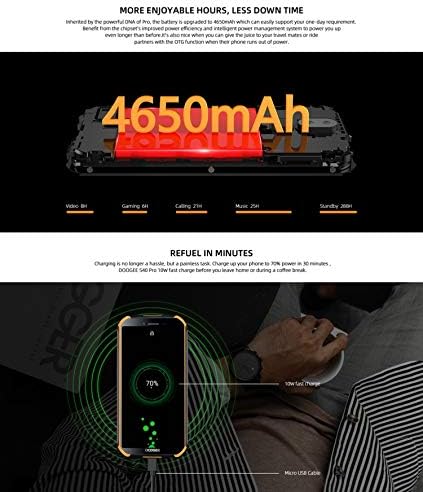
Image: The DOOGEE S40 Pro connected to a charger, showing the charging animation and battery percentage.
1.4 Tænd/sluk
- For at tænde: Tryk og hold tænd/sluk-knappen (placeret på højre side) nede, indtil DOOGEE-logoet vises.
- For at slukke: Tryk på tænd/sluk-knappen og hold den nede, indtil menuen med strømindstillinger vises. Vælg "Sluk", og bekræft.
- For at genstarte: Fra menuen med strømindstillinger skal du vælge "Genstart" og bekræfte.
2. Betjeningsvejledning
2.1 Grundlæggende navigation
The DOOGEE S40 Pro operates on Android 10.0 and uses a touchscreen for navigation.
- Tryk på: Tryk én gang på skærmen for at vælge et element eller åbne et program.
- Stryg: Træk fingeren hen over skærmen for at rulle gennem sider eller lister.
- Knib-for-at-zoome: Placer to fingre på skærmen, og bevæg dem fra hinanden eller sammen for at zoome ind eller ud.
- Langt tryk: Press and hold an item to access additional options or move icons.
2.2 Opkald og beskeder
- Foretage opkald: Åbn Telefon-appen, indtast nummeret, og tryk på opkaldsikonet.
- Modtagelse af opkald: Swipe up to answer or down to decline an incoming call.
- Afsendelse af beskeder: Open the Messages app, tap the new message icon, enter the recipient and message, then tap send.
2.3 Kamerabrug
The S40 Pro features dual rear cameras (13MP Sony primary sensor + 2MP portrait camera) and a front camera for selfies.

Image: Diagram highlighting the AI Rear Dual Camera setup on the DOOGEE S40 Pro, showing the 13MP Sony sensor and 2MP portrait camera, along with exampbillederne.
- Åbn Kamera-appen fra din startskærm eller appskuffe.
- Skift mellem forreste og bageste kamera ved hjælp af kameraskifterikonet.
- Tryk på udløserknappen for at tage et billede.
- Explore different modes like Portrait, Video, and Panorama.
2.4 Lås op med fingeraftryk
The device includes a rear-mounted fingerprint sensor for quick and secure unlocking.

Image: Illustration of the fingerprint unlock feature on the DOOGEE S40 Pro, showing a finger interacting with the rear-mounted sensor.
- Gå til Indstillinger > Sikkerhed og beliggenhed > Fingeraftryk.
- Følg instruktionerne på skærmen for at registrere dit fingeraftryk.
- Once registered, simply place your finger on the sensor to unlock the phone.
2.5 NFC og Google Pay
The DOOGEE S40 Pro supports NFC (Near Field Communication) for convenient data transmission and mobile payments like Google Pay.

Image: Visual representation of NFC functionality for Google Pay and data transmission, and the 3.5mm headphone jack on the DOOGEE S40 Pro.
- To enable NFC: Gå til Indstillinger > Tilsluttede enheder > NFC og tænd den.
- Google Pay: Ensure Google Pay is set up with your payment methods. Tap your phone to compatible terminals for contactless payments.
2.6 Forbindelse
- Wi-Fi: Opret forbindelse til trådløse netværk via Indstillinger > Netværk og internet > Wi-Fi.
- Bluetooth: Par med Bluetooth-enheder via Indstillinger > Tilsluttede enheder > Bluetooth.
- USB: Connect to a computer using the provided USB cable for file overførsel eller opladning.
- 3.5 mm hovedtelefonstik: Plug in wired headphones for audio.
3. Vedligeholdelse
3.1 Robuste funktioner og holdbarhed
The DOOGEE S40 Pro is built to withstand harsh conditions, featuring IP68 water and dust resistance and MIL-STD-810G certification for drops and extreme temperatures.

Image: The DOOGEE S40 Pro submerged in water, dropped onto concrete, and surviving a fall, illustrating its IP68 and MIL-STD-810G durability.
- Vandtæthed (IP68): Can withstand submersion up to 1.5 meters for 30 minutes. Ensure all port covers are securely closed before exposure to water.
- Dust Resistance (IP68): Fuldstændig beskyttet mod indtrængning af støv.
- Drop Resistance (MIL-STD-810G): Designed to survive drops from up to 1.2 meters onto hard surfaces.
- Temperaturmodstand: Operates in extreme temperatures from -55°C to 70°C.

Image: The DOOGEE S40 Pro shown in extreme cold (-55°C) and hot (70°C) environments, highlighting its robust temperature tolerance.
3.2 Rengøring af din enhed
To clean your DOOGEE S40 Pro:
- Tør skærmen og kabinettet af med en blød, fnugfri klud.
- For genstridigt snavs, dampRengør kluden let med vand. Undgå skrappe kemikalier eller slibende materialer.
- If the device has been exposed to saltwater, rinse it thoroughly with fresh water and dry it completely before charging.
3.3 Softwareopdateringer
Tjek regelmæssigt for softwareopdateringer for at sikre optimal ydeevne og sikkerhed.
- Gå til Indstillinger > System > Systemopdatering.
- Follow the on-screen prompts to download and install any available updates. Ensure your device has sufficient battery and a stable internet connection during updates.
4. Fejlfinding
| Problem | Mulig løsning |
|---|---|
| Enheden tænder ikke. | Ensure the battery is charged. Connect to a charger and wait a few minutes before attempting to power on again. If unresponsive, try a forced restart by holding the Power button for 10-15 seconds. |
| Batteriet aflades hurtigt. | Check for background apps consuming power. Reduce screen brightness. Disable Wi-Fi, Bluetooth, or GPS when not in use. Perform a software update. |
| Kan ikke oprette forbindelse til Wi-Fi. | Sørg for, at Wi-Fi er aktiveret. Genstart din router og telefon. Glem netværket, og genopret forbindelsen. |
| Telefonen er langsom eller reagerer ikke. | Close unnecessary background apps. Clear cache. Restart the device. If issues persist, consider a factory reset (back up data first). |
| Kameraet virker ikke. | Restart the phone. Clear the Camera app's cache and data in Settings > Apps. Ensure no other app is using the camera. |
5. Specifikationer
Key technical specifications for the DOOGEE S40 Pro:
- Modelnavn: S40 Pro
- Operativsystem: Android 10.0
- Vise: 5.45 inches, LCD, 1440 x 720 resolution
- VÆDDER: 4 GB
- Intern opbevaring: 64 GB (kan udvides via microSD)
- Batteri: 4650mAh
- Bagkamera: Dual Back Cameras (13MP Sony primary + 2MP portrait)
- Forreste kamera: Ja
- Processor: Octa Core (CPU speed: 1.8 GHz, CPU model: Snapdragon)
- Forbindelse: 4G Cellular, Wi-Fi, Bluetooth, USB, GPS, NFC
- Særlige funktioner: Touchscreen, Fingerprint Sensor, 3.5mm Headphone Jack
- Holdbarhed: IP68 Water & Dust Resistant, MIL-STD-810G Drop Resistant
- Farve: Sort
- Hvad er der i æsken: Adapter, USB-kabel
6. Garanti og support
For warranty information and customer support, please refer to the warranty card included in your product package or visit the official DOOGEE webwebsted. Gem din købsbevis til garantikrav.
- Officiel Webwebsted: www.doogee.cc (Bemærk venligst: Dette er en pladsholder URL, refer to your product's specific documentation for the correct support webwebsted.)
- Kundeservice: Contact details may be found on the official webwebstedet eller dit garantikort.
Ask a question about this manual
Ask about setup, troubleshooting, compatibility, parts, safety, or missing instructions. Manuals+ will review the question and use this page’s manual context to help answer it.