
1. Introduktion
This manual provides instructions for the setup, operation, maintenance, and troubleshooting of your ROCCAT Vulcan TKL Mechanical PC Gaming Keyboard. The Vulcan TKL is a tenkeyless mechanical keyboard designed for PC gaming, featuring Linear Titan Switches, per-key AIMO RGB lighting, an anodized aluminum top plate, and a detachable USB-C cable.
Nøglefunktioner omfatter:
- Tenkeyless form factor for increased desk space and mouse movement.
- Titan Switch Mechanical with linear actuation for responsive keystrokes.
- Durable construction with a 50 million keystroke lifecycle.
- Ultra-lav profile design to reduce wrist strain.
- Key stabilizer technology for solid and sturdy keys.
- AIMO intelligent lighting engine for customizable RGB effects.
- Mixer-style volume dial and dedicated media controls.
2. Hvad er der i æsken
Kontroller, at alle komponenter er til stede i emballagen:
- ROCCAT Vulcan TKL Mechanical PC Gaming Keyboard
- Aftageligt USB-C kabel
- Lynstartguide (ikke inkluderet i denne manual)
3. Opsætning
Follow these steps to set up your ROCCAT Vulcan TKL keyboard:
- Tilslut USB-C-kablet: Locate the USB-C port on the back of the keyboard. Connect the smaller end of the provided USB-C cable to this port.
- Tilslut til pc: Sæt standard USB-A-enden af kablet i en ledig USB-port på din computer.

Image 3.1: Connecting the detachable USB-C cable to the keyboard.

Image 3.2: Close-up of the USB-C port on the keyboard.
- Driver installation: Dit operativsystem burde automatisk registrere og installere de nødvendige drivere.
- Installer ROCCAT Swarm-softwaren: For full customization of lighting, key assignments, and macros, download and install the ROCCAT Swarm software from the official ROCCAT website. This software allows you to configure advanced features and update firmware.
4. Betjeningsvejledning
The ROCCAT Vulcan TKL keyboard offers a range of functions for gaming and general use.
4.1 Tastlayout og funktioner
The keyboard features a UK layout with standard alphanumeric keys, function keys (F1-F12), and dedicated media controls.

Billede 4.1: Overview of the ROCCAT Vulcan TKL keyboard layout.
- Funktionstaster (F1-F12): These keys can have secondary functions when pressed in combination with the FN key. Refer to the keycaps for specific secondary functions (e.g., media playback, volume, lighting adjustments).
- Volumenvælger: Located in the upper right corner, this dial allows for quick adjustment of system volume. Rotate clockwise to increase volume, counter-clockwise to decrease.

Image 4.2: The mixer-style volume dial for audio control.
4.2 AIMO RGB-belysning
The keyboard features per-key AIMO intelligent RGB lighting. This lighting system can be customized extensively using the ROCCAT Swarm software. AIMO reacts to your input and other compatible ROCCAT devices to create dynamic lighting effects.
- Tilpasning: Use the ROCCAT Swarm software to select from various lighting effects, adjust brightness, and create custom lighting profiles.
- Opbevaring om bord: The keyboard supports on-board profile storage, allowing you to save your preferred settings directly to the keyboard for use on different systems without the Swarm software.
4.3 Titan Switch Mechanical
The Vulcan TKL utilizes ROCCAT's Titan Switch Mechanical with linear actuation. This design provides a smooth and consistent keystroke, optimized for speed and responsiveness in gaming scenarios.

Billede 4.3: Detaljeret view of the Titan Switch Mechanical.
4.4 Ergonomisk design
The keyboard features an ultra-low profile design, which helps to reduce wrist strain during extended use by allowing a more natural hand position.
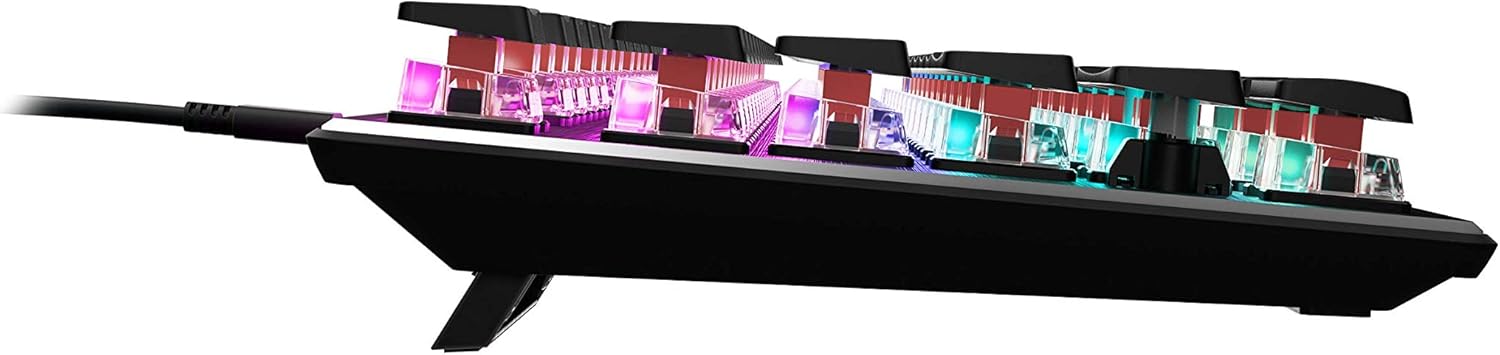
Billede 4.4: Side profile of the keyboard demonstrating its low-profile design.
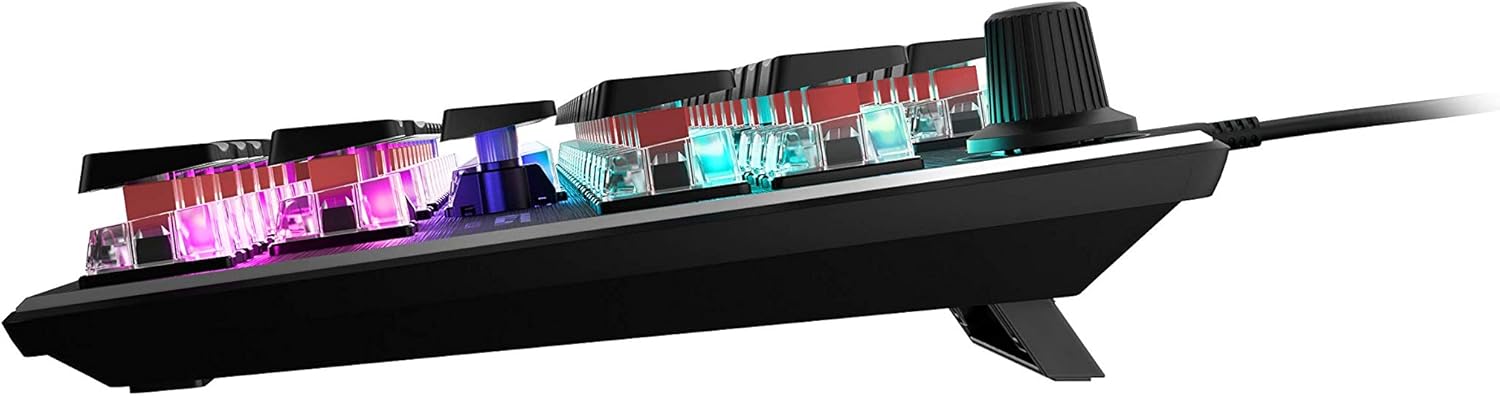
Billede 4.5: Side view showing the keyboard's adjustable feet for ergonomic tilt.
5. Vedligeholdelse
Korrekt vedligeholdelse sikrer dit tastaturs levetid og optimale ydeevne.
- Rengøring af tastaturet: Regularly clean the keyboard surface and between keycaps to prevent dust and debris buildup. Use a soft, lint-free cloth, slightly dampened with water or a mild cleaning solution. For deeper cleaning, you may carefully remove keycaps (refer to online guides for safe keycap removal for your specific switch type) and use compressed air to clear debris. Ensure the keyboard is disconnected from your PC before cleaning.
- Kabelpleje: The detachable USB-C cable should be handled with care. Avoid sharp bends or excessive pulling to prevent damage to the cable or the keyboard's port.
- Opbevaring: Når tastaturet ikke er i brug i længere perioder, skal det opbevares et rent, tørt sted væk fra ekstreme temperaturer.
6. Fejlfinding
If you encounter issues with your ROCCAT Vulcan TKL keyboard, try the following troubleshooting steps:
- Tastaturet reagerer ikke:
- Sørg for, at USB-C-kablet er korrekt tilsluttet til både tastaturet og din pc.
- Prøv at tilslutte tastaturet til en anden USB-port på din pc.
- Test the keyboard on another computer to determine if the issue is with the keyboard or your PC.
- Genstart din computer.
- Keys Double-Typing or Not Registering:
- Ensure the keyboard firmware is up to date via the ROCCAT Swarm software.
- Clean the affected key switches using compressed air to remove any debris.
- If the issue persists, it may indicate a hardware fault. Refer to the Warranty and Support section.
- Problemer med RGB-belysning:
- Verify that the ROCCAT Swarm software is running and the keyboard is detected.
- Check lighting settings within Swarm to ensure desired effects are enabled.
- Update the keyboard's firmware through Swarm.
- ROCCAT Swarm Software Not Detecting Keyboard:
- Ensure the keyboard is properly connected to your PC.
- Restart the Swarm software.
- Geninstaller ROCCAT Swarm-softwaren.
- Check for any conflicting software or drivers.
7. Specifikationer
| Mærke | ROCCAT |
| Modelnavn | Vulcan TKL |
| Modelnummer | ROC-12-274 |
| Forbindelsesteknologi | USB-C (aftagelig) |
| Tastaturbeskrivelse | Mekanisk gaming-tastatur |
| Switch Type | Titan Switch Mekanisk (Lineær) |
| Belysning | AIMO RGB-belysning pr. tast |
| Materiale | Anodiseret aluminium topplade |
| Dimensioner (LxBxH) | 14.17 x 5.25 x 1.34 tommer (36 x 13.3 x 3.4 cm) |
| Varens vægt | 2.2 pund (1 kg) |
| Kompatible enheder | PC |
| Speciel funktion | Ergonomic, Tenkeyless Design |
8. Garantioplysninger
ROCCAT products are covered by a manufacturer's warranty against defects in materials and workmanship. The specific terms and duration of your warranty may vary by region and product. Please retain your proof of purchase for warranty claims.
For detailed warranty information, please visit the official ROCCAT support webwebsted.
9. Support
For further assistance, technical support, or to download the latest drivers and software, please visit the official ROCCAT support webwebsted:
Du kan også finde ofte stillede spørgsmål og fællesskabsfora på supportsiden.