
Indledning
This manual provides comprehensive instructions for setting up, operating, and maintaining your Macally Bluetooth Keyboard. Designed for multi-device compatibility, this wireless keyboard features a built-in stand, a rechargeable battery, and 78 keys for efficient typing across various devices including tablets, smartphones, and computers.

Image: The Macally Bluetooth Keyboard in white, with a tablet securely docked in its integrated stand, showcasing its compact design and functionality.
Hvad er der i æsken
Upon unboxing your Macally Bluetooth Keyboard, please ensure all the following items are present:
- Macally Bluetooth Keyboard
- USB opladningskabel
- Brugervejledning (dette dokument)
If any items are missing or damaged, please contact Macally customer support.
Produktegenskaber
The Macally Bluetooth Keyboard is designed for versatility and convenience, offering several key features:
- Tilslutning til flere enheder: Seamlessly switch between up to 3 Bluetooth-enabled devices (e.g., tablet, smartphone, computer).
- Integreret enhedsstativ: Features a built-in 10.5-inch slot to securely hold your smartphone or tablet.
- Kompakt og bærbar: Small enough to fit into most bags, making it ideal for on-the-go use.
- Genopladeligt batteri: Udstyret med et genopladeligt batteri på 280 mAh til længere tids brug.
- Effektiv layout: Includes 78 quiet scissor-switch keys and 13 convenient shortcut/media keys for enhanced productivity.

Image: The keyboard demonstrating seamless Bluetooth connectivity with a 30ft wireless range, compatible with Apple, Windows, iOS, and Android operating systems.

Image: A visual representation of the keyboard's multi-device capability, showing it paired with a laptop, a desktop computer, and a smartphone simultaneously.

Image: The keyboard positioned on a desk, with both a tablet and a smartphone docked in its integrated 10.5-inch stand, highlighting its "setup anywhere" convenience.
Opsætning
Opladning af tastaturet
Before first use, fully charge your Macally Bluetooth Keyboard. Connect the provided USB charging cable to the keyboard's charging port and the other end to a USB power source (e.g., computer USB port, USB wall adapter). The charging indicator light will show the charging status.

Image: The keyboard with its charging cable connected, illustrating the rechargeable 280mAh battery and the included charging cable.
Bluetooth-parring
Follow these steps to pair your keyboard with a device:
- Ensure the keyboard is charged and powered on. The power switch is located on the top right of the keyboard.
- Aktiver Bluetooth på din enhed (tablet, smartphone, computer).
- Tryk og hold på Fn tasten og en af Bluetooth-kanaltasterne (B1, B2, eller B3) simultaneously for a few seconds until the corresponding Bluetooth indicator light starts blinking rapidly. This indicates the keyboard is in pairing mode.
- On your device, search for "Macally Keyboard" or a similar name in the Bluetooth device list and select it to connect.
- Once connected, the indicator light will stop blinking and remain solid for a moment before turning off, indicating successful pairing.
To pair additional devices, repeat steps 3-5 using a different Bluetooth channel key (B1, B2, or B3).
Betjeningsvejledning
Skift mellem enheder
For at skifte mellem parrede enheder skal du blot trykke på Fn tast sammen med den tilsvarende Bluetooth-kanaltast (B1, B2, eller B3) for the desired device. The keyboard will quickly connect to the selected device.
Using Shortcut Keys
The keyboard features 13 dedicated shortcut/media keys for quick access to common functions. These keys are typically located on the top row (F1-F12 and an additional key). Functions may vary slightly depending on the operating system of your connected device.
Common shortcut functions include:
- Media playback controls (play/pause, next/previous track)
- Lydstyrkekontrol (lydløs, lydstyrke op/ned)
- Justering af skærmens lysstyrke
- Home screen/desktop access
- Søgefunktion
Refer to your device's operating system documentation for specific compatibility and functionality of these keys.

Billede: En detaljeret view of the keyboard's layout, emphasizing its 78 quiet scissor-switch keys and the 13 dedicated shortcut/media keys for efficient use.
Opretholdelse
For at sikre dit Macally Bluetooth-tastaturs lange levetid og optimale ydeevne, skal du følge disse retningslinjer for vedligeholdelse:
- Rensning: Brug en blød, tør og fnugfri klud til at rengøre tastaturets overflade. Tør let ved genstridigt snavs.ampRengør kluden med vand eller et mildt, ikke-slibende rengøringsmiddel. Undgå for meget fugt.
- Opbevaring: Når tastaturet ikke er i brug i længere perioder, skal det opbevares køligt og tørt, væk fra direkte sollys og ekstreme temperaturer.
- Batteripleje: To preserve battery life, avoid fully discharging the keyboard frequently. Recharge it when the low battery indicator appears. If storing for a long time, charge it to about 50% every few months.
- Undgå spild: Keep liquids away from the keyboard to prevent internal damage.
Fejlfinding
If you encounter issues with your Macally Bluetooth Keyboard, try the following solutions:
| Problem | Mulig løsning |
|---|---|
| Tastaturet tænder ikke. | Ensure the keyboard is charged. Connect it to a power source using the USB cable. |
| Unable to pair the keyboard. |
|
| Tastaturet afbrydes ofte. |
|
| Taster reagerer ikke. |
|
If these solutions do not resolve the issue, please contact Macally customer support for further assistance.
Specifikationer
| Feature | Detalje |
|---|---|
| Modelnummer | BTTABKEYBAT |
| Forbindelsesteknologi | Bluetooth |
| Antal nøgler | 78 |
| Batteritype | 1 lithium-ion batteri (medfølger) |
| Varens vægt | 1.92 pund |
| Pakkedimensioner | 13.98 x 7.91 x 2.48 tommer |
| Fabrikant | Mace Group Inc / Macally Peripherals |
| Kompatible enheder | PC, Tablet, Apple devices, Windows Desktop/Laptop, Surface, Chromebook, Smartphones, TVs (any device with Bluetooth) |
| Anbefalede anvendelser | Office, School, Everyday Use, Personal, Education, Business |
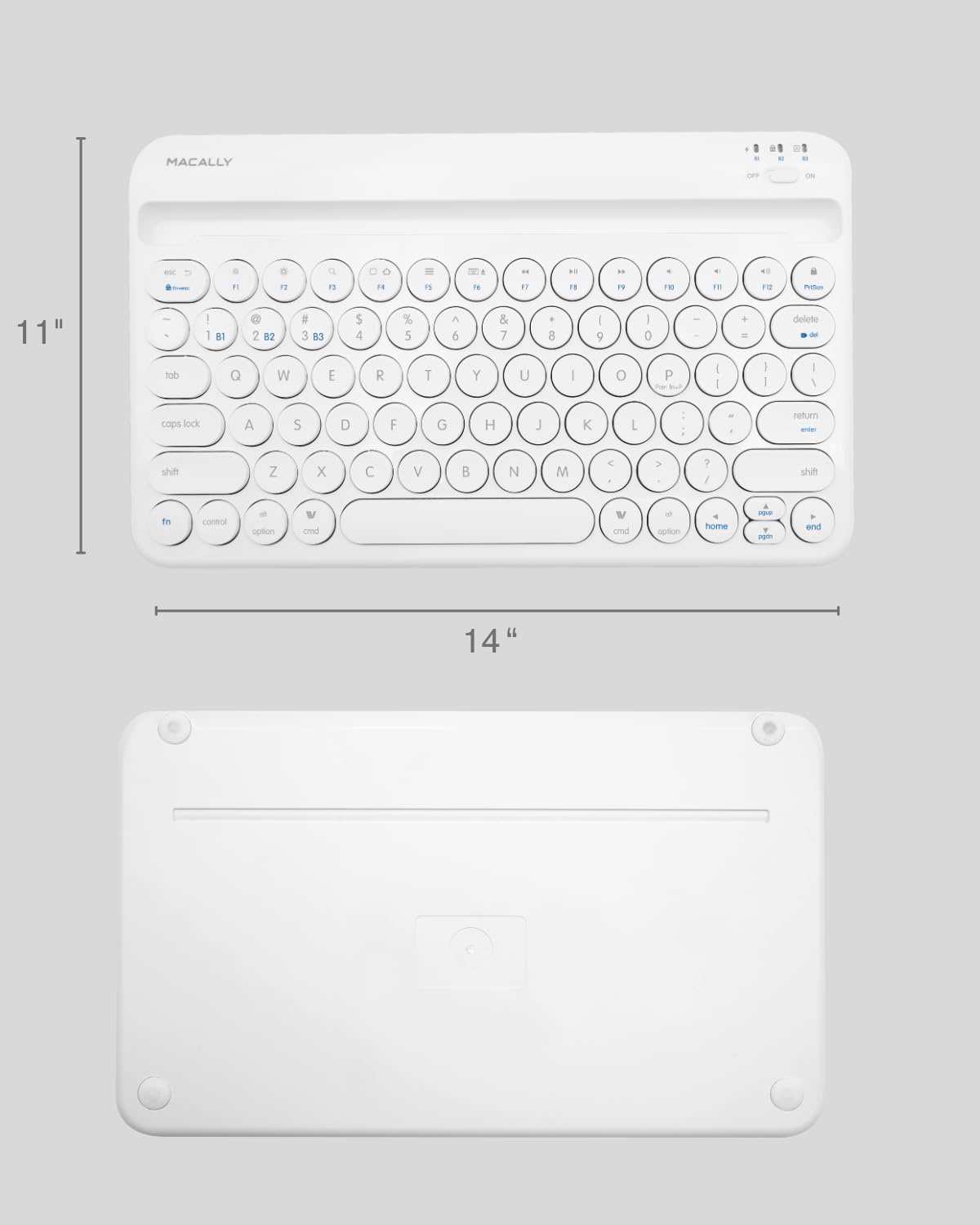
Image: The physical dimensions of the keyboard, measuring approximately 11 inches in width and 14 inches in length.

Image: The keyboard fitting easily into a backpack, demonstrating its compact size and suitability for travel and on-the-go use.
Garanti og support
Macally products are designed for quality and reliability. For information regarding product warranty, technical support, or service, please visit the official Macally webwebstedet eller kontakt deres kundeserviceafdeling. Gem din købskvittering som købsbevis i tilfælde af garantikrav.
Du kan finde mere information og support på Macally-butik på Amazon.