
1. Introduktion
This manual provides comprehensive instructions for the setup, operation, and maintenance of your Zebronics Zeb-Ultimate Pro Full HD 1080p Webcam. Please read this manual carefully before using the product to ensure optimal performance and longevity. Keep this manual for future reference.
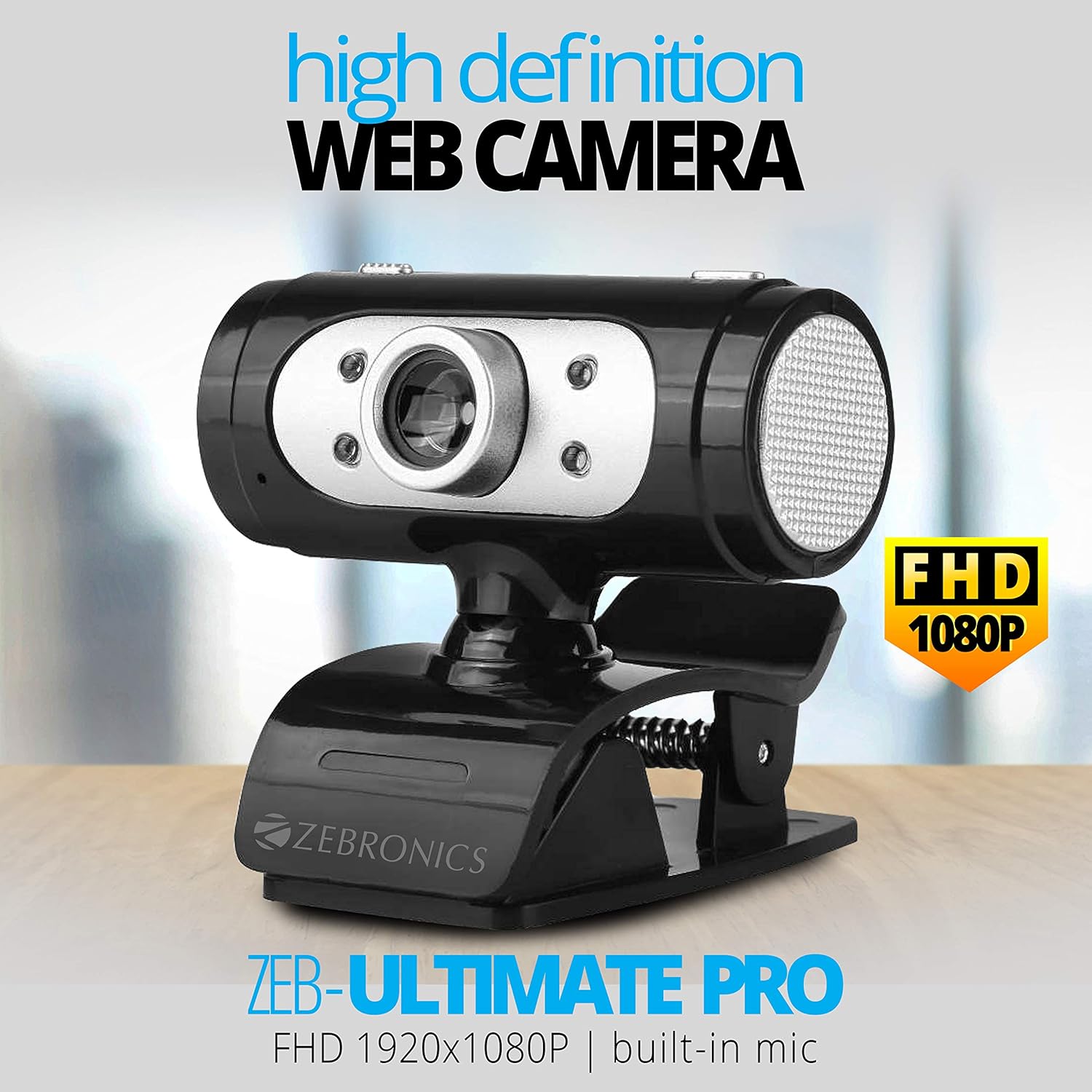
Image 1.1: The Zebronics Zeb-Ultimate Pro Full HD 1080p Webkamera, showasing its design and FHD 1080P capability.
2. Pakkens indhold
Bekræft, at alle nedenstående varer er til stede i din produktpakke:
- Zebronics Zeb-Ultimate Pro Webcam (1 Unit)
3. Produktet er slutview
The Zebronics Zeb-Ultimate Pro is a Full HD webcam designed for clear video communication. It features a 5P quality lens, a built-in microphone, automatic white balance, night vision capabilities, and a manual switch for its integrated LED lighting.
Nøglefunktioner:
- Full HD 1080p opløsning: Delivers video at 1920x1080 pixels at 30 frames per second.
- 5P Quality Lens: Ensures sharp and clear image capture.
- Indbygget mikrofon: Provides integrated audio for video calls.
- Automatisk hvidbalance: Automatically adjusts color balance for natural-looking video.
- Nattesyn: Forbedrer synlighed i svagt lys.
- Manual LED Switch: Allows user control over the integrated LED light.
- USB-grænseflade: Simple plug-and-play connectivity.

Image 3.1: Diagram illustrating the 5P lens for Full HD videos and the built-in microphone for video calls.

Image 3.2: Visual representation of the USB interface for connectivity and the night vision feature for low-light performance.
4. Opsætningsvejledning
Follow these steps to set up your Zebronics Zeb-Ultimate Pro Webcam:
- Pak den ud Webcam: Fjern forsigtigt webkameraet ud af emballagen.
- Placer Webcam: Placer webcam securely on top of your monitor, laptop screen, or a flat surface. The adjustable clip allows for stable placement.
- Tilslut til computer: Sæt USB-stikket i webcam til en ledig USB-port på din computer.
- Automatisk driverinstallation: De webcam is designed for plug-and-play operation. Your operating system (Windows, macOS, iOS) should automatically detect and install the necessary drivers. Wait for a notification indicating that the device is ready for use.
- Bekræft installationen: Open a video conferencing application or your computer's camera application to confirm that the webKameraet genkendes og viser video.
5. Betjeningsvejledning
Once set up, the Zeb-Ultimate Pro WebKameraet er klar til brug med forskellige applikationer.
Ved hjælp af Webcam:
- Video Calls and Conferences: Launch your preferred video communication software (e.g., Zoom, Microsoft Teams, Google Meet). Select the "Zebronics Zeb-Ultimate Pro" as your video and audio input device in the application's settings.
- Online Classes: De webcam is suitable for participating in or conducting online educational sessions.
- Indspilning: Use your computer's native camera application or third-party software to record videos.

Billede 5.1: Den webcam positioned on a laptop, illustrating its use for webinars og konferencer.

Image 5.2: A child using a laptop with the webcam for online classes, demonstrating its application in education.
Justeringsfunktioner:
- Manuel fokus: Linsen på webcam can be rotated to adjust the focus for a sharper image. Turn the lens gently until the image appears clear.
- LED lys: Use the manual switch located on the webcam to turn the integrated LED light on or off, especially useful in low-light environments.
6. Vedligeholdelse
Korrekt vedligeholdelse sikrer din bils levetid og optimale ydeevne webcam.
- Rengøring af linsen: Tør forsigtigt linsen af med en blød, fnugfri klud. Undgå at bruge skrappe kemikalier eller slibende materialer, der kan ridse linsen.
- Rengøring af kroppen: Brug en tør eller let damp klud til at rengøre ydersiden af webcam.
- Opbevaring: Når den ikke er i brug, skal du opbevare den webOpbevar kameraet på et rent, tørt sted væk fra direkte sollys og ekstreme temperaturer.
- Kabelpleje: Undgå at bøje eller vride USB-kablet for meget for at forhindre indvendig skade.
7. Fejlfinding
Hvis du støder på problemer med din webkamera, se følgende almindelige problemer og løsninger:
| Problem | Mulig årsag | Løsning |
|---|---|---|
| Webcam not detected or not working. | Loose USB connection, driver issue, or disabled camera. | Ensure the USB cable is securely connected. Try a different USB port. Restart your computer. Check privacy settings to ensure camera access is enabled for applications. |
| Billedet er sløret eller ude af fokus. | Forkert fokusjustering. | Gently rotate the lens of the webcam until the image becomes clear. |
| Ingen lyd fra webkameraets mikrofon. | Microphone not selected or muted in software. | In your video conferencing application or system sound settings, ensure the Zebronics webcam's microphone is selected as the input device and is not muted. |
| Dårlig billedkvalitet i svagt lys. | Utilstrækkelig belysning. | Aktiver webcam's LED light using its manual switch. Ensure adequate ambient lighting in your environment. |
8. Specifikationer
Technical specifications for the Zebronics Zeb-Ultimate Pro Webcam:
- Model: Zeb-Ultimate Pro
- Videoopløsning: 1920 x 1080 (Fuld HD)
- Billedhastighed: 30 fps
- Billedsensor: CMOS
- Linsetype: 5P Quality Lens
- Interface: USB
- Kabellængde: 1.58 meter
- Særlige funktioner: Built-in Microphone, Auto White Balance, Night Vision, Manual Switch for LED
- Produktdimensioner: 7.2 x 7.2 x 6.4 cm
- Varens vægt: 90 g
- Kompatible operativsystemer: Windows, iOS (and generally other USB-compatible systems)
9. Garanti og support
For warranty information and technical support, please refer to the official Zebronics website or contact their customer service. Details regarding warranty periods and service centers are typically provided with your purchase documentation or on the manufacturer's webwebsted.
Fabrikant: 13,7, Smith Road, Royapettah CHENNAI-600002