
1. Introduktion
This manual provides essential information for the setup, operation, maintenance, and troubleshooting of your HP ScanJet Pro 2000 s2 Document Scanner. Please read this manual thoroughly before using the device to ensure proper functionality and to maximize its performance.
2. Produktet er slutview
The HP ScanJet Pro 2000 s2 is a compact and efficient duplex document scanner designed for various scanning needs, including documents, photos, receipts, and cards. It features a 50-page Automatic Document Feeder (ADF) and offers fast, two-sided scanning.

Figur 2.1: HP ScanJet Pro 2000 s2 in operation, scanning a document through the ADF.
2.1 Scanner Components

Figur 2.2: Key components of the HP ScanJet Pro 2000 s2, including the document input tray, output tray, control buttons, and ports.
- Document Input Tray with Extension: Holds documents for scanning.
- Sliding Paper Guides: Adjust to fit various document widths.
- On/Off knap: Powers the scanner on or off.
- Scan knap: Initiates a scan job.
- USB 3.0-port: Connects the scanner to a computer.
- Strømtilslutning: Tilslutter strømadapteren.
- Document Output Tray with Extension: Collects scanned documents.
- Latch to Access Paper Path: Allows access for clearing paper jams or cleaning.
- Slot for Optional Cable-Type Security Lock: Til sikring af enheden.
2.2 bag View og forbindelser
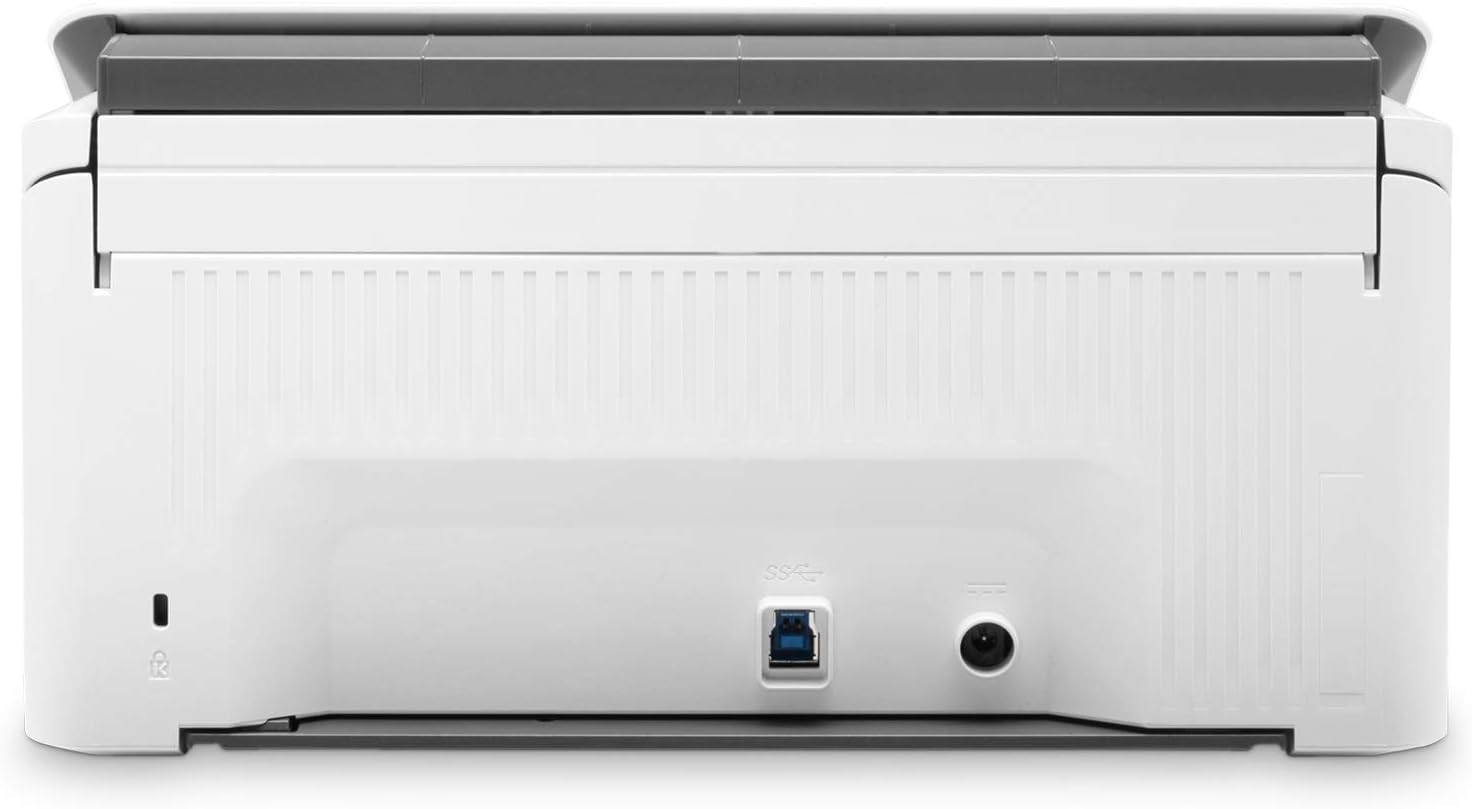
Figur 2.3: Bag view of the scanner, highlighting the USB 3.0 port and power input.
The rear of the scanner houses the primary connectivity ports:
- USB 3.0-port: For high-speed data transfer to your computer.
- Strømindgang: Til tilslutning af den medfølgende strømadapter.
3. Opsætningsvejledning
3.1 Udpakning og placering
- Tag forsigtigt scanneren og alt tilbehør ud af emballagen.
- Placer scanneren på en stabil, plan overflade med tilstrækkelig plads til dokumentfremføring og -udskrivning.
- Remove all protective tapes and packing materials from the scanner.
3.2 Tilslutning af scanneren
- Connect the power adapter to the scanner's power input port and then plug it into an electrical outlet.
- Connect one end of the USB cable to the USB 3.0 port on the scanner and the other end to an available USB port on your computer.
3.3 Softwareinstallation
- Turn on the scanner using the On/Off button.
- Insert the provided software installation disc into your computer's optical drive, or download the latest drivers and software from the official HP support webwebsted.
- Follow the on-screen instructions to install the HP Scan software and necessary drivers (TWAIN/ISIS).
- Genstart computeren, hvis du bliver bedt om det efter installationen.
Note: Ensure your operating system is compatible with the scanner software. Refer to HP's support website for system requirements.
4. Betjeningsvejledning
4.1 Indlæsning af dokumenter
- Extend the document input tray and output tray.
- Adjust the sliding paper guides to the width of your documents.
- Load up to 50 pages into the Automatic Document Feeder (ADF). Ensure documents are aligned and free of staples or paper clips.
- For mixed media sizes, ensure the stack is uniform to prevent jams.
4.2 Start af en scanning
- Sørg for, at scanneren er tændt og tilsluttet din computer.
- Åbn HP Scan-softwaren på din computer.
- Select your desired scan profile or create a new one. Profiles allow you to configure settings such as:
- Scan destination (e.g., folder, email, application)
- File format (e.g., PDF, JPEG, TIFF)
- Opløsning (DPI)
- Color mode (color, grayscale, black & white)
- Duplex scanning (two-sided)
- Automatic document correction features
- Optical Character Recognition (OCR) for editable text
- Placer dine dokumenter i ADF'en.
- Press the Scan button on the scanner or click the scan button within the HP Scan software to begin.
- The scanner will process documents at speeds up to 35 pages per minute (ppm) or 70 images per minute (ipm) for two-sided scans.
4.3 Using TWAIN/ISIS Drivers
The scanner includes full-featured TWAIN and ISIS drivers, allowing direct integration with various document management and imaging applications. Consult your application's documentation for specific instructions on using these drivers to acquire images from the HP ScanJet Pro 2000 s2.
5. Vedligeholdelse
Regelmæssig vedligeholdelse sikrer optimal ydeevne og forlænger scannerens levetid.
5.1 Rengøring af scanneren
- Sluk: Tag netledningen ud før rengøring.
- Ydre: Tør de udvendige overflader af med en blød, fnugfri kludampskylles med vand. Undgå slibende rengøringsmidler.
- Glas og ruller: Open the scanner cover (using the latch to access the paper path) to expose the scanning glass and paper rollers. Gently wipe the glass with a soft cloth and a non-abrasive glass cleaner. Clean the paper rollers with a lint-free cloth dampmed isopropylalkohol for at fjerne papirstøv og rester.
- ADF Tray: Clean any dust or debris from the document input and output trays.
- Allow all components to dry completely before reconnecting power and using the scanner.
Note: Refer to the HP support website for detailed cleaning instructions or recommended cleaning kits.
6. Fejlfinding
This section addresses common issues you might encounter with your scanner.
6.1 Scanner Not Detected or Responding
- Tjek forbindelser: Ensure the USB cable is securely connected to both the scanner and the computer, and the power adapter is properly plugged in.
- Power Cycle: Turn off the scanner, unplug the power cord, wait 10 seconds, then plug it back in and turn it on.
- Genstart computeren: Sometimes, restarting your computer can resolve connectivity issues.
- USB-port: Prøv at tilslutte scanneren til en anden USB-port på din computer.
- Drivere: Verify that the latest scanner drivers are installed. Reinstall them if necessary.
6.2 Papirstop
- Ryd sti: Open the latch to access the paper path and carefully remove any jammed paper.
- Inspect Documents: Ensure documents are free of staples, paper clips, or tears before loading.
- Juster hjælpelinjer: Make sure the paper guides are properly adjusted to the width of the documents.
6.3 Dårlig scanningskvalitet
- Rengør scanner: Dust or smudges on the scanning glass or rollers can affect image quality. Refer to Section 5.1 for cleaning instructions.
- Softwareindstillinger: Adjust resolution, brightness, contrast, and color settings within the HP Scan software.
- Dokumentets tilstand: Ensure original documents are clean and in good condition.
6.4 Slow Scanning or Software Performance
- Computerressourcer: Ensure your computer meets the minimum system requirements and has sufficient RAM and processor speed. Close unnecessary applications.
- USB-forbindelse: Use a USB 3.0 port for optimal speed.
- Softwareopdateringer: Check for and install any available updates for the HP Scan software and drivers.
7. Specifikationer
| Feature | Specifikation |
|---|---|
| Modelnavn | Pro 2000 s2 (6FW06A) |
| Scanner type | Sheet-feed, Duplex Document Scanner |
| Forbindelse | USB 3.0 |
| Scan Speed (ADF) | Up to 35 ppm (pages per minute) / 70 ipm (images per minute) |
| Automatisk dokumentføder (ADF) kapacitet | 50 ark |
| Optisk opløsning | Up to 600 dpi (optical) |
| Output opløsning | 75 til 1200 dpi |
| Farvedybde | 24-bit (external), 48-bit (internal) |
| Daglig arbejdscyklus | Recommended 3,500 pages per day |
| Understøttede medietyper | Cut Sheet Paper, Printed Paper (Laser and Ink), Pre-punched Paper, Bank Checks, Business Cards, Freight Bills, Carbonless Forms, Plastic Carrier Sheets for easily damaged documents, Previously stapled media with staples removed |
| Minimum Document Size | 2 x 3 tommer (50.8 x 76.2 mm) |
| Maksimal dokumentstørrelse | 8.5 x 122 tommer (216 x 3098 mm) |
| Produktmål (B x D x H) | 11.8 x 6.8 x 6.1 tommer (299.7 x 172.7 x 154.9 mm) |
| Varens vægt | 6 pund (2.7 kg) |
| Strømforbrug | 24 watts (scanning), 5.4 watts (ready), 1.1 watts (sleep), 0.1 watts (auto-off) |
| Drivers Included | TWAIN, ISIS |

Figur 7.1: Physical dimensions of the HP ScanJet Pro 2000 s2 scanner.
8. Garantioplysninger
For detailed warranty information regarding your HP ScanJet Pro 2000 s2 scanner, please refer to the warranty card included with your product or visit the official HP support webGarantibetingelserne kan variere fra region til region.
9. Kundesupport
If you require further assistance or have questions not covered in this manual, please contact HP Customer Support through their official website or the contact information provided with your product. Ensure you have your product model number (Pro 2000 s2) and serial number ready when contacting support.
HP's officielle support Webwebsted: www.hp.com/support