

1. Introduktion
This manual provides detailed instructions for the NETVIP Bluetooth 5.0 2-in-1 Transmitter Receiver Audio Adapter, Model CA-T10-LS1. This device allows you to add Bluetooth functionality to non-Bluetooth audio equipment, enabling wireless audio transmission or reception. Please read this manual thoroughly before use to ensure proper operation and to maximize your experience.
2. Produktet er slutview
The NETVIP CA-T10-LS1 is a versatile audio adapter designed to bridge the gap between Bluetooth and non-Bluetooth devices. It operates in two primary modes: Transmitter (TX) and Receiver (RX), selectable with a single button press. It features Bluetooth 5.0 for stable connections and low latency audio.
Nøglefunktioner:
- 2-i-1 funktionalitet: Easily switch between Transmitter and Receiver modes.
- Bluetooth 5.0: Provides fast, stable, and low-latency wireless audio transmission.
- Bred kompatibilitet: Connects to various devices including TVs, PCs, car audio systems, speakers, and headphones.
- Plug and Play: Ingen driverinstallation kræves for de fleste operativsystemer.
- USB-drevet: Draws power directly from a USB port.
- Tabsfri lydkvalitet: Incorporates CVC noise reduction and DSP technology for clear audio.
3. Pakkens indhold
- NETVIP Bluetooth 5.0 2-in-1 Transmitter Receiver Audio Adapter (CA-T10-LS1)
- Brugermanual
Note: A 3.5mm audio cable is integrated into the device. No separate cable is included.
4. Opsætning
4.1 Strømforsyning
The adapter requires power from a USB port. Connect the USB-A end of the adapter to any standard USB power source. This can include a USB power adapter, a power bank, a PC's USB port, or a car charger.

Image: A diagram illustrating various USB power sources for the adapter, including a USB power adapter, power bank, PC, and car charger, all connected to the adapter which is then connected to an audio source like a TV.
4.2 Connecting the Audio Cable
Plug the integrated 3.5mm audio jack into the audio output (for Transmitter mode) or audio input (for Receiver mode) of your desired device. Ensure both the USB and 3.5mm connections are secure.
5. Driftstilstande
The NETVIP CA-T10-LS1 supports two operating modes: Transmitter (TX) and Receiver (RX). You can switch between these modes with a single button press on the device.

Image: A diagram illustrating the two modes of the adapter. The top section shows Transmitter Mode (TX) with the adapter connected to a PC/TV and streaming to Bluetooth headphones/speakers. The bottom section shows Receiver Mode (RX) with the adapter receiving audio from a phone/laptop and outputting to non-Bluetooth headphones/speakers.
5.1 Sendertilstand (TX)
In TX mode, the adapter transmits audio from a non-Bluetooth device to a Bluetooth-enabled receiving device (e.g., Bluetooth headphones or speakers).
- Forbinde: Plug the USB end into a power source and the 3.5mm audio jack into the audio output port of your non-Bluetooth device (e.g., TV, PC, CD player).
- Skift tilstand: Ensure the adapter is in TX mode (indicated by a red LED, if applicable, or by pressing the button to cycle modes).
- Par: Put your Bluetooth headphones or speakers into pairing mode. The adapter will automatically search and connect.
- Nyde: Audio from your non-Bluetooth device will now stream wirelessly to your Bluetooth audio device.

Image: A man relaxing on a couch, wearing Bluetooth headphones, watching TV. The NETVIP adapter is shown connected to the TV, transmitting audio wirelessly to his headphones, demonstrating low-latency audio in Transmitter mode.
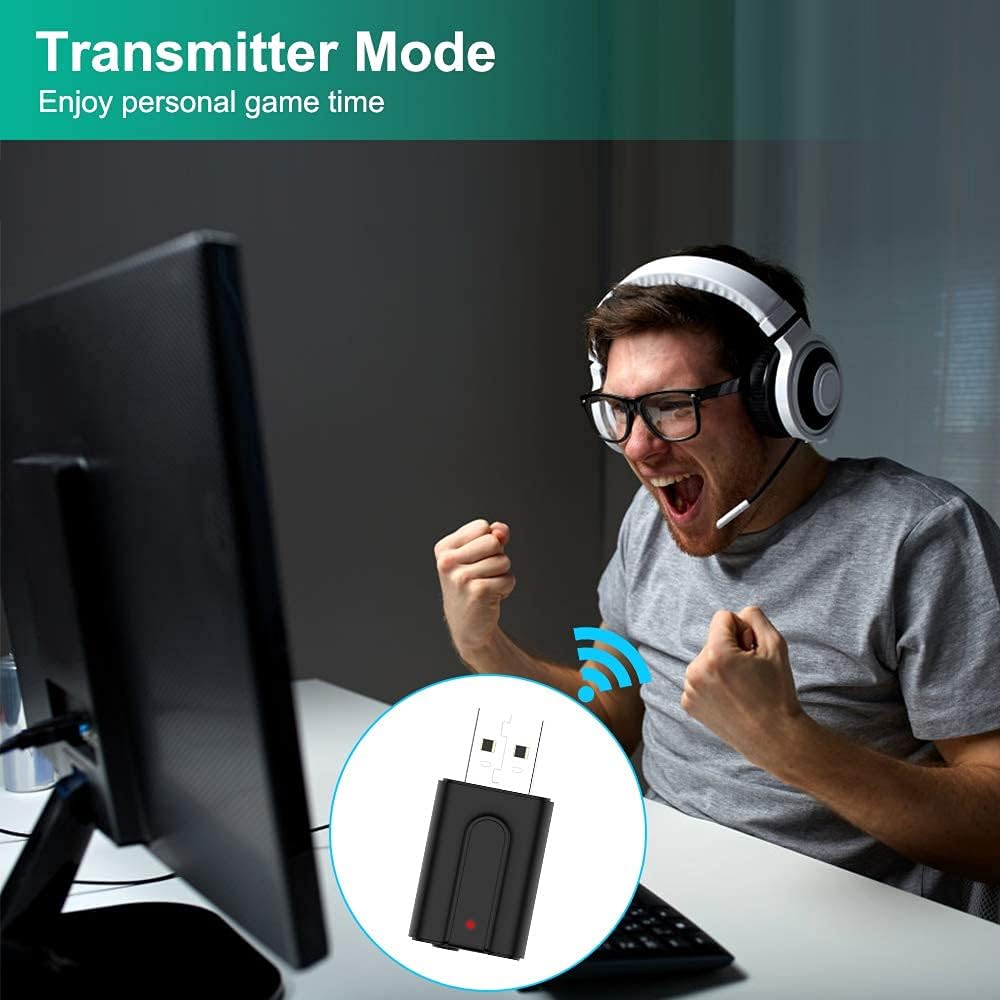
Image: A person enthusiastically playing a video game on a computer while wearing Bluetooth headphones. The NETVIP adapter is connected to the PC, indicating its use in Transmitter mode for personal gaming audio.
5.2 Modtagertilstand (RX)
In RX mode, the adapter receives audio from a Bluetooth-enabled transmitting device (e.g., smartphone, laptop) and outputs it to a non-Bluetooth audio system (e.g., wired headphones, car stereo, home speakers).
- Forbinde: Plug the USB end into a power source and the 3.5mm audio jack into the audio input port of your non-Bluetooth audio system (e.g., AUX-in on a car stereo, speaker input).
- Skift tilstand: Ensure the adapter is in RX mode (indicated by a blue LED, if applicable, or by pressing the button to cycle modes).
- Par: Enable Bluetooth on your smartphone or other transmitting device and search for the adapter (usually appears as "CA-T10-LS1" or similar). Select it to pair.
- Nyde: Audio from your Bluetooth device will now play through your non-Bluetooth audio system.
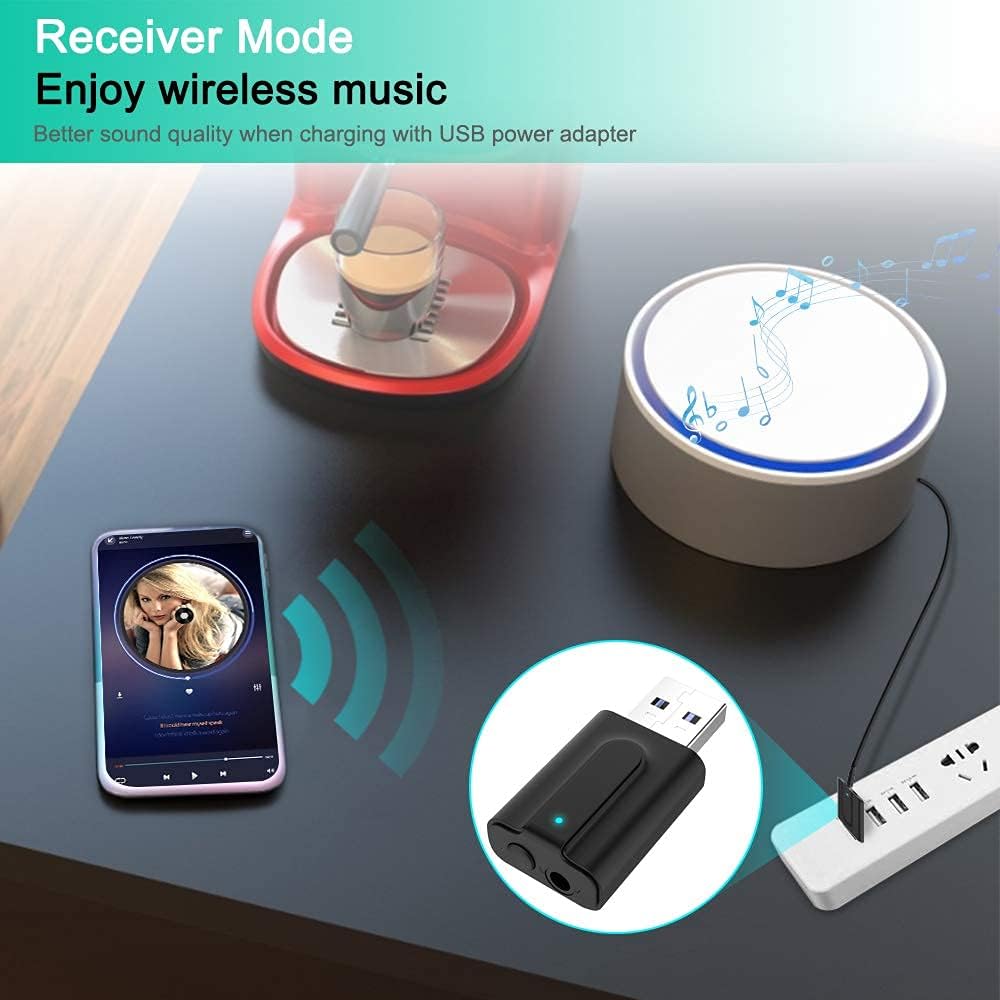
Image: A smartphone displaying a music player interface, wirelessly streaming music to a non-Bluetooth speaker via the NETVIP adapter. The adapter is powered by a USB power strip, demonstrating its use in Receiver mode for wireless music playback.

Image: A smartphone mounted in a car, displaying a music player. Bluetooth signals are shown connecting the phone to the NETVIP adapter, which is plugged into the car's audio system, illustrating Receiver mode for in-car music streaming.
6. Bluetooth-parring
The adapter is designed for easy pairing. Once powered on and in the correct mode (TX or RX), it will automatically enter pairing mode.
- Indledende parring: After connecting the adapter and selecting the desired mode, the LED indicator will flash, signifying it is in pairing mode.
- Tilslut enhed: On your Bluetooth audio device (for TX mode) or smartphone/laptop (for RX mode), search for available Bluetooth devices. Select "CA-T10-LS1" or a similar name to connect.
- Vellykket forbindelse: The LED indicator will typically turn solid (blue for RX, red for TX) once a connection is established.
- Genparring: If you need to pair with a new device, quickly press the button on the adapter to re-enter pairing mode.

Image: A circular diagram illustrating the broad compatibility of the NETVIP Bluetooth 5.0 adapter. Devices such as TV, laptop, PC, MP3/4 players, amplifiers, wired headsets, car stereos, game consoles, speakers, and cell phones are shown connected to the central adapter, highlighting its versatility.
7. Fejlfinding
| Spørgsmål | Mulig løsning |
|---|---|
| No power/LED not lighting up | Ensure the USB connector is fully inserted into a working USB power source. Try a different USB port or power adapter. |
| Kan ikke parres med enheden |
|
| Ingen lyd eller dårlig lydkvalitet |
|
| Adapter disconnects frequently |
|
8. Specifikationer
| Feature | Detalje |
|---|---|
| Model | CA-T10-LS1 |
| Bluetooth version | 5.0 |
| Driftstilstande | Sender (TX), Modtager (RX) |
| Forbindelsesteknologi | Bluetooth |
| Hardware-interface | USB, 3.5 mm lydstik |
| Strømkilde | USB-port |
| Lydudgangstilstand | Stereoanlæg |
| Kompatible enheder | Personal Computer, Smartphone, Speaker, Television, Car Audio Systems, Wired Headphones |
| Produktdimensioner | 2.1 x 4.3 x 1.1 cm |
| Vægt | 20 g |
9. Vedligeholdelse
- Hold enheden tør. Fugt kan beskadige de interne kredsløb.
- Udsæt ikke enheden for ekstreme temperaturer.
- Rengør enheden med en blød, tør klud. Brug ikke skrappe kemikalier eller rengøringsmidler.
- Undgå at tabe eller udsætte enheden for kraftige stød.
10. Garanti og support
NETVIP products are designed for reliability and performance. For warranty information or technical support, please refer to the contact details provided with your purchase documentation or visit the official NETVIP webwebsted. Gem venligst din købsbevis til garantikrav.