
1. Introduktion
This manual provides detailed instructions for the installation, setup, and operation of your Road Top Wireless CarPlay Android Auto Module. This device integrates advanced smartphone functionalities into your BMW's existing NBT infotainment system, enhancing your driving experience with features like navigation, media playback, and communication.
1.1 Kompatibilitet
This module is specifically designed for BMW vehicles equipped with the NBT system, manufactured between 2012 and 2016. It supports BMW 3, 4, 5, 6, 7 Series, X1, X3, X4, X5, and X6 models within this year range. Please verify your vehicle's system type and LVDS port configuration before installation.
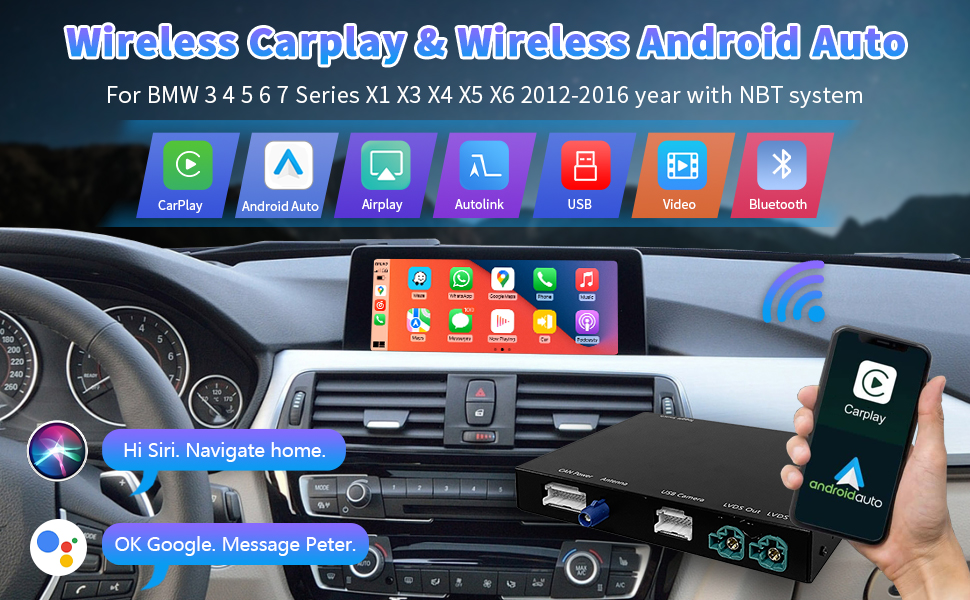
Image 1.1: Compatibility chart for BMW NBT and CIC systems. Ensure your vehicle has a 6-pin LVDS port and an NBT or compatible CIC system for proper functionality.

Image 1.2: The module integrates seamlessly, allowing you to retain your original car system while adding Wireless CarPlay and Wireless Android Auto functionalities.
2. Pakkeindhold
Please ensure all items listed below are present in your package before beginning installation.
- Main Module Unit
- Langt strømkabel
- RCA/USB kabel
- LVDS-kabel (1 stk.)
- Wi-Fi-antenne
- Brugermanual

Image 2.1: All components included in the package: main module, power cable, RCA/USB cable, LVDS cable, Wi-Fi antenna, and user manual.

Image 2.2: Close-up of the main module unit, highlighting its various ports and connections for power, antenna, USB camera, and LVDS input/output.
3. Installationsvejledning
The installation process involves disassembling parts of your car's dashboard to access the head unit and display. It is recommended to seek professional installation if you are not comfortable with car electronics. Always disconnect the car battery before starting any electrical work.
3.1 Afmontering af instrumentbræt
- Carefully remove the decorative trim panels around the air conditioning vents and main unit using a plastic pry tool.
- Unscrew the fixing screws holding the air conditioning control panel and remove it. Disconnect its wiring harness.
- Unscrew the fixing screws on both sides of the main head unit and carefully pull it out. Disconnect the main power harness and the LVDS cable from the back of the head unit.
- Unscrew the fixing screws for the display screen and carefully remove it. Disconnect the LVDS cable from the back of the display.
3.2 Modultilslutning
- Connect the provided main power cable harness to the original car's power harness. Ensure the fiber optic cable (if present) is transferred to the new harness.
- Connect the new LVDS conversion cable to the original head unit's LVDS port.
- Plug the other end of the new power cable into the CAN power port on the Road Top module.
- Connect the new LVDS conversion cable to the LVDS IN port on the Road Top module.
- Connect the original display's LVDS cable to the LVDS OUT port on the Road Top module.
- Connect the Wi-Fi antenna and USB cable to the module. Route the USB cable to a convenient location, such as the glove box or center console.
3.3 Genmontering
- Carefully tuck the Road Top module and all wiring behind the main head unit, ensuring no cables are pinched.
- Reinstall the original main head unit and secure it with its screws.
- Reinstall the display screen and secure it with its screws.
- Reconnect the wiring harness to the air conditioning control panel and reinstall it.
- Reattach all decorative trim panels.
3.4 Installationsvideoer
BMW Decoder Box NBT Installation Video
Video 3.1: This video provides a detailed guide on installing the BMW Decoder Box for NBT systems. It covers disassembly of dashboard components, wiring connections, and reassembly steps.
Fits For BMW F30 NBT installation Guide
Video 3.2: A step-by-step installation guide specifically for BMW F30 models with NBT systems, demonstrating the process from start to finish.
4. Opsætning
4.1 Første opstart og test
- Tilslut bilbatteriet igen.
- Start the car and verify that the original BMW infotainment system functions normally.
- Press and hold the MENU button on your iDrive controller for 3 seconds to switch to the Road Top module interface.
4.2 Audio Setup (AUX)
For audio output from the module to your car speakers, the AUX input must be selected on your original BMW system.
- On your original BMW system, navigate to Multimedia > External Devices > AUX Front.
- Ensure the AUX cable from the Road Top module is connected to your car's original AUX port (usually located in the center console or glove box).
5. Betjeningsvejledning
5.1 Skift mellem systemer
To switch between the original BMW NBT system and the Road Top module interface (CarPlay/Android Auto), press and hold the MENU button on your iDrive controller for 3 seconds.

Image 5.1: Long press the menu button on your iDrive controller to seamlessly switch between the OEM car system and the CarPlay/Android Auto interface.
5.2 Trådløs CarPlay og Android Auto
Once connected, you can access navigation, music, calls, and other apps directly from your smartphone on the car's display.

Image 5.2: The Wireless CarPlay and Android Auto interfaces provide access to essential smartphone features directly on your car's screen.
5.3 Mirrorlink Functionality
The module supports Mirrorlink (AirPlay for iPhone and Autolink for Android) to mirror your phone's screen onto the car's display.

Image 5.3: Mirrorlink allows you to display your smartphone's content directly on the car's screen, ideal for video playback or app usage.

Image 5.4: Mirrorlink (AirPlay for iPhone, Autolink for Android) enables seamless screen mirroring from your smartphone to the car's infotainment display.
5.4 Voice Control & Original Car Controls
Utilize Siri for CarPlay or Google Assistant for Android Auto for hands-free operation. The module also supports the original car knob and certain steering wheel controls (voice control button, Tel button, volume +/-, next/previous song buttons).

Image 5.5: The module retains functionality of the original iDrive knob and key steering wheel controls, alongside integrated voice assistants like Siri and Google Assistant.
5.5 Officielle produktvideoer
Road Top Carplay Module Feature Demo Video
Video 5.6: This video demonstrates the various features and functionalities of the Road Top CarPlay module, including navigation, music, and app integration.
After installation - for BMW 5 Series
Video 5.7: En kort videovisningasing the module's operation and interface after successful installation in a BMW 5 Series.
6. Fejlfinding
6.1 Problem med ingen lyd
If you experience no sound after installation, ensure the AUX input is correctly selected on your original BMW system (Multimedia > External Devices > AUX Front). Also, verify that the AUX cable from the module is securely plugged into your car's original AUX port.
How to fix the no sound issue?
Video 6.2: This video provides a step-by-step guide to diagnose and resolve common no-sound issues after installing the CarPlay/Android Auto module.
7. Specifikationer
- Produktdimensioner: 3.7 x 5.83 x 0.91 tommer
- Varens vægt: 2.48 pund
- Forbindelse teknologi: Bluetooth, HDMI, USB
- Controller type: Android, iOS
- Kompatible enheder: Car (BMW NBT Systems 2012-2016)
- Samlet HDMI-porte: 1
- Connector Type: USB
- Lydkodning: Stereoanlæg
- Lydudgangstilstand: Stereo, Surround
- Surround Sound Kanalkonfiguration: 4.0
8. Garanti og support
For any issues encountered during installation or operation, please contact Road Top customer support. Do not finalize installation until you have tested every function on your car. Any issues should be reported promptly for assistance.