
1. Introduktion
Thank you for choosing the iClever BK10 Bluetooth Keyboard. This manual provides essential information for setting up, operating, maintaining, and troubleshooting your new wireless keyboard. Please read it carefully to ensure optimal performance and longevity of your device.
Hvad er der i æsken
- iClever BK10 Bluetooth-tastatur
- USB-C ladekabel
- Brugermanual
- Protective Silicone Cover (for key protection)

Figure 1: Included items with the iClever BK10 Bluetooth Keyboard.
2. Nøglefunktioner
- Sleek & Wireless Design: Constructed with stainless steel and ABS, featuring a 10-degree tilt for comfortable desktop use.
- Multi-Device & Multi-OS Compatibility: Seamlessly switch between up to 3 devices using Bluetooth 5.1 technology. Automatically recognizes and adapts to Windows, macOS, iPadOS, Android, iPhone, and Chromebooks.
- Responsive & Low-Profile Nøgler: Scissor-key mechanism provides enhanced feedback, stability, and quiet typing (below 50 dB). Optimized key-travel and anti-slip tapes ensure comfort and precision.
- Compact & Efficient: Full-size layout with a standard numeric keypad. Includes hotkeys for Calculator, Fn lock, Mute, Volume up/down, and more to boost productivity.
- USB-C Rechargeable & Energy Saving: Built-in rechargeable battery offers up to 45 days of use after a 2-hour charge. Features an automatic power-saving sleep mode after 30 minutes of inactivity.
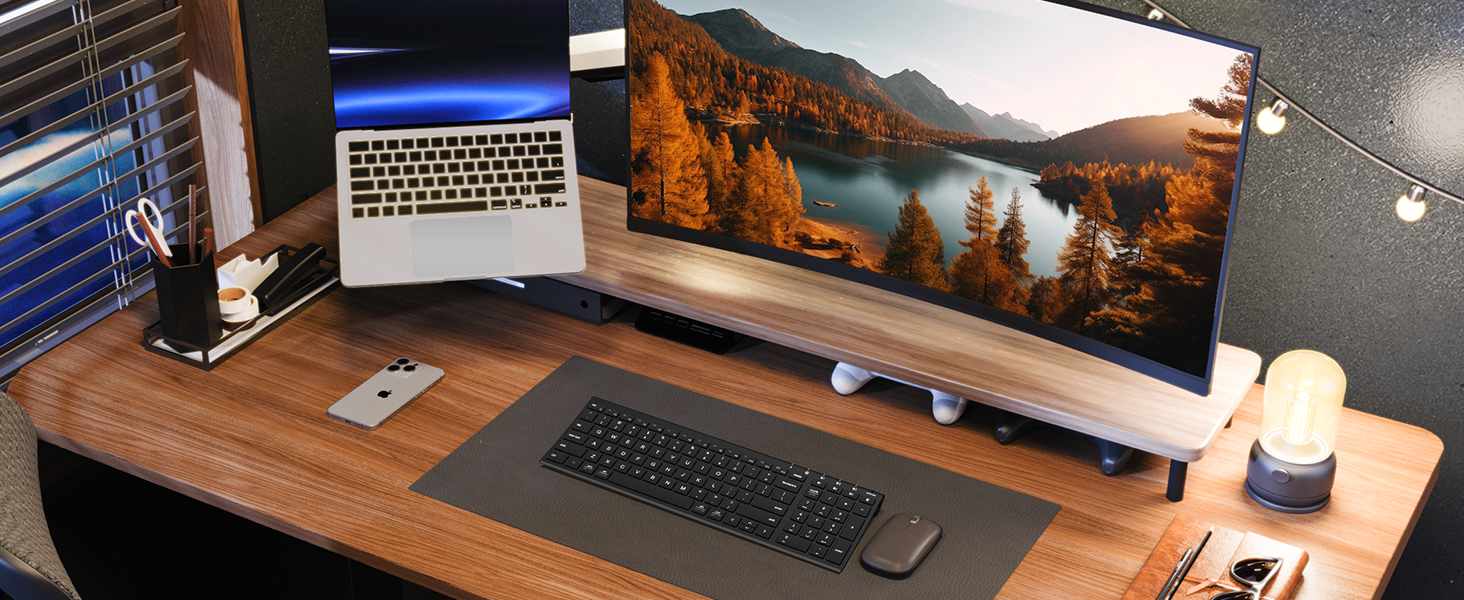
Figure 2: The sleek and wireless design of the iClever BK10 keyboard.
3. Opsætning
3.1 Opladning af tastaturet
Before initial use, fully charge the keyboard using the provided USB-C cable. Connect the USB-C end to the keyboard's charging port (located on the right side) and the USB-A end to a power source (e.g., computer USB port, USB wall adapter). The charging indicator light will illuminate during charging and turn off when fully charged.

Figure 3: USB-C charging port on the iClever BK10 keyboard.
3.2 Tænd/sluk
Locate the ON/OFF switch on the top right side of the keyboard. Slide the switch to the 'ON' position to power on the keyboard. Slide it to 'OFF' when not in use to conserve battery life.
3.3 Bluetooth -parring
The iClever BK10 keyboard supports pairing with up to three devices simultaneously. Follow these steps to pair your devices:
- Tænd for tastaturet ved hjælp af ON/OFF-knappen.
- Press and hold one of the Bluetooth channel keys (B1, B2, or B3) for 3-5 seconds until its indicator light starts flashing rapidly. This indicates the keyboard is in pairing mode.
- Gå til Bluetooth-indstillingerne på din enhed (computer, tablet, smartphone) og søg efter tilgængelige enheder.
- Select "iClever BK10" from the list of found devices.
- Følg eventuelle instruktioner på skærmen for at fuldføre parringsprocessen. Indikatorlampen på tastaturet holder op med at blinke og lyser konstant i et par sekunder, hvorefter den slukker, hvilket indikerer, at parringen er gennemført.
- Repeat these steps for up to two additional devices using the other Bluetooth channel keys (B2 and B3).

Figure 4: Multi-device connectivity of the iClever BK10 keyboard.
4. Betjeningsvejledning
4.1 Skift mellem enheder
To switch between paired devices, simply press the corresponding Bluetooth channel key (B1, B2, or B3) once. The keyboard will connect to the selected device automatically.
4.2 Funktionstaster og genvejstaster
The iClever BK10 keyboard features a row of function keys (F1-F12) that also serve as hotkeys for various media and system controls. To use the hotkey functions, press the 'Fn' key simultaneously with the desired function key. Some common hotkeys include:
- Fn+F1: Hjem
- Fn+F2: Søg
- Fn+F3: Vælg alle
- Fn+F4: Kopi
- Fn+F5: Indsæt
- Fn+F6: Skære
- Fn+F7: Forrige spor
- Fn+F8: Afspil/pause
- Fn+F9: Næste spor
- Fn+F10: Stum
- Fn+F11: Lydstyrke ned
- Fn+F12: Lydstyrke op
The keyboard also includes dedicated keys for Calculator, Fn lock, and a standard numeric keypad for efficient data entry.

Figur 5: Overview of keyboard layout and multi-OS features.
4.3 Operating System Layout Recognition
The keyboard automatically recognizes different operating systems (Windows, macOS, iPadOS, Android) and adjusts its key layout accordingly. For example, the 'Win' key functions as 'Alt' on Mac, and 'Alt' functions as 'Cmd'.
5. Vedligeholdelse
5.1 Rengøring
For at rengøre dit tastatur skal du slukke det og frakoble alle kabler. Brug en blød, fnugfri klud, der er let tørret.ampened with water or a mild cleaning solution. Avoid excessive moisture and harsh chemicals. The included silicone cover can be removed and washed with mild soap and water.
5.2 Pleje af batterier
For at maksimere batteriets levetid:
- Undgå at aflade batteriet helt ofte.
- Oplad tastaturet, når batteriindikatoren er lav.
- Opbevar tastaturet et køligt og tørt sted, hvis det ikke bruges i længere perioder.
- The keyboard enters a power-saving sleep mode after 30 minutes of inactivity. Press any key to wake it up.
6. Fejlfinding
6.1 Tastatur opretter ikke forbindelse/parrer ikke
- Sørg for, at tastaturet er tændt og fuldt opladet.
- Sørg for, at Bluetooth er aktiveret på din enhed.
- Place the keyboard within the effective range (typically 10 meters) of your device.
- If already paired, try unpairing the keyboard from your device's Bluetooth settings and then re-pairing it.
- Prøv at genstarte både tastaturet og din enhed.
6.2 Taster reagerer ikke
- Check if the keyboard is connected to the correct device (verify the active Bluetooth channel).
- Sørg for, at batteriet ikke er kritisk lavt.
- Fjern eventuelt snavs omkring de berørte taster.
6.3 Connectivity Issues/Lag
- Reduce interference by moving away from other wireless devices (e.g., Wi-Fi routers, cordless phones).
- Sørg for, at din enheds Bluetooth-drivere er opdaterede.
- Try connecting to a different Bluetooth channel on the keyboard.
7. Specifikationer
| Feature | Detalje |
|---|---|
| Modelnummer | BK10 |
| Forbindelsesteknologi | Bluetooth 5.1 |
| Kompatible enheder | Windows laptops/desktops, MacBook/iMac, iPad/iPhone, Android tablets/phones, Chromebooks |
| Antal nøgler | 104 |
| Key Switch Type | Sakse-afbryder |
| Støjniveau | <50 dB |
| Strømkilde | Genopladeligt batteri (USB-C) |
| Batterilevetid | Up to 45 days (after 2 hours charging) |
| Produktmål (L x B x H) | 14.41 cm x 4.92 cm x 0.63 cm |
| Materiale | Acrylonitril Butadien Styren, Aluminium |
8. Garanti og support
8.1 Garantioplysninger
The iClever BK10 Bluetooth Keyboard comes with a 12-måneders garanti fra købsdatoen. Denne garanti dækker fabrikationsfejl og sikrer, at dit produkt er fri for materiale- og fabrikationsfejl under normal brug.
8.2 Kundesupport
If you encounter any issues or have questions regarding your iClever BK10 Bluetooth Keyboard, please refer to the contact information provided in your product packaging or visit the official iClever support webwebsted for hjælp.