
Indledning
This manual provides essential information for setting up, operating, maintaining, and troubleshooting your VAIO SX12 laptop. Please read this manual thoroughly to ensure proper use and to maximize the performance and longevity of your device.

Figur 1: Forside view of the VAIO SX12 laptop with the screen open.
Opsætning
1. Udpakning og indledende inspektion
Fjern forsigtigt alle komponenter fra emballagen. Kontroller, at alle varer, der er anført i afsnittet 'Hvad er der i æsken', er til stede og ubeskadigede. Hvis der mangler eller er beskadigede varer, skal du kontakte kundesupport.
- VAIO SX12 Laptop
- AC Adapter
- Rengøringsklud
2. Tilslutning af AC-adapteren
Connect the AC adapter to the power input port on the laptop and then plug the adapter into a wall outlet. The battery will begin charging automatically.
3. Første opstart
Press the power button located on the top right of the keyboard. The laptop will boot up and guide you through the initial Windows 10 Pro setup process.
Drift
1. Tastatur og touchpad
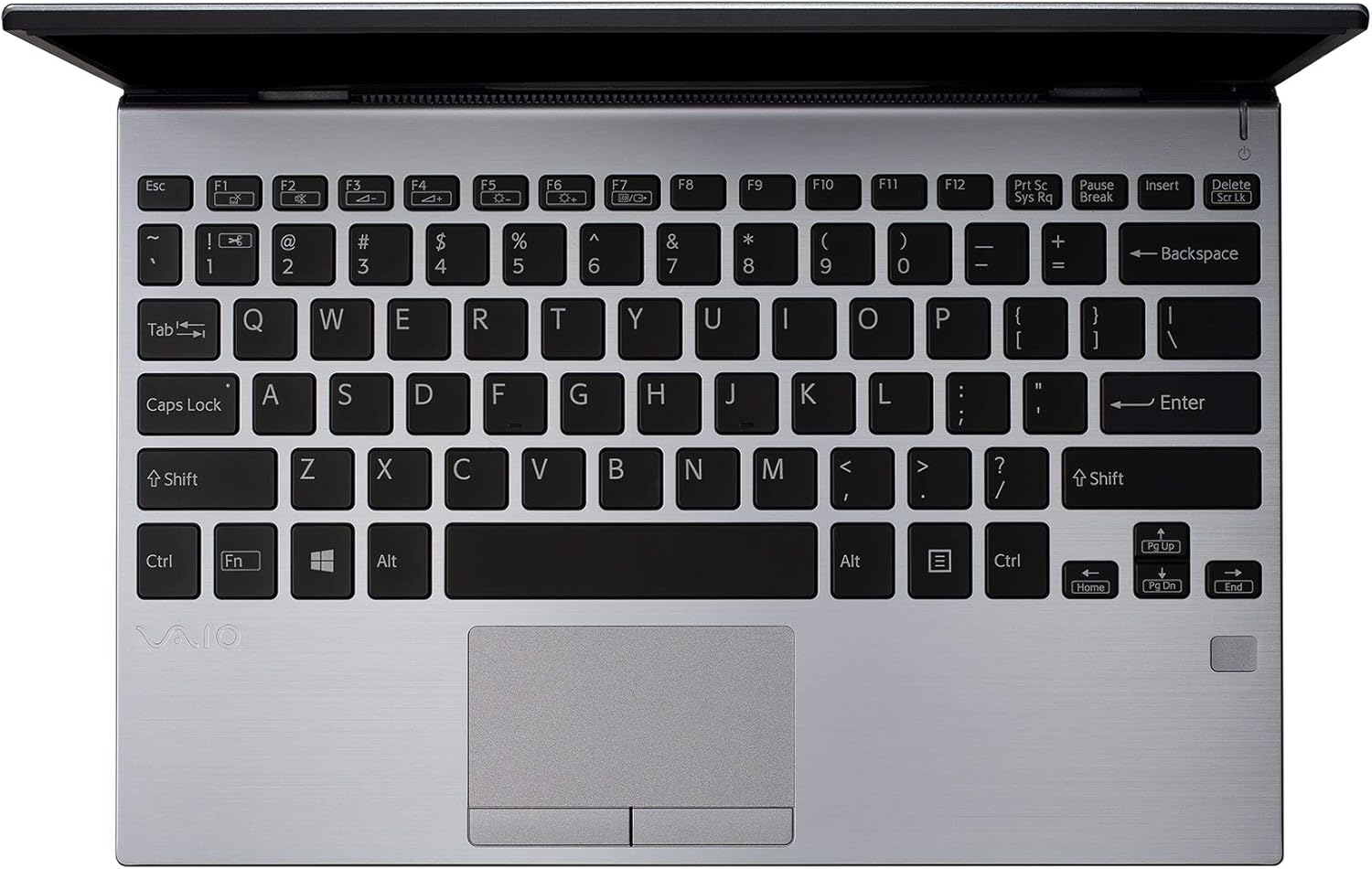
Figur 2: Top-down view of the VAIO SX12 keyboard and touchpad.
The VAIO SX12 features a full-sized keyboard and a precision touchpad. Familiarize yourself with the function keys (F1-F12) which control various system settings such as screen brightness, volume, and wireless connectivity.
- Funktionstaster: Use the 'Fn' key in combination with F1-F12 for secondary functions.
- Touchpad: Supports multi-touch gestures for scrolling, zooming, and navigating.
2. Tilslutning af eksterne enheder
The VAIO SX12 offers a variety of ports for connecting external devices.

Figur 3: Venstre side view of the VAIO SX12, showing the power input, USB ports, HDMI, Ethernet, and VGA ports.

Figur 4: Højre side view of the VAIO SX12, showing the SD card slot, USB ports, and audio jack.
- USB-porte: Connect USB devices such as external drives, keyboards, or mice.
- HDMI-port: Tilslut til en ekstern skærm eller projektor.
- VGA port: Connect to older external displays or projectors.
- Ethernet-port: Opret forbindelse til et kablet netværk.
- SD-kortplads: Indsæt et SD-kort til dataoverførsel.
- Lydstik: Tilslut hovedtelefoner eller eksterne højttalere.
Opretholdelse
1. Rengøring af den bærbare computer
- Use the provided cleaning cloth or a soft, lint-free cloth to wipe the screen and exterior surfaces.
- Brug ikke skrappe kemikalier, slibende rengøringsmidler eller opløsningsmidler.
- Sørg for, at den bærbare computer er slukket og frakoblet stikket, inden rengøring.
2. Batteripleje
- For at forlænge batteriets levetid bør du undgå at aflade batteriet helt ofte.
- Opbevar den bærbare computer et køligt og tørt sted, hvis den ikke bruges i længere perioder.
- The battery is internal and not user-replaceable. Contact authorized service for battery replacement.
3. Softwareopdateringer
Søg regelmæssigt efter og installer opdateringer til operativsystemet og driverne for at sikre optimal ydeevne og sikkerhed.
Fejlfinding
1. Den bærbare computer tænder ikke
- Sørg for, at strømadapteren er korrekt tilsluttet både den bærbare computer og en fungerende stikkontakt.
- Kontroller, at stikkontakten fungerer ved at tilslutte en anden enhed.
- Hvis batteriet er helt afladet, skal du lade det oplade i mindst 30 minutter, før du forsøger at tænde det.
2. Problemer med skærm
- Hvis skærmen er blank, kan du prøve at justere lysstyrken ved hjælp af funktionstasterne.
- If an external monitor is connected, ensure the display output is correctly configured (e.g., duplicate, extend).
- Genstart den bærbare computer.
3. Peripheral Not Recognized
- Ensure the peripheral is properly connected to the correct port.
- Try connecting the peripheral to a different port or another computer to rule out device malfunction.
- Check the device manager in Windows for driver issues.
Specifikationer
| Feature | Specifikation |
|---|---|
| Modelnavn | VAIO SX12 |
| Varemodelnummer | VJS121C11L |
| Processor | Intel Core i5-8265U (3.9 GHz max) |
| VÆDDER | 8 GB LPDDR3 |
| Harddisk | 512 GB PCIe SSD |
| Operativsystem | Windows 10 Pro |
| Skærmstørrelse | 12.5 tommer |
| Skærmopløsning | 1920 x 1080 pixels (Fuld HD) |
| Grafikkort | Integreret Intel Graphics |
| Trådløs forbindelse | 802.11a/b/g/n/ac, Bluetooth |
| USB 3.0 porte | 4 |
| Varens vægt | 1.97 pund |
| Produktdimensioner | 11.3 x 8 x 0.62 tommer |
| Farve | Sølv |
| Batterier | 1 lithium-ion batteri (medfølger) |
Garanti og support
For warranty information and technical support, please refer to the documentation included with your product or visit the official VAIO support webwebsted. Behold din købskvittering som købsbevis i tilfælde af garantikrav.