
Macally ACEBTKEY-US
Brugsanvisning til Macally trådløst Bluetooth-tastatur
Model: ACEBTKEY-US | Brand: Macally
Indledning
Thank you for choosing the Macally Wireless Bluetooth Keyboard. This multi-device keyboard is designed to enhance your productivity across various platforms, including Mac, iOS, Windows, and Android devices. Featuring 110 keys, 20 Mac OS shortcuts, and a numeric keypad, it offers a comfortable and efficient typing experience. Its ultra-slim design and rechargeable battery make it an ideal companion for both work and leisure.

Image: The Macally Wireless Bluetooth Keyboard, showcasing its full layout and sleek silver design.
Pakkens indhold
- Macally Wireless Bluetooth Keyboard
- Ladekabel
- Brugervejledning
Opsætning
1. Opladning af tastaturet
Before initial use, fully charge the keyboard using the included charging cable. Connect the cable to the keyboard's charging port and a USB power source. The LED indicator will show charging status.

Image: Illustration showing the keyboard connected to a charging cable, emphasizing its rechargeable nature.
2. Parring med enheder
The Macally Wireless Bluetooth Keyboard supports connecting up to three Bluetooth-enabled devices simultaneously. Follow these steps to pair your devices:
- Tænd for tastaturet ved hjælp af afbryderen.
- Press and hold one of the Bluetooth keys (BT1, BT2, or BT3) for a few seconds until the corresponding LED indicator starts blinking rapidly. This indicates pairing mode.
- On your device (computer, tablet, or smartphone), go to Bluetooth settings and search for available devices.
- Select "Macally Keyboard" (or similar name) from the list.
- If prompted, enter the pairing code displayed on your screen using the Macally keyboard and press Enter.
- Når den er parret, holder LED-indikatoren op med at blinke og lyser konstant i et par sekunder, før den slukker.
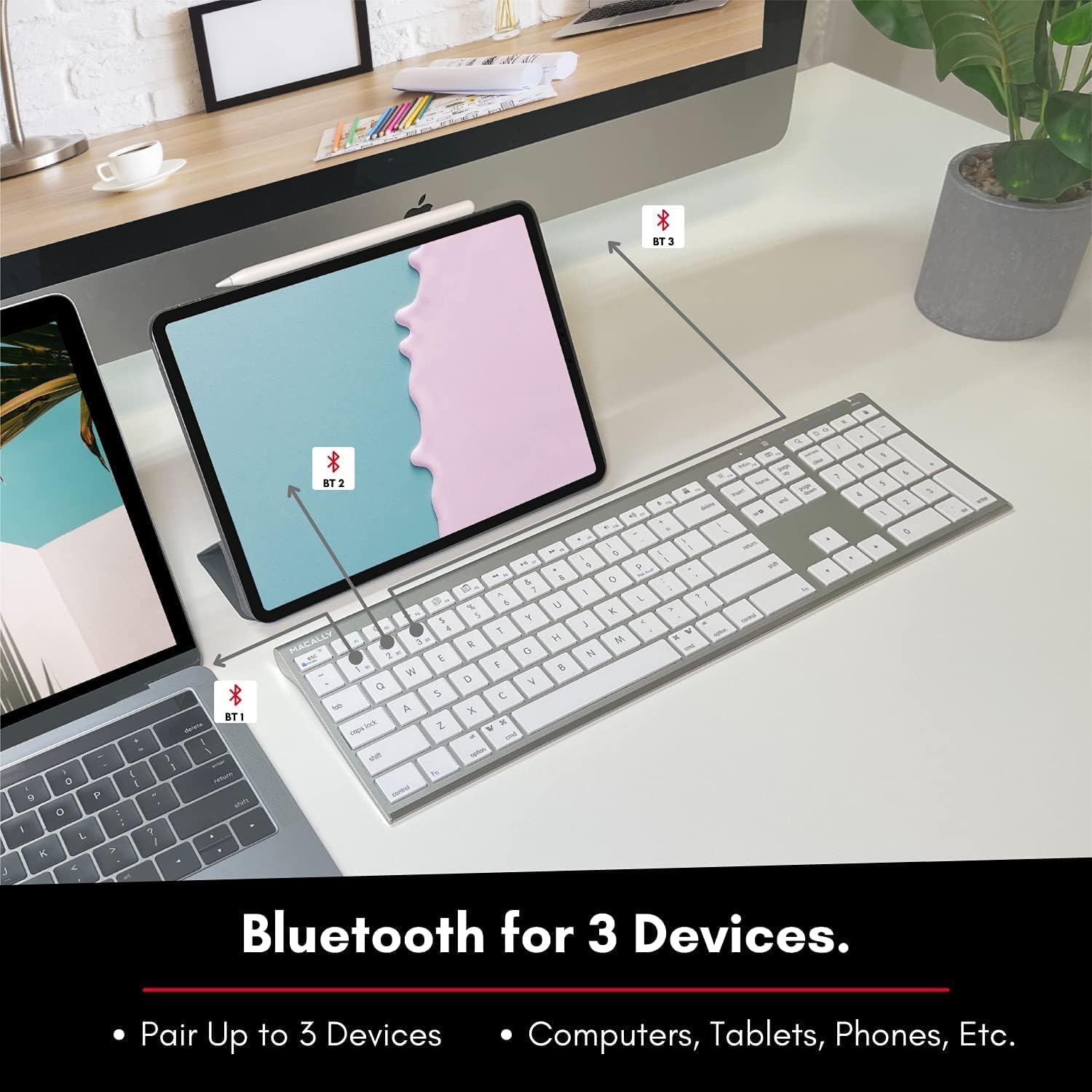
Image: The keyboard connected to a laptop and a tablet, illustrating its multi-device pairing capability.
Betjeningsvejledning
Skift mellem enheder
To switch between paired devices, simply press the corresponding Bluetooth key (BT1, BT2, or BT3) once. The keyboard will automatically connect to the selected device within a few seconds.

Image: Visual representation of the keyboard seamlessly switching between a smartphone, iMac, and laptop, highlighting the multi-sync feature.
Function Keys and Shortcuts
The keyboard features a full set of 110 keys, including a numeric keypad and 20 dedicated Mac OS shortcut keys. These shortcuts provide quick access to various functions such as brightness control, volume adjustment, media playback, and more. Refer to your device's operating system documentation for specific shortcut functionalities.
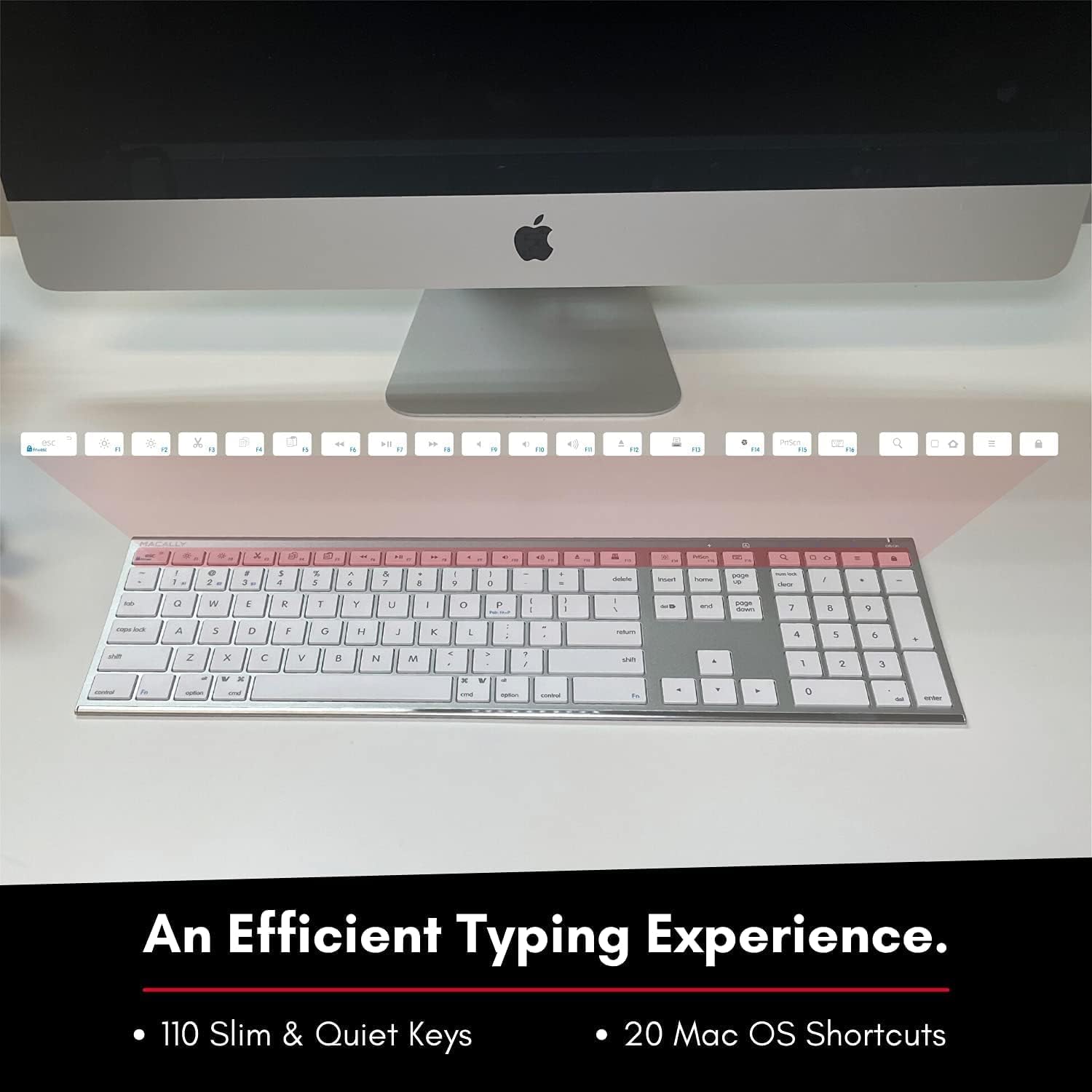
Image: Close-up of the keyboard's top row, highlighting the dedicated function and shortcut keys.
Kompatibilitet
This keyboard is broadly compatible with a range of operating systems and devices, including:
- macOS
- Windows
- iOS (iPhone, iPad)
- Android

Image: The keyboard positioned in front of an iMac, indicating its compatibility with Mac systems.
Opretholdelse
To ensure the longevity and optimal performance of your Macally Wireless Bluetooth Keyboard, follow these maintenance guidelines:
- Rensning: Brug en blød, fnugfri klud til at tørre tastaturets overflade af. Tør genstridigt snavs let af.ampRengør kluden med vand eller en mild rengøringsopløsning. Undgå for meget fugt.
- Batteripleje: The keyboard features a built-in rechargeable battery. To maximize battery life, avoid fully discharging the battery frequently. Charge the keyboard when the low battery indicator appears.
- Opbevaring: Når tastaturet ikke er i brug i længere perioder, skal det slukkes for at spare på batteriet. Opbevar det et køligt og tørt sted væk fra direkte sollys og ekstreme temperaturer.
- Undgå spild: Hold væsker væk fra tastaturet for at forhindre beskadigelse af interne komponenter.
Fejlfinding
Keyboard Not Responding or Typing Incorrectly
- Sørg for, at tastaturet er opladet.
- Verify that the keyboard is powered on and the correct Bluetooth channel (BT1, BT2, or BT3) is selected for your device.
- Prøv at parre tastaturet med din enhed igen.
- Check if the Fn lock is active. On the top right, there should be a lock symbol with an FN in the lock. If there is a Blue LED light on the panel which is on the top right, then press and hold Fn og tryk ESC to shut off the Fn lock.

Image: A troubleshooting tip for the Fn lock feature, showing the relevant keys.
Mouse Keys Issue (macOS)
- If your keyboard inputs are behaving like mouse movements, you may have "Mouse Keys" enabled.
- Go to System Preferences (or System Settings on newer macOS versions), then click on Tilgængelighed. After that, scroll to Pointer kontrol og deaktiver Aktivér musetaster.

Image: A troubleshooting tip for disabling Mouse Keys in system settings.
Problemer med Bluetooth-forbindelse
- Sørg for, at din enheds Bluetooth er aktiveret og synlig.
- Move the keyboard closer to your device to ensure a strong signal.
- Fjern alle potentielle interferenskilder (f.eks. andre trådløse enheder, store metalgenstande).
- Genstart både tastaturet og din enhed.
Specifikationer
| Mærke | Macally |
| Modelnummer | ACEBTKEY-US |
| Produktdimensioner | 18.11 x 6.3 x 0.91 tommer |
| Varens vægt | 14.9 ounce |
| Forbindelsesteknologi | Bluetooth |
| Antal nøgler | 110 |
| Kompatible enheder | MacOS, Windows, iOS, Android |
| Batteri | 3 litiumpolymerbatterier (inkluderet, genopladelige) |
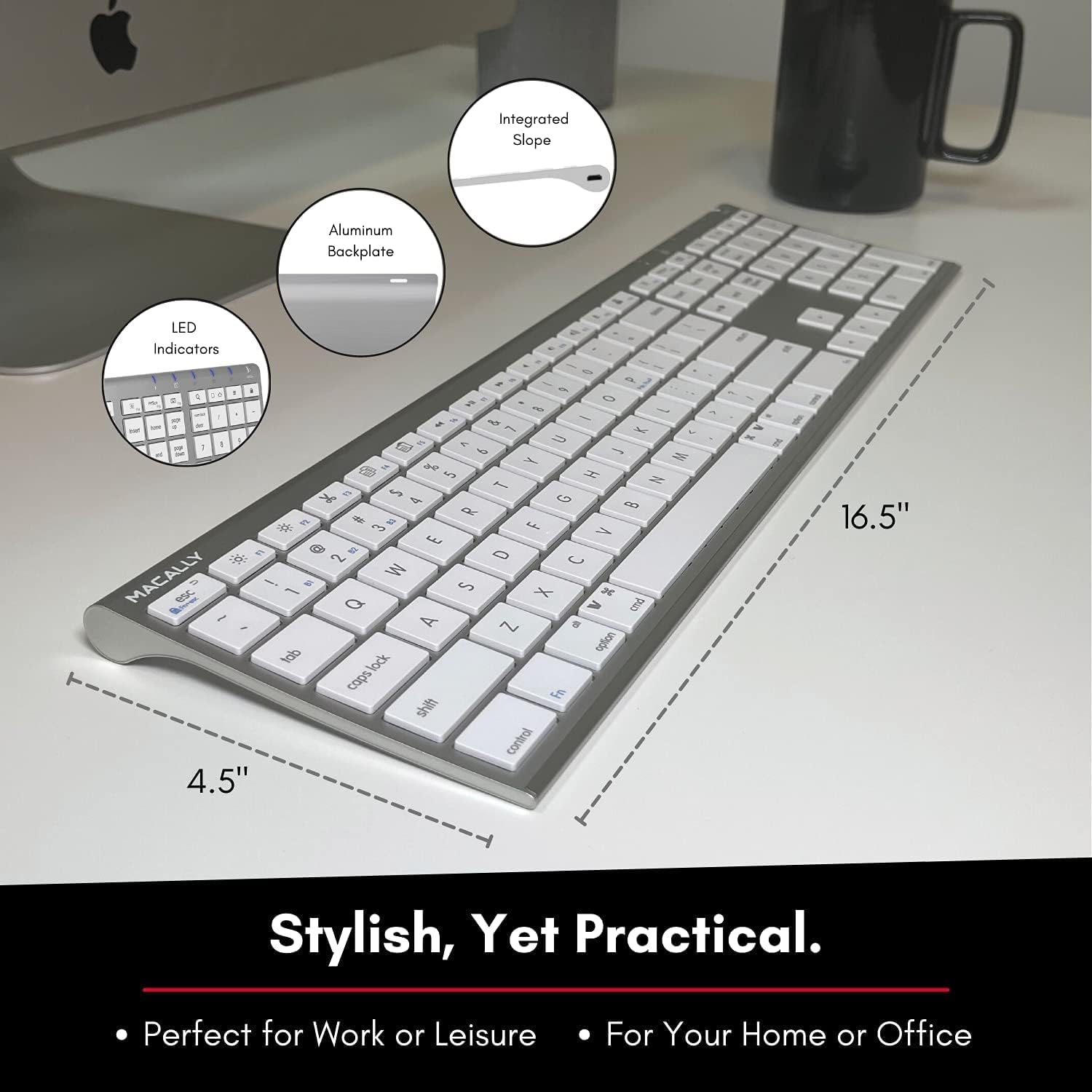
Image: Diagram illustrating the physical dimensions of the Macally Wireless Bluetooth Keyboard.
Garanti og support
Macally is committed to delivering high-quality, user-friendly workflow solutions. For any product inquiries, technical support, or warranty information, please visit the official Macally webwebstedet eller kontakt deres kundeservice. Du kan finde flere oplysninger og supportressourcer på Macally-butik på Amazon.