
Indledning
This manual provides comprehensive instructions for the setup, operation, maintenance, and troubleshooting of your Zyxel AC750 Dual-band Wireless Router, model EMG1702-T10A. Please read this manual thoroughly before using the device to ensure proper installation and optimal performance.
Sikkerhedsoplysninger
- Advarsel: Udsæt ikke enheden for vand eller fugt.
- Sørg for tilstrækkelig ventilation omkring routeren for at forhindre overophedning.
- Brug kun den strømadapter, der fulgte med enheden.
- Hold enheden væk fra direkte sollys og varmekilder.
- Forsøg ikke at åbne eller reparere enheden selv. Overlad al service til kvalificeret personale.
Pakkens indhold
Bekræft, at din pakke indeholder følgende varer:
- Zyxel AC750 Dual-band Wireless Router (EMG1702-T10A)
- Strømadapter
- Ethernet kabel
- Hurtig startvejledning
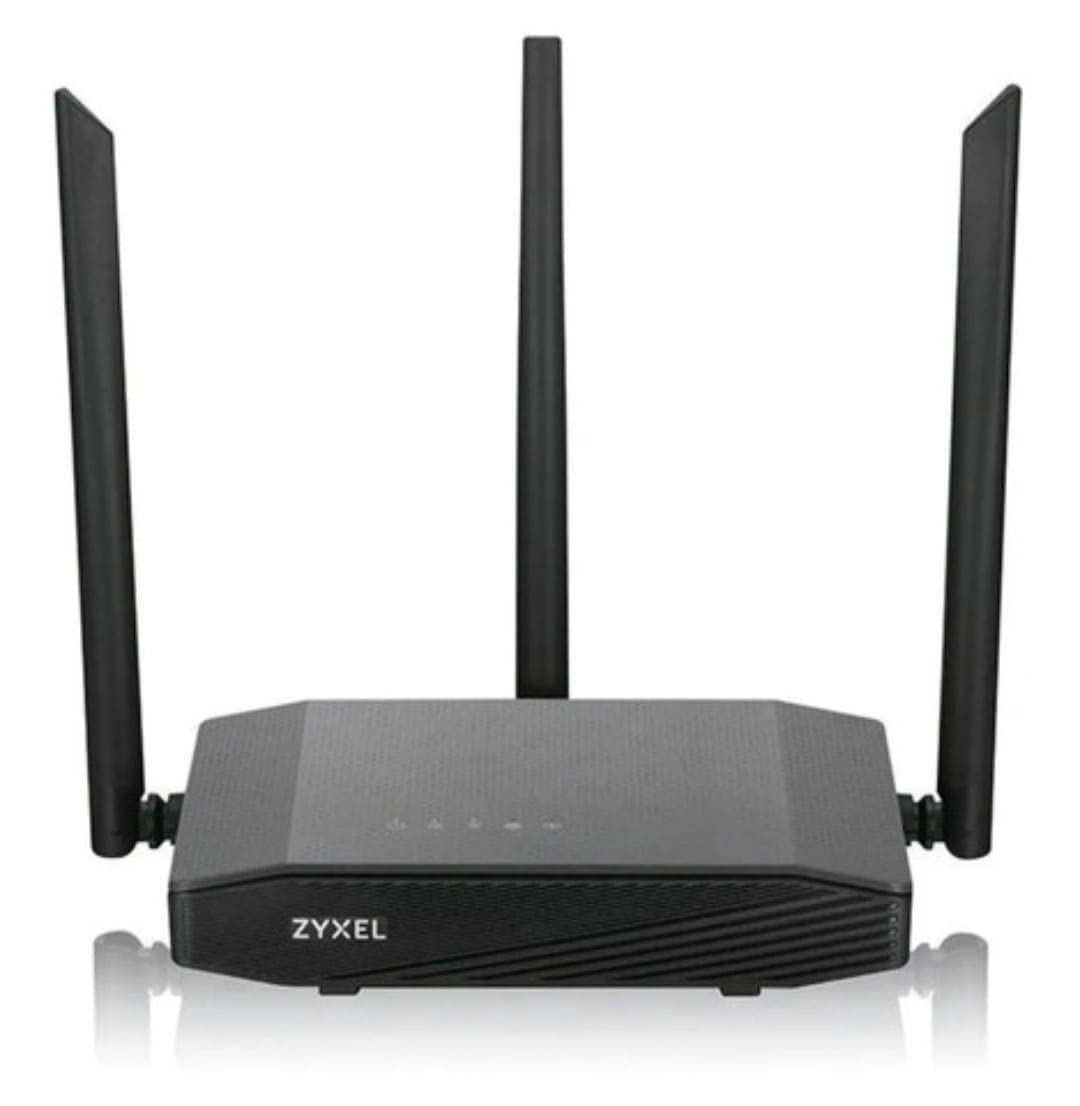
Image: Zyxel AC750 Dual-band Wireless Router with its power adapter and Ethernet cable.
Opsætningsvejledning
1. Hardwareforbindelse
- Placering af routeren: Place the router in a central location in your home or office, away from obstructions and potential sources of interference (e.g., microwaves, cordless phones).
- Tilslut internetkablet: Connect one end of an Ethernet cable from your modem's LAN port to the WAN port (usually blue) on the Zyxel router.
- Tilslut strøm: Plug the power adapter into the router's power jack and then into a wall outlet.
- Tænd: Press the power button on the router. Wait for the power LED to turn solid green, indicating the device is ready.
Image: Rear panel of the Zyxel AC750 router, highlighting the WAN port, LAN ports, and power input.
2. Indledende konfiguration
- Tilslut til routeren:
- wired: Tilslut din computer til en af routerens LAN-porte (gul) ved hjælp af et Ethernet-kabel.
- Trådløs: On your computer or mobile device, search for the Wi-Fi network name (SSID) printed on the label at the bottom of the router. Connect using the provided Wi-Fi password.
- Adgang til routergrænseflade: Åbn a web browser og type http://192.168.1.1 (or the address specified on the router label) into the address bar and press Enter.
- Login: Indtast standardbrugernavn og adgangskode (normalt admin/1234 or admin/adgangskode, check the router label).
- Kør opsætningsguiden: Follow the on-screen instructions of the setup wizard to configure your internet connection and wireless settings. It is highly recommended to change the default Wi-Fi name (SSID) and password for security.
Betjeningsvejledning
Trådløs netværksstyring
Your Zyxel AC750 router supports dual-band Wi-Fi (2.4 GHz and 5 GHz). You can manage these networks through the web interface.
- Ændring af SSID og adgangskode: Navigate to the "Wireless" or "Wi-Fi Settings" section in the router's web interface. Here you can modify the network names (SSIDs) and passwords for both 2.4 GHz and 5 GHz bands.
- Gæstenetværk: Enable a guest network for visitors to provide internet access without sharing your main network's password. This feature is typically found under "Guest Network" settings.
- Adgangskontrol: Manage which devices can connect to your network by setting up MAC address filtering in the "Security" or "Access Control" section.
Avancerede funktioner
- Portvideresendelse: Configure port forwarding to allow external devices to access services on your local network, such as gaming servers or security cameras.
- Firewall-indstillinger: Adjust firewall rules to enhance network security.
- Forældrekontrol: Set up parental controls to restrict internet access for specific devices or during certain times.
Opretholdelse
- Firmwareopdateringer: Tjek regelmæssigt Zyxel-supporten webwebsted for firmwareopdateringer. Opdatering af firmwaren kan forbedre ydeevnen, tilføje nye funktioner og rette sikkerhedssårbarheder.
- Rensning: Gently wipe the router's exterior with a soft, dry cloth. Do not use liquid cleaners or aerosols. Ensure ventilation holes are free from dust.
- Genstart af routeren: Hvis du oplever netværksproblemer, kan du prøve at genstarte routeren ved at tage strømadapteren ud i 10 sekunder og derefter sætte den i igen.
- Gendan fabriksindstillinger: To restore the router to its factory default settings, press and hold the reset button (usually a small pinhole button) for about 10 seconds while the router is powered on. Use a paperclip or similar object. Bemærk: Dette vil slette alle dine brugerdefinerede indstillinger.
Fejlfinding
| Problem | Mulig årsag | Løsning |
|---|---|---|
| Ingen internetadgang | Modem issue, incorrect router settings, cable disconnected. |
|
| Svagt Wi-Fi-signal | Router placement, interference, outdated firmware. |
|
| Kan ikke få adgang til routeren Web Interface | Incorrect IP address, network connection issue, browser cache. |
|
Specifikationer
| Feature | Detalje |
|---|---|
| Model | EMG1702-T10A |
| Mærke | Zyxel |
| Wi-Fi-standard | IEEE 802.11ac/n/a 5 GHz, IEEE 802.11n/g/b 2.4 GHz |
| Wi-Fi hastighed | AC750 (300 Mbps 2.4 GHz + 433 Mbps 5 GHz) |
| Antenner | 3 eksterne antenner |
| Ethernet-porte | 1x WAN, 4x LAN (10/100 Mbps) |
| Frekvensbånd | Dobbeltbånd (2.4 GHz og 5 GHz) |
| Kompatible enheder | Gaming Consoles, Tablets, Smart TVs |
Garantioplysninger
Zyxel products are covered by a limited warranty. The specific terms and duration of the warranty may vary by region and product. Please refer to the warranty card included with your product or visit the official Zyxel webwebstedet for detaljerede garantioplysninger og registrering.
Gem din købskvittering som købsbevis i tilfælde af garantikrav.
Teknisk support
If you encounter any issues that cannot be resolved using the troubleshooting guide, please contact Zyxel technical support.
- Webwebsted: Visit the official Zyxel support website for FAQs, drivers, firmware, and contact information.
- Telefon: Refer to the support contact numbers provided in your product packaging or on the Zyxel webwebsted for din region.
When contacting support, please have your product model (EMG1702-T10A) and serial number ready.