
Indledning
Thank you for choosing the RedThunder K50 One-Handed Mechanical Gaming Keyboard. This manual provides detailed instructions for setting up, operating, and maintaining your new gaming keypad. Please read this manual thoroughly before use to ensure optimal performance and longevity of your device.
Video: Overståetview of the RedThunder K50 One-Handed Mechanical Gaming Keyboard and Mouse Set.
Produktegenskaber
- Mekaniske blå kontakter: Equipped with reinforced blue switches for medium resistance, an audible click sound, and crisp, precise tactile feedback, enhancing gaming performance.
- RGB-baggrundsbelysning: Features 9 built-in backlight colors and 5 backlight modes for customizable aesthetics.
- Macro Recording Keys: G1-G6 keys support macro recording for complex command execution.
- Ergonomisk design: Compact 35-key layout with a large wrist rest for comfortable and extended gaming sessions.
- Anti-ghosting: All keys feature anti-ghosting technology for more accurate and faster response during intense gameplay.
- Plug & Play: Driver-free installation, compatible with Win10/8/7/Vista/ME/Mac/Linux/IBM.
Opsætning
- Tilslut tastaturet: Plug the USB-C cable from the RedThunder K50 keyboard into an available USB port on your computer or gaming console (PC/MAC/PS4/XBOX ONE).
- Driver installation: The keyboard is plug-and-play and does not require any additional driver installation. Your operating system should automatically recognize the device.
- Placering: Place the keyboard on a stable surface. The ergonomic design with the integrated wrist rest is intended for comfortable use.

Image: Proper hand placement on the RedThunder K50 keyboard during use.
Betjeningsvejledning
RGB-baggrundsbelysningskontrol
The RedThunder K50 keyboard features customizable RGB backlighting with multiple colors and modes.
- To change the backlight color: Press FN + 5.
- To switch between backlight modes: Press FN + Tab.
- To increase brightness: Press FN + 3.
- To decrease brightness: Press FN + 4.
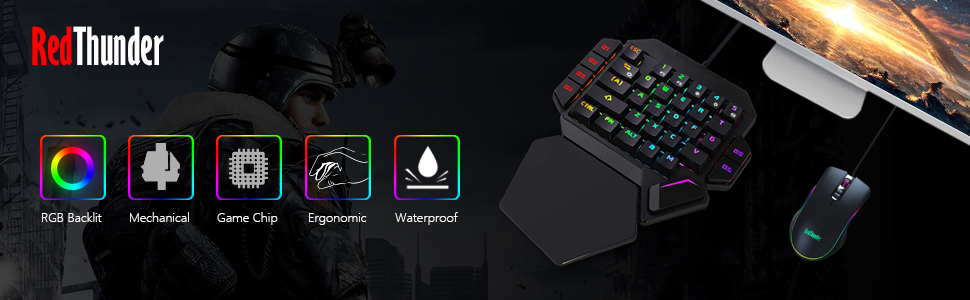
Image: RGB backlight options and control key combinations.
Video: Demonstrates the cool lighting effects of the RedThunder K50 keyboard.
Macro Recording (G1-G6 Keys)
The G1 through G6 keys on your RedThunder K50 keyboard support macro recording, allowing you to program complex sequences of commands.
- Start optagelse: If there is no existing macro recorded on a G-key (e.g., G1), press FN + G1 to enter the recording state. The G1 key's light will flash to indicate recording is active.
- Inputindhold: Type the desired sequence of keys or commands you wish to record.
- Afslut optagelse: After inputting your sequence, press FN + G1 again. The G1 key's light will stop flashing and return to its normal mode, indicating the macro is saved.
- Clear Recording: To clear a recorded macro and restore the G-key to its default F1-F6 function, press FN + G1 (or the corresponding G-key) while in normal mode.

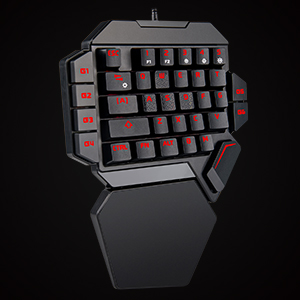
Image: The G1-G6 programmable keys on the RedThunder K50 keyboard.
Mechanical Switches and Anti-Ghosting
The K50 keyboard utilizes durable blue mechanical switches for a responsive typing and gaming experience. All keys are equipped with anti-ghosting technology to ensure every keystroke is registered accurately, even during rapid, simultaneous presses.
Billede: Detaljeret view af de støvtætte blå mekaniske kontakter.

Image: Illustration of all keys anti-ghosting feature.
Opretholdelse
- Rensning: Use a soft, dry cloth to wipe the surface of the keyboard. For deeper cleaning, use compressed air to remove dust and debris from between the keys. Avoid using liquid cleaners directly on the keyboard.
- Opbevaring: Opbevar tastaturet et køligt, tørt sted væk fra direkte sollys og ekstreme temperaturer.
- Kabelpleje: Undgå at bøje eller vride USB-kablet for meget for at forhindre skader.
Fejlfinding
- Tastaturet reagerer ikke:
- Sørg for, at USB-kablet er korrekt tilsluttet til både tastaturet og din enhed.
- Prøv at tilslutte tastaturet til en anden USB-port.
- Genstart din computer eller spillekonsol.
- Test the keyboard on another device to rule out a device-specific issue.
- Baggrundsbelysning virker ikke/forkert:
- Kontroller, om baggrundsbelysningen er slukket eller indstillet til minimal lysstyrke ved hjælp af FN + 3 or FN + 4.
- Cycle through backlight modes and colors using FN + Tab og FN + 5.
- Makrotaster virker ikke:
- Ensure the macro was recorded correctly following the steps in the "Macro Recording" section.
- Verify that the G-key is not in recording mode (flashing light).
Specifikationer
| Mærke | Rød Torden |
| Modelnummer | K50 |
| Forbindelsesteknologi | USB-C |
| Tastaturbeskrivelse | Spil |
| Speciel funktion | Lighting (RGB) |
| Switch Type | Clicky (Blue Switches) |
| Antal nøgler | 35 |
| Kompatible enheder | Gaming Console, PC, MAC |
| Kompatibel operativsystemfamilie | Linux, Windows |
| Materiale | Plast |
| Varens vægt | 0.45 kilo |
Garantioplysninger
RedThunder products are designed for quality and reliability. This product comes with a standard manufacturer's warranty against defects in materials and workmanship. Please retain your proof of purchase for warranty claims. For specific warranty terms and conditions, refer to the documentation included with your purchase or visit the official RedThunder webwebsted.
Støtte
If you encounter any issues or have questions regarding your RedThunder K50 One-Handed Mechanical Gaming Keyboard, please contact RedThunder customer support through the following channels:
- Online support: Visit the official RedThunder webwebsted med ofte stillede spørgsmål, fejlfindingsvejledninger og kontaktformularer.
- E-mail support: Refer to your product packaging or the RedThunder webwebsted for kundeservice-e-mailadressen.
Hav venligst din produktmodel (K50) og købsoplysninger klar, når du kontakter support.