
1. Introduktion
The GameMax Mirage 120mm PC Cooling Fan is designed to provide efficient cooling for computer components while offering customizable RGB lighting. This fan features a dual-ring Rainbow LED design, a hydraulic bearing for quiet operation, and a 7-blade fan structure. It is compatible with 5V addressable 3-pin Aura Sync systems, allowing for synchronized lighting effects with compatible motherboards or controllers.

Billede 1.1: Forside view of the GameMax Mirage fan with active Rainbow LED lighting.
2. Sikkerhedsoplysninger
- Sørg for, at dit computersystem er slukket og taget stikket ud af stikkontakten før installation eller vedligeholdelse.
- Håndter komponenterne forsigtigt for at undgå skader fra statisk elektricitet. Overvej at bruge en antistatisk håndledsrem.
- Do not force connectors. Ensure correct orientation before plugging in cables.
- Hold ventilatoren væk fra væsker og overdreven fugt.
- Do not attempt to disassemble the fan unit beyond what is described in this manual.
3. Pakkens indhold
Bekræft at alle varer er til stede i din pakke:
- 1 x GameMax Mirage 120mm PC Cooling Fan
- 4 x monteringsskruer
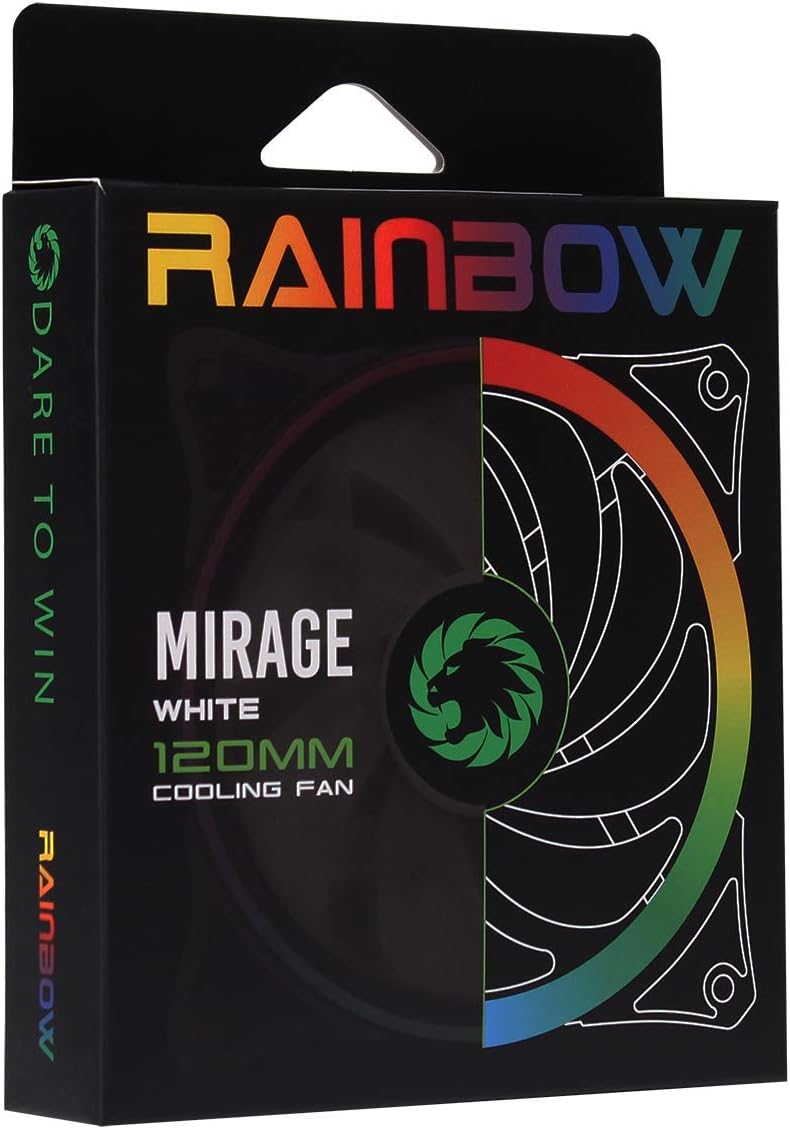
Image 3.1: Retail packaging for the GameMax Mirage fan.
4. Opsætning og installation
Follow these steps to install your GameMax Mirage 120mm PC Cooling Fan:
- Forbered dit system: Power off your computer and unplug it from the power outlet. Open your computer case to access the fan mounting locations.
- Monter blæseren: Position the fan in your desired location (e.g., case front, rear, top, or radiator). Ensure the airflow direction is correct for your cooling setup. Use the four included mounting screws to secure the fan to the chassis or radiator. The fan features rubber pads on the corners to help reduce vibration.
- Tilslut ventilatorstrøm: Locate the 3-pin power connector on the fan cable. Connect this cable to an available 3-pin fan header on your motherboard or a fan controller.
- Tilslut RGB-belysning: Locate the 5V addressable 3-pin Aura connector on the fan cable. Connect this to a compatible 5V ARGB header on your motherboard (often labeled 'VDG' or 'ARGB') or an external RGB controller/hub. Warning: Do not connect this to a 12V RGB header, as it will damage the LEDs.

Image 4.1: The 3-pin power connector (top) and 5V addressable 3-pin Aura connector (bottom).
The fan cables are braided for improved aesthetics and durability, helping to keep your build neat and tidy.
5. Betjeningsvejledning
Once installed, the GameMax Mirage fan operates as follows:
- Blæserhastighedskontrol: The fan speed is controlled via the 3-pin power connector. If connected to a motherboard fan header, the speed can typically be adjusted through your motherboard's BIOS/UEFI settings or dedicated software.
- RGB-lysstyring: The Rainbow LED lighting is controlled via the 5V addressable 3-pin Aura connector.
- If connected to a compatible motherboard (e.g., ASUS Aura Sync, MSI Mystic Light, Gigabyte RGB Fusion, ASRock Polychrome Sync), you can use the motherboard's software to customize lighting effects, colors, and synchronization with other ARGB components.
- If connected to an external RGB hub/controller, refer to the instructions provided with your specific hub/controller for lighting customization options.

Billede 5.1: Vinklet view of the GameMax Mirage fan showcasing its dual-ring Rainbow LED lighting.
6. Vedligeholdelse
Regular maintenance helps ensure optimal performance and longevity of your cooling fan:
- Støvrensning: Periodically inspect the fan blades and frame for dust accumulation. Use compressed air or a soft brush to gently remove dust. Ensure the fan is powered off and unplugged before cleaning.
- Kabelinspektion: Occasionally check the power and RGB cables for any signs of wear or damage.
7. Fejlfinding
- Ventilatoren drejer ikke:
- Ensure the 3-pin power connector is securely plugged into a functional fan header on the motherboard or controller.
- Check motherboard BIOS/UEFI settings to ensure the fan header is enabled and configured correctly.
- LEDs Not Lighting Up or Incorrect Colors:
- Verify the 5V addressable 3-pin Aura connector is securely connected to a compatible 5V ARGB header (not 12V RGB).
- Ensure your motherboard's RGB software or external controller is properly installed and configured.
- If using a splitter or hub, ensure it is powered and functioning correctly.
- Overdreven støj:
- Kontroller, om der er kabler eller forhindringer, der forstyrrer ventilatorbladene.
- Ensure the fan is securely mounted and the rubber pads are properly seated to absorb vibrations.
- Dust accumulation can cause imbalance and noise; clean the fan as described in the Maintenance section.
8. Specifikationer
| Feature | Specifikation |
|---|---|
| Model | MIRAGEWHITE FINS |
| Fan størrelse | 120 mm x 120 mm x 25 mm (0.98 x 4.72 x 4.72 tommer) |
| Leje Type | Hydraulisk leje |
| Ventilatorblade | 7 knive |
| LED type | Addressable Rainbow LED (Dual-Ring) |
| Ventilator strømstik | 3-benet |
| RGB stik | 5V Addressable 3-Pin Aura Connector |
| Operation Voltage | 5 Volts (for RGB) / 12 Volts (for fan motor, typical for 3-pin) |
| Vurderet Wattage | 3 watt |
| Maksimal rotationshastighed | 1800 RPM |
| Støjniveau | Cirka 25 dB(A) |
| Materiale | Rubber (for vibration dampening) |

Billede 8.1: Bagside view of the GameMax Mirage fan, displaying the product label with model and electrical specifications.
9. Garanti og support
For warranty information and technical support, please refer to the official GAMEMAX webwebstedet eller kontakt din forhandler. Gem din købsbevis til garantikrav.