
1. Introduktion
Thank you for choosing the Gembird MUS-6B-01 Optical USB Mouse. This manual provides essential information for setting up, operating, maintaining, and troubleshooting your new mouse. Please read these instructions carefully to ensure optimal performance and longevity of your device.

Image: The official Gembird brand logo, featuring the company name in a stylized font with a geometric design.
2. Produktet er slutview
The Gembird MUS-6B-01 is a reliable 6-button optical USB mouse designed for comfortable and precise navigation. Its ambidextrous design makes it suitable for both left and right-handed users.
Nøglefunktioner:
- Optisk sporing: Provides smooth and accurate cursor control.
- 6 Knapper: Includes standard left/right click, scroll wheel, DPI adjustment, and two side buttons for enhanced functionality.
- USB-forbindelse: Simple plug-and-play connection to your computer.
- Ambidextrous design: Komfortabel for både venstre- og højrehåndede brugere.
Komponenter:
- Venstre klik knap
- Højreklik knap
- Scroll Wheel (also functions as a middle click button)
- DPI-justeringsknap
- Fremad-knap (side)
- Bagud-knap (side)
- Optical Sensor (underside)
- USB Connector (at the end of the cable)
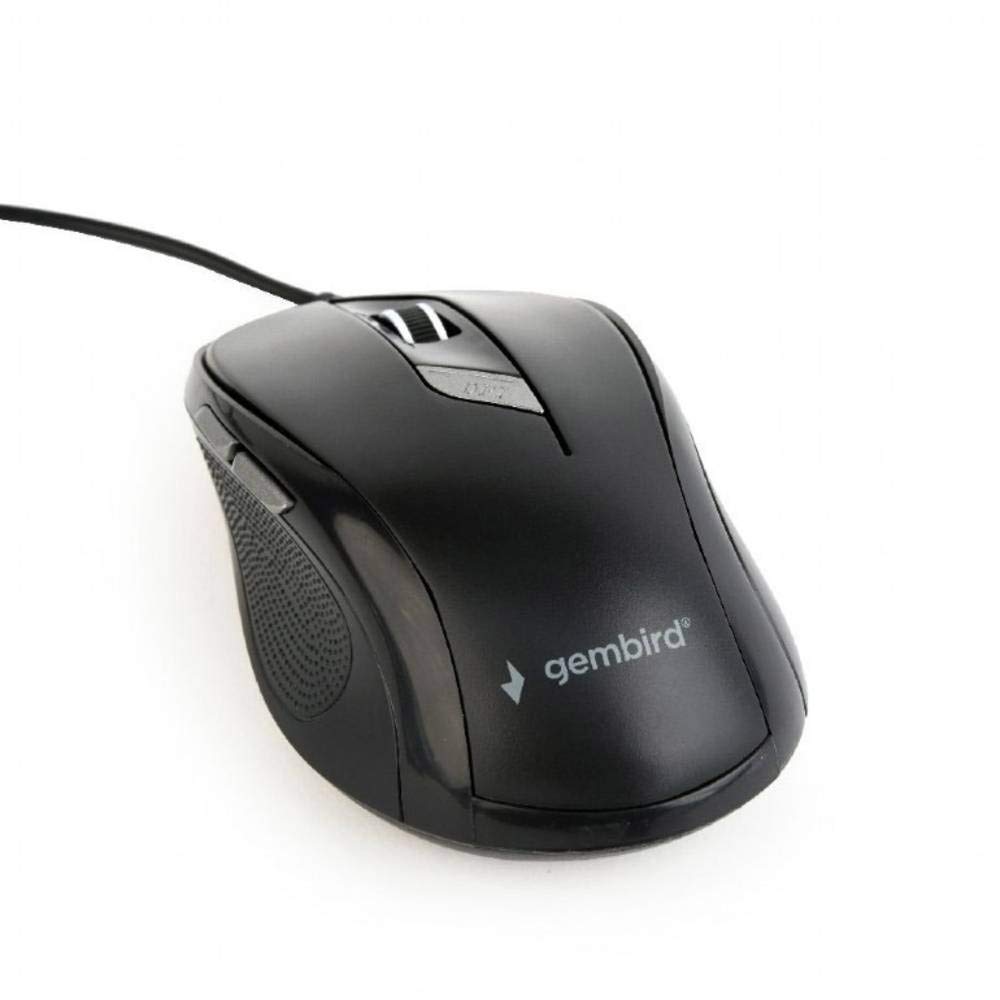
Billede: En top-down view of the Gembird MUS-6B-01 optical USB mouse. The mouse is black with a matte finish, featuring a scroll wheel, left and right click buttons, a DPI button, and two side buttons. A black USB cable extends from the front of the mouse.
3. Opsætning
Setting up your Gembird MUS-6B-01 mouse is a simple plug-and-play process.
Installationstrin:
- Find en ledig USB-port på din computer.
- Plug the USB connector of the Gembird MUS-6B-01 mouse firmly into the USB port.
- Your operating system (Windows, Linux) will automatically detect and install the necessary drivers. This process may take a few moments.
- Når driverne er installeret, er musen klar til brug.
No additional software installation is typically required for basic functionality.
4. Betjeningsvejledning
Familiarize yourself with the functions of each button on your Gembird MUS-6B-01 mouse.
Grundlæggende funktioner:
- Venstre klik: Primary action, selecting items, opening files.
- Højreklik: Opens context menus, provides additional options.
- Scrollhjul: Rul op eller ned gennem dokumenter og web sider.
- Mellemklik (tryk med scrollehjulet): Often used to open links in new tabs or for specific application functions.
Avancerede funktioner:
- DPI-justeringsknap: Located behind the scroll wheel, this button allows you to cycle through different sensitivity (DPI) settings. Press it to change the cursor speed to suit your preference.
- Fremad-knap (side): Typically navigates forward in web browsere eller file opdagelsesrejsende.
- Bagud-knap (side): Typically navigates backward in web browsere eller file opdagelsesrejsende.
The functionality of the side buttons may vary depending on the application or operating system settings. Some operating systems allow customization of these buttons.
5. Vedligeholdelse
Proper care will help extend the life of your Gembird MUS-6B-01 mouse.
Rensning:
- Frakobl musen fra computeren, før du rengør den.
- Brug en blød, let damp, lint-free cloth to wipe the surface of the mouse.
- For stubborn dirt, a small amount of mild soap solution can be applied to the cloth (not directly to the mouse).
- Use a cotton swab or compressed air to clean around the scroll wheel and between buttons.
- Ensure the optical sensor on the underside is clean and free of dust or debris.
- Brug ikke skrappe kemikalier, slibende rengøringsmidler, og nedsænk ikke musen i vand.
Opbevaring:
When not in use for extended periods, store the mouse in a clean, dry environment away from extreme temperatures and direct sunlight.
6. Fejlfinding
If you encounter issues with your Gembird MUS-6B-01 mouse, try the following troubleshooting steps:
| Problem | Mulig løsning |
|---|---|
| Musen reagerer ikke |
|
| Erratic or jumpy cursor movement |
|
| Knapperne virker ikke |
|
7. Specifikationer
Detailed technical specifications for the Gembird MUS-6B-01 Optical USB Mouse:
| Feature | Specifikation |
|---|---|
| Mærke | Gembird |
| Modelnavn | MUS-6B-01 |
| Forbindelsesteknologi | Kablet (USB) |
| Bevægelsesdetekteringsteknologi | Optisk |
| Knap Antal | 6 |
| Håndorientering | Ambidekstrøs |
| Kompatible operativsystemer | Linux, Windows 7, Windows XP (og nyere versioner) |
| Hardware platform | Personlig computer |
| Kabellængde | 5.0 meter |
| Varens vægt | 74 gram |
| Materiale | Plast |
| Farve | Sort |
| Batterier påkrævet | Ingen |
8. Sikkerhedsoplysninger
Overhold venligst følgende sikkerhedsretningslinjer:
- Udsæt ikke musen for vand eller overdreven fugt.
- Undgå at tabe eller udsætte musen for kraftige stød.
- Forsøg ikke selv at skille musen ad eller reparere den. Kontakt kvalificeret servicepersonale.
- Hold enheden væk fra ekstreme temperaturer og direkte sollys.
- Bortskaf elektronisk affald ansvarligt i henhold til lokale regler.
9. Garanti og support
Gembird products are designed for reliability and performance. For specific warranty terms and conditions, please refer to the warranty card included with your product or visit the official Gembird website. For technical support or further assistance, please contact your retailer or the Gembird customer service department.