
1. Introduktion
This manual provides detailed instructions for setting up and operating your NETVIP 300Mbps WiFi Extender. This device is designed to extend the coverage of your existing wireless network, eliminating Wi-Fi dead zones and improving signal strength in areas with weak reception. It supports both Repeater and Access Point (AP) modes, offering flexible solutions for your networking needs.
2. Produktet er slutview
Familiarize yourself with the components of your NETVIP WiFi Extender:
- LED-indikatorer: Display the device's status, including power, Wi-Fi signal, and WPS activity.
- WPS knap: For hurtig og sikker forbindelse til din router ved hjælp af Wi-Fi Protected Setup.
- LAN-port: Used for connecting wired devices or for setting up the device in Access Point mode.
- Strømstik: Til tilslutning af enheden til en stikkontakt.
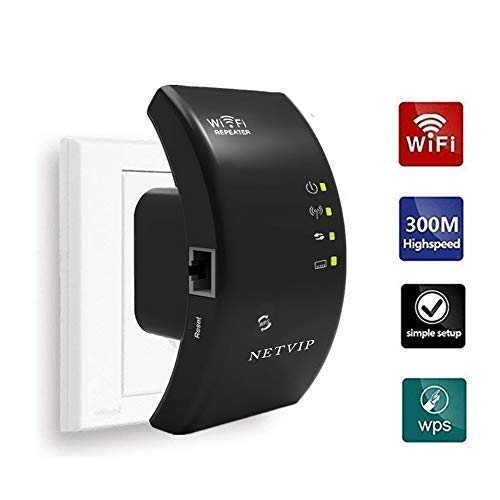
Billede 2.1: Forside view of the NETVIP 300Mbps WiFi Extender, showing its compact design and key indicators.
3. Opsætningsvejledning
The NETVIP WiFi Extender can be configured in two main modes: Repeater Mode and Access Point (AP) Mode.
3.1. Repeatertilstand (udvidelse af eksisterende Wi-Fi)
Repeater mode extends the coverage of your existing wireless network.
- Tænd: Plug the extender into an electrical outlet near your main router. Wait for the Power LED to light up.
- Tilslut til forlænger: On your computer or mobile device, connect to the Wi-Fi network named "Wireless-N" (or similar, check the label on your device). No password is required initially.
- Adgangsopsætningsside: Åbn a web browser og indtast standard IP-adressen (f.eks. 192.168.10.1) eller domænenavn (f.eks. repeater.net) som angivet i hurtigstartvejledningen.
- Log ind: Indtast standardbrugernavn og -adgangskode (normalt "admin" for begge, tjek enhedens etiket).
- Vælg repeatertilstand: On the setup page, choose "Repeater Mode".
- Scan efter netværk: The extender will scan for available Wi-Fi networks. Select your home Wi-Fi network from the list.
- Indtast adgangskode: Enter the Wi-Fi password for your home network. You can also set a new SSID (network name) for the extended network or keep it the same.
- Anvend indstillinger: Klik på "Anvend" eller "Gem". Forlængeren genstarter.
- Flyt forlænger: Once restarted, unplug the extender and move it to a location halfway between your router and the Wi-Fi dead zone. Ensure the signal strength LED indicates a good connection to your main router.
- Tilslut enheder: Connect your devices to the new extended Wi-Fi network.
WPS Setup (Alternative for Repeater Mode)
- Tænd: Sæt extenderen i en stikkontakt i nærheden af din primære router.
- Tryk på WPS på routeren: Tryk på WPS-knappen på din primære router.
- Tryk på WPS på extenderen: Within two minutes, press the WPS button on the NETVIP WiFi Extender.
- Vent på forbindelse: The WPS LED on both devices should blink and then become solid, indicating a successful connection.
- Flyt forlænger: Move the extender to an optimal location.
3.2. Access Point (AP) Mode (Creating a New Wi-Fi Network)
AP-tilstand konverterer en kablet internetforbindelse til et trådløst netværk.
- Tænd: Slut forlængeren til en stikkontakt.
- Tilslut via Ethernet: Connect an Ethernet cable from your main router's LAN port to the LAN port on the NETVIP WiFi Extender.
- Tilslut til forlænger: On your computer or mobile device, connect to the Wi-Fi network named "Wireless-N" (or similar).
- Adgangsopsætningsside: Åbn a web browseren og indtast standard-IP-adressen eller domænenavnet.
- Log ind: Indtast standard brugernavn og adgangskode.
- Vælg AP-tilstand: Vælg "AP-tilstand" på opsætningssiden.
- Konfigurer Wi-Fi-indstillinger: Set a new SSID (network name) and a strong Wi-Fi password for your new wireless network.
- Anvend indstillinger: Klik på "Anvend" eller "Gem". Forlængeren genstarter.
- Tilslut enheder: Connect your devices to the newly created Wi-Fi network.
4. Betjeningsvejledning
Once configured, the NETVIP WiFi Extender operates automatically. Ensure it is plugged into a power outlet and the LED indicators show normal operation.
- Optimal placering: For best performance in Repeater Mode, place the extender where it receives a strong signal from your main router (indicated by the signal LED) and can still provide coverage to the desired area. Avoid placing it near large metal objects, microwaves, or other sources of interference.
- LED-status:
- Power LED: Solid indicates power on.
- Wi-Fi LED: Solid indicates Wi-Fi is active. Blinking indicates data transfer.
- WPS LED: Solid indicates a successful WPS connection. Blinking indicates WPS pairing in progress.
- Kablet forbindelse: In either mode, the LAN port can be used to connect a single wired device (e.g., a desktop computer, gaming console, or smart TV) to the network, providing a stable wired connection.
5. Vedligeholdelse
Regular maintenance helps ensure optimal performance and longevity of your device.
- Rensning: Tør forsigtigt enheden af med en blød, tør klud. Brug ikke flydende rengøringsmidler eller aerosoler.
- Firmwareopdateringer: Periodically check the NETVIP official website for any available firmware updates. Updating firmware can improve performance, add new features, or fix bugs. Follow the instructions provided with the firmware update carefully.
- Nulstilling af enheden: If you encounter persistent issues or wish to reconfigure the device from scratch, you can perform a factory reset. Locate the reset button (usually a small pinhole) on the device, press and hold it for 5-10 seconds with a paperclip until the LEDs flash. This will restore the device to its factory default settings.
6. Fejlfinding
If you experience issues with your NETVIP WiFi Extender, refer to the following common problems and solutions:
- Cannot access the setup page (192.168.10.1 or repeater.net):
- Ensure your device is connected to the extender's default Wi-Fi network (e.g., "Wireless-N").
- Prøv en anden web browser.
- Ryd din browsers cache og cookies.
- Restart the extender and your computer/mobile device.
- Perform a factory reset on the extender.
- Ingen internetadgang efter opsætning:
- In Repeater Mode, ensure the extender is receiving a strong signal from your main router. Relocate it closer if necessary.
- Verify that the Wi-Fi password entered during setup for your main router is correct.
- In AP Mode, ensure the Ethernet cable is securely connected between the extender and your main router, and that your main router has internet access.
- Genstart både din primære router og extenderen.
- Langsom internethastighed:
- Optimal placement is crucial. The extender should be positioned where it can receive a good signal from the router and transmit effectively to your devices.
- Avoid interference from other electronic devices (microwaves, cordless phones).
- Sørg for, at din primære router leverer tilstrækkelig hastighed.
- Søg efter firmwareopdateringer til extenderen.
- Forbindelsen afbrydes ofte:
- Check for signal interference or obstacles.
- Sørg for, at forlængeren ikke overopheder.
- Try changing the Wi-Fi channel on your main router to avoid congestion.
- Perform a factory reset and reconfigure the extender.
7. Specifikationer
| Mærke | NETVIP |
| Standard for trådløs kommunikation | 802.11b, 802.11g, 802.11n |
| Dataoverførselshastighed | Op til 300 Mbps |
| Driftstilstande | Repeater, Access Point (AP) |
| Kompatible enheder | Router, Alexa Devices |
| Speciel funktion | WPS Function, LAN Port |
| Produktdimensioner | 4.33 x 2.36 x 2.76 tommer |
| Varens vægt | 5.6 ounce |
8. Garanti og support
NETVIP products are designed for reliability and performance. For specific warranty information, please refer to the warranty card included with your product or visit the official NETVIP webwebsted.
If you require technical assistance or have questions not covered in this manual, please contact NETVIP customer support through their official webwebstedet eller de kontaktoplysninger, der blev oplyst ved dit køb. Hav venligst din produktmodel og købsoplysninger klar, når du kontakter support.