
1. Introduktion
This manual provides detailed instructions for the installation, configuration, operation, and maintenance of the TP-Link CPE610 5GHz 300Mbps 23dBi Outdoor CPE/Access Point. The CPE610 is designed for outdoor wireless networking applications, offering excellent beam directivity, improved latency, and noise immunity with its high-gain directional 2x2 MIMO cassegrain antenna and dedicated metal reflector.
Proper setup, grounding, and cable shielding are essential for protection against lightning and electrostatic discharge. Consult an IT professional for assistance if needed.
2. Pakkens indhold
Bekræft, at alle nedenstående varer er inkluderet i din pakke. Hvis nogen varer mangler eller er beskadiget, skal du kontakte din forhandler.
- TP-Link CPE610 Outdoor CPE Unit
- 24V 0.5A Passive PoE Adapter
- AC strømledning
- Stang monteringsstropper
- Installationsvejledning
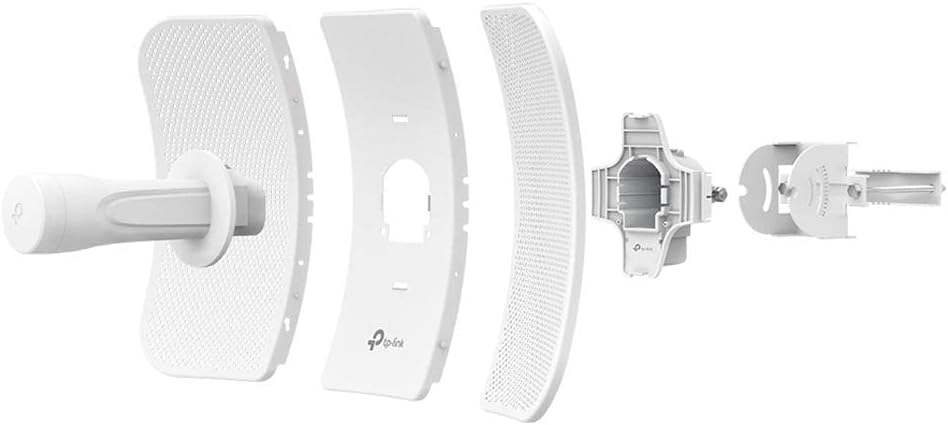
This image displays the individual components of the TP-Link CPE610, including the main antenna unit, the reflector panels, and the mounting bracket with its associated hardware.
3. Opsætning og installation
Follow these steps for proper installation and initial setup of your CPE610.
3.1 Hardwareinstallation
- Assemble the CPE Unit: Attach the reflector panels to the main CPE unit. Ensure all parts are securely fastened.
- Montering: Use the provided pole mounting straps to secure the CPE610 to a pole or mast. Ensure the device is positioned for clear line-of-sight to the target area.
- Connect PoE Adapter: Connect an Ethernet cable from the CPE610's Ethernet port to the "PoE" port on the 24V 0.5A Passive PoE Adapter.
- Opret forbindelse til netværk: Connect another Ethernet cable from the "LAN" port on the PoE Adapter to your computer or network switch/router.
- Tænd: Connect the AC power cord to the PoE Adapter and then to a power outlet. The device will power on.

This image shows the TP-Link CPE610 with its adjustable mounting bracket, illustrating how it attaches to a pole for outdoor deployment.
3.2 Initial Configuration (PharOS Web grænseflade)
The CPE610 is managed via the PharOS web interface.
- Forbered din computer: Before connecting, set your computer's IP address manually to
192.168.0.10med en undernetmaske af255.255.255.0. - Access PharOS: Åbn a web browser og naviger til
http://192.168.0.254. - Login: The default username and password are
admin. You will be prompted to change the password upon first login. - Hurtig opsætning: Use the Quick Setup wizard to configure the device.
- Select the desired operating mode (e.g., Access Point, Client, Repeater, Bridge).
- Configure wireless settings such as SSID, security type (WPA2-PSK recommended), and password.
- Adjust network settings, including IP address, subnet mask, and gateway, to match your network infrastructure.
- Gem indstillinger: Apply and save all configurations.
- Gendan computerens IP-adresse: Change your computer's IP address back to DHCP (automatic) or its original static IP.
Note: For client mode setup, especially with mesh networks like Google Wifi, it may be necessary to disable WDS (Wireless Distribution System) in the CPE610's settings for proper connectivity.
4. Operating the CPE610
Once configured, the CPE610 operates autonomously. You can monitor its status and adjust settings via the PharOS web interface.
4.1 Overvågningsstatus
- Statusside: The PharOS Status page provides real-time information on wireless connection, network traffic, and system logs.
- Signalstyrke: Regularly check the signal strength indicators to ensure optimal performance, especially after initial installation or environmental changes.
4.2 Avancerede indstillinger
The PharOS interface offers advanced options for fine-tuning performance:
- Transmissionseffekt: Adjust the transmission power (0 to 27dBm/500mW) to comply with local regulations and optimize range.
- Pharos MAXtream TDMA: Enable this technology for improved throughput, capacity, and reduced latency in Point-to-MultiPoint (PtMP) applications.
- Kanalvalg: Select appropriate 5GHz channels to avoid interference.
- Firmwareopgradering: Tjek periodisk for og installer firmwareopdateringer fra TP-Link website to enhance features and security.
5. Vedligeholdelse
Regular maintenance ensures the longevity and optimal performance of your CPE610.
- Fysisk inspektion: Periodically inspect the device and cabling for any signs of wear, damage, or corrosion, especially in harsh outdoor environments.
- Rensning: Gently clean the exterior of the unit with a soft, dry cloth. Do not use liquid cleaners or aerosols.
- Firmwareopdateringer: Keep the device firmware updated to the latest version available from the official TP-Link website. This can improve stability, performance, and security.
- Jording: Ensure proper grounding and cable shielding are maintained to protect against lightning and electrostatic discharge.
- Fjernnulstilling: The Passive PoE adapter allows for remote resetting of the device. Refer to the installation guide for specific instructions.
6. Fejlfinding
This section addresses common issues you might encounter with the CPE610.
6.1 No Power/Device Not Responding
- Tjek strømforbindelser: Ensure the AC power cord is securely connected to the PoE adapter and a working power outlet.
- Verify Ethernet Cable: Confirm the Ethernet cable from the CPE to the PoE adapter's "PoE" port is properly connected and undamaged.
- PoE Adapter Functionality: Test the PoE adapter with another compatible device if possible, or try a different PoE adapter.
6.2 Cannot Access PharOS Web Interface
- IP-adressekonfiguration: Ensure your computer's IP address is set manually to
192.168.0.10(or within the same subnet as the CPE's default192.168.0.254) before attempting to access the interface. - Kabelforbindelse: Verify the Ethernet cable from the PoE adapter's "LAN" port to your computer is secure.
- Browserproblemer: Prøv en anden web browser eller ryd din browsers cache.
- Firewall/antivirus: Deaktiver midlertidigt enhver firewall eller antivirussoftware, der muligvis blokerer adgang.
6.3 Poor Wireless Performance/Connection Drops
- Synslinje: Ensure there is a clear line of sight between the CPE610 and the target device/access point. Obstructions can severely degrade performance.
- Antennejustering: Precisely align the directional antenna for optimal signal strength. Use the signal strength indicators in the PharOS interface.
- Interferens: Check for potential sources of interference (e.g., other 5GHz devices, physical obstacles). Try changing the wireless channel.
- Firmware: Sørg for, at den nyeste firmware er installeret.
- WDS Setting: If operating in client mode, ensure WDS is disabled if experiencing connectivity issues, especially with mesh networks.
7. Specifikationer
| Feature | Detalje |
|---|---|
| Mærke | TP-Link |
| Model | CPE610 |
| Antenne | High-gain directional 2x2 MIMO antenna with 23dBi gain |
| Frekvens | 5 GHz |
| Trådløs Standard | 802.11n/a |
| Maximum Wireless Rate | 300 Mbps |
| Transmissionseffekt | Adjustable from 0 to 27dBm/500mW |
| PoE Support | Passive PoE (24V 0.5A adapter included) |
| PoE Range | Op til 60 meter (200 fod) |
| Ledelse | Centralized management system - Pharos Control |
| Farve | Hvid |
| Varens vægt | 0.46 kilo |
| UPC | 845973081027 |
8. Garantioplysninger
The TP-Link CPE610 comes with a 2 års garanti from the date of purchase. This warranty covers defects in materials and workmanship under normal use. It does not cover damage caused by accidents, misuse, unauthorized modifications, or external factors such as lightning strikes or power surges not mitigated by proper grounding.
For warranty claims, please retain your proof of purchase and contact TP-Link customer support.
9. Teknisk support
For further assistance, technical support, or to download the latest firmware and documentation, please visit the official TP-Link webwebsted.
- TP-Link Officiel Webwebsted: www.tp-link.com
- Supportside: Locate the support section for your specific model (CPE610) for FAQs, troubleshooting guides, and contact information.
It is recommended to consult the online resources before contacting technical support, as many common issues can be resolved through available documentation.