
Aigital N300
Aigital N300 WiFi-rækkeviddeforlænger brugermanual
Wireless Repeater, Internet Signal Booster, Access Point
Model: N300
1. Introduktion
This manual provides detailed instructions for the setup, operation, and maintenance of your Aigital N300 WiFi Range Extender. Please read this manual carefully before use to ensure proper functionality and optimal performance. This device is designed to expand your wireless network coverage and provide internet access in areas with weak or no signal.
2. Produktet er slutview
The Aigital N300 WiFi Range Extender is a compact and versatile device. It supports 2.4 GHz frequency band with a data transfer rate of up to 300 Megabits Per Second. It can function as a WiFi Repeater to extend your existing network or as an Access Point to create a new wireless network from a wired connection.
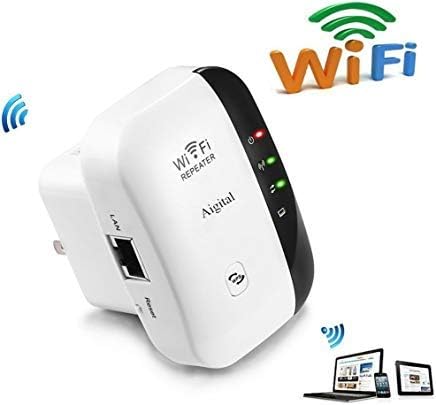
The Aigital N300 WiFi Range Extender is a compact device designed to expand your wireless network coverage. It features indicator lights for power, WLAN, and WPS status, along with an Ethernet (LAN) port and a reset button. The device is white with a black accent on one side.
Nøglekomponenter:
- Strømindikator: Viser enhedens strømstatus.
- WLAN Indicator: Angiver aktivitet på trådløst netværk.
- WPS knap: For quick and secure connection to compatible routers.
- LAN-port: For wired connection to devices or for AP mode setup.
- Nulstil knap: Bruges til at gendanne enheden til fabriksindstillingerne.
3. Opsætningsvejledning
Before beginning the setup, ensure your Aigital N300 is plugged into a power outlet near your main router or modem.
Indledende forbindelse:
- Sæt WiFi-repeateren i en stikkontakt.
- Wait for the power indicator light to become stable.
- On your phone, computer, or laptop, connect to the Wi-Fi network named "wifi repeater". This is the default network broadcast by the extender.
Konfiguration via Web Browser:
- Åbn a web browser (f.eks. Chrome, Firefox, Edge).
- Skriv i adresselinjen 192.168.10.1 og tryk på Enter.
- You will be prompted to log in. The default username and password are typically admin (or as specified in the included mini-manual).
- Follow the on-screen wizard to select your desired operating mode (Repeater or AP).
Nulstilling af enheden:
If you need to reconfigure the device or encounter issues, you can perform a factory reset:
- With the device powered on, locate the reset button (usually a small pinhole).
- Use a paperclip or a similar pointed object to press and hold the reset button for over 10 seconds.
- Release the button when the power light and WPS light turn on, and the WLAN light blinks. The device will restart with factory default settings.
4. Driftstilstande
4.1. Repeatertilstand (Rækkeviddeforlænger)
This mode is used to extend the coverage of your existing Wi-Fi network. It is ideal when your primary Wi-Fi signal is weak or non-existent in certain areas of your home or office, such as a yard, other rooms, a second floor, a basement, or a garage.
Setup Steps for Repeater Mode:
- Efter at have logget ind på web interface (192.168.10.1), select "Repeater Mode".
- The extender will scan for available Wi-Fi networks. Select your home Wi-Fi network from the list.
- Enter the exact password for your home Wi-Fi network. Vigtig: The password must be identical to your main Wi-Fi password for internet access.
- Du kan vælge at beholde det samme SSID (netværksnavn) eller oprette et nyt til det udvidede netværk.
- Save the settings and wait for the extender to restart. Once restarted, the WLAN indicator should be stable, indicating a successful connection.
4.2. AP-tilstand (adgangspunkt)
This mode transforms a wired internet connection into a wireless Wi-Fi hotspot. It is useful if you have a modem but no router, or if you want to add Wi-Fi capability to a wired-only network, allowing wireless devices like phones and tablets to connect.
Setup Steps for AP Mode:
- Connect the RJ-45 Ethernet Cable from your modem or wired network to the LAN port of the Aigital N300 extender.
- Efter at have logget ind på web interface (192.168.10.1), select "AP Mode".
- Konfigurer det nye Wi-Fi-netværksnavn (SSID) og den nye adgangskode.
- Save the settings and wait for the extender to restart. Once restarted, your new Wi-Fi network will be available for connection.
5. Fejlfinding
- No Internet Access in Repeater Mode: Ensure the password entered for your home Wi-Fi network during setup is exactly the same. Any mismatch will prevent internet access. Try resetting the device and reconfiguring.
- Cannot Access Configuration Page (192.168.10.1): Ensure your device is connected to the "wifi repeater" network. If still unable, try resetting the extender to factory defaults and attempt connection again.
- Weak Signal After Setup: Relocate the extender to a position that is halfway between your main router and the area where you need improved Wi-Fi coverage. Avoid placing it near large metal objects or other electronic devices that may cause interference.
- Enheden tænder ikke: Check the power outlet and ensure the extender is securely plugged in.
- Opsætningsvideo: For visual guidance, a setup video is available at https://youtu.be/3uoGpCGlTWk.
6. Specifikationer
| Feature | Detalje |
|---|---|
| Model | N300 |
| Frekvensbånd | 2.4 GHz |
| Dataoverførselshastighed | 300 megabit pr. sekund |
| Understøttet bindtage | 110V-240V |
| WLAN sikkerhed | WPA2, WPA, WEP(128/64) |
| Antenner | Integreret |
| Dimensioner (L x B x H) | 5.51 x 5.79 x 8 cm |
| Vægt | 136 g |
| Inkluderede komponenter | 1x WiFi Repeater, 1x RJ-45 Ethernet Cable, 1x User Manual |
7. Vedligeholdelse
- Rensning: Brug en blød, tør klud til at rengøre enhedens yderside. Brug ikke flydende rengøringsmidler eller aerosoler.
- Placering: For optimal performance, place the extender in an open area, away from obstructions like walls, large furniture, or metal objects. Avoid placing it near other electronic devices that may cause signal interference.
- Firmwareopdateringer: Kontroller jævnligt producentens webwebstedet for tilgængelige firmwareopdateringer for at sikre den bedste ydeevne og sikkerhed.
8. Garanti og support
For any inquiries regarding setup, troubleshooting, or product information, please contact Aigital customer support. While specific warranty details are not provided in this manual, please refer to your purchase documentation or contact the seller for warranty terms and conditions.
You can reach our support team via email at: aigital@hotmail.com
Ask a question about this manual
Ask about setup, troubleshooting, compatibility, parts, safety, or missing instructions. Manuals+ will review the question and use this page’s manual context to help answer it.