
Indledning
Thank you for choosing the MeeTion K9310 Gaming Keyboard. This manual provides detailed instructions for setting up, operating, and maintaining your new keyboard. The K9310 is designed for an enhanced gaming experience with features such as multicolor backlighting, anti-ghosting, and dedicated shortcut keys.
Pakkens indhold
- MeeTion K9310 Gaming Keyboard
- Brugervejledning (dette dokument)
Opsætning
Follow these steps to connect your MeeTion K9310 Gaming Keyboard to your computer:
- Pak tastaturet ud af emballagen.
- Find en ledig USB-port på din computer.
- Sæt tastaturets USB-stik i USB-porten.
- Your operating system (Windows XP/Vista/7/8/10) will automatically detect and install the necessary drivers. No additional software installation is typically required.
- The keyboard is ready for use once the drivers are installed.

Billede: Top view of the MeeTion K9310 Gaming Keyboard with its USB cable, ready for connection.
Betjeningsvejledning
Nøglefunktioner
- Multicolor Key Backlit: The keyboard features vibrant multicolor backlighting for enhanced visibility and aesthetic appeal, especially in low-light conditions.
- Comfortable and Soft Keys: Designed with membrane keys offering tactile feedback, providing a comfortable typing and gaming experience.
- 19 taster Anti-ghosting: This feature ensures that up to 19 keys can be pressed simultaneously without any input loss, crucial for complex gaming commands.
- Win Lock Function with LED Indication: Prevents accidental presses of the Windows key during gameplay, which can interrupt your game. An LED indicator shows when this function is active.
- 12 FN Shortcut Buttons: Access various multimedia and system functions quickly using the Function (FN) key in combination with the F1-F12 keys.
Baggrundslys kontrol
The K9310 keyboard features a multicolor backlight. Specific key combinations may be used to adjust brightness or switch lighting modes. Refer to the keyboard's markings for dedicated backlight control keys, often indicated by a sun or light bulb icon, or through FN key combinations.
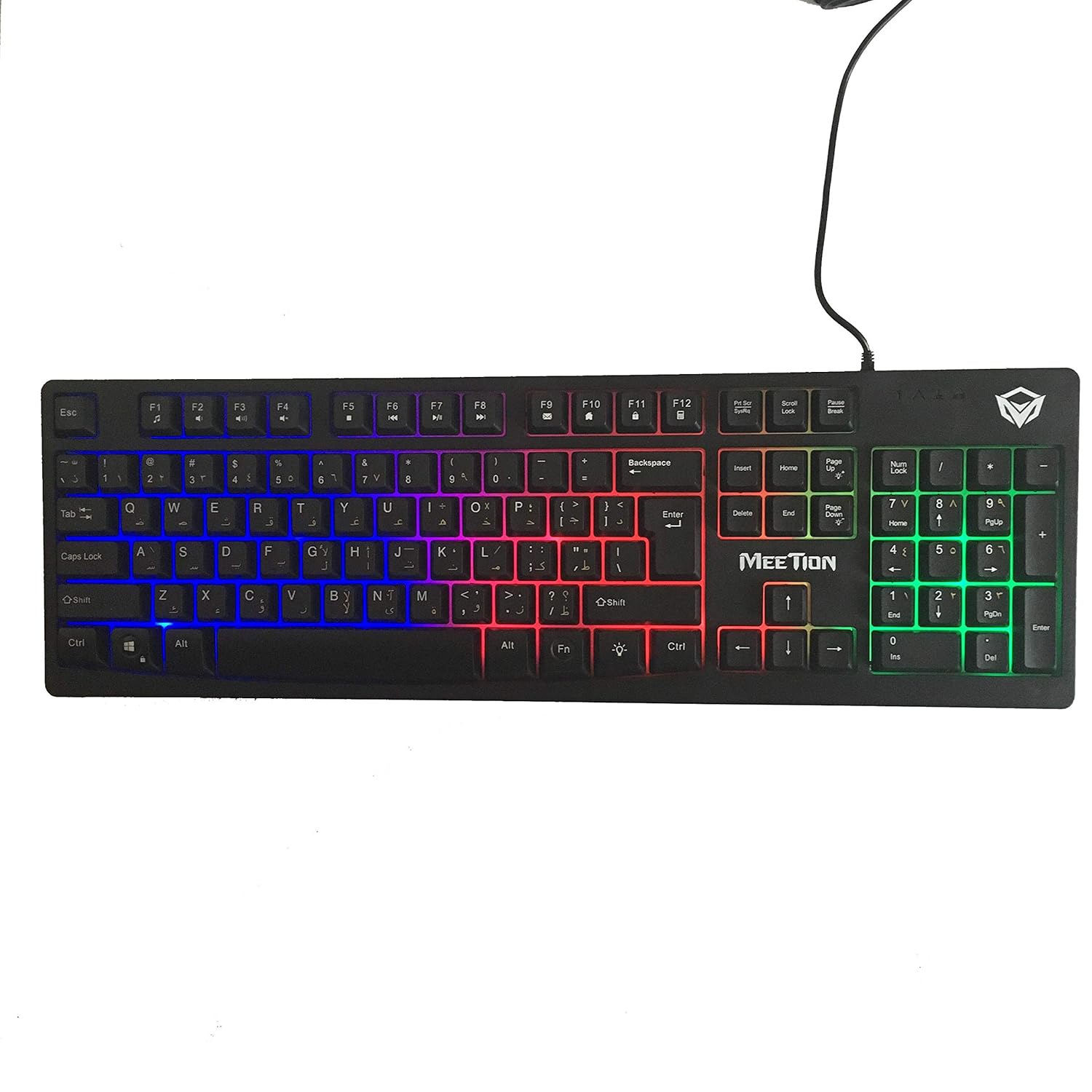
Billede: Top view of the MeeTion K9310 Gaming Keyboard with its multicolor backlighting illuminated.
FN Shortcut Functions
The keyboard includes 12 FN (Function) shortcut buttons. To activate these functions, press and hold the FN key, then press the desired F-key (F1-F12).
| Nøglekombination | Fungere |
|---|---|
| FN + F1 | Medieafspiller |
| FN + F2 | Lydstyrke ned |
| FN + F3 | Lydstyrke op |
| FN + F4 | Stum |
| FN + F5 | Stop |
| FN + F6 | Forrige spor |
| FN + F7 | Afspil/pause |
| FN + F8 | Næste spor |
| FN + F9 | |
| FN + F10 | Web Browser |
| FN + F11 | Min computer |
| FN + F12 | Kalkulator |
Win Lock Function
To activate or deactivate the Windows key lock function, press FN + Win-tast. When active, the Windows key will be disabled, preventing accidental presses during gaming. An LED indicator on the keyboard will typically illuminate to show the Win Lock status.
Opretholdelse
Korrekt vedligeholdelse sikrer dit tastaturs levetid og optimale ydeevne.
- Rensning: Brug en blød, tør klud til at tørre tastaturets overflade af. For en grundigere rengøring, brug en let tør klud.amp cloth with mild soap can be used, ensuring no liquid enters the key switches or internal components.
- Fjernelse af støv: Brug trykluft til at fjerne støv og snavs mellem tasterne.
- Undgå væsker: Do not spill liquids on the keyboard. If a spill occurs, immediately disconnect the keyboard from the computer and allow it to dry completely before reconnecting.
- Opbevaring: Opbevar tastaturet et køligt, tørt sted væk fra direkte sollys og ekstreme temperaturer, når det ikke er i brug i længere perioder.

Billede: Bund view of the MeeTion K9310 Gaming Keyboard, showing the product label and rubber feet.
Fejlfinding
If you encounter issues with your MeeTion K9310 Gaming Keyboard, refer to the following troubleshooting steps:
- Tastaturet reagerer ikke:
- Sørg for, at USB-kablet er korrekt tilsluttet en fungerende USB-port på din computer.
- Prøv at tilslutte tastaturet til en anden USB-port.
- Genstart din computer.
- Test tastaturet på en anden computer for at afgøre, om problemet er med tastaturet eller computeren.
- Keys Not Working (e.g., 'W' key):
- Check for any debris or foreign objects lodged under the affected key. Use compressed air to clear it.
- If only specific keys are not responding, and the keyboard is otherwise functional, it might indicate a hardware issue.
- Baggrundsbelysning virker ikke eller flimrer:
- Sørg for, at tastaturet er korrekt tilsluttet.
- Check if the backlight brightness is set to minimum or turned off via FN key combinations.
- If the issue persists, it may indicate a hardware malfunction.
- Win Lock Function Not Working:
- Ensure you are using the correct key combination (FN + Win Key) to toggle the function.
- Check the LED indicator for Win Lock status.
Specifikationer
| Feature | Detalje |
|---|---|
| Mærke | MØDE |
| Model | K9310 |
| Tastaturtype | Gaming tastatur |
| Nøglekontakt | Membrane with tactile feedback |
| Layout | Cyrillic alphabet layout (Windows Keys) |
| Anti-Ghosting | 19 nøgler |
| Baggrundsbelysning | Flerfarvet tast baggrundsbelyst |
| Win Lock Function | Ja, med LED indikation |
| FN Shortcut Buttons | 12 |
| Error-Free Running Time | More than 10 million strokes |
| OS kompatibilitet | Windows XP/Vista/7/8/10 |
| Dimensioner | 17.5 × 5.5 x 1.5 inches (approximate) |
| Vægt | 1.2 pund (omtrentligt) |
| Kompatible enheder | Bærbare (og stationære pc'er) |
Garanti og support
For warranty information or technical support, please refer to the documentation provided at the time of purchase or visit the official MEETION webwebsted. Gem din købsbevis i tilfælde af garantikrav.