
CYBERPOWERPC CGS480VR1318
CYBERPOWERPC Wyvern Gaming PC User Manual
Model: CGS480VR1318
1. Introduktion
Welcome to the CYBERPOWERPC Wyvern Gaming PC user manual. This guide provides essential information for setting up, operating, maintaining, and troubleshooting your new desktop computer. Please read this manual thoroughly before using your PC to ensure proper function and longevity.
Your CYBERPOWERPC Wyvern (Model CGS480VR1318) is a high-performance gaming desktop designed for an immersive computing experience. It features an Intel Core i5-9400F processor, an Nvidia GeForce GTX 1650 graphics card, 8GB of DDR4 RAM, a 240GB SSD, and a 1TB HDD, all running on Windows 10 Home.
Sikkerhedsretningslinjer
- Always connect the PC to a grounded power outlet.
- Do not open the PC case unless instructed by technical support, as it may void your warranty.
- Keep the PC away from liquids, excessive heat, and direct sunlight.
- Ensure adequate ventilation around the PC to prevent overheating.
- Use only the power supply unit (PSU) provided with your system.

Billede: Forside view of the CYBERPOWERPC Wyvern Gaming PC, showcasing its RGB-lit fans and sleek chassis design.
2. Indledende opsætning
2.1 Udpakning
Carefully remove your PC and all accessories from the packaging. Retain the original packaging for future transport or warranty claims.
2.2 Tilslutning af eksterne enheder
- Overvåge: Connect your monitor to the graphics card (Nvidia GeForce GTX 1650) ports (HDMI 2.0b, DVI-D, or DisplayPort v1.4) located at the rear of the PC. Do not connect to the motherboard's video outputs.
- Tastatur og mus: Connect your keyboard and mouse to the available USB ports. The PC has 4x USB 3.1 Gen 1 and 2x USB 2.0 ports.
- Magt: Connect the power cable to the power supply unit (PSU) at the rear of the PC, then plug it into a grounded electrical outlet.
- Netværk (valgfrit): For a wired connection, connect an Ethernet cable from your router to the RJ45 Ethernet port on the PC. For wireless, ensure the Wi-Fi antenna (if provided) is connected.
- Lyd (valgfrit): Tilslut højttalere eller hovedtelefoner til lydstikkene på bag- eller frontpanelet.
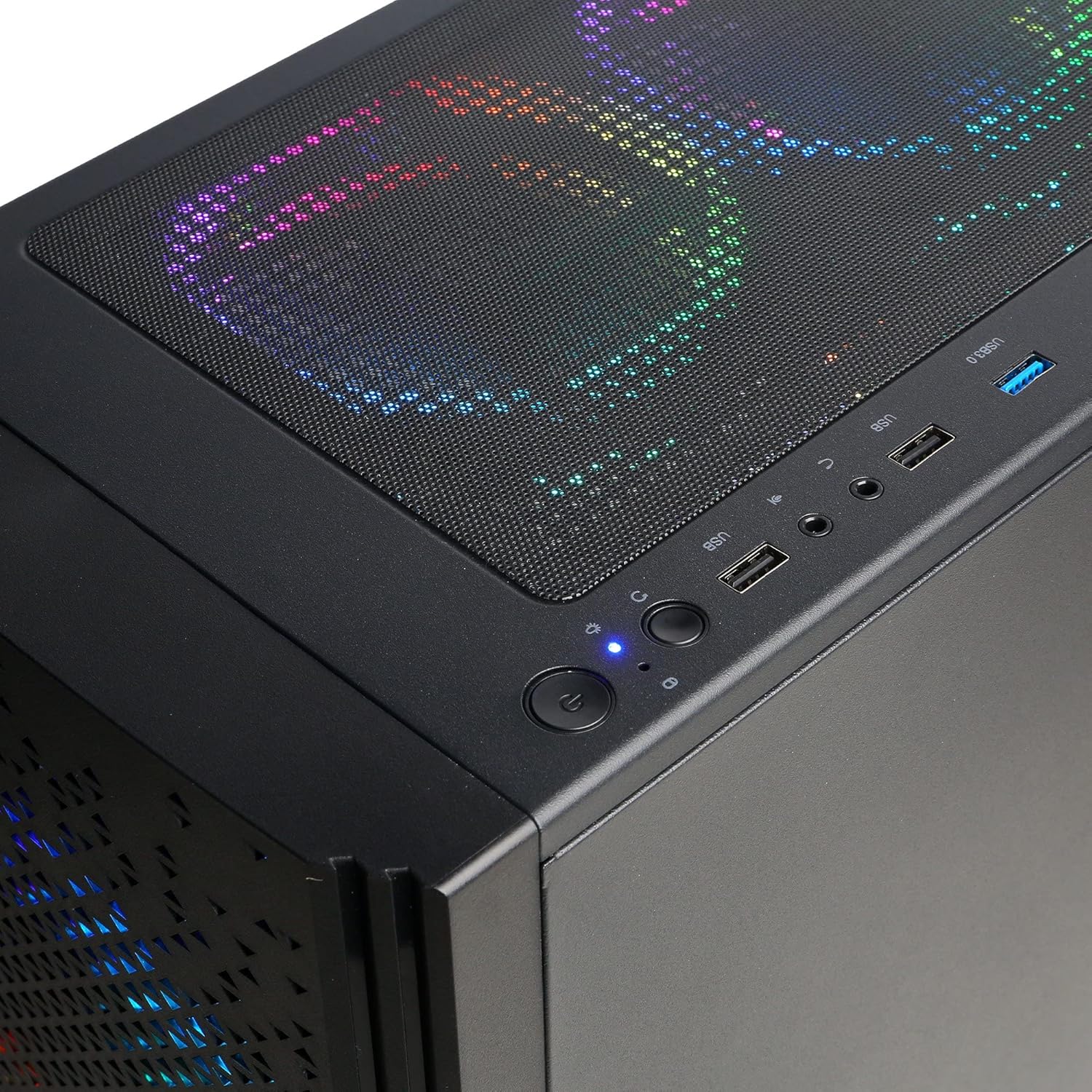
Image: Close-up of the top panel of the PC, illustrating the accessible USB ports, audio jacks, and power button for easy peripheral connection.
2.3 Første opstart
Press the power button located on the top front of the PC. The system will boot into Windows 10 Home. Follow the on-screen instructions to complete the initial Windows setup, including language, region, and user account creation.
2.4 Netværksforbindelse
- wired: If you connected an Ethernet cable, your PC should automatically detect the network connection.
- Trådløs: Click the Wi-Fi icon in the Windows taskbar, select your network, enter the password, and connect. The PC supports 300Mbps 802.11n Wi-Fi.
3. Betjening af din pc
3.1 Tænd/sluk
- Tænd: Press the power button on the top front of the case.
- Luk ned: Click the Windows Start button, then Power > Shut down. Avoid simply unplugging the PC to prevent data loss or system corruption.
- Genstart: Klik på Windows Start-knappen, og klik derefter på Tænd/sluk > Genstart.
3.2 Windows 10 Home
Your PC comes pre-installed with Windows 10 Home 64-bit. Familiarize yourself with the operating system's interface and features. Regular updates are recommended for security and performance.
3.3 RGB-lysstyring
The Cooler Master Masterbox MB520 case features 4x RGB LED fans. These can typically be controlled via a dedicated button on the case or through software provided by the manufacturer. Refer to the case manufacturer's documentation for specific instructions on RGB customization.

Image: The front panel of the CYBERPOWERPC Wyvern PC, highlighting the vibrant RGB illumination of the three front fans.
4. Vedligeholdelse
4.1 Rengøring
- Ydre: Brug en blød, damp klud til at rengøre ydersiden af kabinettet. Undgå slibende rengøringsmidler.
- Støv: Periodically clean dust from the fan vents and interior components using compressed air. Ensure the PC is powered off and unplugged before cleaning.
4.2 Softwareopdateringer
- Windows-opdateringer: Søg regelmæssigt efter og installer Windows-opdateringer for at sikre systemstabilitet og sikkerhed.
- Driver opdateringer: Keep your graphics card drivers (Nvidia) and other component drivers updated for optimal performance. Visit the respective manufacturer's webwebsteder for de nyeste drivere.
4.3 Datasikkerhedskopiering
Regularly back up your important data to an external drive or cloud storage to prevent data loss in case of hardware failure or other unforeseen issues.
5. Fejlfinding
5.1 Ingen strøm
- Sørg for, at strømkablet er korrekt tilsluttet til både pc'en og stikkontakten.
- Check if the power switch on the PSU (at the back of the PC) is in the 'On' position.
- Test stikkontakten med en anden enhed for at bekræfte, at den har strøm.
5.2 Ingen visning på skærmen
- Verify that the monitor is powered on and the video cable is securely connected to the graphics card (Nvidia GTX 1650) ports on the PC.
- Ensure the monitor input source is correctly selected (e.g., HDMI, DisplayPort).
- Prøv et andet videokabel eller en anden skærm, hvis det er muligt.
5.3 Langsom ydeevne
- Luk unødvendige baggrundsapplikationer.
- Søg efter og installer eventuelle ventende Windows- eller driveropdateringer.
- Run a disk cleanup and defragmentation (for HDD) or optimization (for SSD).
- Scan for malware eller virus.
5.4 Problemer med netværksforbindelse
- wired: Check the Ethernet cable connection to both the PC and the router. Restart your router.
- Trådløs: Ensure Wi-Fi is enabled in Windows. Restart your router. Verify your Wi-Fi password.
5.5 Blue Screen Errors (BSOD)
Blue Screen of Death errors can indicate various issues. Note down the error code or message displayed. Common solutions include:
- Updating drivers, especially graphics and chipset drivers.
- Running Windows Memory Diagnostic to check for RAM issues.
- Checking disk health using Windows tools.
- Performing a system restore to a previous working state.
6. Specifikationer
| Komponent | Detalje |
|---|---|
| Modelnummer | CGS480VR1318 |
| Processor | Intel Core i5-9400F (6 Cores, 2.90GHz Base, 4.10GHz Turbo, 9 MB Cache) |
| Bundkortchipsæt | H310 |
| Grafikkort | Nvidia GeForce GTX 1650 4GB (HDMI 2.0b, DVI-D, DisplayPort v1.4) |
| VÆDDER | 8 GB 2400 MHz DDR4 RAM |
| Opbevaring | 240GB SATA-III SSD + 1TB 7200RPM SATA-III HDD |
| Strømforsyning | 400W 80 Plus PSU |
| Operativsystem | Windows 10 Home 64-bit |
| Forbindelse | 4x USB 3.1 Gen 1, 2x USB 2.0, 1x PS/2 Port, 1x RJ45 Ethernet (10/100/1000), 300Mbps 802.11n Wi-Fi, 5.1 Channel High Definition Audio |
| Sag | Cooler Master Masterbox MB520 Mid-Tower Gaming Case with 4x RGB LED Fans |
| Køling | Intel Standard Cooler |
| Dimensioner (L x B x H) | 36 x 20.5 x 45 cm |
| Vægt | 10.4 kg |
7. Garanti og support
7.1 Garantioplysninger
Your CYBERPOWERPC Wyvern Gaming PC comes with a warranty of 2 år på dele og 3 years on labor. This warranty covers manufacturing defects and hardware failures under normal use conditions.
The system also includes Bullguard Internet Security for 1 year (3 devices), providing protection against online threats.
7.2 Teknisk support
CYBERPOWERPC offers livslang teknisk support for your product. If you encounter any issues that cannot be resolved using this manual's troubleshooting section, please contact CYBERPOWERPC customer support. Have your model number (CGS480VR1318) and purchase details ready when contacting support.
For the most up-to-date contact information and support resources, please visit the official CYBERPOWERPC webwebsted.
Ask a question about this manual
Ask about setup, troubleshooting, compatibility, parts, safety, or missing instructions. Manuals+ will review the question and use this page’s manual context to help answer it.