
1.Overview
The Aerocool Cylon RGB Midi-Tower PC Case, model ACCM-PV10012.11, is designed to house computer components, offering both functionality and aesthetic appeal. It features a side window panel for showcasing internal hardware and an RGB LED illumination strip on the front panel for customizable lighting effects. This case supports ATX motherboards and provides ample space for various components, including multiple storage drives and cooling solutions.

Figur 1: Forside view of the Aerocool Cylon RGB Midi-Tower PC Case, highlighting its distinctive RGB LED strip.
2. Pakkens indhold
Kontroller venligst, at alle varer er til stede i pakken:
- Aerocool Cylon RGB Midi-Tower PC Case (ACCM-PV10012.11)
- Tilbehørsæske (indeholder skruer, afstandsstykker, kabelbindere osv.)
- Brugervejledning (dette dokument)
3. Sikkerhedsoplysninger
Read and understand all safety instructions before installing or operating the PC case. Failure to do so may result in injury or damage to the product.
- Afbryd altid strømforsyningen fra stikkontakten, inden du udfører nogen form for installation eller vedligeholdelse.
- Håndter alle komponenter forsigtigt for at undgå skader.
- Avoid touching electronic components directly; use anti-static precautions if possible.
- Keep small parts and accessories out of reach of children.
- Sørg for tilstrækkelig ventilation omkring kabinettet for at forhindre overophedning.
4. Opsætning og installation
4.1 Forberedelse af sagen
Before installing components, remove the side panels to access the interior of the case.
- Placer etuiet på en flad, stabil overflade.
- Locate the thumbscrews on the rear of the case securing the side panel.
- Unscrew the thumbscrews and carefully slide the side panel backward, then lift it off. Repeat for the other side panel if necessary.
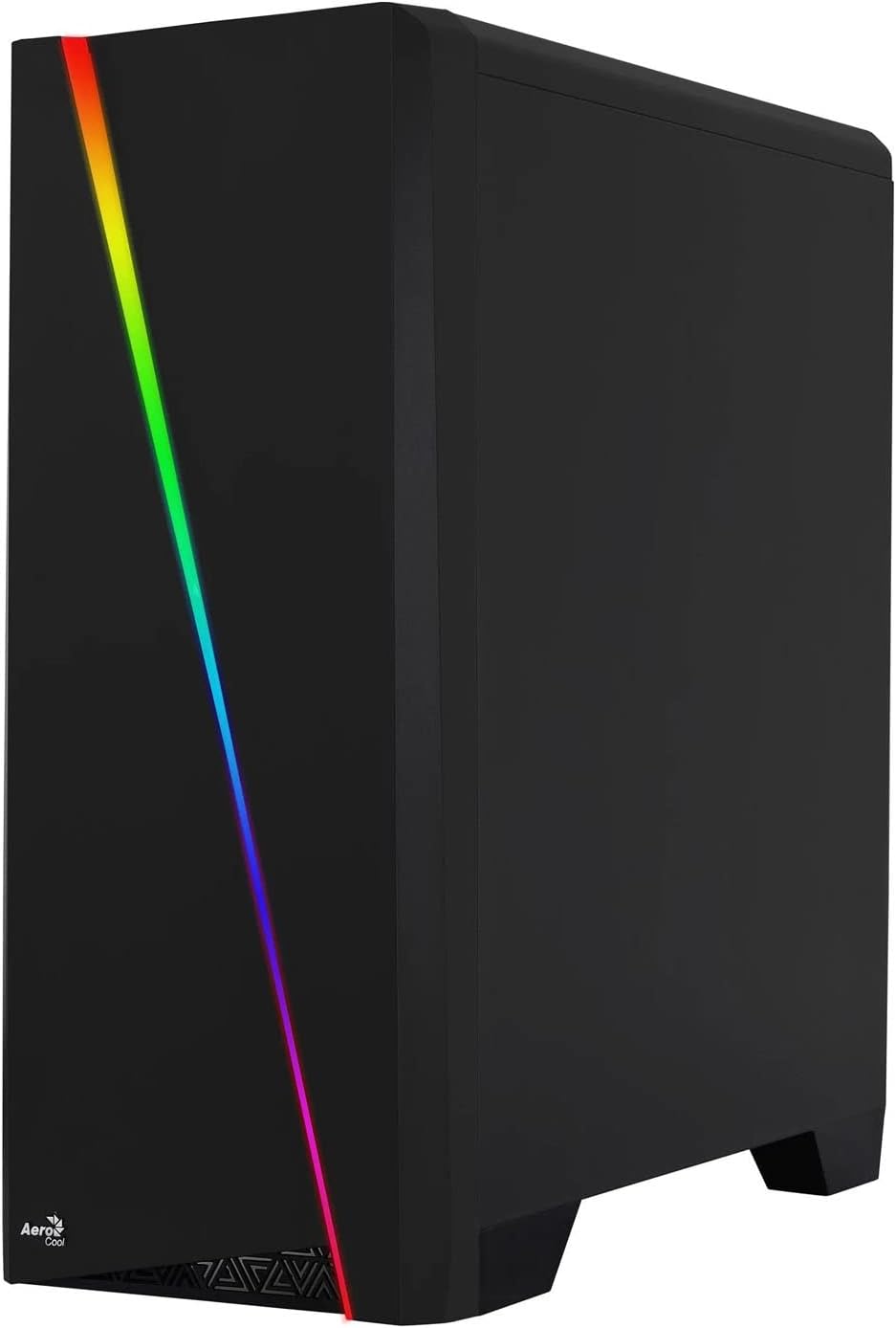

Figure 2: Left image shows the side panel attached, right image shows the side panel removed for access.
4.2 Installation af bundkort
The Aerocool Cylon case supports ATX motherboards.
- Install the I/O shield that came with your motherboard into the opening at the rear of the case.
- Ensure motherboard standoffs are correctly aligned with your motherboard's screw holes. Install any missing standoffs from the accessory box.
- Placer forsigtigt dit bundkort på afstandsstykkerne, og juster skruehullerne.
- Fastgør bundkortet med de passende skruer fra tilbehørsæsken.
4.3 Drive Installation (2.5" / 3.5")
The case provides bays for 2.5-inch and 3.5-inch drives.
- Locate the drive bays within the case. Refer to the case diagram for specific locations.
- For 3.5-inch HDDs, slide the drive into the designated tray or bay and secure it with screws.
- For 2.5-inch SSDs, mount the drive onto the designated bracket or tray and secure it with screws.
4.4 Installation af strømforsyningsenhed (PSU).
The PSU is typically mounted at the bottom rear of the case.
- Skub strømforsyningen ind i det dertil indrettede rum fra bagsiden af kabinettet.
- Align the PSU's screw holes with those on the case.
- Fastgør strømforsyningen med de medfølgende skruer.
4.5 Installation af udvidelseskort (GPU)
Install your graphics card or other expansion cards into the PCIe slots.
- Remove the necessary PCI-E slot covers from the rear of the case corresponding to your expansion card's size.
- Carefully insert the expansion card into the appropriate PCI-E slot on the motherboard until it clicks into place.
- Secure the expansion card with screws.

Figur 3: Bagside view of the PC case, showing the expansion slots and I/O area.
4.6 Fan / Liquid Cooling Radiator Installation
The Aerocool Cylon case supports various cooling configurations.
- Bag: 1 x 120mm fan (pre-installed or optional).
- Top: Supports 2 x 120mm fans or 1 x 240mm radiator.
- Bund: Understøtter 2 x 120 mm blæsere.
- Mount fans or radiators to their respective positions using the appropriate screws.
- Tilslut blæserens strømkabler til bundkortet eller en blæsercontroller.

Figure 4: An interior shot of the case, illustrating potential fan and liquid cooling radiator placements.
4.7 Kabelstyring
Effective cable management improves airflow and aesthetics.
- Route cables through the cutouts and behind the motherboard tray.
- Use cable ties (included in the accessory box) to bundle and secure cables.
4.8 Tilslutning af frontpanelets I/O
Connect the front panel cables to the corresponding headers on your motherboard.
- USB 3.0: Tilslut USB 3.0-kablet til bundkortets USB 3.0-header.
- USB 2.0: Connect the USB 2.0 cables (x2) to the motherboard's USB 2.0 headers.
- HD-lyd: Tilslut HD-lydkablet til bundkortets lydstik.
- Strøm/Nulstilling/LED'er: Connect the small individual cables (Power SW, Reset SW, HDD LED, Power LED) to the motherboard's front panel headers according to your motherboard manual.
5. Betjening af pc-kabinettet
Once all components are installed and connected, reattach the side panels and power on your system.
- Tænd: Tryk på tænd/sluk-knappen, der er placeret på kabinettets øverste I/O-panel.
- RGB-lysstyring: The front panel RGB LED illumination can be controlled via a dedicated button on the top I/O panel or through compatible motherboard software, depending on your setup. Refer to your motherboard manual for software control options.
6. Vedligeholdelse
Regelmæssig vedligeholdelse er med til at sikre optimal ydeevne og levetid for dit pc-kabinet og komponenter.
- Rengøring af støvfilter: The case features dust filters (e.g., on the top and bottom). Regularly remove and clean these filters to prevent dust buildup and maintain good airflow. Use compressed air or a soft brush.
- Generel rengøring: Brug en blød, damp cloth to wipe down the exterior of the case. Avoid abrasive cleaners or solvents. For the transparent side panel, use a microfiber cloth to prevent scratches.
7. Fejlfinding
Hvis du støder på problemer, kan du overveje følgende almindelige fejlfindingstrin:
- Ingen strøm: Ensure the PSU is properly connected to the wall outlet and the power switch on the PSU is in the 'ON' position. Verify all power cables to the motherboard and components are securely seated.
- Ventilatorer der ikke drejer: Check that all fan cables are correctly connected to the motherboard or fan controller. Ensure the system is receiving power.
- RGB virker ikke: Confirm RGB cables are properly connected. If using motherboard software, ensure it is installed and configured correctly.
- Løse forbindelser: Recheck all internal connections (power, data, front panel I/O) to ensure they are firmly seated.
8. Specifikationer
| Feature | Specifikation |
|---|---|
| Modelnavn | ACCM-PV10012.11 |
| Sagstype | Midi-Tower |
| Bundkort kompatibilitet | ATX |
| Dimensioner (LxBxH) | 16.26 x 7.8 x 18.07 tommer |
| Varens vægt | 8.36 pund |
| Materiale | Akryl |
| USB 3.0 porte | 1 |
| USB 2.0 porte | 2 |
| Afkølingsmetode | Luft |
| Fan Size (Rear) | 120 millimeter |
| RGB belysning | Front Panel LED Strip |
9. Garantioplysninger
The Aerocool Cylon RGB Midi-Tower PC Case is covered by a manufacturer's warranty. Please refer to the warranty card included with your product or visit the official AeroCool webwebstedet for detaljerede garantivilkår og -betingelser, herunder dækningsperiode og procedurer for reklamation.
10. Support
For further assistance, technical support, or to download the latest drivers and software, please visit the official AeroCool webwebsted:
Webwebsted: www.aerocool.io
You may also contact AeroCool customer service through the contact information provided on their webwebsted.