
Macally SLIMKEYC
Macally USB Wired Keyboard Instruction Manual
Model: SLIMKEYC
Indledning
Thank you for choosing the Macally USB Wired Keyboard. This compact and versatile keyboard is designed to enhance your productivity on both Mac and Windows PC systems. Featuring 78 scissor switch keys and 13 shortcut keys, it offers a comfortable and efficient typing experience. This manual provides detailed instructions for setup, operation, maintenance, and troubleshooting to ensure optimal performance of your new keyboard.

Image: The Macally USB Wired Keyboard, showcasing dens kompakte design og hvide finish.
Nøglefunktioner
- Versatile Compact Design: Boosts productivity and saves desk space, ideal for both home and office environments.
- Easy Plug and Play Setup: Simple USB connection for immediate use with Mac and Windows PCs.
- Mac- og Windows-kompatibilitet: Seamless operation across different operating systems.
- 13 One-Touch Shortcut Keys: Dedicated keys for Mac functions (cut/copy/paste/iTunes) and multimedia hotkeys for Windows.
- Scissor Switch Keys: Provides a responsive, tactile, and quiet typing experience.
- Integreret skrivevinkel: Subtle angle for improved comfort during extended use.
Opsætningsvejledning
1. Udpakning
Carefully remove the keyboard from its packaging. Ensure all components, including the keyboard and user guide, are present.
2. Tilslutning af tastaturet
- Locate an available USB-A port on your Mac or Windows PC.
- Plug the USB connector of the Macally keyboard into the USB-A port.
- For Mac users with only USB-C ports, a USB-C to USB-A adapter (not included) will be required.

Image: The Macally USB Wired Keyboard with its USB-A cable, illustrating the simple wired connection for Mac and PC.
3. Driver Installation (Automatic)
The Macally USB Wired Keyboard is plug-and-play. Your operating system (Mac OS or Windows) will automatically detect the keyboard and install the necessary drivers. No manual driver installation is required.
Betjeningsvejledning
Grundlæggende skrivning
Once connected, the keyboard is ready for immediate use. Simply begin typing as you would with any standard keyboard.
Using Shortcut Keys
The keyboard features 13 dedicated shortcut keys for enhanced productivity. These keys are located on the top row of the keyboard (F1-F12 and an additional key).
| Nøgle | Function (Mac) |
|---|---|
| F1 | Formindsk lysstyrke |
| F2 | Øg lysstyrken |
| F3 | Missionskontrol |
| F4 | Launchpad |
| F5 | Keyboard Backlight Decrease (if applicable) |
| F6 | Keyboard Backlight Increase (if applicable) |
| F7 | Previous Track (Media) |
| F8 | Play/Pause (Media) |
| F9 | Next Track (Media) |
| F10 | Dæmp lydstyrke |
| F11 | Sænk lydstyrken |
| F12 | Øg lydstyrken |
| Eject Key | Power Off / Eject (depending on system configuration) |
For Windows PC users, these keys function as standard multimedia hotkeys (e.g., play/pause, volume control).
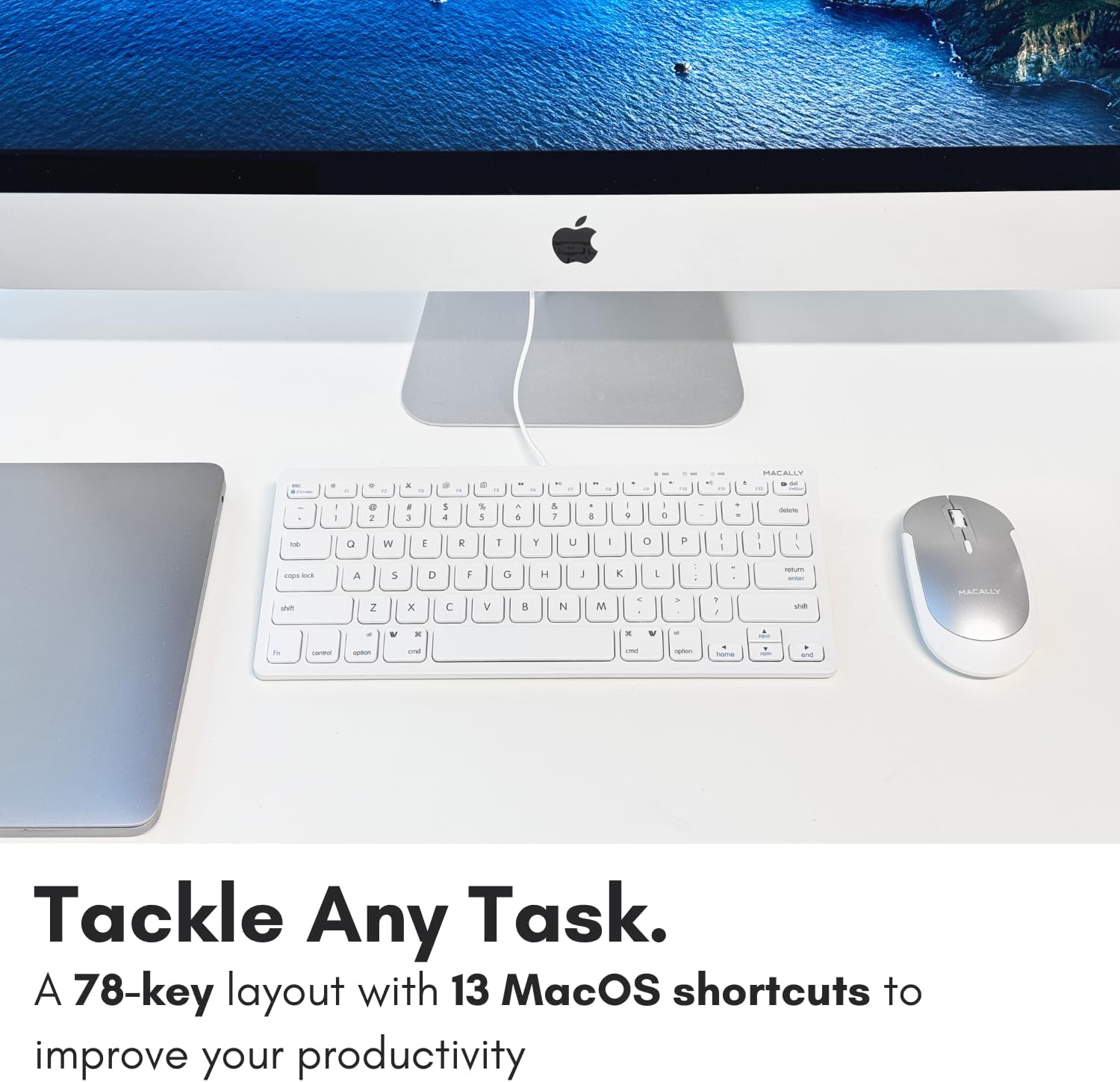
Billede: Et nærbillede view of the Macally keyboard, highlighting the 13 shortcut keys designed for efficiency.
Opretholdelse
Rengøring af tastaturet
- Frakobl tastaturet fra computeren, før du rengør det.
- Brug en blød, fnugfri klud lidt dampafsluttes med vand eller en mild rengøringsopløsning.
- Undgå for meget fugt, og sprøjt ikke rengøringsmidler direkte på tastaturet.
- Brug trykluft til støv og snavs mellem tasterne.
Opbevaring
Når tastaturet ikke er i brug i længere perioder, skal det opbevares køligt og tørt, væk fra direkte sollys og ekstreme temperaturer.
Fejlfinding
| Problem | Løsning |
|---|---|
| Tastaturet reagerer ikke |
|
| Keys are not typing correctly or are sticky |
|
| Shortcut keys not working on Mac |
|
Specifikationer
| Feature | Detalje |
|---|---|
| Modelnummer | SLIMKEYC |
| Forbindelse | USB Wired (USB-A) |
| Antal nøgler | 78 |
| Genvejstaster | 13 (Mac functions / Windows multimedia) |
| Nøgletype | Sakseafbryder |
| Kompatibilitet | Mac OS, Windows OS, Linux, Chrome OS |
| Dimensioner (LxBxH) | 11.2 x 4.7 x 0.2 tommer |
| Vægt | 10.4 ounce |
| Kabellængde | Cirka 4.7 fod |
Garanti og support
Macally stands behind its products. The Macally USB Wired Keyboard comes with up to a 2 års garanti og LIFETIME tech support.
For technical assistance, warranty claims, or further inquiries, please visit the official Macally webwebstedet eller kontakt deres kundesupport direkte.
Du kan finde mere information og supportressourcer på: www.macally.com
Produktvideoer
Compact USB Wired Keyboard for Mac and PC
Video: An official product video from Jukegear (Seller) demonstrating the compact design and wired connectivity of the Macally USB keyboard for both Mac and PC systems. This video highlights the ease of use and compatibility.