Indledning
This manual provides comprehensive instructions for the setup, operation, and maintenance of your NETUM NT-R3 Mini 1D CCD Bluetooth Barcode Scanner. Please read this guide thoroughly to ensure proper use and to maximize the performance of your device.
Pakkens indhold
Ved udpakning skal du kontrollere, at alle nedenstående varer er til stede og i god stand:
- 1 x NETUM Mini Bluetooth Barcode Scanner (NT-R3)
- 1 x USB ladekabel
- 1 x Quick Start Guide
- 1 x 2.4 GHz Adapter
Produkt overview
The NETUM NT-R3 is a compact and versatile 1D CCD barcode scanner designed for portability and ease of use. Its ring-style design allows for comfortable wear, enhancing productivity in various environments.

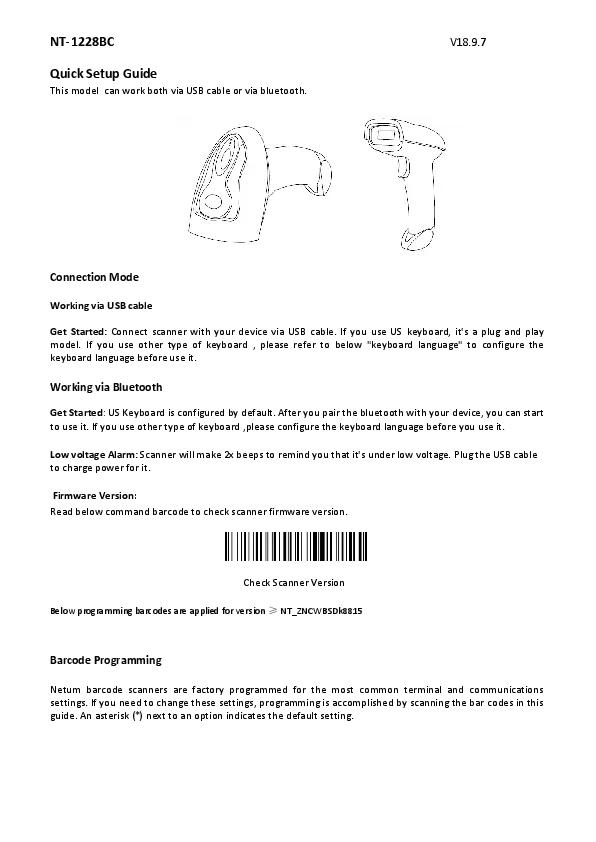
Image: The NETUM NT-R3 Mini Barcode Scanner, a small black electronic device with a screen and button, designed to be worn on a finger with an adjustable ring structure.
Nøglefunktioner:
- Ring Design: Magnesiumlegering casing and trigger for durability and ease of use.
- 180° rotation: Unique rotatable design for scanning from various angles.
- CCD Scanning: Reads 1D barcodes directly from LCD screens of computers or mobile devices, including poorly printed or damaged barcodes.
- Trådløs forbindelse: Supports Bluetooth (SPP, HID) and 2.4 GHz wireless connections.
- Bred kompatibilitet: Compatible with Windows XP/7/8/8.1/10, Google Android, iOS, and Mac OS X.
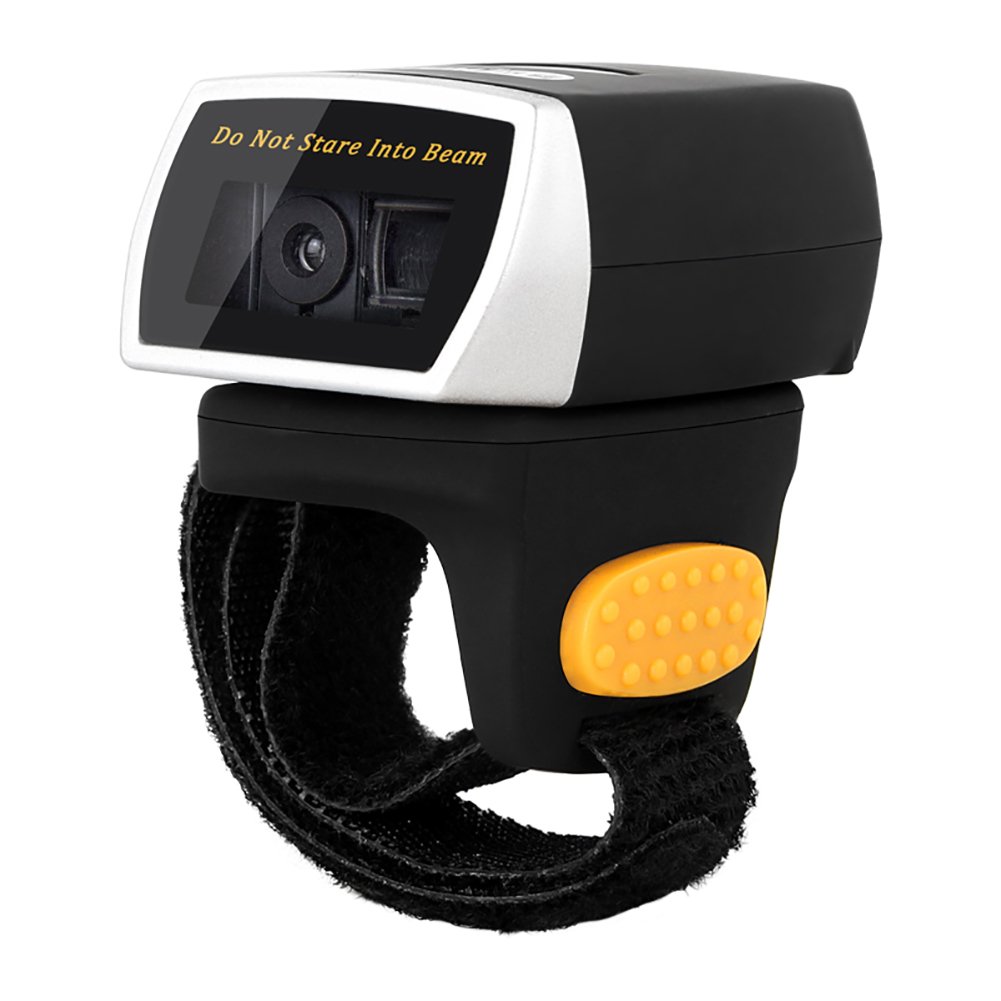
Image: The NETUM NT-R3 Mini Barcode Scanner demonstrating its 180-degree rotation design, allowing for flexible scanning angles.

Image: The NETUM NT-R3 Mini Barcode Scanner held in a hand, illustrating its compact dimensions (50mm x 44mm x 38mm) and light weight (50g), emphasizing its strong compatibility with various devices.
Opsætning og tilslutning
1. Opladning af scanneren
Before initial use, fully charge the scanner using the provided USB charging cable. Connect the small end of the USB cable to the scanner's charging port and the other end to a USB power source (e.g., computer, USB wall adapter). The charging indicator light will show the charging status.
2. Tænd/sluk
To power on the scanner, press and hold the trigger button for a few seconds until you hear a beep and see the indicator light. To power off, press and hold the trigger button again until the indicator light turns off.
3. Tilslutningsmuligheder
The NT-R3 scanner offers two primary connectivity methods:
Bluetooth Connection (HID Mode - Keyboard Emulation)
- Sørg for, at scanneren er tændt.
- Scan the "Bluetooth HID Mode" barcode (refer to the Quick Start Guide for specific barcodes).
- Aktiver Bluetooth på din værtsenhed (smartphone, tablet, computer) og søg efter tilgængelige enheder.
- Select "NETUM Barcode Scanner" or a similar name from the list of devices.
- The scanner will beep to confirm successful pairing.
In HID mode, scanned barcodes are input directly as keyboard entries into any active text field.
Bluetooth Connection (SPP Mode - Serial Port Profile)
SPP mode is typically used for applications that require direct data communication with the scanner. This mode requires specific software on the host device to interpret the data. Refer to your application's documentation for SPP setup.
- Sørg for, at scanneren er tændt.
- Scan the "Bluetooth SPP Mode" barcode (refer to the Quick Start Guide).
- Follow the instructions provided by your specific application for connecting to an SPP device.
2.4 GHz trådløs forbindelse
- Plug the provided 2.4 GHz adapter into a USB port on your computer.
- Sørg for, at scanneren er tændt.
- Scan the "2.4G Wireless Mode" barcode (refer to the Quick Start Guide).
- The scanner will automatically connect to the adapter. A successful connection is indicated by a specific beep or light pattern (refer to the Quick Start Guide for details).
The 2.4 GHz connection offers a wireless range of up to 10 meters (30 feet).
Driftstilstande
The NETUM NT-R3 scanner supports two data upload modes:
1. Tilstanden Øjeblikkelig upload
In this mode, scanned barcodes are immediately transmitted to your connected device. This is suitable for real-time data entry.
2. Lagringstilstand
The scanner can store up to 2000 barcodes in its built-in flash memory. This mode is useful when working out of range of your host device. Barcodes can be uploaded later when a connection is established.
Image: A visual representation of the two upload modes. Instant Upload Mode shows barcodes being sent directly to a device. Storage Mode shows barcodes being stored internally and then uploaded later.
To switch between modes, scan the corresponding configuration barcodes found in the Quick Start Guide.
Scanning af stregkoder
Sådan scanner du en stregkode:
- Hold scanneren med scanningsvinduet vendt mod stregkoden.
- Press the trigger button. A red scanning line will appear.
- Align the red scanning line across the entire barcode.
- Once successfully scanned, the scanner will emit a beep, and the indicator light will flash.
The NT-R3 is capable of reading 1D barcodes from various surfaces, including:
- Trykte etiketter
- LCD screens (computers, smartphones, tablets)
- Poorly printed or damaged barcodes
Opretholdelse
Batteripleje
- For at forlænge batteriets levetid bør du undgå at aflade batteriet helt ofte.
- Charge the scanner regularly, even if not in constant use.
- Opbevar scanneren et køligt og tørt sted, når den ikke er i brug i længere perioder.
Rensning
- Brug en blød, tør og fnugfri klud til at rengøre scannerens yderside.
- Brug en linserengøringsklud eller en blød klud, der let gnides, til scanningsvinduet.amprengøres med vand eller et mildt, ikke-slibende rengøringsmiddel.
- Brug ikke skrappe kemikalier, opløsningsmidler eller slibende materialer, da disse kan beskadige enheden.
Fejlfinding
| Problem | Mulig årsag | Løsning |
|---|---|---|
| Scanneren tænder ikke. | Lavt batteri. | Oplad scanneren i mindst 2 time. |
| Scanneren opretter ikke forbindelse via Bluetooth. | Incorrect mode selected; device not discoverable; out of range. | Ensure "Bluetooth HID Mode" or "SPP Mode" is scanned. Make sure Bluetooth is enabled on the host device and the scanner is within 10 meters. Try re-pairing. |
| Scanner does not connect via 2.4 GHz adapter. | Adapter not properly inserted; incorrect mode selected. | Ensure the 2.4 GHz adapter is securely plugged in. Scan the "2.4G Wireless Mode" barcode. |
| Scanneren læser ikke stregkoder. | Barcode is unreadable; scanner not aligned; scanner in storage mode. | Ensure the barcode is clear and well-lit. Align the red line across the entire barcode. If in storage mode, switch to instant upload mode or upload stored data. |
| Scannede data vises forkert. | Keyboard layout mismatch (for HID mode). | Scan the appropriate keyboard layout barcode (e.g., US, UK, French) from the Quick Start Guide. |
Tekniske specifikationer
| Feature | Detalje |
|---|---|
| Modelnummer | NT-R3 |
| Scanningsteknologi | 1D CCD |
| Forbindelse | Bluetooth (SPP, HID), 2.4 GHz Wireless, USB |
| Kompatible operativsystemer | Windows XP/7/8/8.1/10, Google Android, iOS, Mac OS X |
| Scanningshastighed | 260 samples per sekund |
| Lagerkapacitet | Up to 2000 barcodes (in Storage Mode) |
| Batteritype | 1 Lithium metal battery (included) |
| Strømkilde | Batteridrevet |
| Operation Voltage | 5 volt |
| Maksimal opbevaringstemperatur | 45 grader Celsius |
| Certificeringer | CE, ISO, RoHS |
| Fabrikant | Guangzhou Netum Electronic Technology Co.,Ltd. |
| Oprindelsesland | Kina |
Garanti og support
Returpolitik
Dette produkt er berettiget til refusion eller ombytning inden for 30 dage efter købet i overensstemmelse med sælgers returpolitik.
Producentoplysninger
Manufacturer: Guangzhou Netum Electronic Technology Co.,Ltd.
For further assistance or technical support, please refer to the contact information provided in your Quick Start Guide or visit the official NETUM webwebsted.
Note: Information regarding spare parts availability and guaranteed software updates is not available at this time.