
Gembird MUSG-04
Gembird MUSG-04 USB Optical Gaming Mouse User Manual
1. Introduktion
This manual provides detailed instructions for the Gembird MUSG-04 USB Optical Gaming Mouse. It covers product features, setup procedures, operational guidelines, maintenance tips, and troubleshooting information to ensure optimal use of your device.

Image 1.1: The Gembird MUSG-04 Gaming Mouse presented in its retail packaging, highlighting the product's design and branding.
2. Produktfunktioner
The Gembird MUSG-04 is designed for gaming, offering a range of features for enhanced control and customization:
- Programmable 8-Button Design: Provides extensive customization options for various in-game actions.
- Justerbar DPI: Quick DPI button allows on-the-fly sensitivity adjustments from 1200 to 3200 DPI.
- Makro programmering: Dedicated software enables creation and assignment of complex macro commands to buttons.
- Illuminated Elements: Features an illuminated scroll wheel, logo, and side accents for visual feedback and aesthetic appeal.
- Ergonomisk design til højrehåndede: Shaped for comfortable use during extended gaming sessions.
- USB-forbindelse: Standard USB interface for broad compatibility.
- Holdbart kabel: 1.5-meter braided cable for reliable connection and longevity.
- Wide Operating System Support: Compatible with Windows 10 and other recent Windows operating systems.

Billede 2.1: En side view of the Gembird MUSG-04 mouse, showcasing its ergonomic contours and button placement designed for right-handed users.
3. Pakkens indhold
Bekræft, at din pakke indeholder følgende varer:
- Gembird MUSG-04 USB Optical Gaming Mouse
- Brugervejledning (dette dokument)
- Macro Programming Software (typically available via download or included on a mini-CD)

Image 3.1: The side of the Gembird MUSG-04 retail box, displaying key features and specifications of the gaming mouse.
4. Opsætningsvejledning
4.1. Hardwareforbindelse
- Find en ledig USB-port på din computer.
- Plug the USB connector of the Gembird MUSG-04 mouse into the USB port.
- Your operating system will typically detect the mouse automatically and install the necessary drivers. This process may take a few moments.
4.2. Software Installation (Optional for Macro Programming)
To utilize the programmable buttons and macro features, install the dedicated software:
- If a mini-CD is included, insert it into your computer's optical drive and follow the on-screen instructions.
- Alternatively, download the latest software from the official Gembird support webwebsted.
- Run the installer and follow the prompts to complete the software installation.
- Genstart din computer, hvis du bliver bedt om det.
5. Betjening af musen
5.1. Knapfunktioner
The Gembird MUSG-04 features 8 buttons with default functions:
- Venstre knap: Primær klikfunktion.
- Højre knap: Sekundær klikfunktion (kontekstmenu).
- Scrollhjul: Scrolls content up/down. Pressing it acts as a middle click.
- DPI knap: Cycles through preset DPI sensitivity levels (e.g., 1200, 1600, 2400, 3200 DPI).
- Frem/Tilbage-knapper: Navigere web sider eller mapper.
- Brandknap: Often used for rapid-fire actions in games.
- Makroknapper: Customizable via software for specific commands or macros.
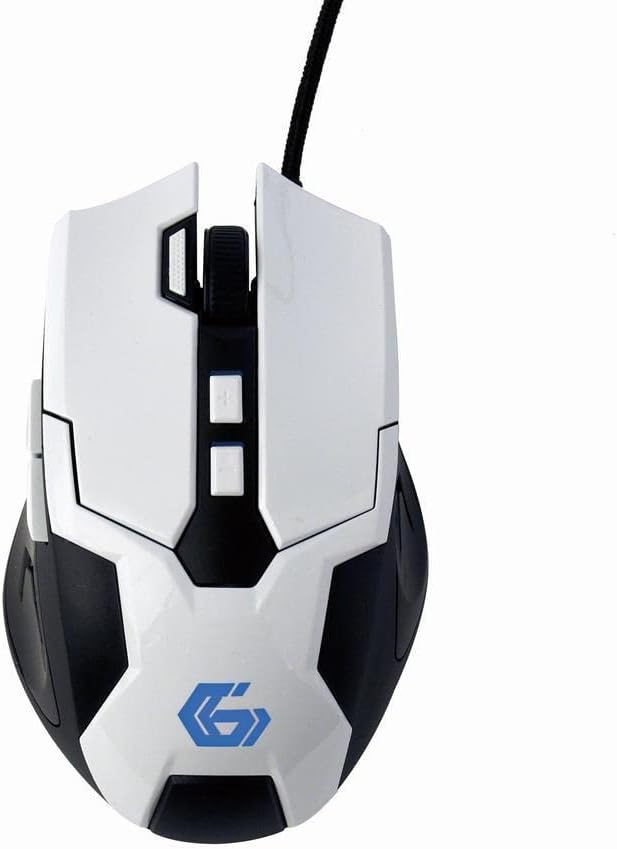
Billede 5.1: Top-down view of the Gembird MUSG-04 mouse, illustrating the placement of its various buttons, including the left, right, scroll wheel, DPI, and side buttons. The Gembird logo is illuminated in blue.
5.2. Adjusting DPI
Tryk på DPI knap (usually located behind the scroll wheel) to cycle through the available sensitivity settings. Each press will switch to the next DPI level, indicated by a change in the mouse's illumination color or pattern (if supported).
5.3. Makroprogrammering
The included macro programming software allows you to customize button functions and create complex sequences of commands. Refer to the software's built-in help or the Gembird support webwebstedet for detaljerede instruktioner om oprettelse og tildeling af makroer.
5.4. Belysning
The mouse features dynamic illumination on its scroll wheel, logo, and side accents. These lights may change color based on the selected DPI setting or can be customized via the macro programming software.

Image 5.2: The Gembird MUSG-04 mouse with its logo and side accents illuminated in green, demonstrating the customizable lighting feature.
6. Vedligeholdelse
To ensure the longevity and optimal performance of your Gembird MUSG-04 mouse, follow these maintenance guidelines:
- Rensning: Brug en blød, tør og fnugfri klud til at tørre musens overflade af. Tør musen let af ved genstridigt snavs.ampRengør kluden med vand eller en mild rengøringsopløsning. Undgå skrappe kemikalier eller slibende materialer.
- Optisk sensor: Rengør jævnligt det optiske sensorområde på undersiden af musen med en vatpind for at forhindre sporingsproblemer.
- Kabelpleje: Avoid sharply bending or twisting the USB cable. Store the mouse in a way that prevents stress on the cable connection.
- Opbevaring: Når musen ikke er i brug i længere perioder, skal den opbevares et rent, tørt sted væk fra direkte sollys og ekstreme temperaturer.
7. Fejlfinding
If you encounter issues with your Gembird MUSG-04 mouse, refer to the following common problems and solutions:
- Musen reagerer ikke:
- Sørg for, at USB-kablet er korrekt tilsluttet en fungerende USB-port.
- Prøv at tilslutte musen til en anden USB-port på din computer.
- Test musen på en anden computer for at afgøre, om problemet ligger i musen eller computeren.
- Genstart din computer.
- Uregelmæssig markørbevægelse:
- Rengør den optiske sensor på undersiden af musen.
- Sørg for at bruge musen på en passende overflade (f.eks. en musemåtte). Undgå meget reflekterende eller gennemsigtige overflader.
- Kontrollér for eventuelle softwarekonflikter eller forældede drivere.
- Buttons Not Working/Macros Not Activating:
- Verify that the macro programming software is correctly installed and running.
- Check the button assignments within the software.
- Sørg for, at softwaren er professionelfile er aktiv.
- Belysning virker ikke:
- Check software settings for illumination control.
- Sørg for, at musen modtager tilstrækkelig strøm fra USB-porten.
8. Specifikationer
| Feature | Specifikation |
|---|---|
| Mærke | Gembird |
| Model | MUSG-04 |
| Forbindelsesteknologi | USB |
| Bevægelsesdetekteringsteknologi | Optisk |
| DPI-følsomhed | Justerbar (1200-3200 DPI) |
| Antal knapper | 8 (Programmerbar) |
| Kabellængde | 1.5 meter |
| Operativsystemsupport | Windows 10 og nyere |
| Produktmål (LxBxH) | 4.96 x 3.19 x 1.61 tommer (12.6 x 8.1 x 4.1 cm) |
| Varens vægt | 8.3 ounce (235 gram) |
9. Garanti og support
For warranty information, please refer to the documentation provided with your purchase or visit the official Gembird website. Technical support and driver downloads can also be found on the Gembird support portal.
For further assistance, please contact Gembird customer service through their official channels.