
1. Introduktion
Thank you for choosing the AMERTEER Wireless Presentation Remote. This device is designed to enhance your presentations by providing seamless control over your slides and a built-in laser pointer. This manual provides detailed instructions for setup, operation, maintenance, and troubleshooting to ensure optimal performance.
2. Produktet er slutview
The AMERTEER Wireless Presentation Remote (Model RCRF-008) is a compact and ergonomic device featuring a 2.4GHz wireless connection and a red laser pointer. It includes essential buttons for navigating presentations and controlling the laser.
2.1 Pakkens indhold
- AMERTEER Wireless Presentation Remote
- USB trådløs modtager
- Brugermanual
2.2 Enhedslayout
Familiarize yourself with the buttons and features of your presentation remote:

Billede 2.2.1: The AMERTEER Wireless Presentation Remote and its detachable USB receiver. The remote features a sleek black design with grey control buttons and a red laser pointer at the top. The USB receiver is stored securely within the remote's body.
- Laserpointer-knap: Activates the red laser.
- Side op-knap: Går videre til næste slide.
- Side ned-knap: Vender tilbage til det forrige dias.
- Full Screen/Black Screen Button: Toggles between full-screen mode and a black screen during a presentation.
- Tænd/sluk-knap: Located on the side or bottom of the device to conserve battery.
- USB-modtagerrum: Located at the bottom of the remote for secure storage of the USB receiver.
3. Opsætningsvejledning
3.1 Batteriinstallation
- Find batteridækslet på bagsiden af fjernbetjeningen.
- Skub eller lirk forsigtigt dækslet op.
- Insert one AAA battery (not included), ensuring correct polarity (+/-).
- Sæt batterirummets dæksel på igen.
3.2 Tilslutning af USB-modtageren

Billede 3.2.1: The USB receiver is shown being removed from its storage slot within the remote and then plugged into a laptop's USB port, illustrating the plug-and-play functionality.
- Open the USB receiver compartment at the bottom of the remote and remove the USB receiver.
- Sæt USB-modtageren i en ledig USB-port på din computer (bærbar eller stationær).
- Your computer should automatically detect and install the necessary drivers. No additional software installation is typically required.
- For Mac OS X 10.11 El Capitan users: After plugging in the USB receiver, a setup box may appear. Select the '101' or '104' option to ensure proper functionality.
4. Betjeningsvejledning
Once the USB receiver is connected and the remote has power, you can begin using it for your presentations.

Billede 4.0.1: The presentation remote is shown with icons illustrating its main functions: Page Up/Down, Full/Black Screen, Laser Control, and Wireless Connection. This image helps users quickly identify button functionalities.
- Tænd: Slide the On/Off switch to the 'On' position.
- Diasnavigation:
- Tryk på Side op button to move to the next slide.
- Tryk på Side ned button to move to the previous slide.
- Laserpointer:
- Tryk og hold på Laserpointer button to activate the red laser. Release the button to turn off the laser.
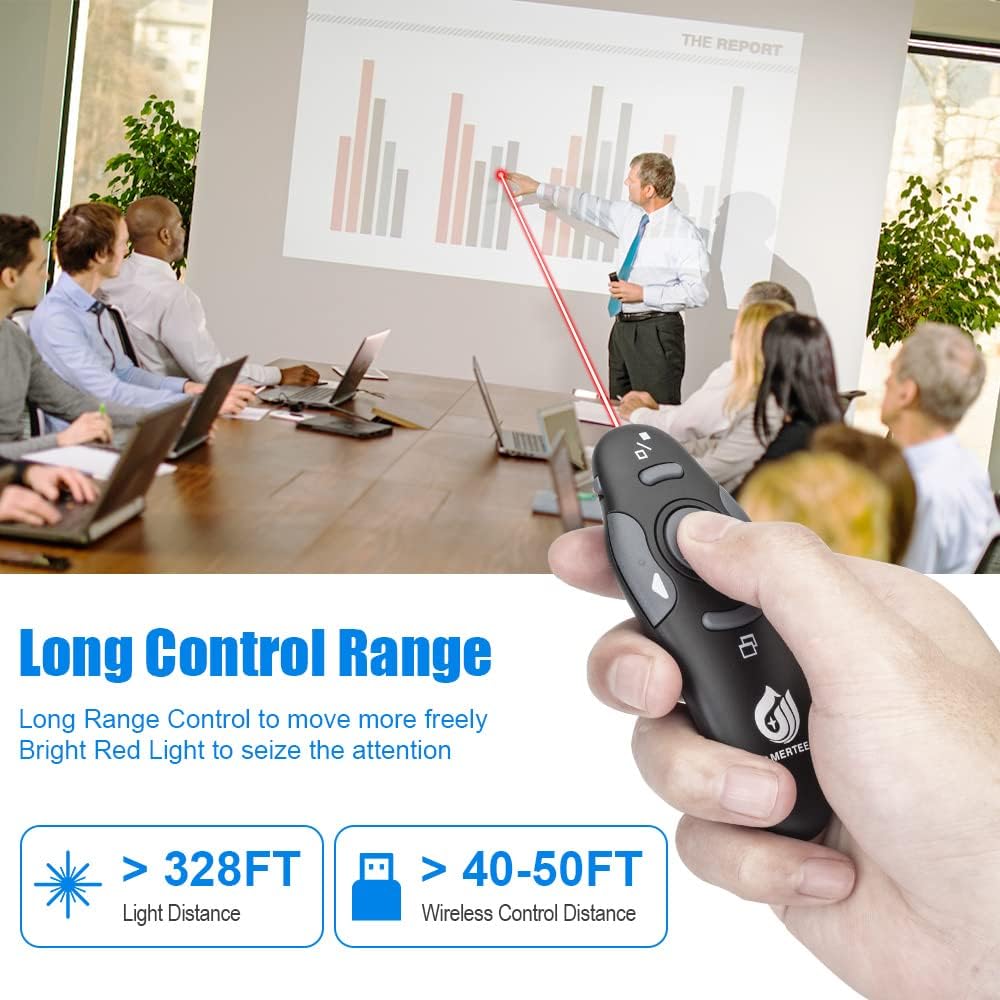
Billede 4.3.1: A presenter uses the AMERTEER remote to highlight content on a large screen with its red laser pointer, demonstrating its long control range and visibility.
- Full Screen / Black Screen:
- Tryk på Full Screen/Black Screen button to initiate a slideshow (e.g., in PowerPoint) or to toggle the screen to black, allowing you to focus audience attention away from the screen. Press again to return to the presentation.
- Sluk: Slide the On/Off switch to the 'Off' position when not in use to conserve battery life.
5. Kompatibilitet
The AMERTEER Wireless Presentation Remote is designed for broad compatibility with various operating systems and presentation software.
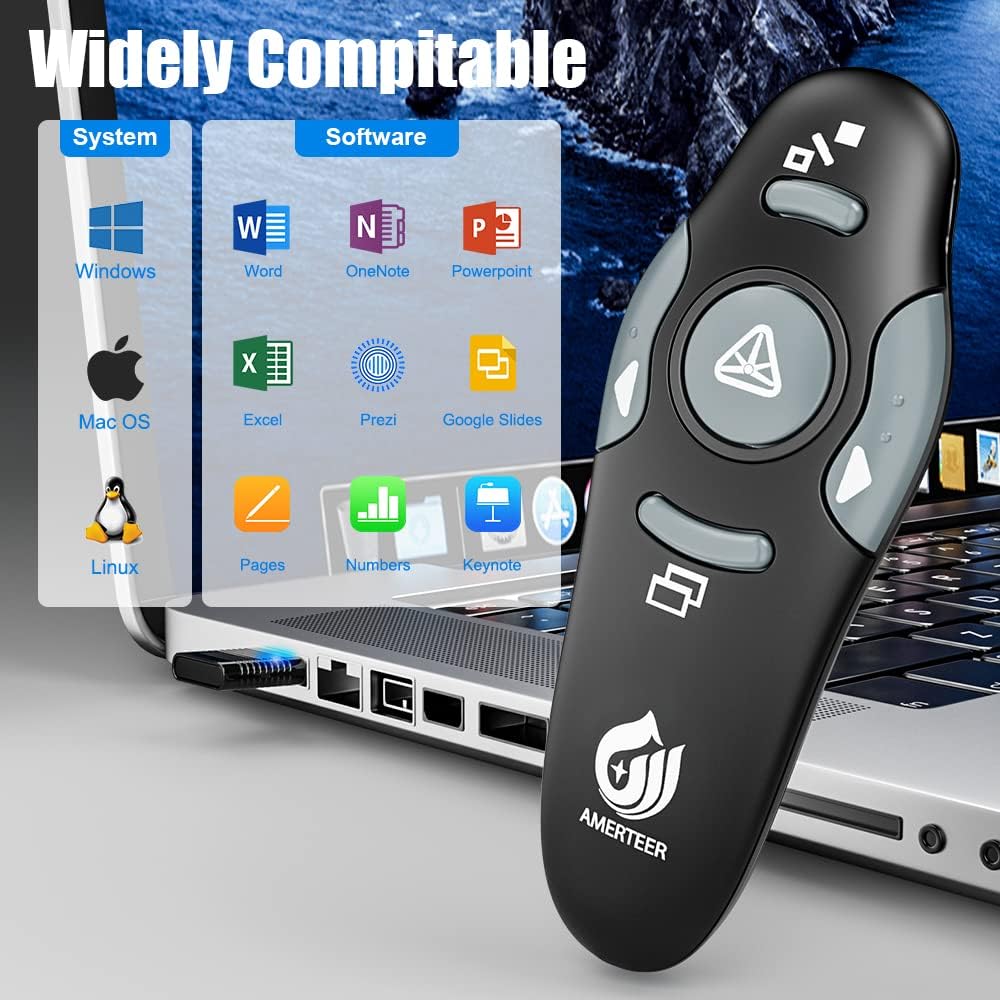
Billede 5.0.1: A visual representation of the remote's wide compatibility, showing logos for Windows, Mac OS, Linux operating systems, and software like Word, OneNote, PowerPoint, Excel, Prezi, Google Slides, Pages, Numbers, and Keynote.
5.1 Understøttede operativsystemer
- Windows (Win2000, XP, Vista, Win7, Win8, Win10)
- Mac OS (including OS X 10.11 El Capitan and newer)
- Linux
5.2 Understøttet software
- Microsoft PowerPoint, Word, Excel, OneNote
- Apple Keynote, Pages, Numbers
- Google Slides
- Prezi
- ACDSee
- Websites (for basic navigation)
6. Vedligeholdelse
Proper care and maintenance will extend the life of your presentation remote.
6.1 Rengøring
- Brug en blød, tør klud til at tørre overfladen af fjernbetjeningen af.
- Til genstridigt snavs, let dampda kluden med vand eller et mildt, ikke-slibende rengøringsmiddel.
- Do not use harsh chemicals or immerse the device in liquid.
6.2 Opbevaring
- Always store the USB receiver inside the remote's designated compartment to prevent loss.
- Opbevar fjernbetjeningen et køligt, tørt sted væk fra direkte sollys og ekstreme temperaturer.
- Hvis produktet opbevares i længere tid, skal AAA-batteriet fjernes for at forhindre lækage.
7. Fejlfinding
If you encounter issues with your AMERTEER Wireless Presentation Remote, refer to the following solutions:
| Problem | Mulig årsag | Løsning |
|---|---|---|
| Fjernbetjeningen svarer ikke | Low battery; Remote is off; USB receiver not connected or recognized; Out of range. | Replace battery; Turn remote On; Ensure USB receiver is firmly plugged in and recognized by OS; Move closer to the computer (within 39 feet). |
| Laserpointer virker ikke | Lavt batteri; Laserknappen er ikke trykket korrekt ind. | Replace battery; Press and hold the laser button firmly. |
| Buttons unresponsive (e.g., page up/down) | Software not in presentation mode; Button stuck. | Ensure your presentation software is active and in slideshow mode. Repeatedly press the unresponsive button to dislodge it if stuck. |
| Intermitterende forbindelse | Interference; Obstructions; Low battery. | Avoid strong electromagnetic interference; Ensure clear line of sight to receiver; Replace battery. |
8. Specifikationer
- Modelnummer: RCRF-008
- Produktdimensioner: 3.9 x 3.07 x 1.14 tommer
- Varens vægt: 1.13 ounce
- Trådløs teknologi: 2.4GHz RF
- Trådløs kontrolafstand: Op til 39 fod (12 meter)
- Laser type: Red Pointer
- Strømkilde: 1 x AAA-batterier (medfølger ikke)
- Speciel funktion: Ergonomic design, Built-in USB receiver storage
- Kompatible enheder: Laptop
9. Garanti og support
For warranty information and technical support, please refer to the documentation provided with your purchase or visit the official AMERTEER webwebsted. Gem din købskvittering som købsbevis i tilfælde af garantikrav.