
Indledning
The Griffin iTrip Clip is a compact Bluetooth wireless audio receiver designed to transform any wired headphones into wireless ones. It allows you to connect your favorite 3.5mm headphones to Bluetooth-enabled devices, providing convenient audio streaming and call control without direct cable connection to your smartphone or tablet.
This manual provides detailed instructions for setting up, operating, and maintaining your iTrip Clip, along with troubleshooting tips and product specifications.
Pakkens indhold
- Griffin iTrip Clip Bluetooth Headphone Adapter
- Micro-USB opladningskabel
- Brugervejledning (dette dokument)
Enhed overview
Familiarize yourself with the iTrip Clip's components and controls.
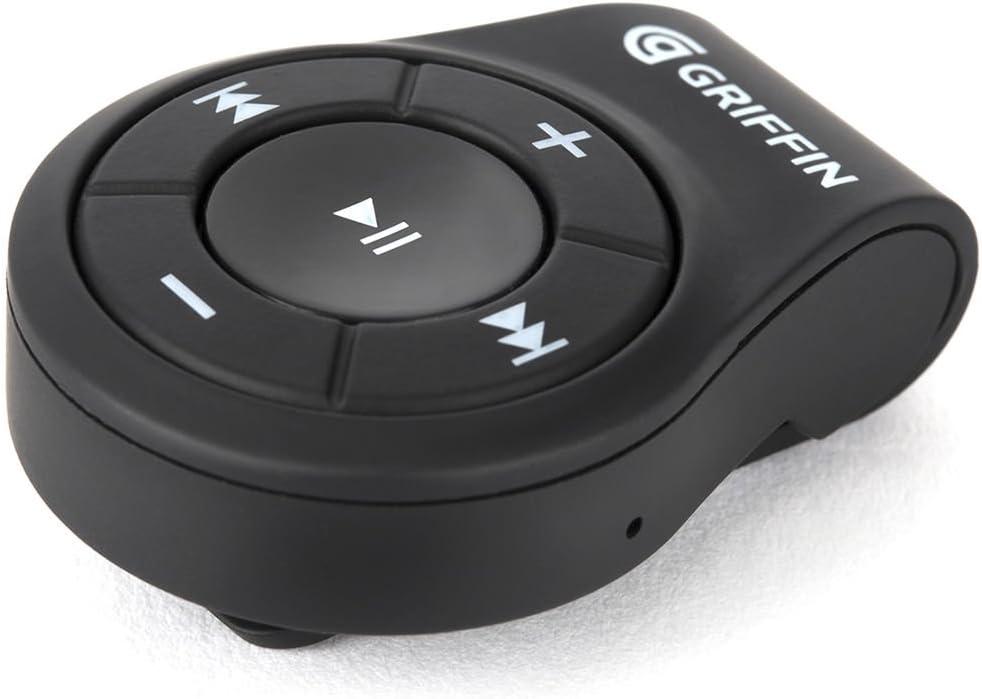
Billede 1: Front view of the Griffin iTrip Clip, showing the central Play/Pause button, Volume Up (+), Volume Down (-), Previous Track, and Next Track buttons. The Griffin logo is visible at the top.
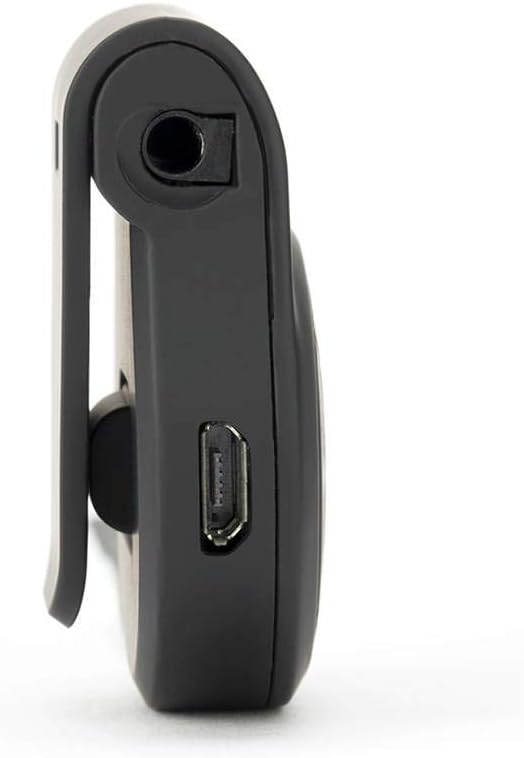
Billede 2: Side view of the Griffin iTrip Clip, highlighting the 3.5mm audio output jack for headphones and the micro-USB charging port.

Billede 3: Tilbage view of the Griffin iTrip Clip, showing the integrated clip for attaching the device to clothing or bags.
Opsætning
1. Charging the iTrip Clip
Before first use, fully charge your iTrip Clip. A full charge typically provides approximately 6 hours of battery life.
- Connect the supplied micro-USB charging cable to the micro-USB port on the iTrip Clip.
- Tilslut den anden ende af kablet til en USB-strømkilde (f.eks. en computers USB-port eller en USB-vægadapter).
- LED-indikatoren lyser under opladning og skifter farve eller slukker, når den er fuldt opladet.
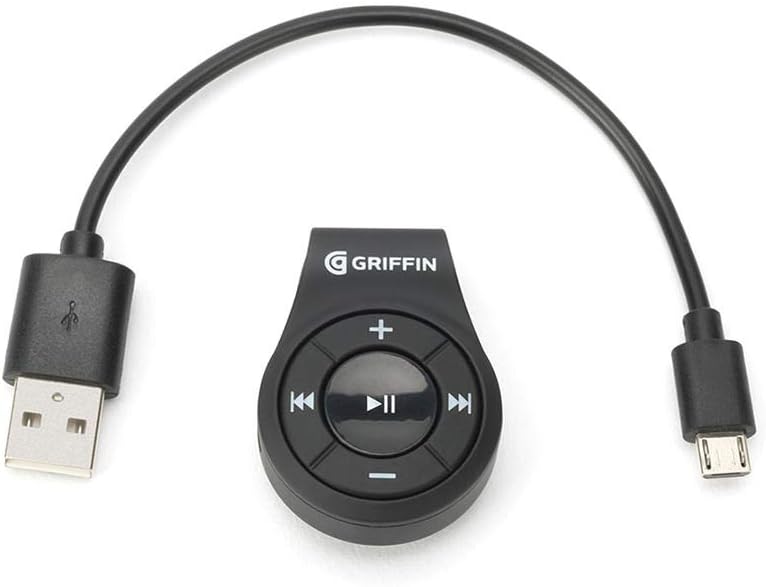
Billede 4: The Griffin iTrip Clip connected to its micro-USB charging cable, ready for power input.
2. Parring med en Bluetooth-enhed
The iTrip Clip needs to be paired with your smartphone or other Bluetooth audio source to receive audio wirelessly.
- Ensure the iTrip Clip is turned off.
- On your smartphone or Bluetooth device, enable Bluetooth and open the Bluetooth settings to search for new devices.
- Press and hold the central Afspil/pause button on the iTrip Clip for approximately 7 seconds until the LED indicator flashes rapidly (often blue and red), indicating it is in pairing mode.
- On your device, select "iTrip Clip" from the list of available Bluetooth devices.
- Once paired, the LED indicator will typically flash slowly or turn solid blue, and you may hear an audible confirmation.
- Hvis du bliver bedt om en adgangskode, skal du indtaste "0000".
Note: The iTrip Clip will automatically attempt to reconnect to the last paired device when powered on.
3. Connecting Wired Headphones
Plug your wired headphones with a standard 3.5mm audio jack into the 3.5mm port on the iTrip Clip.
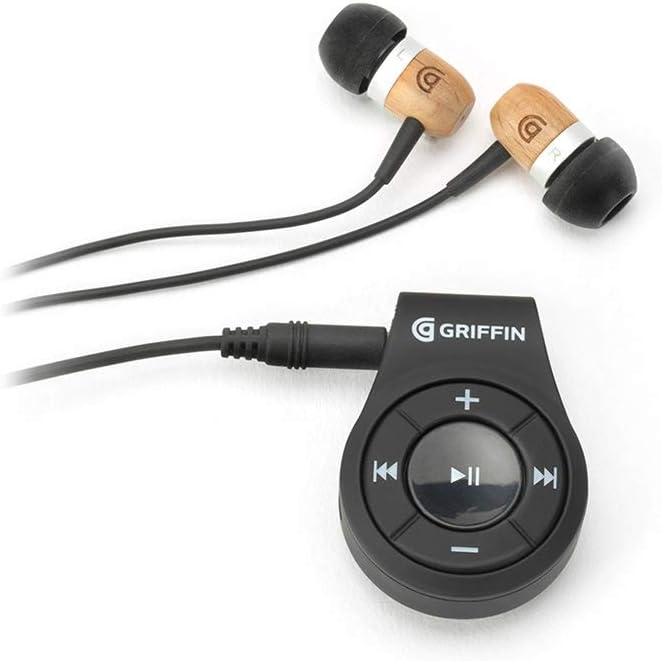
Billede 5: The Griffin iTrip Clip with a pair of wired earbuds plugged into its 3.5mm audio jack, demonstrating its primary function.
Betjeningsvejledning
| Knap/handling | Fungere |
|---|---|
| Afspil/pause knap (Central) |
|
| Knappen Lydstyrke op (+) | Enkelt tryk: Øg lydstyrken |
| Lydstyrke ned (-)-knap | Enkelt tryk: Sænk lydstyrken |
| Knappen Næste spor (højre pil) | Single press: Skip to next track |
| Forrige track-knap (venstre pil) | Single press: Go to beginning of current track; double press: Go to previous track |
The iTrip Clip features an integrated microphone for hands-free calling. When making or receiving calls, the microphone on the iTrip Clip will be active, not the microphone on your connected headphones (if any).
Opretholdelse
- Rensning: Use a soft, dry cloth to clean the exterior of the iTrip Clip. Do not use liquid cleaners or aerosols.
- Opbevaring: Opbevar enheden et køligt, tørt sted væk fra direkte sollys og ekstreme temperaturer.
- Batteripleje: For at forlænge batteriets levetid bør du undgå at aflade enheden helt ofte. Oplad den regelmæssigt, selvom den ikke er i brug i længere perioder.
- Vandeksponering: The iTrip Clip is not waterproof. Avoid exposure to water or excessive moisture.
Fejlfinding
Enheden tænder ikke
- Ensure the device is fully charged. Connect it to a power source using the micro-USB cable and allow it to charge for at least 30 minutes before attempting to power on again.
- Verify you are pressing and holding the Afspil/pause button for approximately 3 seconds to power on.
Kan ikke parre med Bluetooth-enhed
- Ensure the iTrip Clip is in pairing mode (LED flashing rapidly, typically blue and red). If not, turn it off and then press and hold the Afspil/pause knappen i 7 sekunder.
- Make sure Bluetooth is enabled on your source device (smartphone, tablet, etc.) and it is discoverable.
- Move the iTrip Clip closer to your source device.
- Try turning off Bluetooth on your source device, then turning it back on.
- If the iTrip Clip was previously paired with another device, ensure that device's Bluetooth is turned off or the iTrip Clip is disconnected from it.
- On your source device, try "forgetting" or "unpairing" the iTrip Clip from your Bluetooth device list, then attempt the pairing process again.
Ingen lyd eller dårlig lydkvalitet
- Ensure your wired headphones are securely plugged into the 3.5mm audio jack of the iTrip Clip.
- Check the volume levels on both the iTrip Clip and your connected Bluetooth device. Increase both.
- Verify that the iTrip Clip is successfully paired and connected to your Bluetooth device.
- Test with a different pair of wired headphones to rule out headphone issues.
- Ensure there are no obstructions or excessive distance between the iTrip Clip and your Bluetooth source device.
- If sound quality is muffled or distorted, try disconnecting and reconnecting the Bluetooth connection.
Call Quality Issues / Microphone Not Working
- The iTrip Clip uses its own integrated microphone for calls. Ensure the device is clipped in a position where the microphone is not obstructed and is close to your mouth for optimal clarity.
- Check that your phone's audio output is routed to the iTrip Clip during a call.
Specifikationer
| Feature | Detalje |
|---|---|
| Modelnummer | FBA_GC42924 |
| Forbindelsesteknologi | Bluetooth |
| Strømkilde | Batteridrevet |
| Materiale | Plast |
| Produktdimensioner | 1.32 x 1.47 x 2.94 tommer |
| Varens vægt | 0.05 ounce |
| Speciel funktion | Wireless audio receiver |
Garantioplysninger
Griffin Technology products are designed and manufactured to high quality standards. For specific warranty terms and conditions applicable to your iTrip Clip, please refer to the warranty card included with your purchase or visit the official Griffin Technology webwebsted. Gem din købsbevis til garantikrav.
Støtte
For yderligere assistance, teknisk support eller til view frequently asked questions, please visit the official Griffin Technology support webwebsted. Du kan typisk finde kontaktoplysninger til kundeservice der.
Please note: Product specifications and features are subject to change without notice.