
1. Introduktion
Denne manual indeholder detaljerede instruktioner til det stikbare USB-C til DisplayPort tovejskabel (model USBC-DP). Dette kabel er designet til at forbinde USB-C-aktiverede enheder til DisplayPort-skærme eller DisplayPort-aktiverede enheder til USB-C-skærme, hvilket understøtter video- og lydtransmission i høj opløsning.

Billede: Det stikbare USB-C til DisplayPort tovejskabel, vistasinbåde USB-C- og DisplayPort-stikkene.
2. Nøglefunktioner
- Tovejsforbindelse: Understøtter både USB-C til DisplayPort og DisplayPort til USB-C videoudgang, hvilket giver fleksible tilslutningsmuligheder.
- Høj opløsning support: Muliggør opløsninger på op til 4K ved 60Hz (3840x2160).
- Tilslut og brug: Ingen drivere eller softwareinstallation kræves for drift.
- Holdbart design: Har en aluminiumsskal på begge stik og et nylonflettet kabel for forbedret holdbarhed.
- Bred kompatibilitet: Kompatibel med systemer, der understøtter DisplayPort Alt-tilstand via USB-C, USB4 eller Thunderbolt 3/4, herunder forskellige MacBooks, iPads, HP, Dell, Lenovo, Microsoft Surface og LG Gram-modeller.
3. Opsætningsvejledning
Følg disse trin for at tilslutte din enhed ved hjælp af det stikbare USB-C til DisplayPort tovejskabel:
- Identificér porte: Sørg for, at din kildeenhed (f.eks. bærbar computer, tablet) har en USB-C-port, der understøtter DisplayPort Alt Mode, USB4 eller Thunderbolt 3/4. Sørg for, at din skærmenhed (f.eks. skærm, tv) har en DisplayPort-indgang.
- Tilslut USB-C-ende: Sæt USB-C-stikket på kablet i den kompatible USB-C-port på din kildeenhed.
- Tilslut DisplayPort-enden: Sæt DisplayPort-stikket på kablet i DisplayPort-indgangen på din skærmenhed.
- Tænd enheder: Sørg for, at både din kildeenhed og skærmenhed er tændt.
- Konfigurer skærmindstillinger: Din skærm burde automatisk registrere forbindelsen. Hvis ikke, skal du muligvis manuelt vælge DisplayPort-indgangen på din skærm eller justere skærmindstillingerne på din kildeenhed (f.eks. udvidet, spejlet eller primær skærmtilstand).

Billede: Nærbillede view af USB-C- og DisplayPort-stikkene, der illustrerer tilslutningsprocessen.
4. Betjeningsvejledning
Når kablet er tilsluttet, muliggør det overførsel af video og lyd mellem dine enheder. Her er almindelige driftstilstande:
- MirrorMode: Duplikerer din kildeenheds skærm til den eksterne skærm. Dette er nyttigt til præsentationer eller deling af indhold.
- Udvid tilstand: Udvider dit skrivebord på tværs af flere skærme, hvilket giver mulighed for øget arbejdsområde og multitasking.
- Primær skærmtilstand: Bruger den eksterne skærm som eneste output, mens kildeenhedens skærm er slukket.
For at skifte mellem disse tilstande skal du gå til dit operativsystems skærmindstillinger:
- Windows: Højreklik på skrivebordet, vælg "Skærmindstillinger", og vælg din foretrukne skærmindstilling.
- MacOS: Gå til "Systemindstillinger" (eller "Systempræferencer"), derefter "Skærm", og juster indstillingerne for arrangement eller spejling.

Billede: En bærbar computer tilsluttet en ekstern skærm, der demonstrerer både udvidet og spejlvendt visning for forbedret produktivitet.
5. Kompatibilitet
Det stikbare USB-C til DisplayPort tovejskabel er kompatibelt med en bred vifte af enheder og operativsystemer:
Understøttede enheder:
- M1-M4 MacBooks (basis- og Pro/Max-modeller)
- Intel Thunderbolt Macs (slutningen af 2016 og nyere)
- iPhone 15/16 og Pro-modeller
- iPad Pro/Air/mini
- HP ProBook/EliteBook/Spectre x360
- Dell XPS/Latitude/Inspiron
- Lenovo ThinkPad/IdeaPad/Yoga
- Microsoft Surface Pro/Go/Bog/Bærbar computer
- LG Gram
- Tusindvis af andre standardkompatible USB-C bærbare computere.
Understøttede operativsystemer:
- Windows 10/11
- macOS 11+
- ChromeOS 100+
- Linux
Note:
- Kræver et system med DisplayPort Alt-tilstand via USB-C, USB4 eller Thunderbolt 3/4.
- Fuldt kompatibel med DisplayPort-kildeenheder og komplette USB-C-skærme.
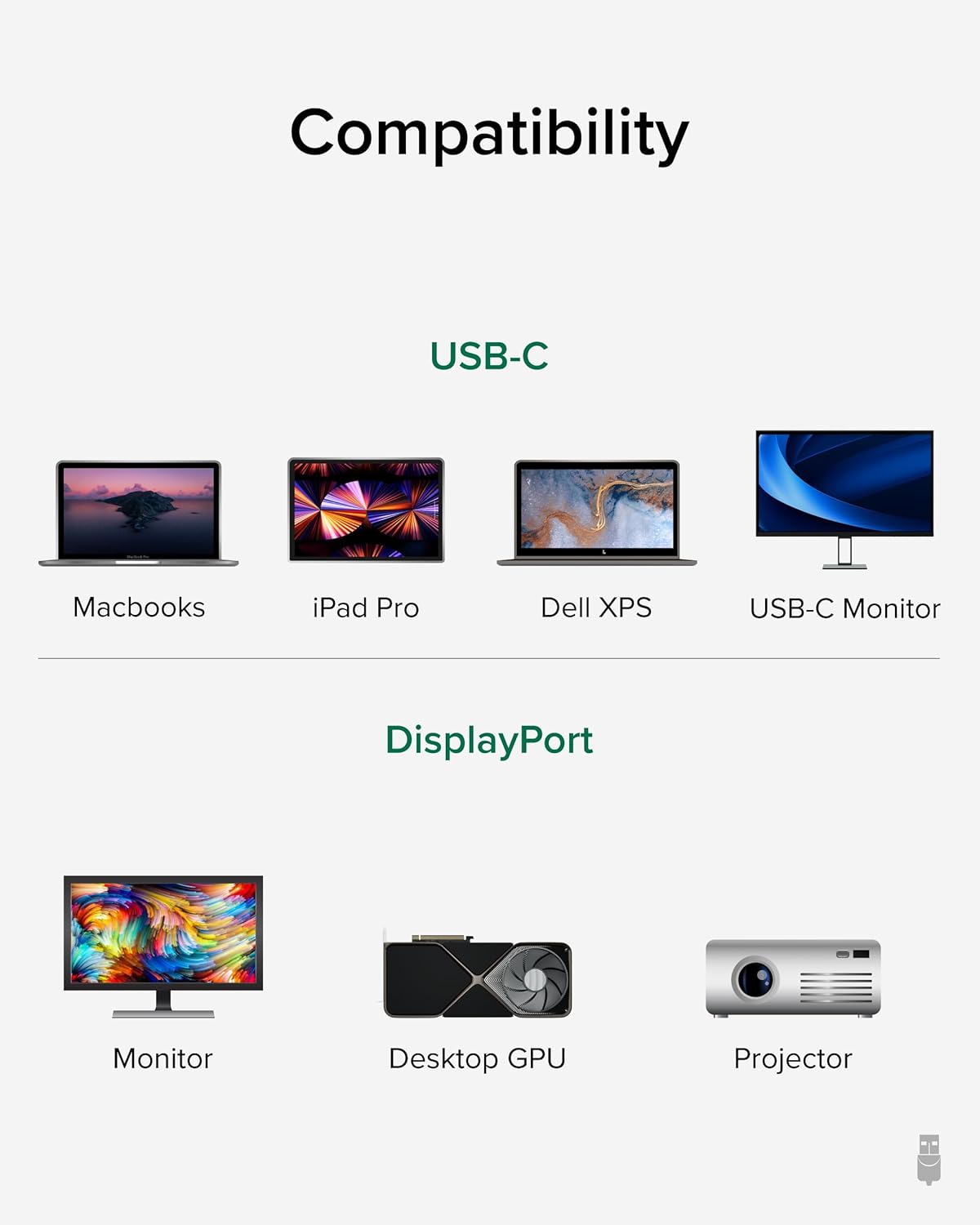
Billede: En visuel guide, der illustrerer kompatibilitet med forskellige USB-C-enheder (MacBooks, iPad Pro, Dell XPS, USB-C-skærm) og DisplayPort-enheder (skærm, stationær grafikkort, projektor).
6. Vedligeholdelse
For at sikre lang levetid og optimal ydeevne for dit stikbare USB-C til DisplayPort tovejskabel, skal du følge disse vedligeholdelsesretningslinjer:
- Håndteres med forsigtighed: Undgå at bøjle, vride eller trække for meget i kablet, især i nærheden af stikkene.
- Opbevar korrekt: Når kablet ikke er i brug, skal det rulles løst op og fastgøres med den medfølgende kabelbinder eller lignende. Undgå stram oprulning, der kan belaste de indvendige ledninger.
- Hold rent: Tør kablet og stikkene regelmæssigt af med en blød, tør klud for at fjerne støv og snavs. Undgå at bruge skrappe kemikalier eller slibende materialer.
- Beskyt stik: Sørg for, at stikkene ikke udsættes for væsker eller ekstreme temperaturer.
7. Fejlfinding
Hvis du støder på problemer med dit stikbare USB-C til DisplayPort tovejskabel, skal du overveje følgende fejlfindingstrin:
- Intet display/signal:
- Sørg for, at begge enheder er tændt, og at kablet er korrekt tilsluttet i begge ender.
- Bekræft, at din kildeenheds USB-C-port understøtter DisplayPort Alt Mode, USB4 eller Thunderbolt 3/4. Ikke alle USB-C-porte understøtter videoudgang.
- Kontrollér din skærms indstillinger for inputkilde, og sørg for, at den korrekte DisplayPort-indgang er valgt.
- Test med et andet kompatibelt kabel eller en anden kompatibel enhed for at isolere problemet.
- Flimrende eller intermitterende visning:
- Sørg for, at kablet ikke er beskadiget eller bøjet.
- Reducer skærmopløsningen eller opdateringshastigheden i din enheds skærmindstillinger for at se, om stabiliteten forbedres.
- Opdater dine grafikdrivere på din kildeenhed.
- Ingen lyd:
- Kontrollér din computers lydindstillinger, og sørg for, at DisplayPort-udgangen er valgt som lydenhed.
- Sørg for, at din skærm har indbyggede højttalere eller er tilsluttet ekstern lyd.
- Opløsning/opdateringshastighed ikke som forventet:
- Bekræft, at både din kildeenhed og skærm understøtter den ønskede opløsning og opdateringshastighed.
- Sørg for, at din enheds skærmindstillinger er konfigureret til det ønskede output.
8. Specifikationer
| Feature | Detalje |
|---|---|
| Mærke | Stikbar |
| Modelnummer | USBC-DP |
| Kabellængde | 6 fod (1.8 m) |
| Max opløsning | 4K (3840x2160) ved 60Hz |
| Stik 1 | USB-C han |
| Stik 2 | DisplayPort han |
| Kompatibilitet | DisplayPort Alt-tilstand via USB-C, USB4, Thunderbolt 3/4 |
| Materiale | Aluminiumsstikskaller, nylonflettet kabel |
| Varens vægt | 1.6 ounce |
| Produktdimensioner | 0.39 x 6 x 6.5 tommer |
9. Officiel produktvideo
Video: Produktoversigt: Stikbart USB-C til DisplayPort-adapterkabel. Denne video giver en omfattende oversigtview af kablets funktioner, funktionalitet og fordele.
10. Garanti og support
Stikbare produkter er designet til pålidelighed og brugervenlighed. Denne enhed inkluderer livstidssupport fra vores nordamerikanske team af tilslutningseksperter.
For yderligere hjælp, besøg venligst Plugables support webwebsted eller kontakt deres kundeservice.