
1. Introduktion
Tak for købetasing the PXN 6603 Bluetooth Gamepad. This MFi certified wireless game controller is designed to enhance your gaming experience on iOS devices, including iPhone, iPad, iPod, and Apple TV. Please read this manual carefully before use to ensure proper operation and to maximize the lifespan of your device.
2. Pakkens indhold
Kontroller venligst pakkens indhold ved åbning. Hvis der mangler eller er beskadigede dele, skal du kontakte din forhandler.
- PXN 6603 Bluetooth Gamepad
- Justerbar Clamp Holder
- USB opladningskabel
- Brugermanual
3. Produktet er slutview
Familiarize yourself with the various components of your PXN 6603 Gamepad.
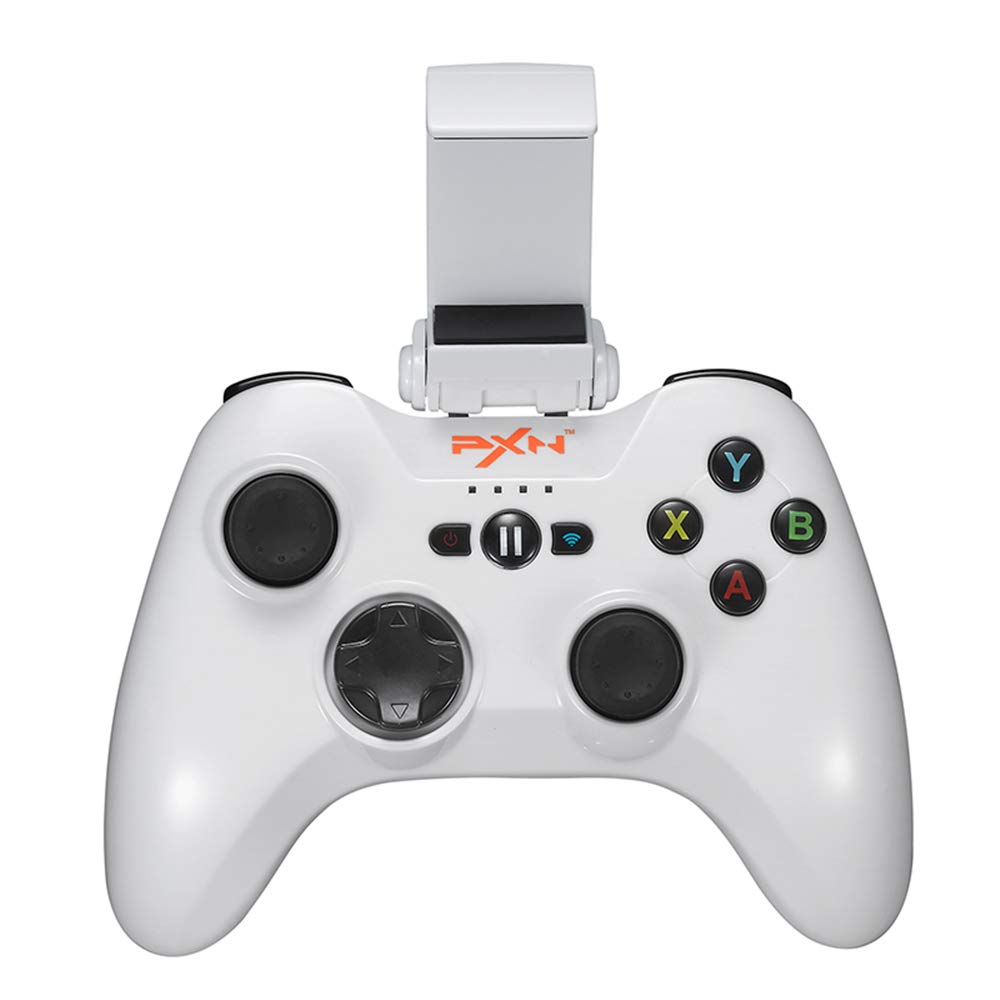
Billede 1: PXN 6603 Bluetooth Gamepad. This image shows the front view of the orange gamepad with its dual analog sticks, D-pad, action buttons (A, B, X, Y), shoulder buttons (L1, R1, L2, R2), and the adjustable phone clamp holder attached.
3.1 Controllerlayout
- Venstre analoge pind: Til retningsbestemt kontrol.
- Højre analoge pind: For camera or additional directional control.
- D-Pad (retningspad): Til præcis retningsbestemt input.
- Handlingsknapper (A, B, X, Y): Til handlinger i spillet.
- Skulderknapper (L1, R1): Topudløsere.
- Udløserknapper (L2, R2): Bundudløsere.
- HJEM knap: Powers on/off the controller and returns to iOS home screen.
- PAUSE knap: Pauses gameplay.
- Batteriindikatorlys: Shows battery status and connection.
- Opladningsport: Micro USB-port til opladning.
4. Opsætning
4.1 Opladning af controlleren
- Connect the small end of the USB charging cable to the charging port on the controller.
- Tilslut den store ende af USB-opladerkablet til en USB-strømkilde (f.eks. en computers USB-port eller en USB-vægadapter).
- The battery indicator lights will show charging status. Once fully charged, the lights will indicate a full battery or turn off.
- En fuld opladning tager typisk cirka 2-3 timer.
4.2 Attaching the Adjustable Clamp Holder
- Locate the slot on the top of the PXN 6603 Gamepad.
- Skub den justerbare clamp holder onto the slot until it clicks securely into place.
- Adjust the angle of the holder as needed.
- Carefully place your iOS device into the clamp, ensuring it is held firmly without obstructing any buttons or ports.
4.3 Bluetooth Pairing with iOS Devices
- Sørg for, at controlleren er opladet.
- På din iOS-enhed skal du gå til Indstillinger > Bluetooth og tænd Bluetooth.
- Tryk og hold på HJEM button on the PXN 6603 Gamepad for 3 seconds to power it on. The indicator lights will flash, indicating it is in pairing mode.
- On your iOS device, look for "PXN 6603" or a similar name in the list of available devices.
- Tap on "PXN 6603" to pair. The indicator lights on the controller will become solid, indicating a successful connection.
- Once paired, the controller will automatically connect to your iOS device when powered on and Bluetooth is enabled on the device.
5. Betjeningsvejledning
5.1 Tænd/sluk
- Tænd: Tryk og hold på HJEM knappen i 3 sekunder.
- Sluk: Tryk og hold på HJEM button for 5 seconds until the indicator lights turn off. The controller will also automatically power off after 10 minutes of inactivity to conserve battery.
5.2 At spille spil
The PXN 6603 is an MFi certified controller, meaning it is designed to work seamlessly with games that support MFi controllers on iOS. Many games in the App Store will automatically detect and utilize the controller once connected.
- Launch a compatible game on your iOS device.
- The game should recognize the controller automatically. Refer to the game's settings for controller mapping or customization options.
5.3 Battery Status Indication
The LED indicator lights on the controller provide information about the battery status:
- Blinkende lysdioder: Low battery or pairing mode.
- Faste LED'er: Connected and sufficient battery.
- Opladning: LEDs will cycle or show progress.
- Fuldt opladet: LEDs will turn off or show a steady full indicator.
6. Vedligeholdelse
6.1 Rengøring
- Brug en blød, tør klud til at tørre overfladen på controlleren af.
- Til genstridigt snavs, let dampRengør kluden med vand. Brug ikke skrappe kemikalier eller slibende rengøringsmidler.
- Avoid getting liquid into the buttons, joysticks, or charging port.
6.2 Opbevaring
- Opbevar controlleren et køligt, tørt sted væk fra direkte sollys og ekstreme temperaturer.
- Undgå at placere tunge genstande på controlleren.
- If storing for an extended period, charge the controller periodically (e.g., every 3 months) to maintain battery health.
6.3 Pleje af batterier
- Forsøg ikke selv at udskifte det interne batteri. Kontakt support, hvis der opstår problemer med batteriet.
- Undgå at aflade batteriet helt ofte, da dette kan reducere dets levetid.
- Brug kun det medfølgende USB-opladerkabel eller et tilsvarende certificeret kabel.
7. Fejlfinding
If you encounter issues with your PXN 6603 Gamepad, please refer to the following common solutions:
7.1 Controlleren opretter ikke forbindelse/parrer ikke
- Tjek batteri: Ensure the controller is sufficiently charged. Connect it to a power source.
- Bluetooth til: Bekræft, at Bluetooth er aktiveret på din iOS-enhed.
- Reparation: Go to your iOS device's Bluetooth settings, forget "PXN 6603" if it's listed, then attempt to pair again as described in Section 4.3.
- Genstart enheder: Try restarting both your iOS device and the PXN 6603 controller.
- Interferens: Flyt dig væk fra andre trådløse enheder, der kan forårsage interferens.
7.2 Knapper/joysticks reagerer ikke
- Spilkompatibilitet: Ensure the game you are playing supports MFi controllers. Not all games do.
- Genforbindelse: Disconnect and reconnect the controller via Bluetooth.
- Genstart: Power off and on the controller, then restart the game.
- Fysisk obstruktion: Check for any debris or physical obstruction around the buttons or joysticks.
7.3 Opladningsproblemer
- Kabeltjek: Ensure the USB charging cable is securely connected to both the controller and the power source. Try a different USB cable if available.
- Strømkilde: Try a different USB power source (e.g., a different USB port on your computer or a different wall adapter).
- Havnens renhed: Check the controller's charging port for any dust or debris.
8. Specifikationer
| Modelnummer | PXN-6603 |
| Forbindelse | Bluetooth |
| Kompatibilitet | iOS (iPhone, iPad, iPod, Apple TV) |
| Dimensioner | 7.09 x 5.79 x 3.11 tommer |
| Vægt | 1.1 pund |
| Certificering | MFi-certificeret |
| Strømkilde | Genopladeligt batteri (via USB) |
9. Garanti og support
PXN products are designed for reliability and performance. For specific warranty information, please refer to the warranty card included with your product or visit the official PXN webwebsted. Behold din købskvittering som købsbevis i tilfælde af garantikrav.
If you require technical support or have questions not covered in this manual, please contact PXN customer service through their official webwebstedet eller kontaktoplysningerne på din produktemballage.