
1. Introduktion
This manual provides essential information for the safe and efficient use of your InFocus IF195a Touch Pad. Please read this manual thoroughly before operating the device and retain it for future reference.
2. Sikkerhedsoplysninger
- Udsæt ikke enheden for ekstreme temperaturer, direkte sollys eller høj luftfugtighed.
- Undgå at tabe eller udsætte enheden for kraftige stød.
- Use only the charger provided or approved by InFocus.
- Forsøg ikke selv at skille enheden ad eller reparere den. Overlad al service til kvalificeret personale.
- Hold enheden væk fra vand og andre væsker.
- Bortskaf enheden og dens batteri på en ansvarlig måde i henhold til lokale regler.
3. Produktet er slutview
The InFocus IF195a is a 20-inch Android-powered touch pad designed for interactive use. Familiarize yourself with its components.
3.1 Foran View

Figur 1: Front view of the InFocus IF195a Touch Pad. This image shows the large 20-inch display with the Android operating system interface, including various app icons and the Google search bar. The device features a sleek bezel around the screen.
- Vise: 20-inch multi-touch screen.
- Forreste kamera: Located at the top center bezel.
- Mikrofon: Integreret til stemmeinput.
3.2 Side View og havne
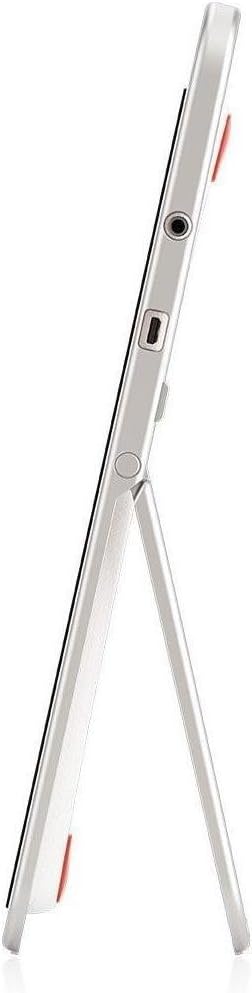
Figur 2: Side view of the InFocus IF195a Touch Pad. This image highlights the device's slim profile and the integrated kickstand, which allows for upright positioning. Visible ports include a headphone jack and a USB port.
- Power knap: Bruges til at tænde/slukke enheden eller sætte den i dvaletilstand.
- Lydstyrkeknapper: Juster enhedens lydudgang.
- Hovedtelefonstik (3.5 mm): Til tilslutning af eksterne lydenheder.
- Mikro-USB-port: Til opladning og dataoverførsel.
- Integreret støtteben: Allows the device to stand upright.
4. Opsætning
4.1 Udpakning og første opkrævning
- Carefully remove the InFocus IF195a Touch Pad and all accessories from the packaging.
- Connect the provided power adapter to the Micro-USB port on the device and plug it into a power outlet. Allow the device to charge fully before first use. The charging indicator will typically show a full battery when complete.
4.2 Tænd/sluk
- For at tænde: Press and hold the Power button until the InFocus logo appears on the screen.
- For at slukke: Tryk på tænd/sluk-knappen og hold den nede, indtil der vises en sluk-menu. Vælg "Sluk", og bekræft.
- At sove/vågne: Tryk kort på tænd/sluk-knappen for at sætte enheden i dvaletilstand eller vække den.
4.3 Guide til indledende opsætning
Når enheden tændes første gang, vil den guide dig gennem en indledende opsætningsproces:
- Sprogvalg: Vælg dit foretrukne sprog.
- Wi-Fi-forbindelse: Select your Wi-Fi network from the list and enter the password. A stable internet connection is required for many features.
- Google-konto: Sign in with an existing Google account or create a new one. This is necessary to download apps from the Google Play Store and access Google services.
- Dato og tid: Set the correct date and time or allow the device to set it automatically via the network.
- Privatlivsindstillinger: Review og juster privatlivsindstillingerne efter behov.
5. Betjening af enheden
5.1 Tryk på Bevægelser
- Tryk på: Tryk én gang på skærmen for at vælge et element eller åbne et program.
- Tryk og hold: Tryk og hold på et element for at få adgang til kontekstmenuer eller træk elementer.
- Stryg: Træk fingeren hen over skærmen for at rulle gennem lister eller skifte mellem startskærme.
- Knib-for-at-zoome: Brug to fingre til at zoome ind eller ud på billeder, kort eller web sider.
5.2 Startskærm og navigation
- Hjemknappen: Returns you to the main home screen.
- Tilbage knap: Returns to the previous screen or closes the current application.
- Knappen Seneste apps: Displays a list of recently used applications for quick switching.
- Meddelelsespanel: Stryg nedad fra toppen af skærmen for at få adgang til notifikationer og hurtigindstillinger.
5.3 Installation og administration af applikationer
- Google Play Butik: Open the "Play Store" app to browse and download applications. A Google account is required.
- Installation af apps: Select an app and tap "Install." Follow on-screen prompts for permissions.
- Afinstallation af apps: Gå til Indstillinger > Apps, select the desired app, and tap "Uninstall." Alternatively, touch and hold an app icon on the home screen and drag it to the "Uninstall" option (if available).
5.4 Tilslutning til eksterne enheder
- Hovedtelefoner: Sæt 3.5 mm hovedtelefoner i hovedtelefonstikket.
- USB-enheder: Connect compatible USB devices (e.g., flash drives, keyboards) to the Micro-USB port using an appropriate adapter if necessary. The device supports USB On-The-Go (OTG).
6. Vedligeholdelse
6.1 Rengøring af enheden
- Brug en blød, fnugfri klud til at rengøre skærmen og enhedens krop.
- For genstridige mærker, let dampRengør kluden med vand eller en skærmrens, der er specielt designet til elektronik.
- Undgå at bruge skrappe kemikalier, slibende rengøringsmidler eller aerosolspray.
6.2 Pleje af batterier
- For at forlænge batteriets levetid bør du undgå at aflade batteriet helt ofte.
- Lad ikke enheden være tilsluttet opladeren i længere tid ad gangen, efter den er fuldt opladet.
- Opbevar enheden et køligt og tørt sted, hvis den ikke bruges i længere tid, med batteriet opladet til ca. 50%.
6.3 Softwareopdateringer
Tjek regelmæssigt for softwareopdateringer for at sikre optimal ydeevne og sikkerhed. Gå til Settings > About tablet > System updates to check for and install available updates. Ensure your device is connected to Wi-Fi and has sufficient battery charge before starting an update.
7. Fejlfinding
| Problem | Mulig løsning |
|---|---|
| Enheden vil ikke tænde. | Ensure the device is charged. Connect the charger and wait a few minutes before attempting to power on again. If unresponsive, perform a hard reset by holding the power button for 10-15 seconds. |
| Problemer med Wi-Fi-forbindelse. | Tjek om Wi-Fi er aktiveret i indstillingerne. Genstart din Wi-Fi-router. Glem netværket, og genopret forbindelsen. Sørg for, at du er inden for Wi-Fi-signalets rækkevidde. |
| Applikationer går ned eller fryser. | Close and restart the application. Clear the app's cache (Indstillinger > Apps > [Appnavn] > Lager > Ryd cacheHvis problemet fortsætter, skal du afinstallere og geninstallere appen. |
| Skærmen reagerer ikke. | Restart the device. Ensure the screen is clean and free of debris. If the issue continues, contact support. |
| Langsom ydeevne. | Close unnecessary background applications. Clear cache for frequently used apps. Check available storage (Indstillinger > Lager) and free up space if needed. Consider a factory reset as a last resort. |
7.1 Fabriksindstilling
En fabriksnulstilling sletter alle data fra din enhed og gendanner den til dens oprindelige fabriksindstillinger. Sikkerhedskopier alle vigtige data, før du fortsætter.
- Gå til Indstillinger > Sikkerhedskopiering og nulstilling > Nulstilling til fabriksindstillinger.
- Read the warning message carefully.
- Tap "Reset tablet" and then "Erase everything" to confirm.
- Enheden genstarter og starter nulstillingsprocessen.
8. Tekniske specifikationer
| Feature | Specifikation |
|---|---|
| Model | IF195a |
| Mærke | InFokus |
| Skærmstørrelse | 20 tommer |
| Maksimal opløsning | 1600 x 900 |
| Processor | ARM Cortex-A15 Quad-Core 1.8 GHz |
| RAM kapacitet | 2 GB |
| Lagerkapacitet | 16 GB |
| Operativsystem | Android 4.4 KitKat |
| Bagkameraopløsning | 5 MP |
| Dimensioner (L x B x H) | 61.6 x 47 x 8.6 cm |
| Vægt | 3.7 kg |
| Farve | Grå |
9. Garanti og support
For warranty information, please refer to the warranty card included with your product or visit the official InFocus website. For technical support, product registration, or service inquiries, please contact InFocus customer service through their official channels.
Please note that warranty terms may vary by region and retailer. Keep your proof of purchase for warranty claims.